Your fans are roaring, the PC feels sluggish, and when you finally open Task Manager you spot a process eating into your processor while you are barely doing anything. High CPU usage drags everything down, from web pages to file transfers, and it can be tied to anything from a background updater to an aging driver. The good news is that you can work through it methodically, starting with the safest checks first and only touching deeper settings if the easy fixes do not stick. Here are seven supported ways to bring CPU usage back under control on Windows 10 and Windows 11.
Start by Confirming What Is Actually Eating Your CPU
Before changing a single setting, find out which process is responsible. Task Manager is the built-in tool for this, and it shows you live resource usage so you are not guessing.
Press Ctrl + Shift + Esc to open Task Manager.
Open the Processes tab to see what is consuming CPU, memory, and disk.
Right-click any app you are not using and close it.
Review the Performance and Startup apps tabs for a fuller picture of resource use.
Note the name of whatever is sitting at the top of the CPU column. The specific entry you see, whether an app, a driver-related service, or the search indexer, determines which of the fixes below will actually help, so confirm the culprit in Task Manager before applying anything.
Fix 1: Install Every Pending Windows and Driver Update
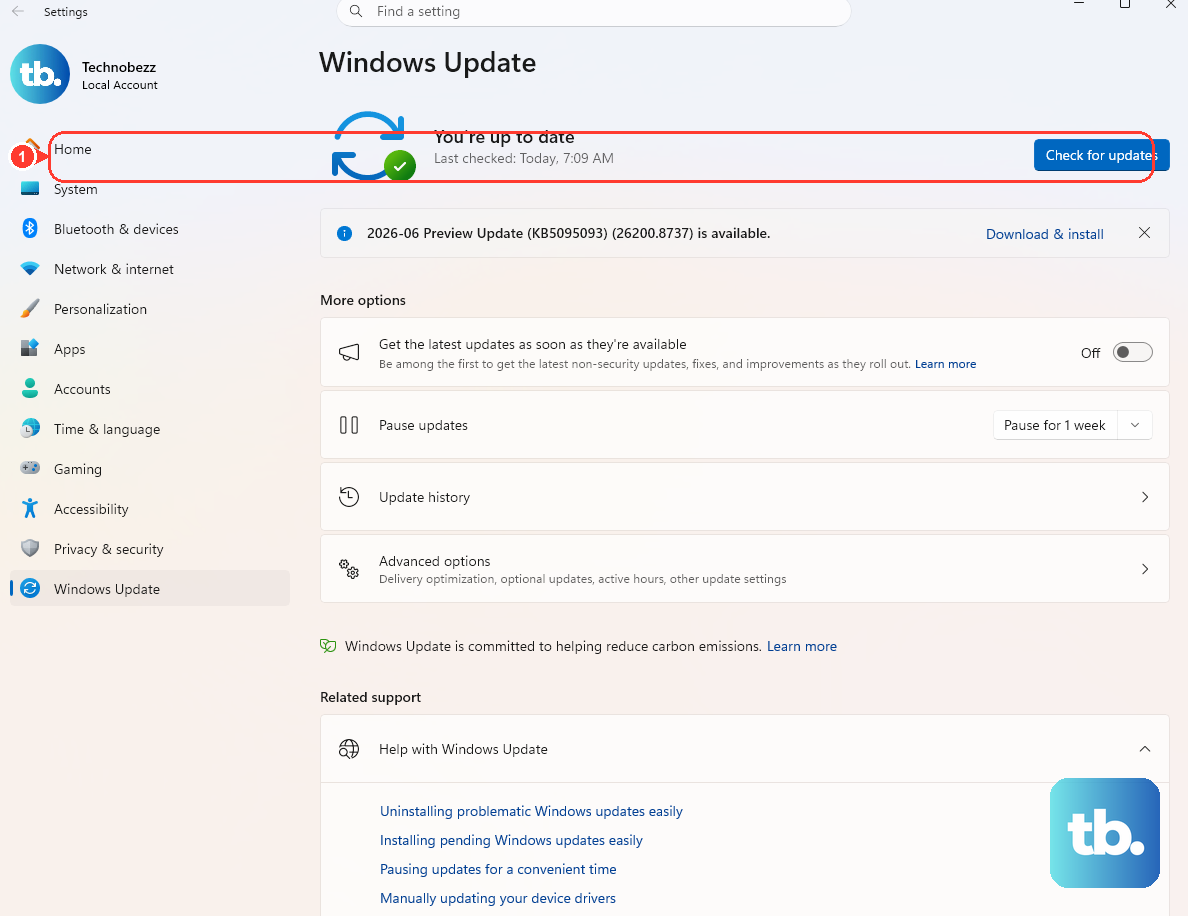
Windows updates frequently bundle fixes and performance improvements, and the recommended way to get driver updates is automatically through Windows Update. This is the lowest-risk fix, so do it first.
Go to Start > Settings > Windows Update > Check for updates and install what it offers.
Then open Start > Settings > Windows Update > Advanced options > Optional updates to pick up any optional driver updates.
Restart when prompted so the changes take effect. If a recent update is what calmed things down, you are done; if not, move on to the next fix.
Fix 2: Scan for Malware With Windows Security
Malicious software is a common reason a processor stays pinned, and Windows includes a scanner you do not have to download. Scanning for malware is a standard performance fix.
Go to Start > Settings > Privacy & security > Windows Security > Virus & threat protection.
Select Quick scan and let it finish.
For a deeper check, open Virus & threat protection > Scan options and choose Full scan.
If something keeps coming back, choose Microsoft Defender Antivirus (offline scan) from the same Scan options screen; it runs after a restart, before Windows fully loads, which helps it catch stubborn threats. You can review what was found afterward under Protection history.
Fix 3: Update the Driver for the Device Behind the Spike
If Task Manager pointed you toward a particular piece of hardware, refreshing its driver through Device Manager is the targeted move. Windows can usually fetch the right one for you.
Right-click the Start menu and select Device Manager.
Expand the relevant device category, then right-click the device and select Update driver.
Choose Search automatically for updated driver software (you can also choose Search for updated drivers on Windows Update).
If you have already downloaded a newer driver from the hardware brand's official support site, choose Browse my computer for drivers instead and point Windows to the file you saved. Either way, restart afterward and check Task Manager again.
Fix 4: Trim the Apps That Launch at Startup
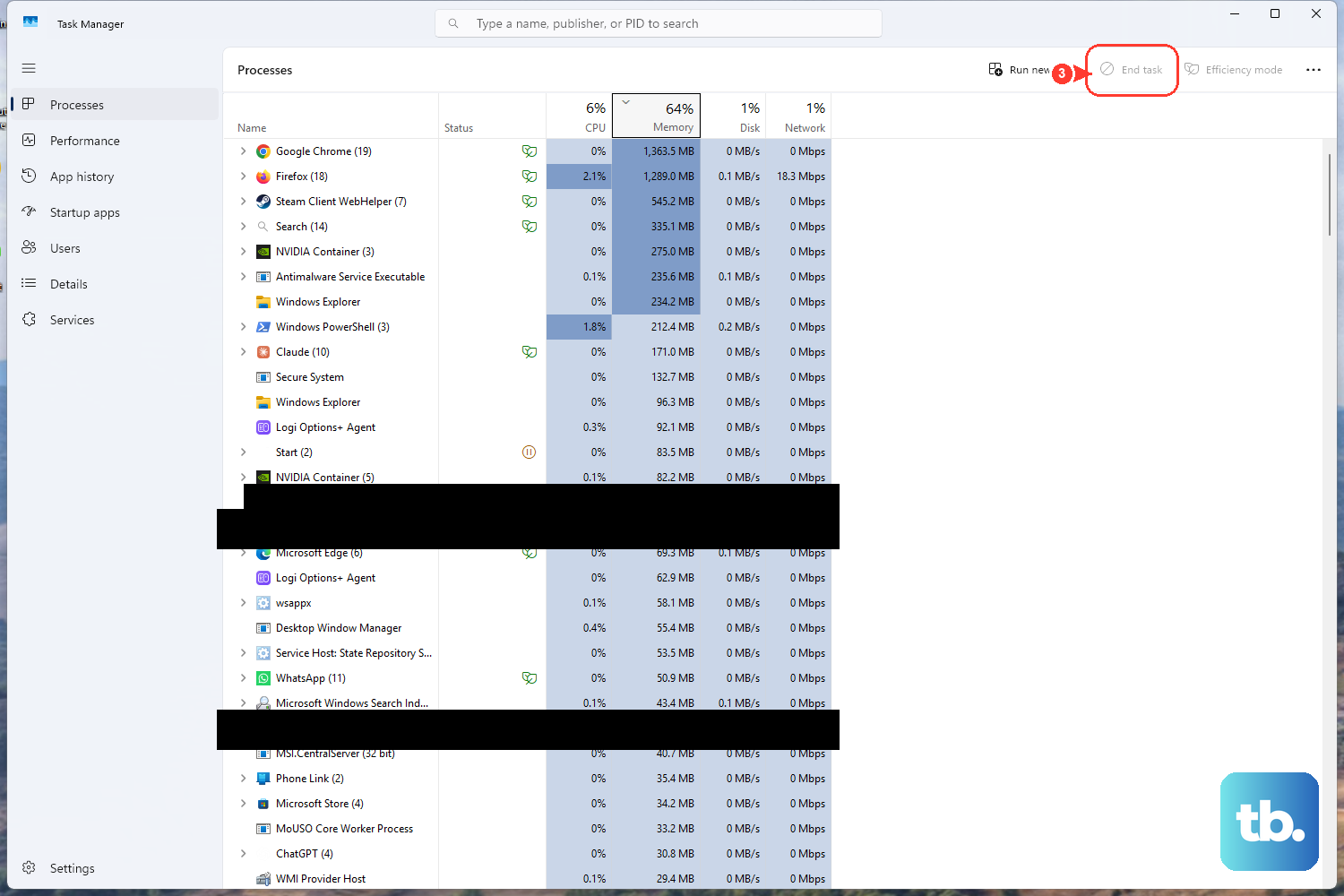
Programs that start automatically with Windows keep running quietly in the background, adding to CPU and disk activity at and after login. Disabling the ones you do not need at boot is a quick win.
Press Ctrl + Shift + Esc to open Task Manager.
Open the Startup apps tab.
Right-click an app you do not need at startup and select Disable.
Disabling a startup app does not uninstall it; you can still open it manually when you want it. Focus on heavy or unfamiliar entries first and leave anything you rely on alone.
Fix 5: Free Up Disk Space So Windows Has Room to Breathe
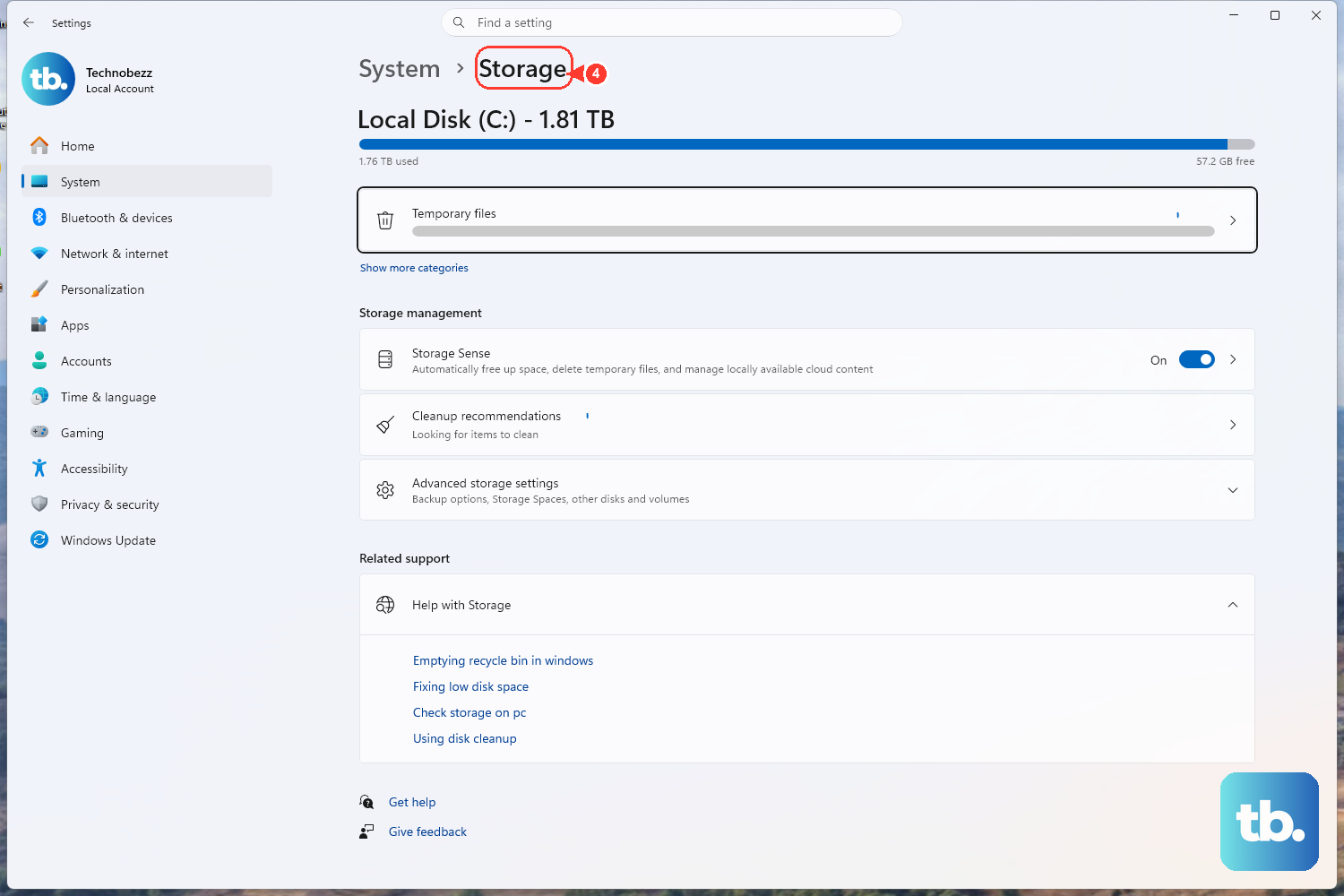
Low free space hurts performance because the operating system and some apps need room for the page or swap file. Windows offers a few built-in ways to clear out clutter.
Run Storage Sense at Start > Settings > System > Storage > Storage Sense > Run Storage sense now.
Remove temporary files at Start > Settings > System > Storage > Temporary files > Remove files.
Or open Disk Cleanup by selecting Start and typing Disk Cleanup.
The more headroom you leave on the drive, the more room the system has for the page file and routine background work. If your drive was nearly full, clearing it can ease both CPU and disk pressure.
Fix 6: Tame Windows Search Instead of Killing It
If Task Manager shows Windows Search or SearchIndexer near the top, the indexer is likely working through a large number of items, which can drive up CPU, memory, or disk usage. The fix is to tune it rather than disable it, because Microsoft specifically advises against apps that turn the Windows Search service off.
From the indexing options in Settings, you can rebuild the index if it has become corrupted, and you can exclude folders you do not need searched so the indexer has less to work through. A rebuild can take a long time to finish on a drive with many files, so start it when you do not need the machine and give it time.
To restart the service after making changes, use the Services tab of Task Manager, or run services.msc from the Run box (Win + R) and look for the service named Windows Search (service name wsearch).
Reclaiming Space in the Search Index Database
For a database that has grown bloated, there is a documented sequence that defragments the search index and then restores the service to normal. Run these in an administrator Command Prompt, in order, and reproduce each line exactly:
- 1.Sc config wsearch start=disabled
- 2.Net stop wsearch
- 3.EsentUtl.exe /d %AllUsersProfile%\Microsoft\Search\Data\Applications\Windows\Windows.edb (the database file is Windows.edb on Windows 10; on Windows 11 it is Windows.db)
- 4.Sc config wsearch start=delayed-auto
- 5.Net start wsearch
The first command pauses the service only for the duration of this maintenance; the last two steps put it back to its normal Automatic (Delayed Start) state. Do not stop at the disable step, since leaving the search service off is not recommended.
Fix 7: Check Your Power Mode and Active Power Plan
If your processor seems throttled or behaves inconsistently, your power settings may be involved. You can set the system to favor performance.
Go to Start > Settings > System > Power & battery.
Set the Power mode dropdown to Best performance (the other options are Balanced and Best power efficiency).
Keep in mind that Best performance increases power consumption and drains laptop batteries faster, so it is better suited to a plugged-in desktop or a laptop on AC power. If the power mode cannot be changed at all, a custom power plan may be active; switch it under Control Panel > System and Security > Power Options and select Balanced.
Frequently Asked Questions
How do I find out which process is using my CPU?
Press Ctrl + Shift + Esc to open Task Manager, then use the Processes tab to see what is consuming CPU, memory, and disk. The Performance and Startup apps tabs give you additional detail, and you can right-click apps you are not using to close them.
Should I disable the Windows Search service to stop high CPU usage?
No. Microsoft recommends against apps that disable the Windows Search service. Instead, rebuild the index, exclude folders you do not need indexed, or restart the service from the Services tab of Task Manager or services.msc (service name wsearch). The disable command should only be used as part of the index-defragment sequence that re-enables the service at the end.
How much free disk space should I keep?
Leave as much headroom as you reasonably can rather than running the drive close to full. The operating system and some apps need room for the page or swap file, and running short on space can hurt performance. Storage Sense, the Temporary files option, and Disk Cleanup all help you reclaim space.
What should I do if my PC also freezes or unexpectedly restarts?
Work through the documented checklist: if you recently added hardware, shut down and remove it, then restart; start in Safe Mode to troubleshoot; open Device Manager (right-click Start > Device Manager) and look for any device flagged with an exclamation point; free up disk space; install the latest Windows updates; and, if needed, restore Windows from a system restore point.
Will Best performance power mode harm my laptop?
It will not damage it, but Best performance increases power consumption and drains laptop batteries faster. On a laptop running on battery, Balanced is often the more sensible choice; reserve Best performance for when you are plugged in.