Your Windows 11 PC takes too long to get from the power button to a usable desktop. You sign in, then wait while icons populate the taskbar and the disk grinds before anything responds.
Most of that delay comes from apps that launch themselves at sign-in. The more programs that auto-start, and the heavier each one is, the longer your boot drags. Some of them you never use right away, yet they all demand CPU and disk the moment Windows loads.
The good news is that you control which apps start with Windows, and trimming the list is fast. Work through the methods below in order, quickest and most common first. One important note up front: startup changes do not apply instantly. They take effect after your next restart.
Turn Off Startup Apps in Settings
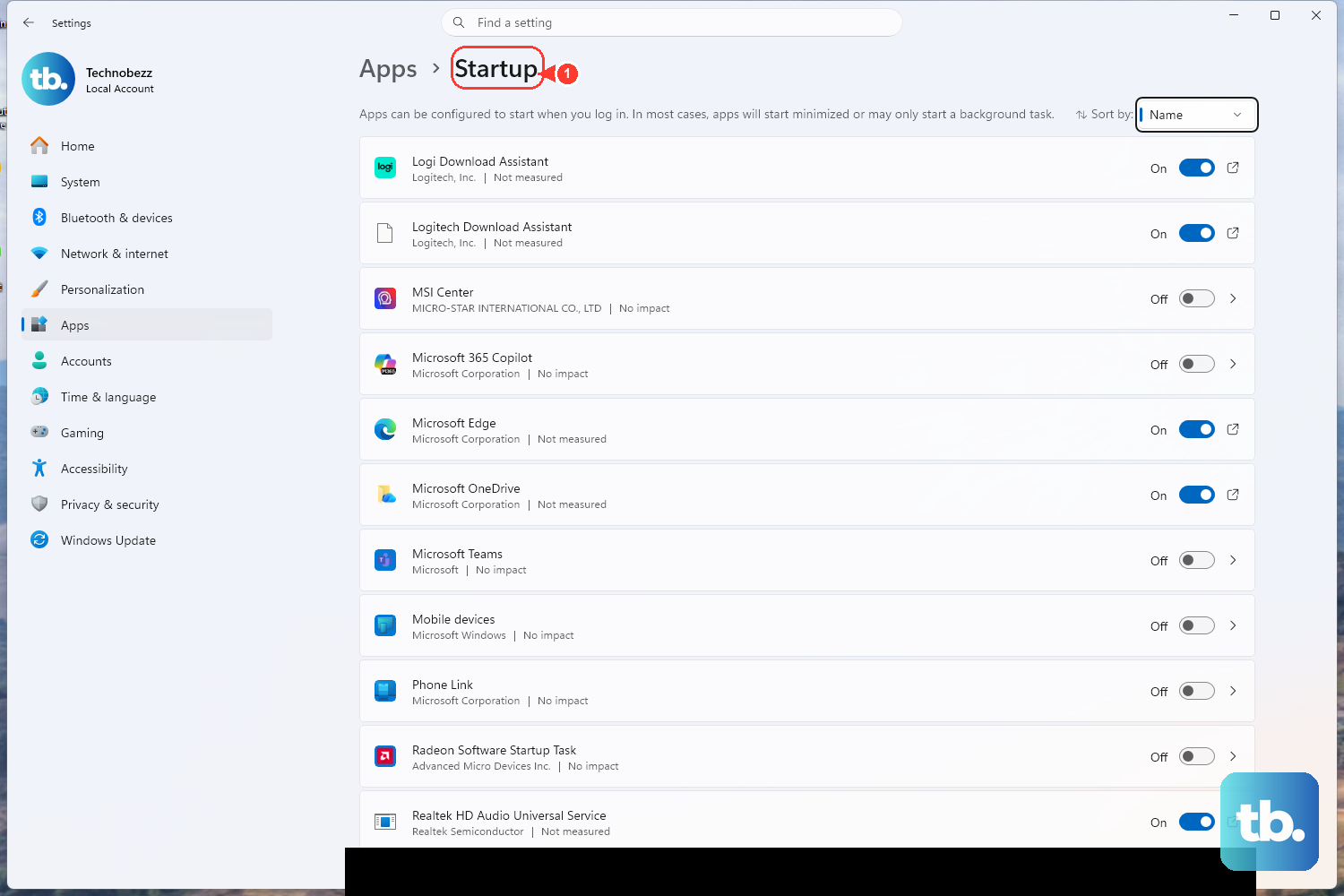
This is the easiest method and the right place to begin. Windows keeps a single toggle list of apps registered to launch at sign-in.
Select the Start button.
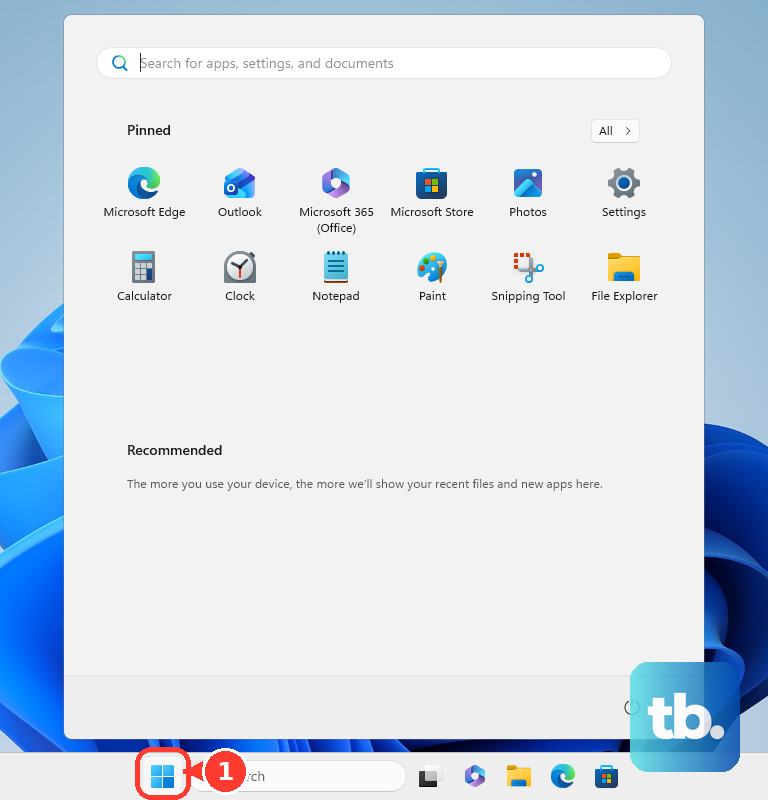
Select Settings.
On the left side, select Apps.
Select Startup at the bottom of the Apps window (Start > Settings > Apps > Startup).
For any app you don't need at boot, set its toggle to Off. Leave it On only if you want it to launch automatically when you sign in.
If you can't find the menu, type "Startup Apps" into the Settings search bar. To reach an individual app's advanced settings, select the chevron next to its name.
Turning a toggle Off does not uninstall the app. It only removes the convenience of it launching on its own; you can still open it manually whenever you want.
Disable High-Impact Apps in Task Manager
Task Manager does what Settings cannot: it shows you how much each app costs you at boot, so you can target the worst offenders first.
Right-click Start and select Task Manager (or press Ctrl + Shift + Esc).
Select the Startup apps tab from the left menu.
Read the Startup impact column for each app: None, Not Measured, Low, Medium, or High Impact.
Right-click the app you want to stop, then select Disable.
To turn an app's automatic launch back on later, select it and choose Enable.
Follow Microsoft's recommended order. Disable High Impact apps first. If startup is still slow afterward, disable the Medium Impact ones too. Leave Low Impact apps alone unless you have a reason to remove them.
How Windows Rates Startup Impact
The impact label is based on the processor time and disk usage an app consumes during boot. Knowing the thresholds helps you judge what is worth cutting.
High Impact: more than 1 second of CPU time, or more than 3 MB of disk usage at startup.
Medium Impact: 300 milliseconds to 1 second of CPU time, or 292 KB to 3 MB of disk usage.
Low Impact: less than 300 milliseconds of CPU time and less than 292 KB of disk usage.
Not Measured: the app is enabled, but Windows has no impact data for it yet.
None: the app is disabled.
Note that Not Measured and None are not performance ratings. Not Measured simply means Windows hasn't recorded a boot with that app yet, and None means it is already switched off.
Check Last BIOS Time to Separate Hardware Delay
Sometimes the slowdown isn't your apps at all; it's the firmware initializing your hardware before Windows even starts to load. Task Manager reports this separately so you don't waste time disabling software that isn't the cause.
On the Startup apps tab, look for "Last BIOS time" near the top right. That figure is the time your system firmware spent before handing off to Windows. If it is high, the bottleneck is hardware or firmware initialization, and trimming startup apps will not shorten that portion of the boot.
Add or Remove Apps via the Startup Folder
Some apps that auto-start are not registered with a Windows startup task, so they never appear in Settings or Task Manager. For those, you manage launching through the Startup folder instead, by placing or deleting a shortcut.
There are two folders, and they differ in who they affect:
Current user only: shell:startup (path: %userprofile%\AppData\Roaming\Microsoft\Windows\Start Menu\Programs\Startup).
All users: shell:common startup (path: %ProgramData%\Microsoft\Windows\Start Menu\Programs\Startup).
Putting a shortcut in the wrong folder changes who the app launches for, so pick the one you mean.
Press Windows + R to open the Run dialog.
Type shell:appsfolder and press Enter to open the all-apps list.
Open a second Run dialog and type shell:startup (current user) or shell:common startup (all users), then press Enter.
To add an app, drag and drop, or copy a shortcut of, the app from the apps folder into the Startup folder.
To remove an app, delete its link from the Startup folder.
Place a shortcut, not the .exe file itself. Deleting the shortcut stops the auto-launch without touching the program.
Stop Apps From Running in the Background
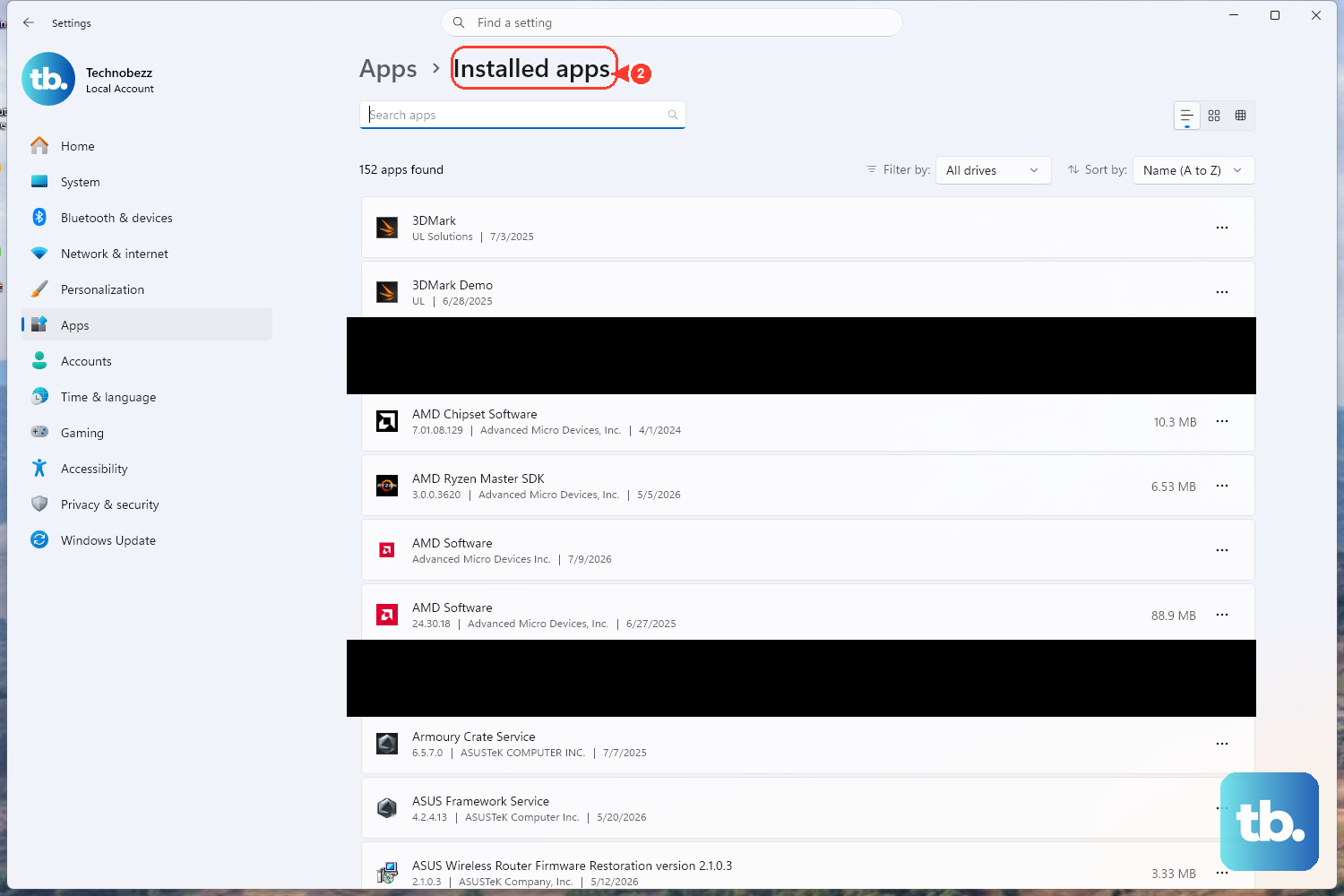
Some apps keep running background processes even when you aren't using them, which adds load after sign-in. Turning that activity off can improve performance.
Select Start > Settings > Apps > Installed apps.
Find the app, select More options (the … button), then choose Advanced options.
Under "Background app permissions", open the "Let this app run in the background" list and select Never.
This is a useful companion to disabling startup apps. Even an app you don't auto-launch can sit in the background once opened, so restricting it keeps your system leaner.
Enable Fast Startup to Speed Up Boot After Shutdown
Fast Startup shortens the time it takes Windows to load after a full shutdown. It is enabled by default in Windows, and Microsoft does not recommend turning it off. If it has been disabled, you can switch it back on through Power Options. (The Control Panel path below reflects the standard Windows Power Options layout.)
- 1.Open Control Panel (press Windows + R, type control panel, press Enter) and set View by to Category.
- 2.Click "System and Security", then "Power Options".
- 3.Click the left-side link "Choose what the power buttons do".
- 4.Click "Change settings that are currently unavailable" at the top (this requires administrator rights).
- 5.Under "Shutdown settings", check the box "Turn on fast startup (recommended)".
- 6.Click "Save changes", then restart for the change to take effect.
Fast Startup depends on the Hibernate feature. If the checkbox is missing, hibernation is off; enable it first by running powercfg /hibernate on in an elevated Command Prompt, then return to the steps above.
Restart to Clear State if It's Still Slow
If performance hasn't improved after trimming startup and background apps, clear out the current session and start clean.
Close any apps or browser tabs you don't need.
Restart your PC via Start > Power > Restart.
A restart is also the step that makes all of your startup changes count, since none of them apply until the next boot.
Frequently Asked Questions
Why didn't my startup changes work right away?
They aren't supposed to. Enabling or disabling a startup app takes effect after the next computer restart, not the moment you change the toggle.
Does disabling a startup app uninstall it?
No. Disabling only removes the convenience of the app launching automatically at sign-in. The program stays installed, and you can open it manually anytime.
Which apps should I disable first?
Disable High Impact apps first, using the Startup impact column in Task Manager. If your startup is still slow after that, disable the Medium Impact apps as well.
An app launches itself but isn't in Settings or Task Manager. How do I stop it?
That app likely isn't registered with a Windows startup task. Open the Startup folder with shell:startup (current user) or shell:common startup (all users) and delete its shortcut from that folder.
What does "Not Measured" mean next to a startup app?
It means the app is enabled but Windows has no impact data for it yet. It is different from "None", which simply means the app is already disabled. Neither is a Low, Medium, or High rating.
My boot is slow but the apps look fine. What else could it be?
Check "Last BIOS time" on Task Manager's Startup apps tab. That measures how long your firmware and hardware take before Windows loads. If it is high, the delay is hardware-side, and disabling startup apps won't shorten it.











