Running out of space on your Galaxy Z Flip 6 can be a real headache, especially when you can't take a photo or download an important app. That flexible screen is amazing, but it doesn't magically create more storage. The good news is you can almost always free up a surprising amount of space by cleaning out digital clutter. Here's how to get your Flip 6 breathing easy again.
See What's Hogging Your Space
Head into Settings > Device care > Storage. This screen gives you a color-coded breakdown of what's filling up your phone. Give it a moment to calculate, and you'll see the biggest offenders right at the top. On most Flips, it's usually Photos, Apps, and Messages.
Use the Built-In Cleaner
Right there on the Storage screen, tap the Clean now button. This is Samsung's one-tap tool that scans for junk files, app caches, and duplicate downloads. It's a quick and safe first step that can often reclaim a gigabyte or two without you having to dig through anything manually.
Clear App Caches and Data
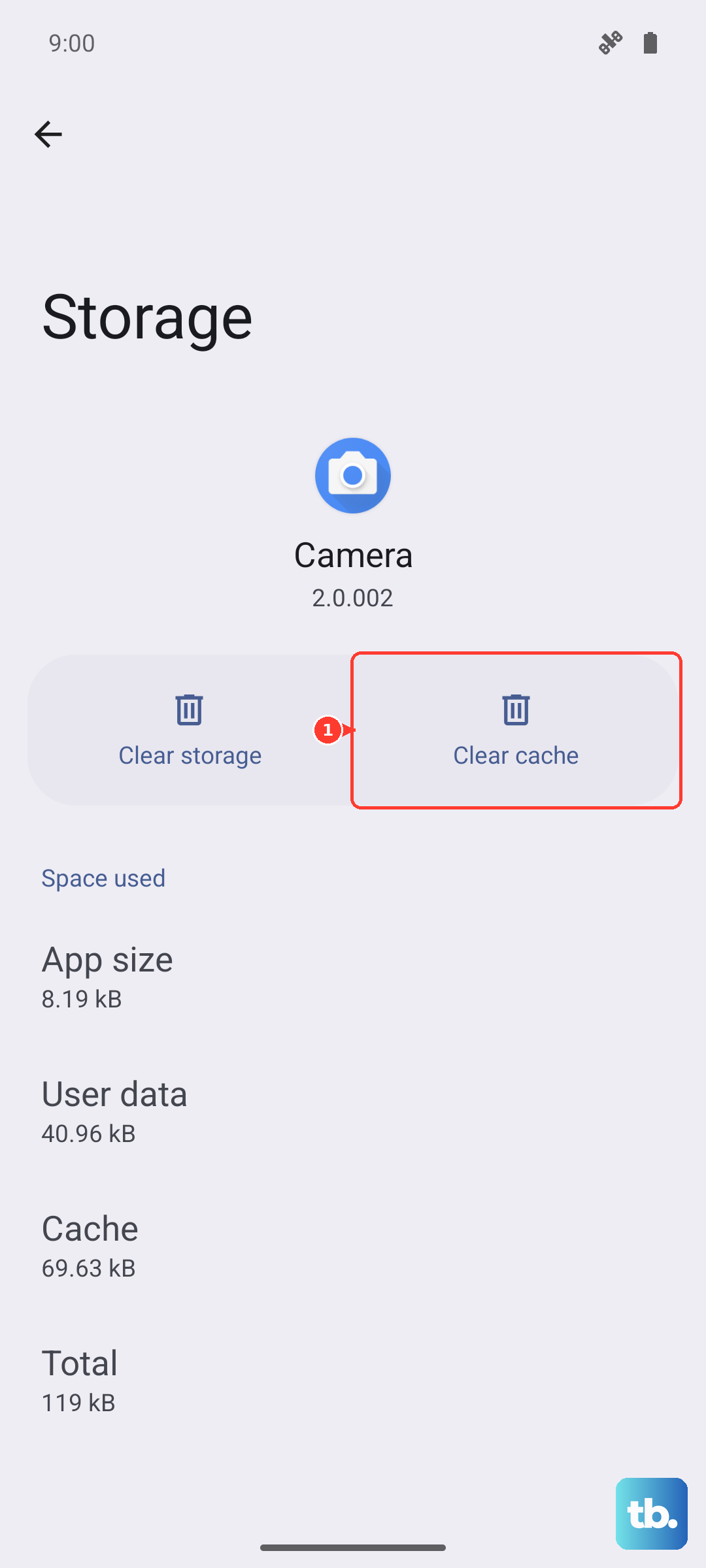
Go back to Settings > Apps, then pick an app like Instagram, TikTok, or Facebook. Tap Storage, and you'll see two numbers: the app size and the cache/data. Tapping Clear cache is safe and removes temporary files. For a more drastic space save, you can tap Clear data, but know that this will log you out and reset the app to its fresh state.
Manage Your Photos and Videos
Open the Gallery app and start by clearing out the Trash folder, as deleted items sit there for 15 days. Next, use the search function to find "Screenshots" or "Duplicates" and bulk delete what you don't need. For long-term management, enable Settings > Google > Backup or use Samsung Cloud to upload your full-res media and keep optimized versions on the device itself.
Delete Old Downloads and Documents
Open the My Files app and look at the Downloads folder. This is where PDFs, APK files, and images from the internet pile up. You can also check Internal storage > Documents. I've found gigabytes of old work files and manuals here that were completely forgotten. Sort by size to find the biggest files first.
Review Offline Content in Streaming Apps
Apps like Spotify, Netflix, and YouTube Music store songs and videos locally. Open Spotify, go to Settings > Storage and remove downloads. In Netflix, tap your profile icon, then App Settings > Delete All Downloads. This is a common space drain, especially if you have playlists or shows downloaded in high quality.
Clean Up Messages and Attachments
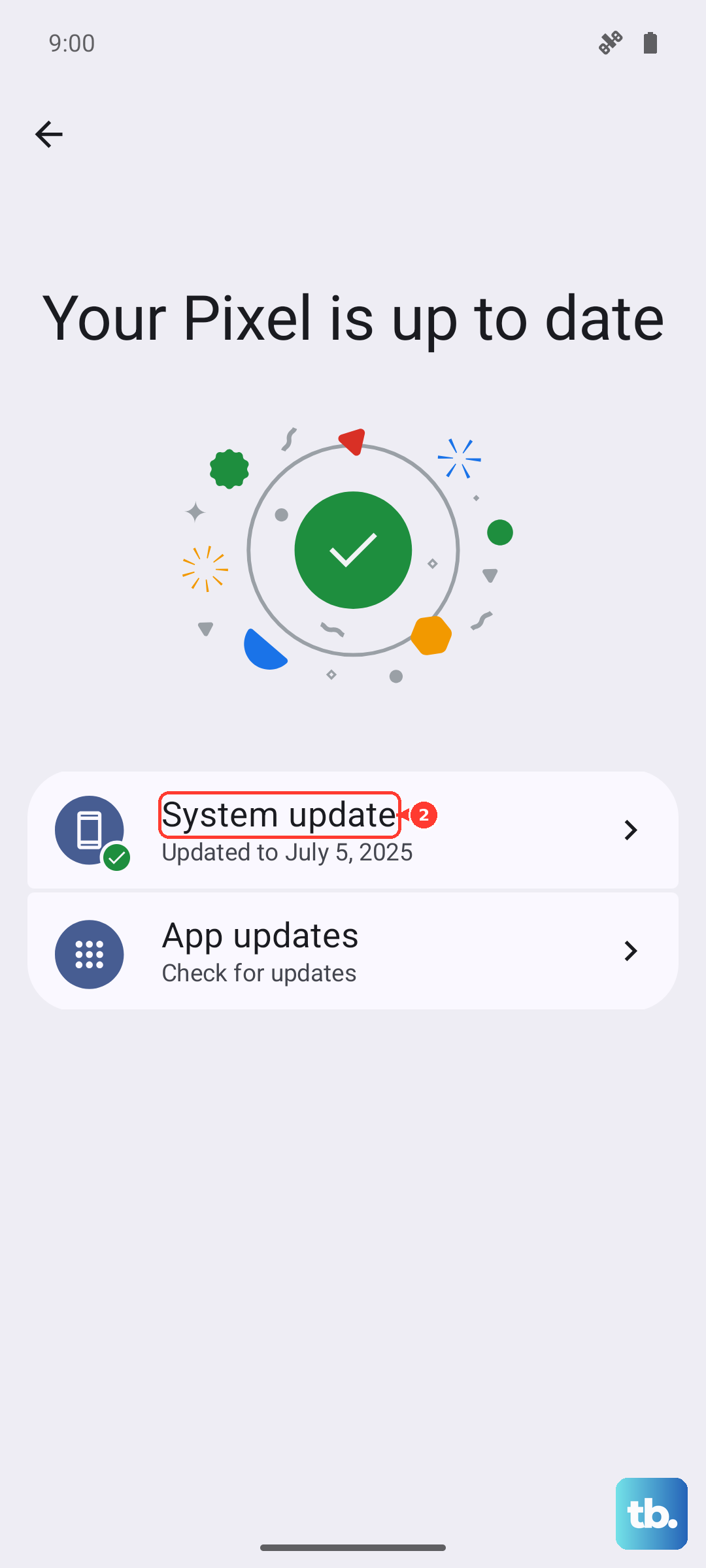
Open the Samsung Messages app, tap the three-dot menu, and go to Settings > More settings > Manage messages You can set old messages to auto-delete after 30 or 90 days here. For a deeper clean, go to Settings > Advanced features > App pinning and make sure it's off, then go back to your main messages list. Manually delete old group threads, which are often full of photos and videos that have been sitting there for years. Go to Settings > Apps, sort by size, and scroll through the list. Be ruthless with apps you haven't opened in months. For apps that came pre-installed on the phone that you can't remove (like some Samsung or carrier apps), you can often tap on them and select Disable. This prevents them from updating and running in the background, freeing up a bit of room. Sometimes, a pending system update or a bloated system cache can cause storage reporting issues. First, check for a software update in Settings > Software update. If your phone is up to date but storage seems off, you can wipe the system cache partition. Turn off the phone, then press and hold the Volume Up + Side button until the Samsung logo appears. Use the volume keys to highlight "Wipe cache partition" and press the side button to select it. This doesn't delete any personal data.
Uninstall or Disable Unused Apps
Check for System Updates and Cache