
When your Samsung Galaxy Tab S9 stops responding to "Hi Bixby" or Google Assistant, it can feel like you've lost a helpful tool. The voice assistant that's supposed to simplify tasks on your tablet suddenly goes quiet. Here's how to get it listening and responding to you again.
Start With a Quick Restart
Before diving into settings, try a simple force restart. This clears temporary software glitches that can affect the microphones and voice services. Press and hold the Volume Down button and the Side button (power button) together for about 10 seconds until you see the Samsung logo appear.
Wait for the tablet to boot up completely, then try your voice command again. I've found this resolves the issue about half the time, especially if the problem started suddenly.
Check Your Primary Voice Assistant Settings
Your Tab S9 can use Bixby, Google Assistant, or both. The first step is to make sure your preferred assistant is actually enabled and set to listen.
For Bixby, open the Bixby app by pressing and holding the Side button or saying "Hi Bixby." Tap the menu icon (three lines) and go to Settings. Ensure "Voice wake-up" is turned on. For Google Assistant, open the Google app, tap your profile picture, go to Settings > Google Assistant, and then tap "Hey Google & Voice Match." Make sure "Hey Google" is enabled.
Also, check that the microphone permission is granted. Go to Settings > Apps, select your assistant app (Bixby or Google), tap Permissions, and ensure the Microphone permission is set to "Allow."
Look for Features That Block Microphone Access
Several One UI features can intentionally disable the microphone, which will stop any voice assistant from hearing you. The most common one is the microphone privacy toggle in Quick Settings.
Swipe down twice from the top of your screen to open the full Quick Settings panel. Look for an icon that looks like a microphone with a slash through it. If it's highlighted, tap it to turn off microphone access blocking. Another feature to check is "Mute gestures." Go to Settings > Advanced features > Motions and gestures and see if "Mute" is enabled. This can mute media and notifications with a gesture, and may interfere.
Test and Clean the Microphones
The Galaxy Tab S9 has multiple microphones for noise cancellation and clear audio pickup. If they're blocked, your voice commands won't get through. Check all the small pinholes on the tablet's edges for any lint, dust, or case obstruction.
You can test the microphones by opening the Voice Recorder app and making a quick recording. If the recording is silent or very muffled, there's likely a physical blockage. Use a soft, dry brush or a can of compressed air to gently clean the microphone ports. Avoid using anything sharp or wet.
Retrain Your Voice Model
Background noise, a change in your voice, or a software update can sometimes confuse the voice model. Retraining the assistant to recognize your specific voice can significantly improve accuracy.
For Google Assistant, go to Settings > Google > Settings for Google apps > Search, Assistant & Voice > Voice. Under "Hey Google," tap "Voice Match" and then "Retrain voice model." Follow the prompts to say "Hey Google" and "Ok Google" a few times. For Bixby, open the Bixby app, go to Settings > Voice wake-up, and tap "Retrain voice model" to go through the setup again.
Update Your Software
Outdated software can contain bugs that affect voice recognition and microphone performance. Samsung and Google regularly release updates with fixes for these kinds of issues.
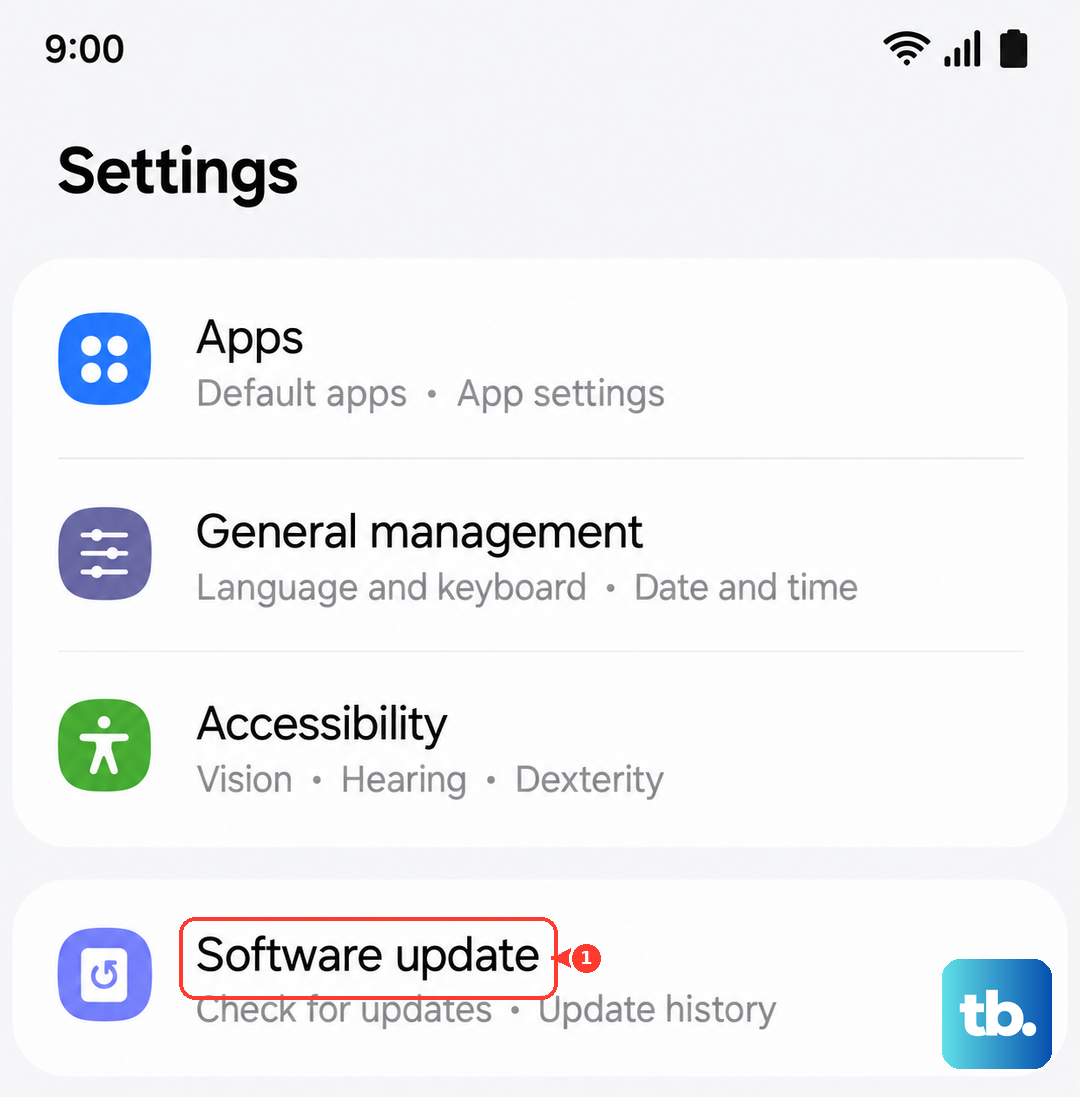
Go to Settings > Software update and tap "Download and install." Make sure your tablet is connected to Wi-Fi and has sufficient battery. Installing the latest One UI and Android security patches can resolve underlying compatibility problems causing the voice assistant to fail.
Reset App Preferences or Settings
If a specific app update caused a conflict, you can reset all app preferences without losing your personal data. This returns all app permissions, notifications, and default apps to their original state.
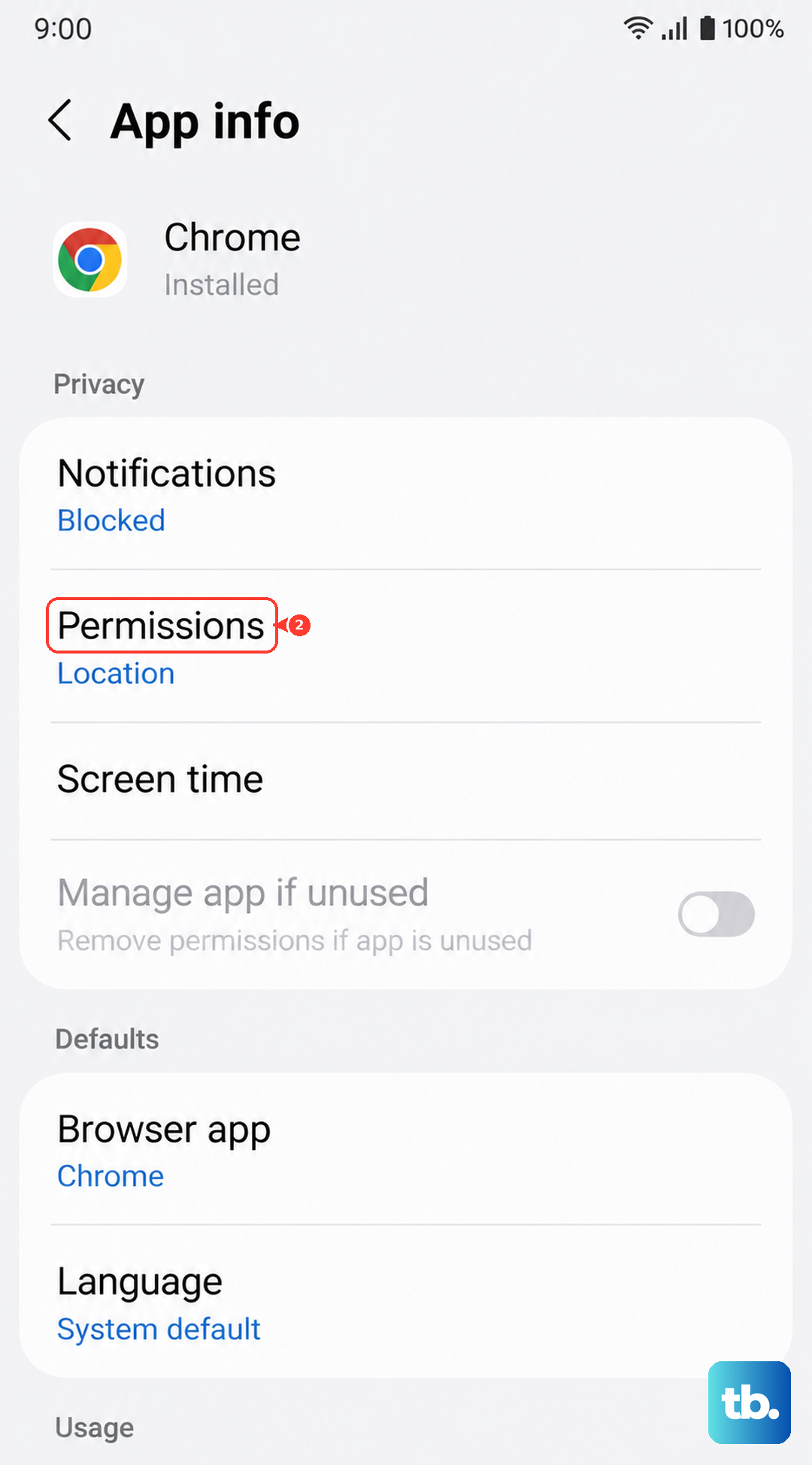
Go to Settings > Apps, tap the three-dot menu in the top right, and select "Reset app preferences." Confirm the action. This won't delete any app data, but you may need to re-grant permissions for apps like your banking app or social media. If the problem persists, a deeper reset is an option. Go to Settings > General management > Reset and select "Reset all settings." This will reset network, sound, and display settings but won't touch your personal files.