
When your Samsung Galaxy Tab S9 won't show up on your computer, it can stop you from transferring photos, backing up files, or using Samsung DeX. The connection issues are usually down to a few common settings or hardware problems that you can fix yourself.
I'd start with the cable and port, as those are the most frequent culprits. A quick restart of both devices is also a reliable first step that clears up temporary glitches.
Check Your USB-C Cable and Port
Grab a different USB-C cable, preferably the one that came with your tablet. Phone cables often don't support data transfer, only charging. Make sure both ends are plugged in firmly and try a different USB port on your computer, ideally one directly on the motherboard instead of a hub.
While you're at it, take a look at the USB-C port on your Tab S9. Shine a light in there and look for any packed lint or debris. You can gently use a dry toothpick or a plastic flosser to clear it out, being careful not to touch the center connector pin.
Restart Your Tablet and Computer
A simple reboot can clear up the communication hiccup. Restart your Windows PC or Mac completely. For your Galaxy Tab S9, press and hold the Volume Down button and the Side (power) button together for about 10 seconds until you see the Samsung logo.
Wait for both devices to fully start up, then try connecting them again with your cable. This basic step resolves a surprising number of connection problems.
Check the USB Connection Notification
When you plug in your Tab S9, you should see a notification that says "Charging this device via USB." Tap on that notification. A menu should pop up asking how you want to use the USB connection.
You need to select "Transfer files" or "Android Auto." If you only see "Charging," your computer won't be able to see your tablet's storage. Sometimes you need to unlock your tablet's screen for this notification to appear.
Update Your Samsung USB Drivers on Windows
Outdated or missing drivers on a Windows PC are a very common block. Press the Windows key + X and select "Device Manager." Look for your tablet under "Portable Devices" or "Other Devices" (it might show up as an unknown device).
Right-click on it and choose "Update driver," then "Search automatically for drivers." If that doesn't work, you can download the official Samsung Android USB Driver directly from Samsung's developer website and install it manually.
Install or Update Samsung Smart Switch
Samsung Smart Switch is the official desktop software for managing your tablet. Having it installed often ensures the correct drivers are in place. Download the latest version of Smart Switch for Windows or Mac from Samsung's website and install it.
Once installed, open Smart Switch on your computer and then connect your Tab S9. The software will often recognize the connection issue and can guide you through fixing it, including an emergency software recovery option for stubborn problems.
Enable Developer Options and USB Debugging
This gives your computer a more direct line of communication with your tablet. First, enable Developer Options by going to Settings > About tablet and tapping "Software information." Tap on "Build number" seven times until you see a message saying you're now a developer.
Go back to the main Settings menu, and you'll find "Developer options" near the bottom. Tap it, then scroll down and toggle on "USB debugging." You might get a security prompt on your tablet; just tap "OK." Try connecting again.
Check for Software Updates
A software mismatch can cause connection issues. On your Galaxy Tab S9, go to Settings > Software update and tap "Download and install." Make sure your tablet is running the latest version of One UI and Android.
On your Windows PC, check for system updates by going to Settings > Windows Update and installing any available patches. For Macs, check for updates in System Settings > General > Software Update.
Try a Different Computer or Connection Mode
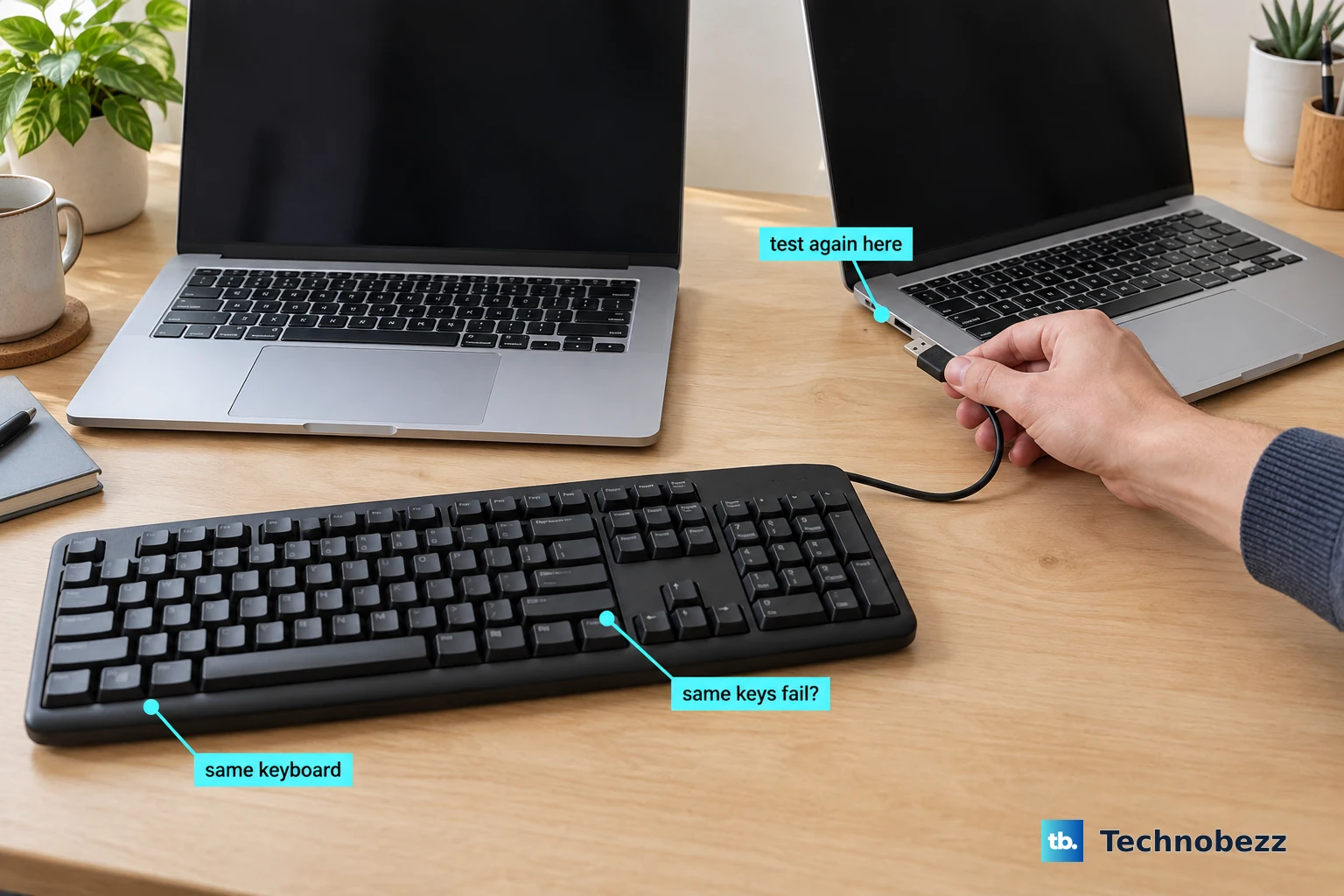
To rule out a problem with your primary computer, try connecting your Tab S9 to a different laptop or desktop. If it works on another machine, the issue is with your original computer's settings or USB ports.
Also, if you're trying to use Samsung DeX, try a standard file transfer connection first. Sometimes switching the USB mode back and forth from the notification panel can reset the connection handshake.
Reset Network Settings on Your Tablet
This can clear out any corrupted network or Bluetooth configurations that might be interfering. Go to Settings > General management > Reset > Reset network settings.
Tap to confirm. This will reset your Wi-Fi, Bluetooth, and mobile network settings, but it won't delete any personal files or apps. You'll just need to reconnect to your Wi-Fi networks afterward.
Check for Security Software Interference
Sometimes, overzealous security software on your computer can block the USB connection. Temporarily disable your Windows Defender real-time protection or any third-party antivirus/firewall software you have running.
Go to Windows Security > Virus & threat protection and manage your settings. After testing the connection, remember to turn your security software back on immediately.











