
Press and hold the Power button and Volume Down button simultaneously for 10 to 15 seconds. Keep holding until you see the Samsung logo appear and the tablet restarts. This force restart is the first thing to try when the touchscreen goes unresponsive, and it often works if the screen has just stopped responding temporarily.
A browser based touch screen tester paints the screen as you touch it, which makes dead zones and ghost touches easy to see and document.
If the touchscreen seems frozen but the tablet is still on, this can kick it back into action without losing any data. I've seen it bring a dead screen back to life on many Samsung tablets, including the Tab S11 Ultra.
Charge the Tablet First
A completely drained battery can make the Tab S11 Ultra's touchscreen act strangely or stop working altogether. This model has a known issue where the battery can drain completely even when the tablet is switched off.
Plug the tablet into a wall outlet directly, avoid power strips or extension cords. Use a USB-C charger that supports at least 45W wired charging for the fastest results, but any USB-C charger will work.
Here's the catch: when the battery is totally flat, the charging indicator might not appear for up to 10 minutes. Leave the tablet plugged in for at least two hours before trying to turn it on. If you see a faint charging symbol after a few minutes, let it keep charging.
Clean the Charging Port
A faulty or dirty charging port can cause intermittent charging, which leads to low battery and touchscreen issues. Check the USB-C port for lint, dust, or debris using a wooden toothpick or a plastic pick, never anything metal.
Gently scrape around the inside edges and blow out any loose particles. If the port looks damaged or the pins are bent, that could be the culprit. Cleaning the port has fixed many "unresponsive after full drain" cases I've heard about from Tab S11 Ultra owners.
Remove Screen Protectors and Cases
Thick screen protectors or bulky cases can interfere with the touchscreen's sensitivity, especially on a large display like the Tab S11 Ultra. Try peeling off any screen protector and taking the tablet out of its case.
Test the touchscreen afterwards. If it works normally, the protector or case was pressing on the screen or blocking the digitizer in some way. Replace it with a thinner tempered glass protector designed for this model.
Boot Into Safe Mode
Safe Mode disables all third-party apps temporarily. If the touchscreen works in Safe Mode, a downloaded app is causing the problem. To boot into Safe Mode, press and hold the Power button until the power menu appears.
Touch and hold the Power off option until you see Safe mode on the screen. Tap it and wait for the tablet to restart. If the screen responds fine now, start uninstalling recently added apps one by one until you find the troublemaker.
Exit Safe Mode by restarting the tablet normally.
Clear the Cache Partition
Corrupted system cache can make the touchscreen lag or freeze. This doesn't delete your personal data. Power off the tablet completely. Then press and hold the Volume Up and Power buttons together until you see the Samsung logo.
Release both buttons when the Android System Recovery menu appears. Use the volume buttons to highlight Wipe cache partition and press the Power button to select it. Confirm when prompted.
Once the cache clears, select Reboot system now. This usually takes less than a minute and has fixed touchscreen responsiveness on recent Samsung tablets running Android 16.
Update the Software
Samsung regularly releases updates for the Tab S11 Ultra that include touchscreen driver fixes and stability improvements. Go to Settings > Software update > Download and install.
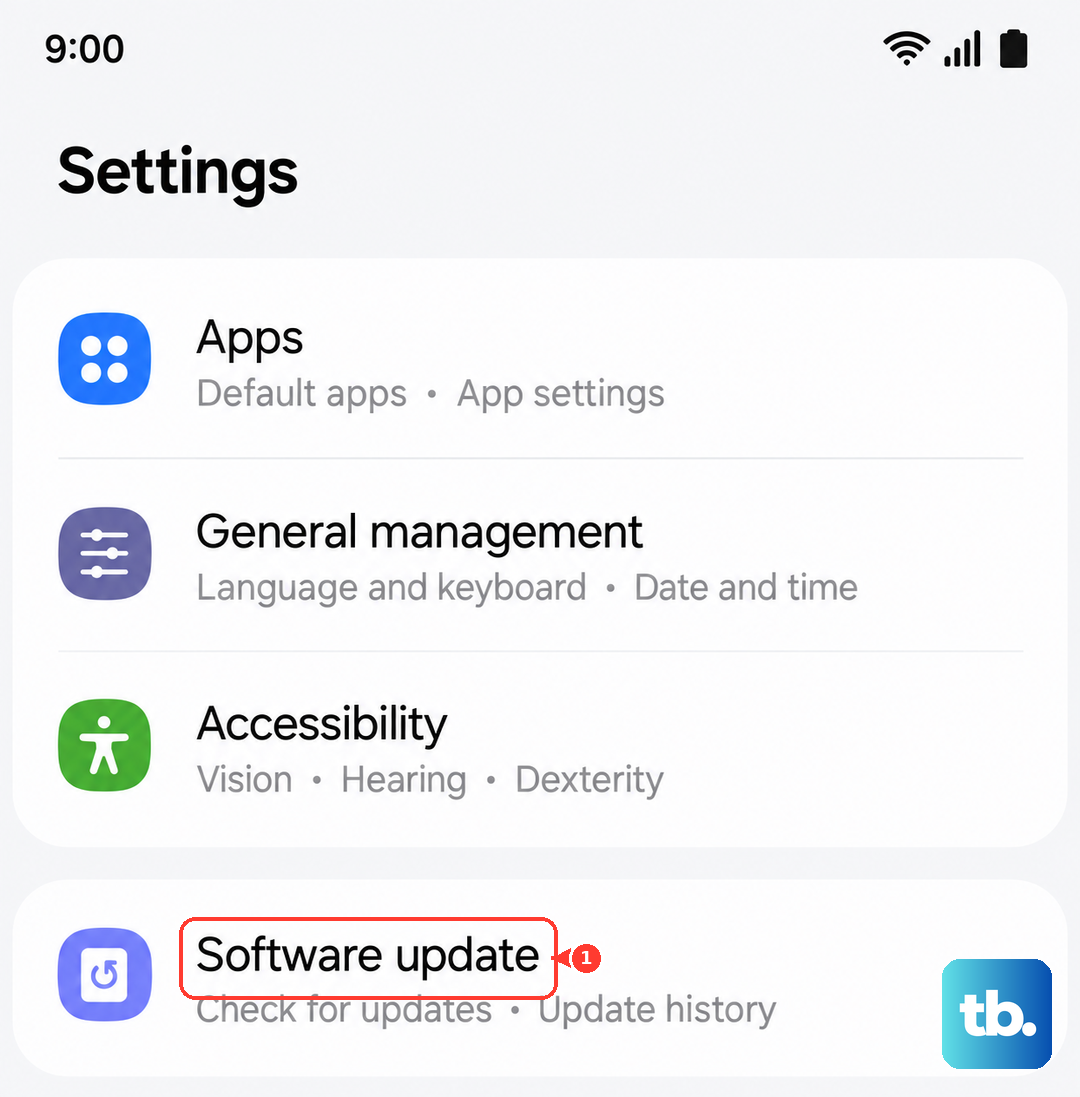
If an update is available, install it and see if the touchscreen issue goes away. Sometimes a pending update conflicts with touch inputs, especially if you've ignored several updates in a row.
Factory Reset (Last Resort)
This wipes all your data, photos, apps, accounts, everything. Only do this if none of the above steps worked. Back up anything you want to keep first. Go to Settings > General management > Reset > Factory data reset.
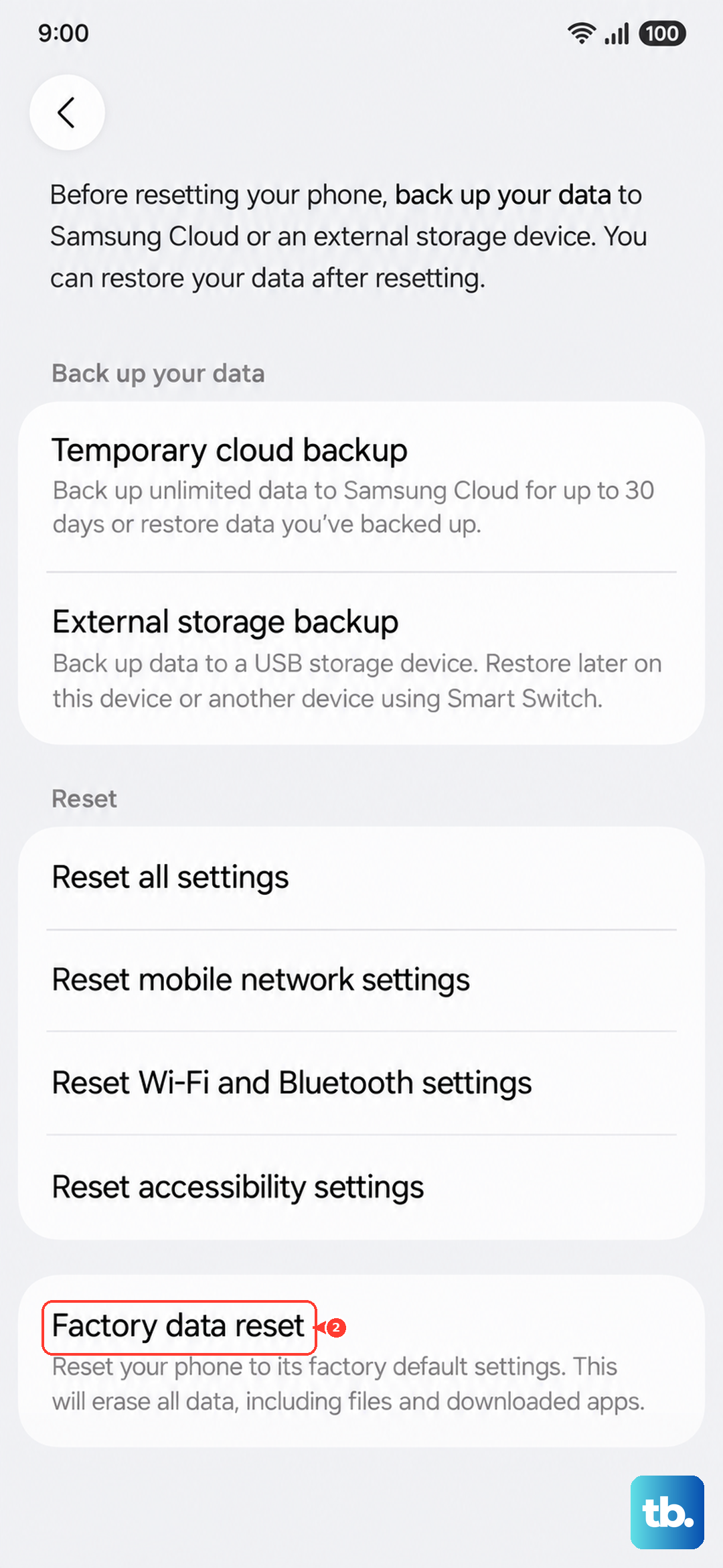
Follow the on-screen prompts to confirm. The tablet will restart and set itself up fresh. A factory reset clears deep software corruption that might be blocking the touchscreen from working properly.
If the touchscreen still doesn't respond after a factory reset, the hardware likely needs attention. The digitizer or display cable inside the Tab S11 Ultra might have come loose or failed.