You start typing a message on your Galaxy Tab S10+ and the row of suggested words above the keyboard simply never shows up, leaving you to spell out every word in full and fix typos by hand. The Samsung Keyboard on this tablet is built to suggest words as you type, so when those predictions vanish it usually means a toggle got switched off, a temporary glitch crept in, or the keyboard's learned-word data needs a refresh. The good news is that predictive text is a standard feature on the Tab S10+ (Wi-Fi model SM-X820 and 5G model SM-X826), so you are repairing a feature you already have, not chasing one that was never there.
Work through the fixes below in order. The first ones take seconds and carry no risk to your data, while the heavier options sit at the bottom for the rare case where the simple steps do not stick.
Make sure predictive text is actually switched on
Before anything else, confirm the feature itself is enabled, because a single toggle controls whether suggestions appear at all. It is easy for this to get turned off by accident, especially after restoring data from another device or trying a third-party keyboard.
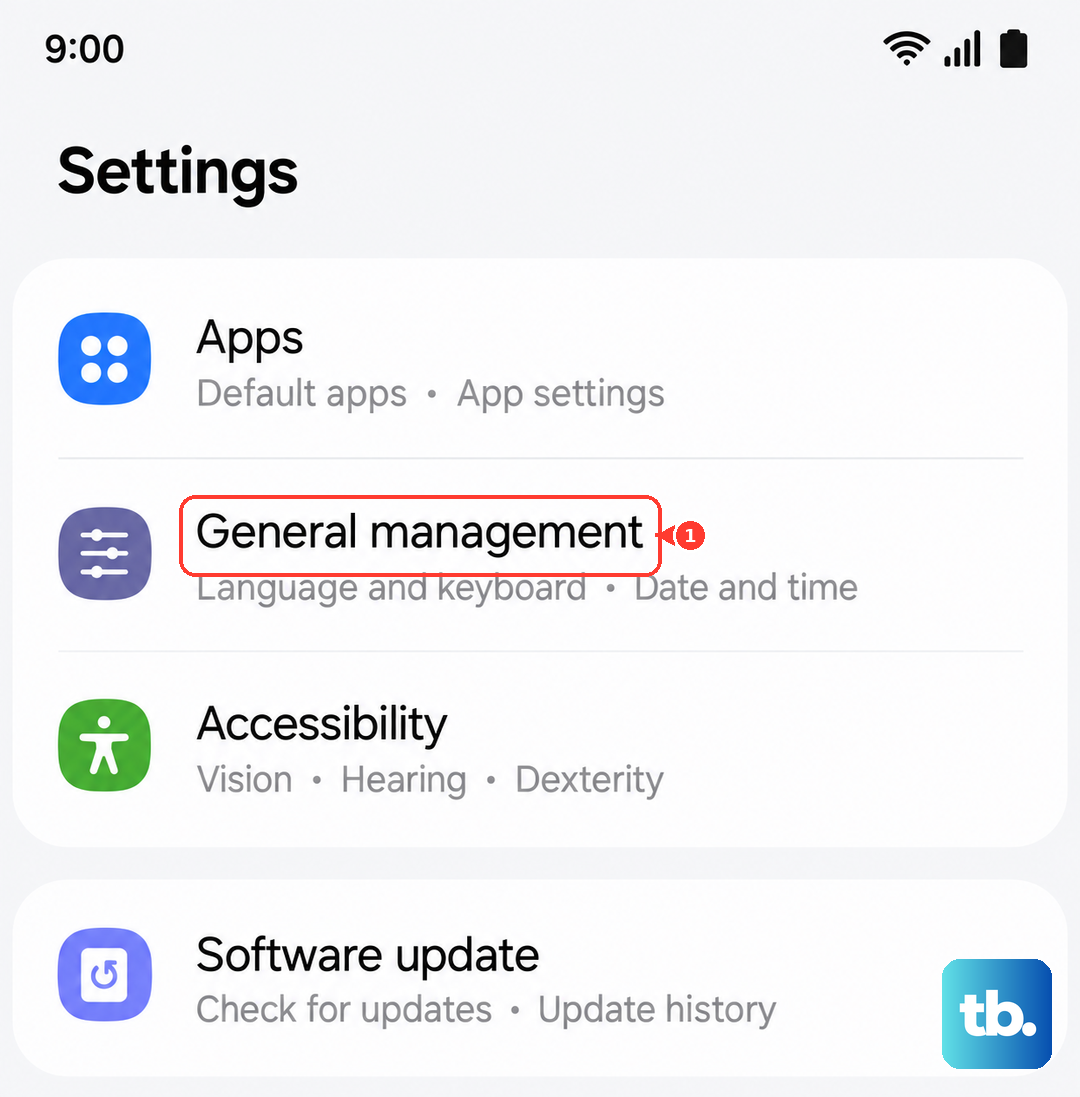
Open Settings > General management > Samsung Keyboard settings.
Find the "Predictive text" toggle and turn it ON. Its description reads, "The keyboard will suggest words for you as you are typing."
There is an even faster route from inside any text field. Tap the Settings (gear) icon in the keyboard toolbar, then tap the switch next to "Predictive text" to turn it on. If this toggle was the culprit, your word suggestions return immediately the next time you type.
Review the related Smart typing options
Predictive text shares a section with several other typing aids, and people often expect those behaviors to work together. If suggestions appear but auto-correct and word replacement do not, the neighboring toggles are usually the reason.
In Settings > General management > Samsung Keyboard settings, look over the Smart typing options. The two that most affect how the keyboard fixes and replaces your words are "Suggest text corrections" ("The keyboard will automatically correct grammar and phrases for you.") and "Auto replace" ("The keyboard will replace words for you while you are typing.").
Turn on the ones you want active. Enabling these restores the auto-correct and word-replacement behavior that many people associate with predictive typing, so the keyboard does more of the work for you again. The same screen also includes "Suggest emojis", "Suggest stickers while typing", and "Text shortcuts" if you want to fine-tune the rest of the experience.
Restart the tablet to clear a temporary glitch
If the toggles all look correct but predictions still refuse to appear, a quick restart often clears the temporary glitch behind it. Background processes that feed the keyboard can hang, and a reboot gives them a clean start.
Press and hold the Volume down button and the Side (Power) button at the same time.
When the power options appear, tap Restart.
Tap Restart again to confirm.
If the tablet has become frozen or unresponsive and the menu will not appear, use a force restart instead. Press and hold the Side button and the Volume Down button together for more than 7 seconds until the device restarts automatically. Once it boots back up, open a text field and check whether the suggestion row has returned.
Update One UI to clear out keyboard bugs
The Tab S10+ launched in October 2024 on Android 14 with One UI 6.1.1, and by 2026 it is upgradable to One UI 7 (Android 15) and listed as eligible for the One UI 8 update. Running an older build can leave you stuck with keyboard bugs that newer software has already addressed, so it is worth confirming you are current.
Go to Settings > Software update > Download and install.
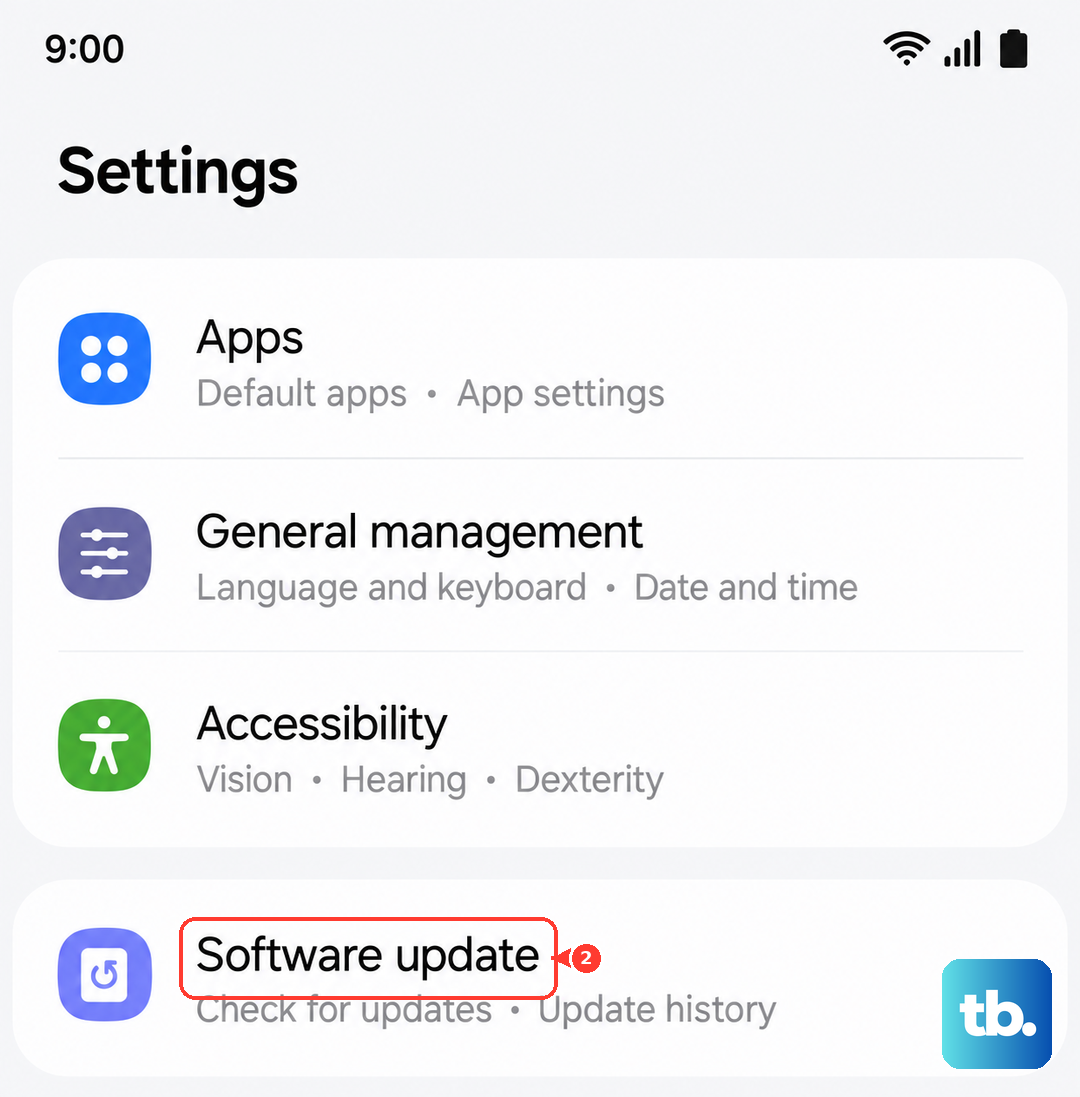
Tap "Check for software updates" or "Check for system updates".
If an update is available it downloads automatically; tap "Download now" if prompted, then follow the on-screen steps.
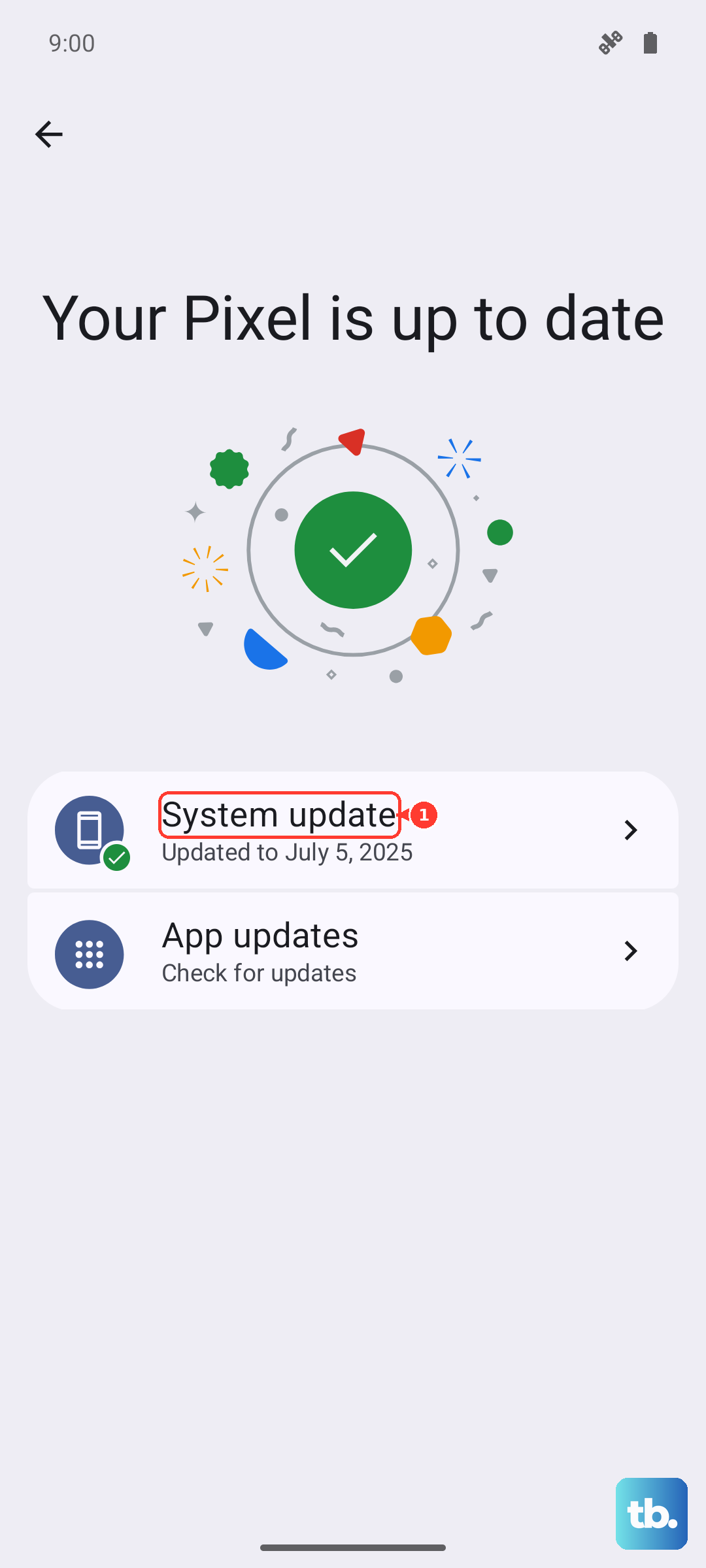
Make sure the tablet has a stable connection and enough battery before you start, since an interrupted update can stall partway through. Installing the latest software leaves your files in place while bringing the keyboard and the rest of the system up to date, which is often enough to clear a stubborn prediction bug on its own.
Reset the Samsung Keyboard and erase personalized predictions
When suggestions are stuck, plainly wrong, or have stopped learning your common words, the keyboard's own data is the likely problem. Resetting it wipes corrupted settings and stale prediction data so the keyboard can relearn cleanly. This affects only the keyboard, not your personal files.
Open Settings > General management > Samsung Keyboard settings > Reset to default settings.
Tap "Reset keyboard settings" to return the keyboard to its defaults.
To clear bad word data, tap "Erase personalized predictions" > Erase. The description reads, "Erase data that is used for word predictions. This will also remove learned words."
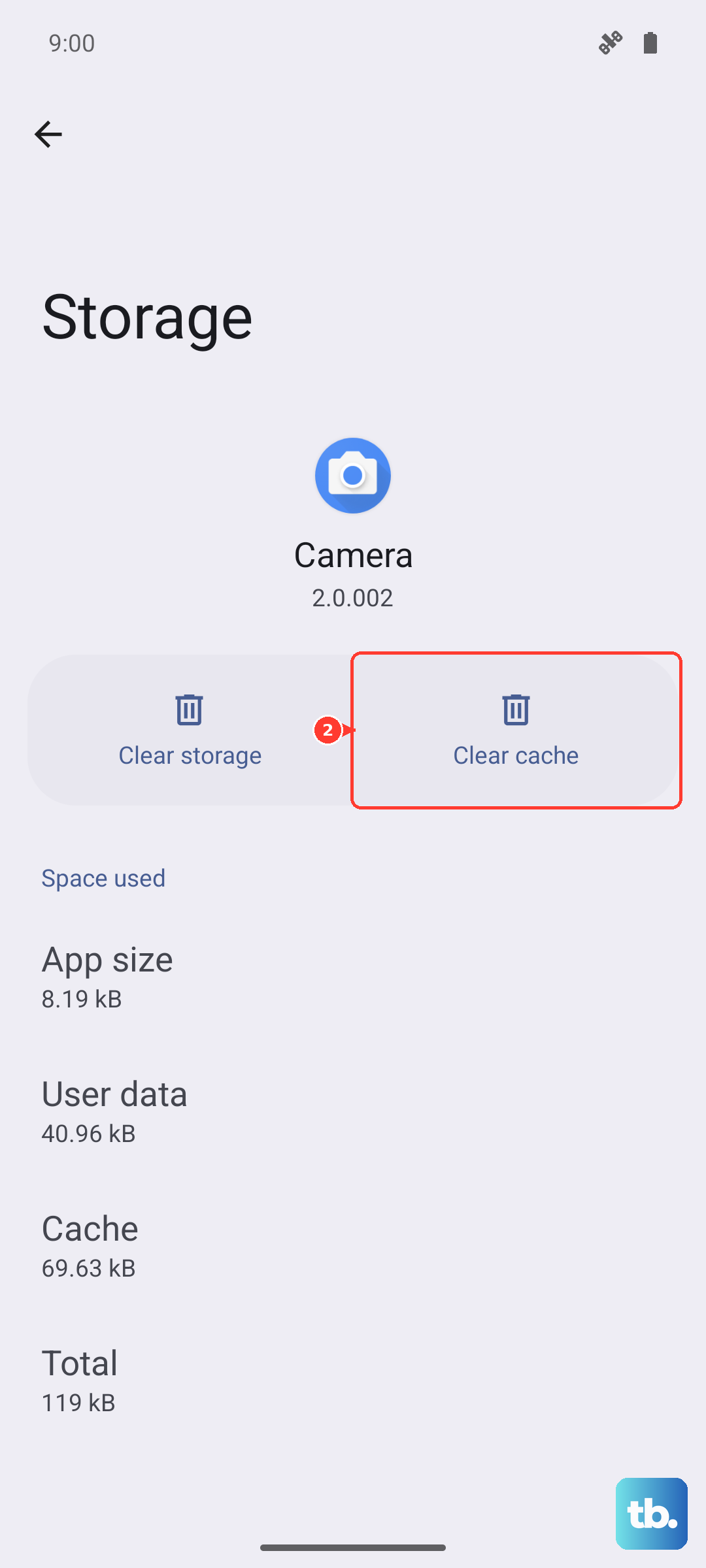
The same screen also offers "Erase personalized touch recognition data" and "Clear cache" if you want a fuller refresh. After the reset the keyboard starts fresh and gradually relearns your vocabulary as you type, so suggestions improve again over the following days.
Use a factory reset only as a last resort, then reach out to support
If you have tried every step above and predictive text still will not work, a factory reset is the final option. This erases everything on the tablet, so treat it as a genuine last resort and only after the simpler fixes have failed.
Back up your data first. Samsung's data-loss warning is clear: "Please save any information you need prior to the factory reset because your personal information may not be recovered." Once your important files, photos, and accounts are saved elsewhere, you can proceed.
- 1.Go to Settings > General management > Reset > Factory data reset.
- 2.Review the information shown on screen.
- 3.Tap Reset, then tap Delete all.
The reset wipes the tablet and returns it to the initial setup screen, where you can set it up fresh and test the keyboard before restoring your data. If predictive text still fails to work even after a clean reset, the problem may go beyond software, and the right move is to contact Samsung Support for further help.
Frequently Asked Questions
Why did my Galaxy Tab S10+ predictions stop suddenly?
The most common cause is the "Predictive text" toggle being switched off, often after restoring data or switching keyboards. Check Settings > General management > Samsung Keyboard settings and confirm the toggle is on. A temporary glitch cleared by a restart is the next most likely reason.
Will resetting the keyboard delete my photos or apps?
No. "Reset keyboard settings" and "Erase personalized predictions" only affect the Samsung Keyboard's settings and its learned-word data. Your photos, apps, and accounts are untouched. The only step that erases everything is a full factory reset.
How do I get auto-correct working alongside suggestions?
Auto-correct is controlled separately from the suggestion row. In Settings > General management > Samsung Keyboard settings, turn on "Suggest text corrections" and "Auto replace" so the keyboard corrects grammar and replaces words as you type, in addition to showing predictions.
Does updating the software fix keyboard problems?
It can. Keeping One UI current addresses keyboard bugs that older builds may carry. Check Settings > Software update > Download and install and install anything that is offered, making sure you have a stable connection and enough battery first.
How do I restart the tablet if it has frozen?
If the screen is unresponsive and the power menu will not appear, force restart by pressing and holding the Side button and the Volume Down button together for more than 7 seconds until the device restarts on its own.