You lined up a photo on your Galaxy Tab S10+, tapped send in Messages, and the picture just hangs there with a retry arrow or a "not sent" flag. Plain text often slips through while anything carrying an image or video stalls, and that split is the classic fingerprint of an MMS problem rather than a broken app. The cause usually has less to do with a buried toggle and more to do with how this specific tablet is allowed to send multimedia in the first place. Work through the checks below from the safest down to the most drastic, and you will normally find the single missing link in the chain.
Why your Tab S10+ stalls on picture and video messages
Multimedia messages only travel over a cellular connection, so the first thing to settle is which Tab S10+ you actually own. The tablet ships in two hardware variants, and they handle messaging very differently.
Fix 1. Identify your Tab S10+ variant and the right messaging path
The Wi-Fi-only model (SM-X820) has no SIM and no cellular radio, so it cannot send MMS over a mobile network on its own. The 5G model (SM-X826 internationally, SM-X828 in the US, and Dual SIM compatible) can send picture and video messages over mobile data when it has an active SIM and a plan that includes MMS.
You can confirm which one you have from the model number printed on the original box. If you own the Wi-Fi SM-X820, Samsung's guidance is to use the Messaging app through the Call & text on other devices feature with a paired Galaxy phone, or to use an LTE/5G tablet that has active service. Knowing your path here decides which of the fixes below actually apply to you.
Give the 5G model the cellular link MMS needs
These two checks apply only to the 5G Tab S10+ (SM-X826/SM-X828). The Wi-Fi SM-X820 has no mobile data to switch on, so skip ahead to the Call & text section if that is your tablet.
Fix 2. Turn on mobile data
On the 5G Tab S10+, MMS will not move without mobile data enabled. Go to Settings > Connections > Data usage, then toggle "Mobile data" on. While you are there, confirm with your carrier that your plan actually includes MMS or multimedia messaging, because some data-focused plans leave it off the line.
Fix 3. Switch on Data Roaming Access when traveling
If picture messages fail only when you are away from your home network, roaming is the likely culprit. On the 5G model, go to Settings > Connections > Mobile networks > toggle "Data Roaming Access". Check your carrier's roaming terms first so you are not surprised by charges, and switch it back off once you are home.
Clear a stuck message with a restart
A surprising number of "not sent" warnings come down to a temporary system glitch, and a power cycle is the quickest, lowest-risk way to clear it. Neither step here erases any of your data.
Fix 4. Restart the tablet
A normal restart flushes the temporary state that can freeze an outgoing message. Press and hold the Volume down button and the Side button (or Power button) at the same time, then after a few seconds tap Restart. Once the tablet is back up, try resending the photo or video.
Fix 5. Force restart a frozen tablet
If the tablet is unresponsive or a message is jammed mid-send with no way to cancel, force a power cycle instead. Press and hold the Side button and the Volume Down button simultaneously for more than 7 seconds until the device restarts automatically. This hard reset of the running software leaves your files, apps, and messages untouched.
Route a Wi-Fi tablet's messages through your Galaxy phone
This is the fix that resolves most "MMS not sending" reports on the Wi-Fi SM-X820, because that tablet can only message through a paired Galaxy phone. If messaging worked before and then quietly stopped, the link to your phone is the first place to look.
Fix 6. Set up or re-enable Call & text on other devices
Start by signing in to the same Samsung account on both devices, checking Settings > Samsung account on the tablet and on the phone. Then enable the feature on the tablet using either of these paths:
- 1.Using two fingers, swipe down from the top of the screen to open Quick settings, then tap the "Call & text on other devices" icon.
- 2.Or open Settings > Connected devices > Call & text on other devices and turn it on.
The connected phone must have active service for any of this to work. One important limitation: per Samsung's current guidance the feature does not work with Verizon and AT&T phones, so a tablet linked to one of those lines will not be able to send through it.
Update the software and rebuild the network connection
If the basics are in place and MMS still will not go, the problem may sit in the firmware or in a corrupted network profile. Both of the steps here are safe for your personal data.
Fix 7. Install the latest software update
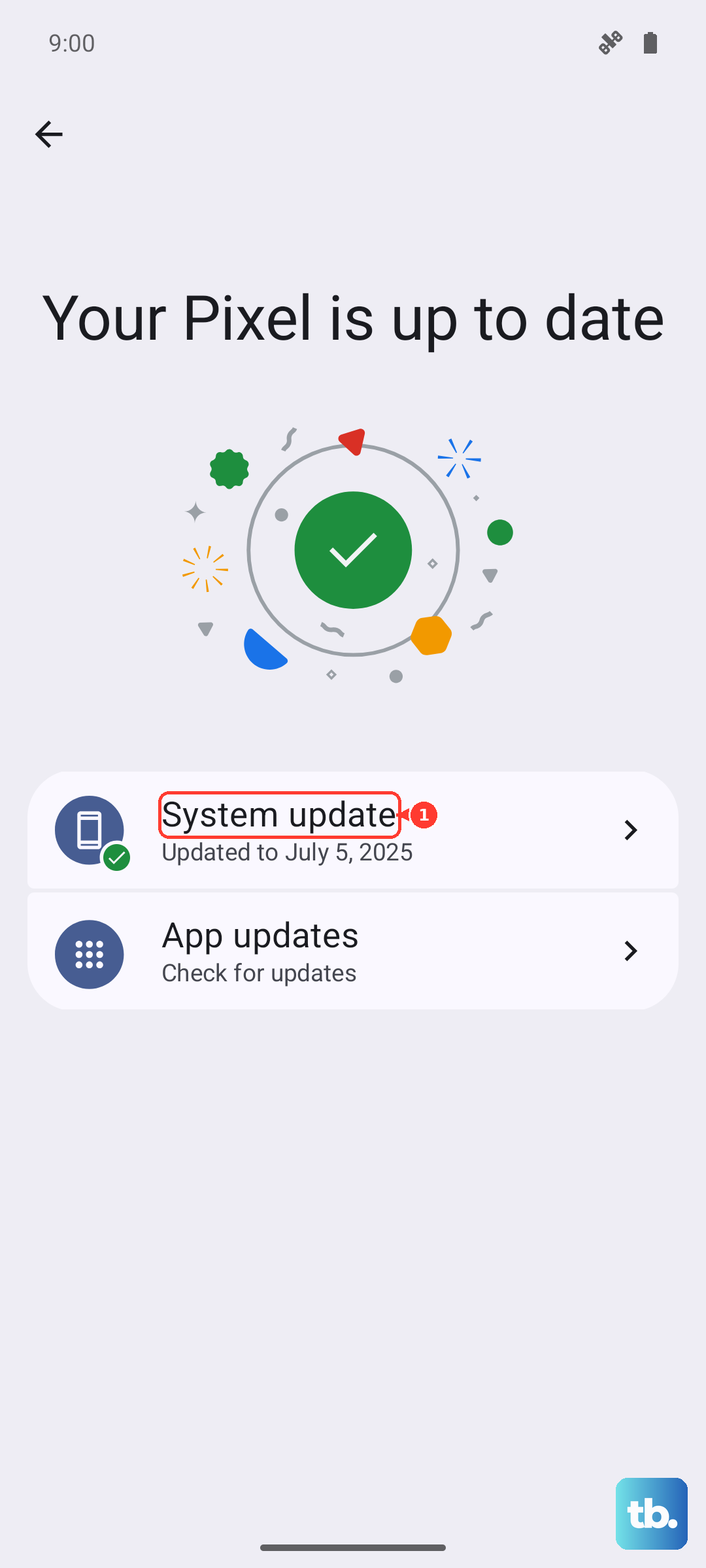
Outdated firmware can quietly break messaging, so clear any pending update. Using two fingers, swipe down from the top right corner of the screen and tap Settings > Software update > "Download and install" (the button may read "Check for system updates" or "Check for software updates" depending on your carrier), then follow the on-screen instructions. Keep the tablet on Wi-Fi and charged throughout. The Tab S10 series is eligible for One UI 7 (Android 15), which Samsung began rolling out on April 7, 2026.
Fix 8. Reset network settings
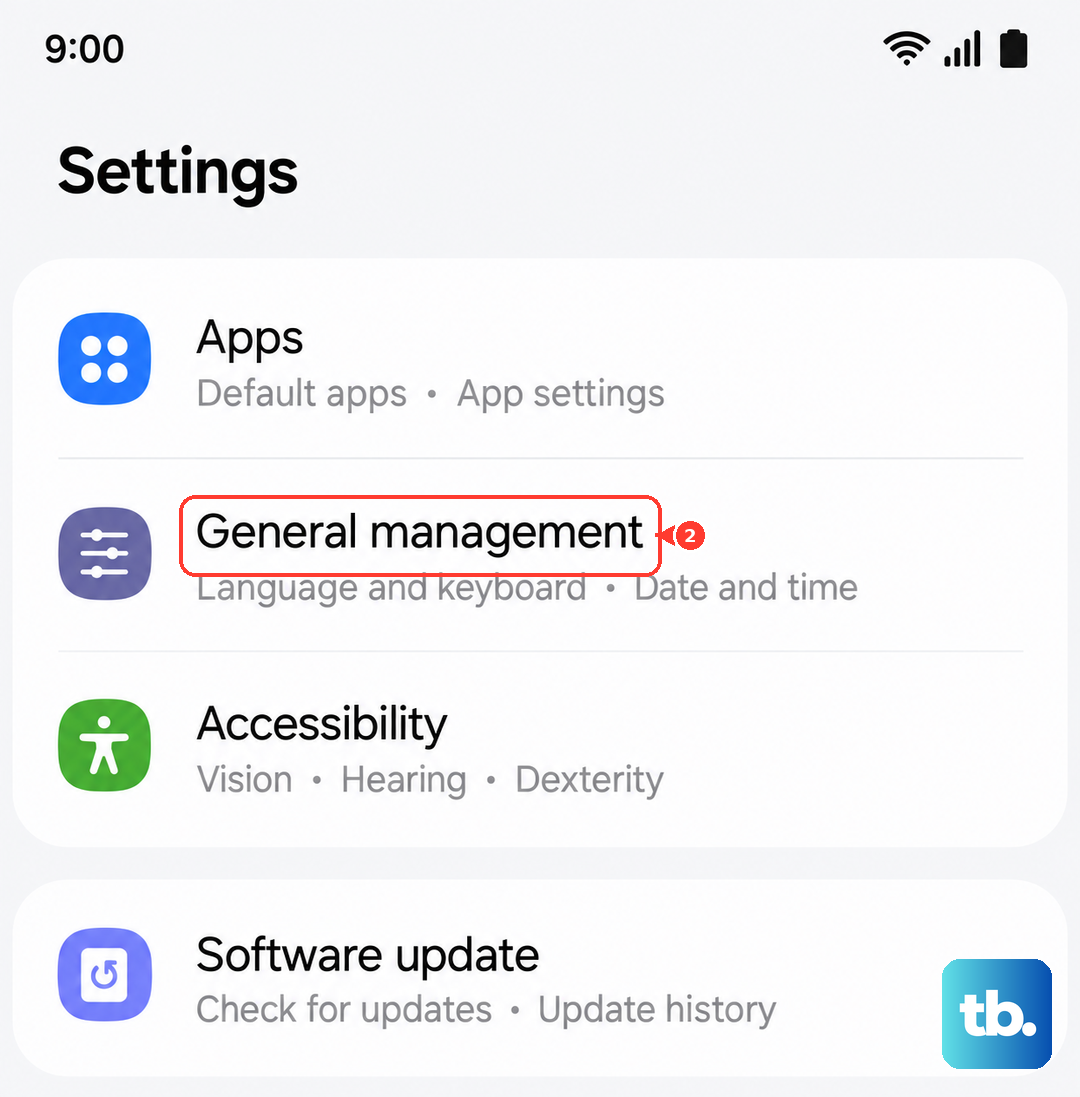
On a cellular model, resetting the network settings rebuilds the connection profiles without deleting your apps, photos, or files. Go to Settings > General management > Reset > "Reset mobile network settings" (or "Reset network settings") > Reset settings. Afterward, reconnect to Wi-Fi and Bluetooth, and be ready to ask your carrier to re-provision the line before MMS comes back.
When only a full reset or a support call is left
You have reached the last two options, and they sit at the bottom of the list on purpose, because one wipes the tablet and the other hands the problem to someone with account-level access.
Fix 9. Factory reset as a last resort
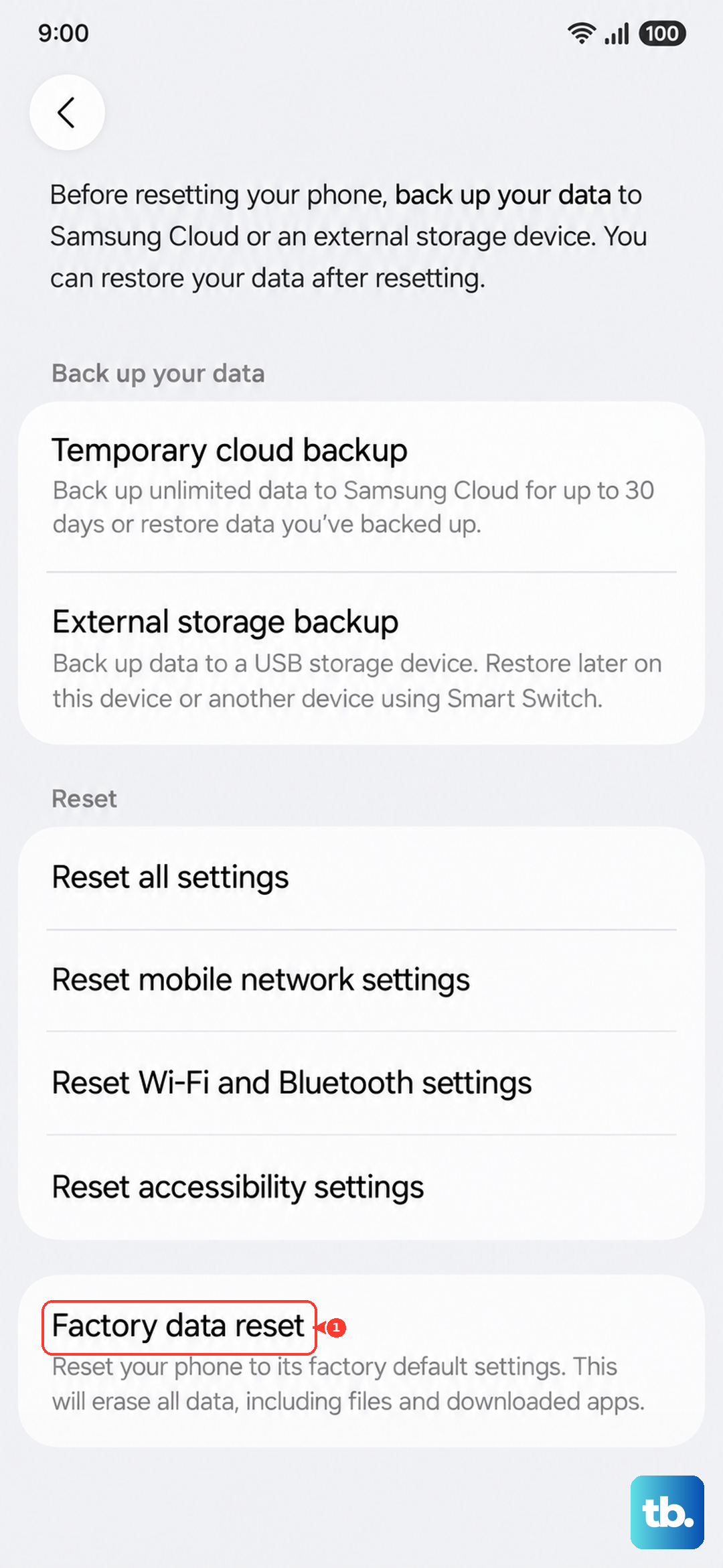
When nothing above helps, a factory reset returns the tablet to its original software state and clears any deep configuration fault. Back up everything first, because Samsung warns, "Please save any information you need prior to the factory reset because your personal information may not be recovered." To proceed, go to Settings > General management > Reset > "Factory data reset" > Reset > Delete all; a network connection is required so the tablet can log out of your Samsung account before the reset completes.
Fix 10. Contact Samsung Support or your carrier
If MMS still refuses to send after a reset, the fault is most likely on the account or carrier side. Contact Samsung Support by chat or phone through the official Samsung support website or the Samsung Members app, or call your mobile carrier and ask them to confirm that MMS or multimedia messaging is provisioned on your line and that your APN settings are correct. For the Wi-Fi model, also have them verify that the paired phone's plan supports texting and is not on a carrier the Call & text feature excludes.
Frequently Asked Questions
Can the Wi-Fi Galaxy Tab S10+ send MMS on its own?
No. The Wi-Fi model (SM-X820) has no SIM and no cellular radio, so it cannot send MMS over a mobile network by itself. You can use the Messaging app through the Call & text on other devices feature paired to a Galaxy phone on the same Samsung account, or use a 5G/LTE tablet that has active service.
Why do my plain texts send but pictures do not?
Texts and picture or video messages travel along different paths, and MMS needs a working cellular data route. On the 5G model that means mobile data on and MMS provisioned by your carrier; on the Wi-Fi model it means a properly linked Galaxy phone. If only multimedia messages fail, focus there rather than on the app itself.
Will resetting network settings delete my photos or apps?
No. Resetting mobile network or network settings from Settings > General management > Reset clears saved connection profiles only and does not erase personal data. You will need to reconnect Wi-Fi and Bluetooth afterward, though.
Does Call & text on other devices work with any phone?
It needs a Samsung Galaxy phone signed in to the same Samsung account and carrying active service. Per Samsung's current guidance it does not work with Verizon and AT&T phones, so check your carrier before relying on it.
How do I force restart a frozen Tab S10+?
Press and hold the Side button and the Volume Down button simultaneously for more than 7 seconds until the device restarts automatically. This does not erase any data.