Your Galaxy Tab A9+ powers on, the Samsung name lights up, and then nothing happens. The logo just sits there, or the screen flickers back to it over and over, and no amount of waiting moves it to the home screen. A stuck logo is usually a software hiccup, a deeply drained battery, or a charging problem rather than a dead tablet, and most of the time you can fix it yourself without losing anything.
Work through the steps below in order. They start with the safest, no-data-loss options (charging, a force restart, a quick hardware check) and only move toward the heavier fixes (a firmware repair, a factory reset, and finally Samsung service) if the simple ones do not get you booting again. The instructions apply to both the Wi-Fi Tab A9+ (SM-X210) and the 5G models (SM-X216 and SM-X218), which all run Samsung One UI with a physical Power button, Volume keys, and a USB-C port.
Rule out a dead battery, a bad cable, or a tight case
A tablet that has run completely flat will often hang at the logo because it does not have enough charge to finish booting. Before you assume the worst, give it a long, uninterrupted charge and make sure power is actually reaching the battery. Use the charging cable that came with the tablet along with an approved Samsung charger, since a worn third-party cable can deliver just enough power to wake the screen but not enough to boot.
Plug the Tab A9+ into a wall outlet using the charging cable that came with it.
Leave it charging for at least 1 hour without unplugging it; if the battery was completely drained, the charging indicator can take up to 10 minutes to appear on the screen.
Remove any case or cover that might be pressing on the buttons or blocking the port.
Inspect the USB-C cable, the charger, and the tablet's port for damage, lint, corrosion, or bent pins, and confirm the connection feels firm.
Force a reboot to clear a stuck boot
If the tablet has some charge but still freezes on the logo, a forced reboot acts like pulling the battery and clears a hung startup. This does not erase any of your data. Make sure the battery is charged to at least 5% first; if it was fully drained, charge it for at least 15 minutes with an approved Samsung charger before you try.
Press and hold the Volume down and Power buttons at the same time for about 10 seconds, until the tablet restarts.
If it does not react right away, keep holding, as a force restart can take up to 60 seconds.
Release the buttons once you see the screen change or the tablet begins to reboot.
If the tablet boots normally after this, the freeze was likely a one-off glitch. Keep an eye on it, and move on to the software steps below if it happens again.
Look for cracks, corrosion, or water damage
A logo that never clears can also point to a hardware fault rather than a software one, especially after a drop or a spill. A few minutes of inspection now can save you from chasing software fixes that were never going to work. If you find clear physical or liquid damage, the tablet needs service instead of another reset.
Examine the front, back, and charging port for cracks, pressure spots on the display, or corrosion.
Power the tablet off, then use the ejector tool to open the SIM/microSD tray.
Look for the liquid damage indicator inside the tray slot; if it has turned pink or red instead of its normal white, the tablet has been exposed to liquid and needs service.
Make sure any SIM or microSD card sits flush and aligned, then slide the tray back in.
The Tab A9+ has a microSD tray, while a SIM tray is present only on the 5G models. If the damage indicator has tripped, skip ahead to the service step rather than risk further harm.
Boot into Safe Mode to catch a misbehaving app
Sometimes a recently installed app crashes during startup and traps the tablet at the logo. Safe Mode loads only the built-in apps, so if the tablet starts cleanly that way, you have found your culprit. This step works only if you can reach the power menu.
Touch and hold Power off until the Safe mode icon is displayed.
Tap Safe mode to start your device in Safe Mode.
If the tablet boots normally, uninstall recently downloaded apps one at a time, beginning with anything added just before the trouble started.
Power off completely and restart normally to leave Safe Mode.
Install a pending software update
An out-of-date or buggy firmware build can cause a boot loop, and Samsung often ships fixes for exactly this kind of problem. If you can get the tablet far enough to open Settings (including through Safe Mode), check for and install any waiting update. A connected, fully charged tablet handles this most reliably.
Open Settings.
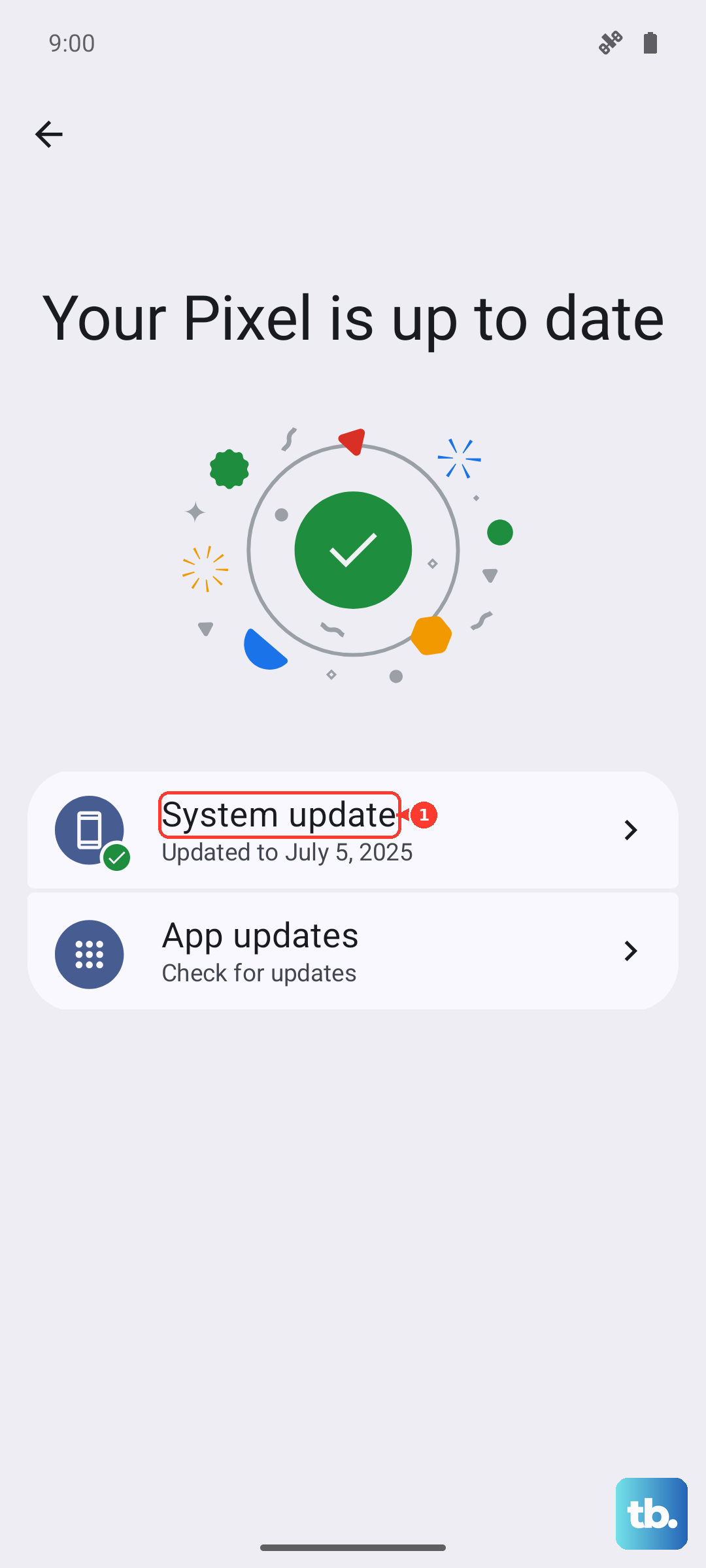
Swipe to and then tap Software update (or System updates).
Tap Download and install (or Check for software updates).
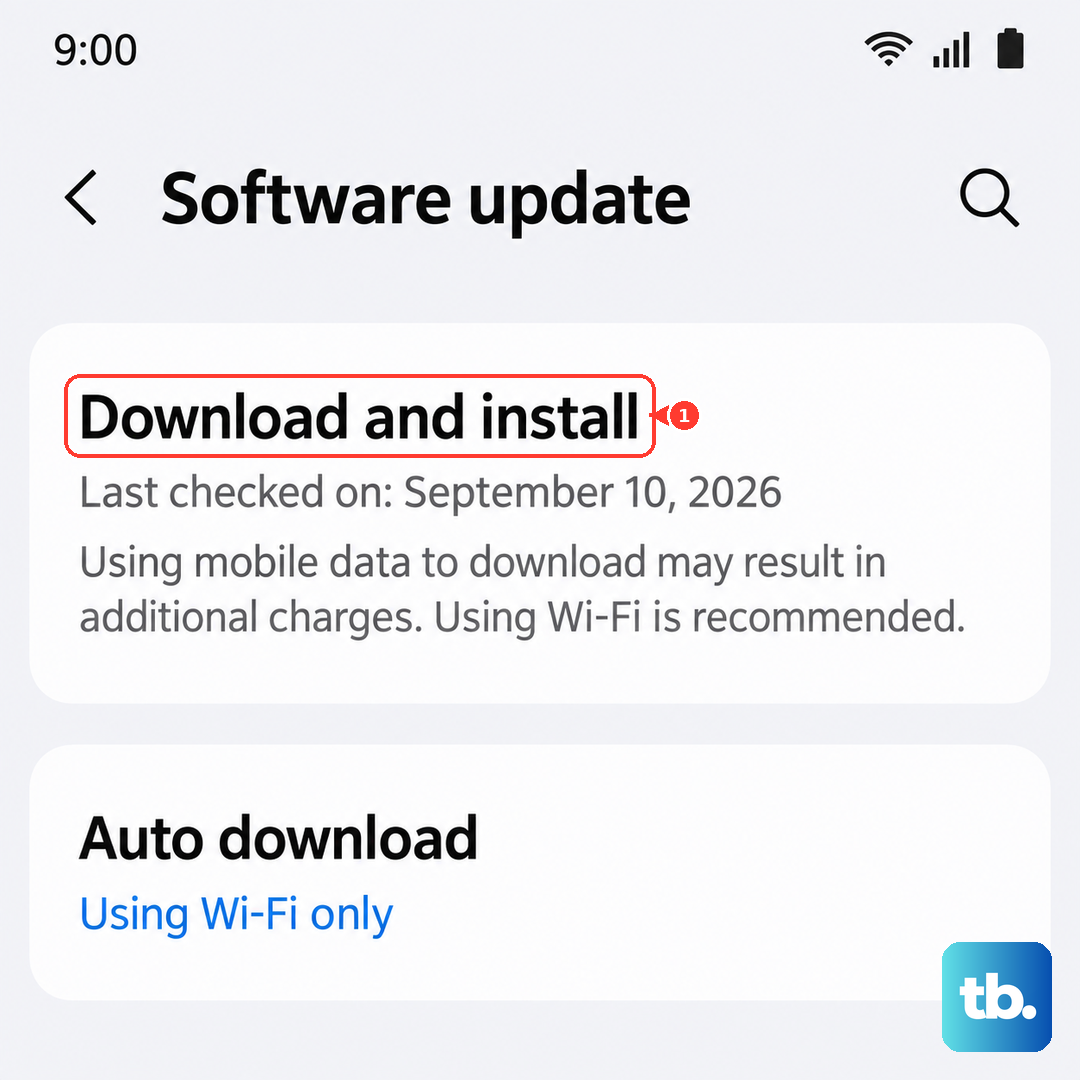
Install whatever update is offered and let the tablet restart on its own.
While you are there, you can turn on the Auto download over Wi-Fi switch so future updates install automatically and you are less likely to fall behind.
Repair the firmware from a PC or Mac with Smart Switch
When the tablet stays stuck on the logo and cannot reach Settings, the fix moves to a computer. Samsung Smart Switch is the official desktop tool for reinstalling and repairing tablet software, and it has a dedicated recovery mode for a device that will not boot. Because this is an Android tablet and not an iPhone or iPad, this is the correct path; the Finder or Apple Devices restore process does not apply here.
Download and install Samsung Smart Switch on a Windows PC or Mac.
Connect the Tab A9+ to the computer with a USB cable.
Open Smart Switch and select Update if it is offered, then follow the prompts. Do not disconnect the USB cable or use your device until the update is complete.
If the tablet cannot boot at all, choose MORE, then Emergency Software Recovery and Initialization in the top right of Smart Switch, and select your device to reinstall its software.
Erase the tablet with a factory data reset
If the tablet can still boot into Settings or Safe Mode but keeps hanging, a factory data reset wipes whatever corrupted setting or file is causing it. This step erases everything, so treat it as a last self-service option and back up your data first. Samsung's own warning is direct: "Please save any information you need prior to the factory reset because your personal information may not be recovered," and "A network connection will be required to log out of your Samsung account before you can complete the reset."
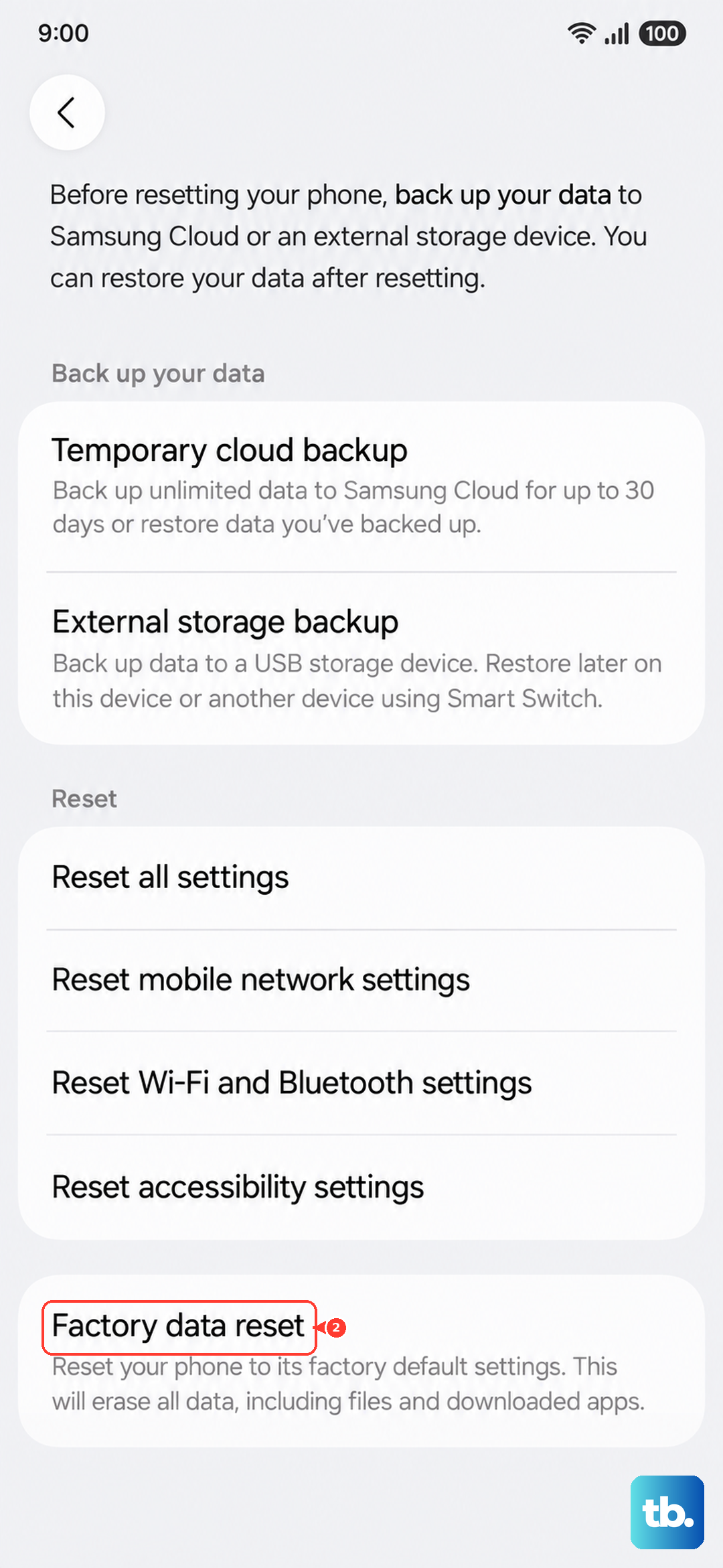
Back up anything you want to keep.
Open Settings, then go to General management, then Reset, then Factory data reset.
Tap Reset.
Tap Delete all and let the tablet erase and restart.
If the tablet cannot reach Settings at all, do not force it; use the Smart Switch Emergency Software Recovery and Initialization option from the previous step instead.
Hand it to Samsung for service
If the Tab A9+ still hangs on the Samsung logo after all of the above, or you spotted physical or liquid damage during your inspection, the tablet needs professional attention. At this point you have exhausted the safe at-home fixes, and continued resets are unlikely to help. Visit the Samsung Support Center to request service or schedule a repair, or get help through the Samsung Members app on another device.
Frequently Asked Questions
How long do I hold the buttons to force restart a Galaxy Tab A9+?
Press and hold the Volume down and Power buttons at the same time for about 10 seconds, until the tablet restarts. If it does not respond right away, keep holding, since a force restart can take up to 60 seconds. The battery needs to be charged to at least 5% for this to work.
Will I lose my data fixing a tablet stuck on the logo?
Most of these steps are safe: charging, the force restart, the hardware inspection, Safe Mode, and a software update all keep your data intact. A factory data reset erases everything, which is why it sits near the end and comes with Samsung's warning to back up first. If you are unsure, try every other step before resetting.
My Tab A9+ will not show the charging icon, so is the battery dead?
Not necessarily. If the battery is completely drained, it can take up to 10 minutes for the charging indicator to appear on the screen. Leave it plugged in with the original cable and an approved Samsung charger for at least an hour before deciding the battery has failed, and check the cable and port for damage in the meantime.
Can I recover a Tab A9+ that will not boot at all?
Yes, using a computer. Install Samsung Smart Switch on a Windows PC or Mac, connect the tablet by USB, and use MORE, then Emergency Software Recovery and Initialization, to reinstall the software on a device that cannot start normally. Do not disconnect the cable or use the tablet until the process finishes.
Does a factory reset definitely fix the stuck logo?
It clears software causes such as a corrupted setting or file, so it often resolves a logo freeze if the tablet can still reach Settings or Safe Mode. It will not fix physical or liquid damage, though. If a reset does not help, or the damage indicator has tripped, the tablet needs Samsung service.