You reach for your Galaxy Tab A9+, the 11-inch screen lights up, and instead of a steady picture you get a flicker, whether it is a quick strobe, a faint shimmer, or thin lines that flash and disappear. It might show up only at low brightness, while the tablet is charging, inside one particular app, or seemingly at random. Because the Tab A9+ uses a TFT LCD panel running Samsung One UI on Android (it is a Galaxy tablet, not an iPhone, so the iOS Reduce Transparency and Reduce White Point toggles simply do not exist here), the right answers are the standard Galaxy display and software steps below. Work through them in order, easiest and safest first, and most flickering clears long before you ever reach a factory reset.
Start with a free screen test to check the panel with fullscreen test patterns. What you see there tells you whether to blame the display, the cable, or the source.
Start with a clean reboot
A simple restart clears the temporary glitches behind a surprising amount of display weirdness, and it costs you nothing. Open the Quick settings panel, tap the Power icon, and tap Restart.
Let the tablet boot fully and use it for a few minutes before deciding whether the flicker is gone. A normal reboot resolves many transient screen problems on its own, so it is always worth trying first.
Force a restart when the screen is frozen or strobing
If the display is flickering badly or the tablet is frozen and will not respond to the Quick settings panel, a forced restart is the safe next move. It reboots the system without erasing any of your data.
- 1.Press and hold the Power button and the Volume down button simultaneously for more than 7 seconds until the device reboots.
- 2.On some Galaxy tablets the same action is described as holding the Volume down button and the Side button (or Power button) until the device turns off and turns back on.
- 3.Release the buttons once the screen goes dark and the Samsung logo appears, then let it start up normally.
Once it is back, check whether the shimmer or lines return. If they do, keep going through the steps below.
Rule out everyday camera lighting flicker
Before you chase a fault that may not exist, confirm what you are actually seeing. Samsung notes that brief black lines visible while you record video under fluorescent or LED lighting are normal and not a device defect, because they come from the lighting interacting with the camera, not from a damaged panel.
Open the Camera app and record a short test clip under different lighting. If the lines appear only in the camera preview or in recorded clips while the rest of the interface stays steady, your screen is fine and there is nothing to fix.
Calm brightness and Dark mode in Display settings
Flicker often shows up at very low brightness, and automatic brightness swings can make it worse. Go to Settings > Display, turn off the Adaptive brightness switch, and manually raise the brightness to a steady, comfortable level.
While you are there, try turning off Dark mode (also called Night mode) to see whether the flicker is tied to the darker interface. Remember that this is an LCD Galaxy tablet on One UI, so it does not offer the iPhone-style Reduce Transparency or Reduce White Point options, which means the controls above are the relevant ones for this model.
Match Motion smoothness to what you are doing
The Tab A9+ can run its display at up to 90Hz, and the refresh rate mode can influence flicker. In Settings > Display, change Motion smoothness to Standard and watch whether the screen settles.
If the flicker happens specifically while the tablet is charging, first make sure the cable and charger are seated firmly, then set Motion smoothness to Adaptive. This model has no user-changeable Screen resolution setting, because its panel is a fixed 1920 x 1200 WUXGA display, so you can skip any generic advice about selecting a different resolution.
Free up storage and memory
A system that is short on resources can stutter, and that stutter sometimes looks like flicker. Go to Settings > Device care and tap Optimize now to let the tablet clean up in one pass.
From the same Device care screen, review Storage and Memory and clear out what you no longer need, such as large files, unused apps, or cached data. Giving One UI more breathing room can smooth out a display that has been struggling to keep up.
Install the latest software and app updates
Display bugs are frequently fixed in firmware and app releases, so staying current is one of the highest-value steps. Go to Settings > Software update, tap Download and install, then tap Install now if an update is offered.
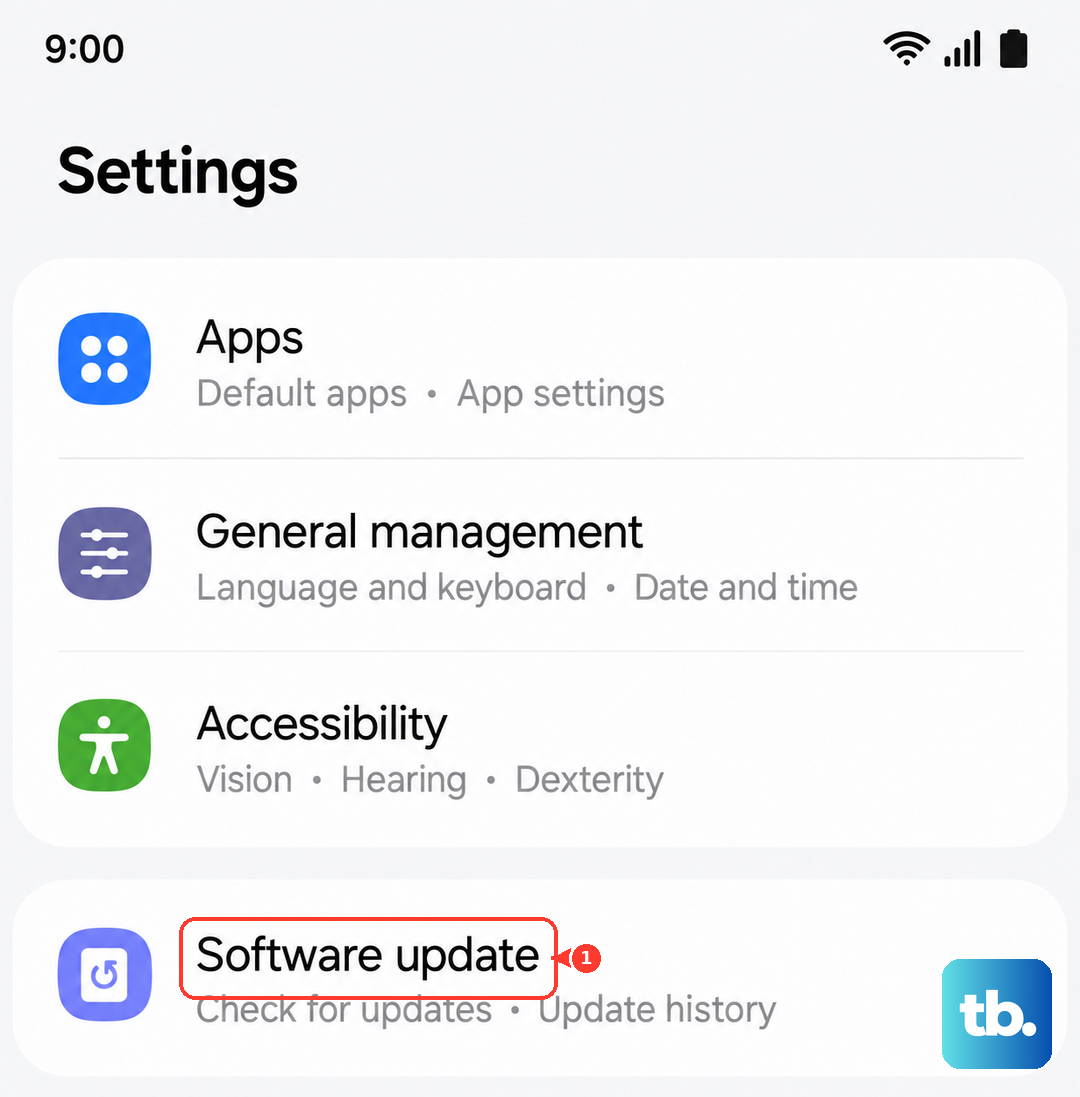
Update over Wi-Fi with enough battery to finish, and do not interrupt the process. It is also worth opening the Galaxy Store and the Play Store to update your apps, especially if the flicker only appears inside one particular app.
Expose a rogue app with Safe mode
Safe mode starts the tablet with only its built-in software, which is the cleanest way to tell whether a downloaded app is causing the flicker.
- 1.Press and hold the Power button until the power-off screen appears.
- 2.Tap and hold the Power off icon until the Safe mode option appears.
- 3.Tap Safe mode to restart into it.
If the screen no longer flickers in Safe mode, a downloaded app is the culprit, so restart normally and uninstall recently installed apps one by one, newest first, testing after each removal. If the flicker is still present even in Safe mode, the problem is most likely hardware rather than software.
Back up, then factory reset as a last resort
When none of the steps above help and you are confident the cause is software, a factory data reset wipes the slate clean and returns the tablet to its setup state. This erases everything, so back up first. You can use Samsung Smart Switch on a PC or Mac to save your data, and Samsung Members is the official in-device support app if you need diagnostics or guidance.
Samsung is explicit about the risk, stating "Please save any information you need prior to the factory reset because your personal information may not be recovered." Once your backup is done, go to Settings > General management > Reset > Factory data reset, review the information shown, tap Reset, then tap Delete all.
After the tablet restarts and you set it up again, test the screen before restoring everything. If the flicker is gone with a fresh system, restore your data, and if it returns, treat it as a hardware issue.
When the flicker is a hardware fault
Some flicker is physical. If the screen is cracked or otherwise damaged, or if the flicker persists even in Safe mode and after a factory reset, Samsung treats it as a hardware problem rather than something you can fix in settings.
In that case, the official guidance is to visit a Samsung walk-in service center or to schedule a repair service online. Bring or note your model number (the Wi-Fi version is SM-X210, and the 5G versions are SM-X216 and SM-X218) so the technician can match the correct display part.
Frequently Asked Questions
Why does my Galaxy Tab A9+ flicker only while it is charging?
Charging-related flicker is often down to a loose or low-quality connection, so first make sure the cable and charger are firmly seated. Then open Settings > Display and set Motion smoothness to Adaptive, which is Samsung's recommended setting for flicker that appears specifically during charging.
Will a factory reset stop the screen flickering?
A factory reset can fix flicker if the cause is software, but it erases all of your data, so back up first with Samsung Smart Switch and heed Samsung's warning that personal information may not be recovered. If the flicker continues after a reset, the issue is almost certainly hardware and needs service.
Does the Tab A9+ have a Reduce White Point or Reduce Transparency setting to reduce flicker?
No. Those are iPhone (iOS) settings, and the Galaxy Tab A9+ is an Android tablet running Samsung One UI, so they do not exist here. Use the Display settings instead, including turning off Adaptive brightness, turning off Dark mode, and adjusting Motion smoothness.
Can I change the screen resolution to reduce flickering?
No, this model has a fixed 1920 x 1200 (WUXGA) panel and no user-changeable Screen resolution setting, since that is a flagship-only feature. The display option that can affect flicker is Motion smoothness, which you can set to Standard or to Adaptive (up to 90Hz).
How can I tell if the flicker is normal rather than a fault?
Brief black lines that appear only while recording video under fluorescent or LED lighting are normal and not a defect, so check whether the flicker shows up just in the Camera app. If the interface stays steady everywhere else, there is nothing to repair, but if it flickers across the whole screen, work through the restart, display, update, and Safe mode steps above.