
When the predictive text on your Samsung Galaxy Tab A9+ stops working, it can really slow you down. You might find it's not suggesting words at all, or the suggestions are just plain wrong. I'd start with a quick restart, as it often clears up temporary glitches that can affect the keyboard.
Just press and hold the Volume Down and Power button together for about ten seconds. You'll see the screen go black and the Samsung logo reappear. Give it a minute to boot back up fully, then try opening a text field to see if predictions are back.
Check Your Smart Typing Settings
It's worth making sure the feature hasn't been accidentally turned off. Open the Settings app on your Tab A9+ and tap on General management. From there, select Language and input, then On-screen keyboard, and finally Samsung Keyboard.
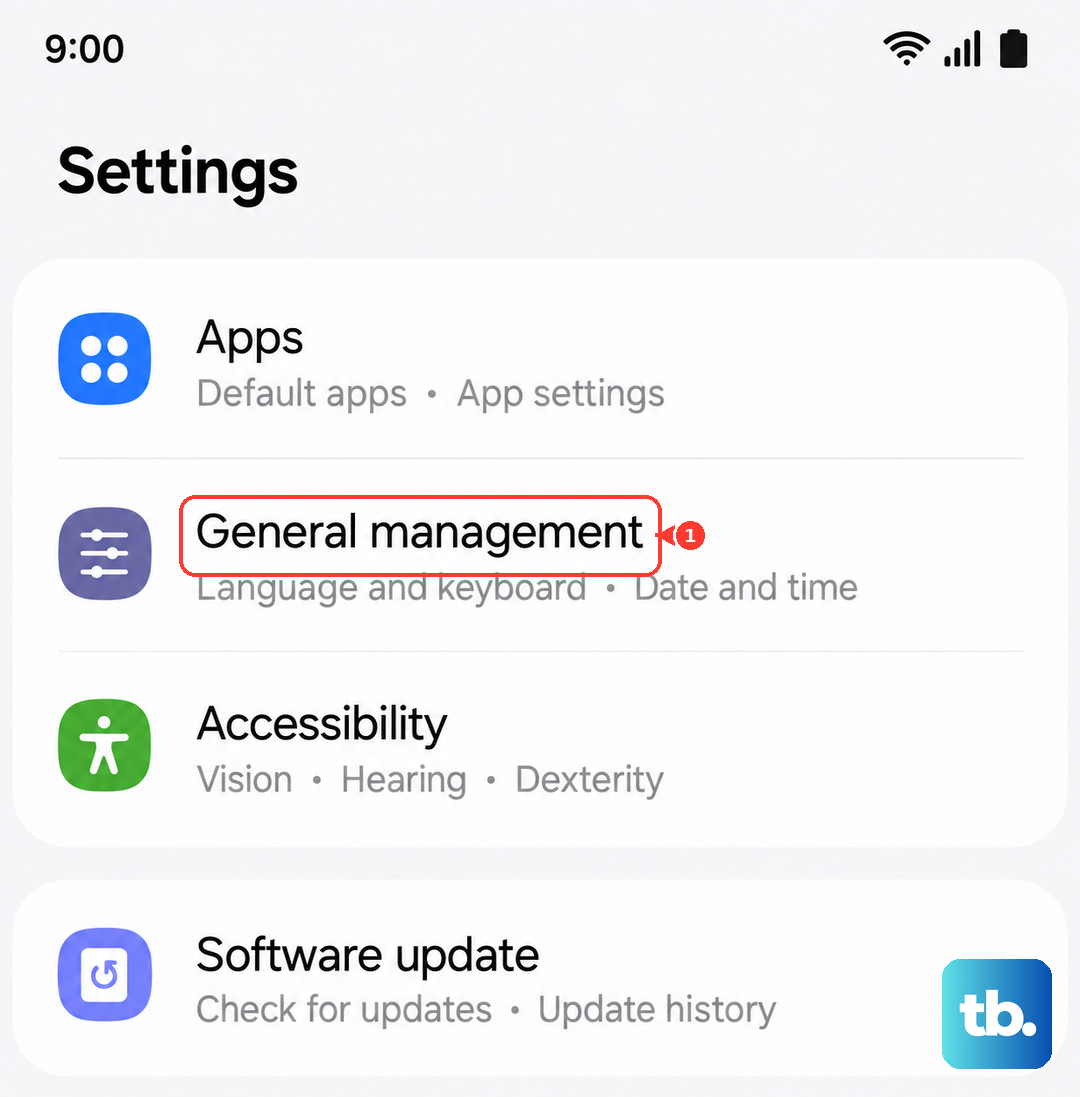
Tap on Smart typing. You should see a switch for Predictive text right at the top. Make sure it's toggled on. While you're here, you can also toggle it off and back on again to refresh the feature.
Clear the Keyboard's Cache
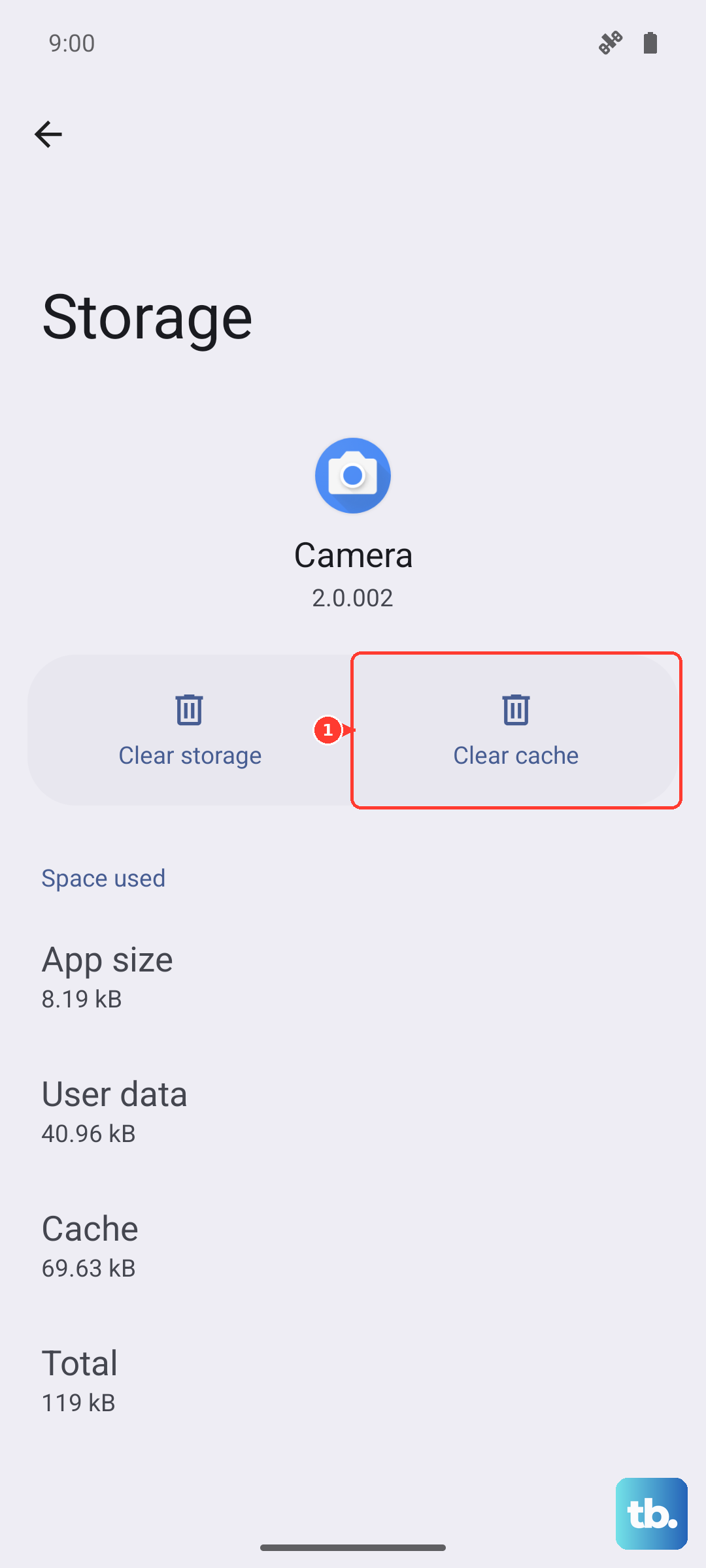
If a restart didn't help, the next step is to clear the keyboard app's cache. This gets rid of temporary files that might have become corrupted. Go to Settings, then Apps. You may need to tap the three-dot menu in the top right and select Show system apps to find it.
Scroll down and tap on Samsung Keyboard. Tap on Storage, and then tap the button that says Clear cache. This won't delete any of your personal data or saved words, so it's a safe first try.
Update the Keyboard and Language Files
An outdated keyboard app or language pack can cause prediction issues. First, check for a keyboard update in the Google Play Store. Open the Play Store, tap your profile icon, and go to Manage apps & device. Look under Updates available for Samsung Keyboard.
You should also update your input language. Go back to Settings > General management > Language and input > On-screen keyboard > Samsung Keyboard. Tap Languages and types, select your language, then tap the download icon next to it to check for updates.
Reset the Keyboard to Its Default Settings
If predictions are still broken, resetting the keyboard can wipe away any bad settings. This will erase your personalized dictionary and any custom keyboard layouts, so it's a more significant step.
Navigate to Settings > General management > Language and input > On-screen keyboard > Samsung Keyboard. Scroll to the bottom and tap Reset settings. Confirm your choice. After the reset, you'll need to go back into the Smart typing menu and re-enable Predictive text.
Consider Performance and Alternative Keyboards
The Galaxy Tab A9+ uses a Snapdragon 695 chipset, which can sometimes struggle if too many apps are running. If the Samsung keyboard feels laggy and predictions are slow, try closing some background apps from the recent apps view.
As a last resort, you can try a different keyboard from the Play Store, like Gboard. Sometimes, switching to a third-party app is the quickest fix. If you do switch, remember to go into your tablet's Language and input settings to set the new keyboard as your default.