You're staring at your brand new Samsung Galaxy S26, and that Wi-Fi icon just won't turn blue. It's stuck on "Connecting" or maybe it shows as saved but won't actually let you online. I've seen this a few times with the new One UI 8.5 software, and it's almost always a quick software fix you can handle yourself.
Toggle Wi-Fi and Restart Your Phone
Let's start with the simplest fix. Swipe down from the top of your screen to open the Quick Panel and tap the Wi-Fi icon to turn it off. Wait a solid five seconds, then tap it again to turn it back on. This forces your S26 to drop the current connection and re-scan for networks, which often clears up a temporary glitch.
If that doesn't work, give your phone a full restart. Press and hold the Side key and the Volume Down button together for about 10 seconds until you see the Samsung logo appear. This is the force restart method for the S26, and it's more thorough than a standard restart for clearing out connection bugs.
Use Airplane Mode to Reset Radios
This old trick still works perfectly. Turning on Airplane mode shuts down all wireless communication, Wi-Fi, cellular, and Bluetooth. Swipe down your Quick Panel and tap the Airplane mode icon. Leave it enabled for about 15 to 20 seconds, then tap it again to turn it off. This gives all the radios a clean slate to reconnect.
Forget and Re-add Your Wi-Fi Network
Your phone might be holding onto outdated information for your network. Go to Settings > Connections > Wi-Fi. Tap on the name of your network and select Forget. Don't worry, this just removes the saved password from your phone.
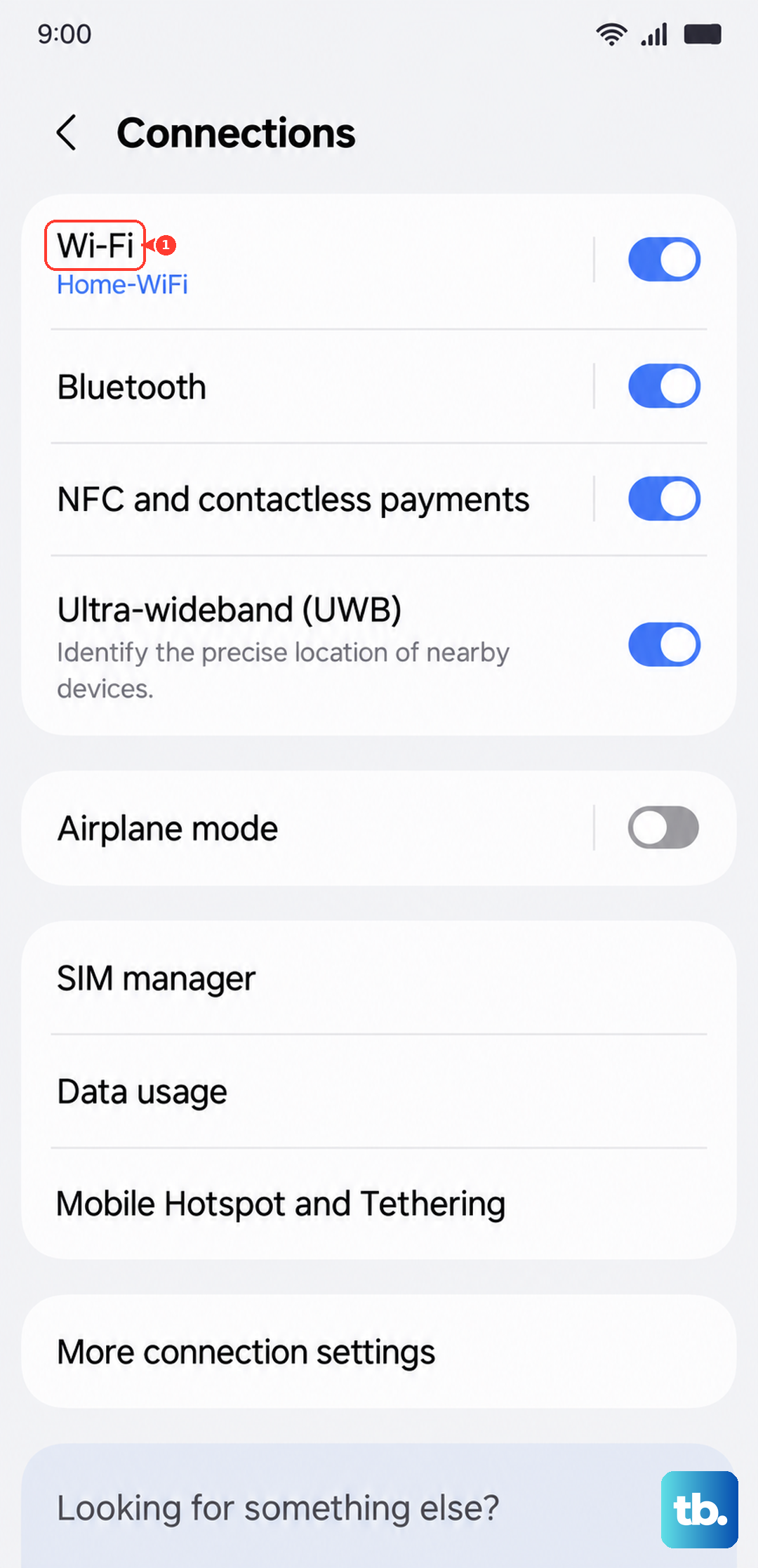
Now, tap on your network name again from the list, re-enter the password carefully (it's case-sensitive), and tap Connect. This is the fix if you've recently changed your router's password or security settings.
Check for a Software Update
Since the Galaxy S26 is brand new in 2026 and running the fresh One UI 8.5, early software bugs are a real possibility. Samsung is likely pushing out updates to improve stability. Go to Settings > Software update and tap Download and install.
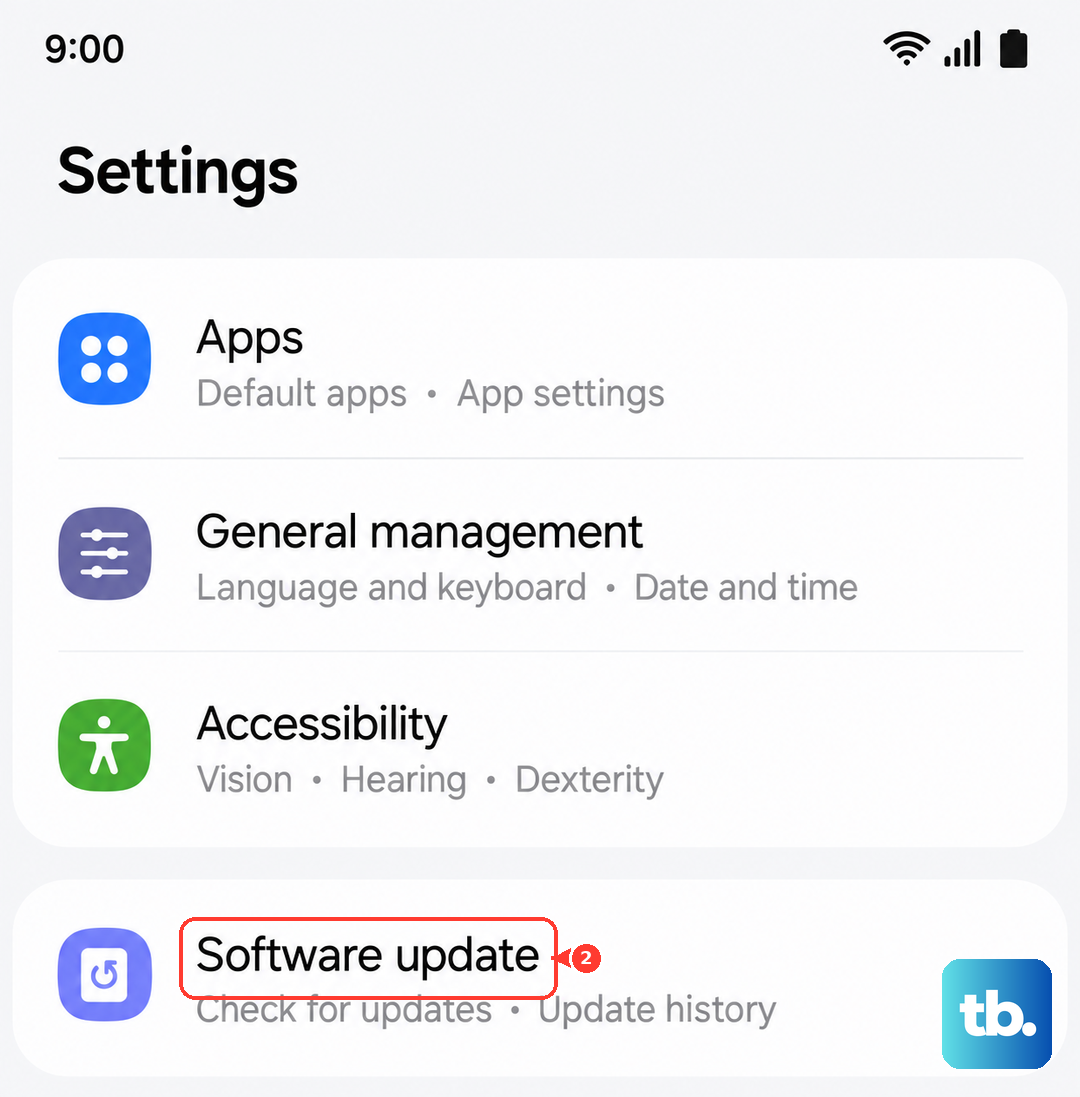
Make sure your phone is connected to a mobile network or another Wi-Fi source to check. I'd recommend checking for updates weekly for the first few months, as these patches often include crucial connectivity fixes.
Disable Adaptive Wi-Fi and Switch to Mobile Data
Your S26 has a feature designed to save battery by managing your connections, but it can sometimes be too aggressive. Head to Settings > Connections > Wi-Fi, then tap the three-dot menu and go to Intelligent Wi-Fi.
Here, you'll want to turn off Switch to mobile data. This feature can prevent a stable connection if it thinks the Wi-Fi is too slow. Also, consider turning off Adaptive Wi-Fi temporarily to see if it makes a difference.
Turn Off Power Saving Modes
Any battery saving mode can limit background network activity to conserve power. Go to Settings > Battery. If any power saving mode is enabled (like Light or Adaptive), tap on it and select Turn off.
Also, check your charging settings. While Adaptive charging that limits to 85% won't affect Wi-Fi, it's good to know where those settings are in Settings > Battery > Charging settings.
Check Your Date and Time Settings
An incorrect date or time can break the security certificates needed to connect to modern Wi-Fi networks. This is an easy one to overlook. Navigate to Settings > General management > Date and time.
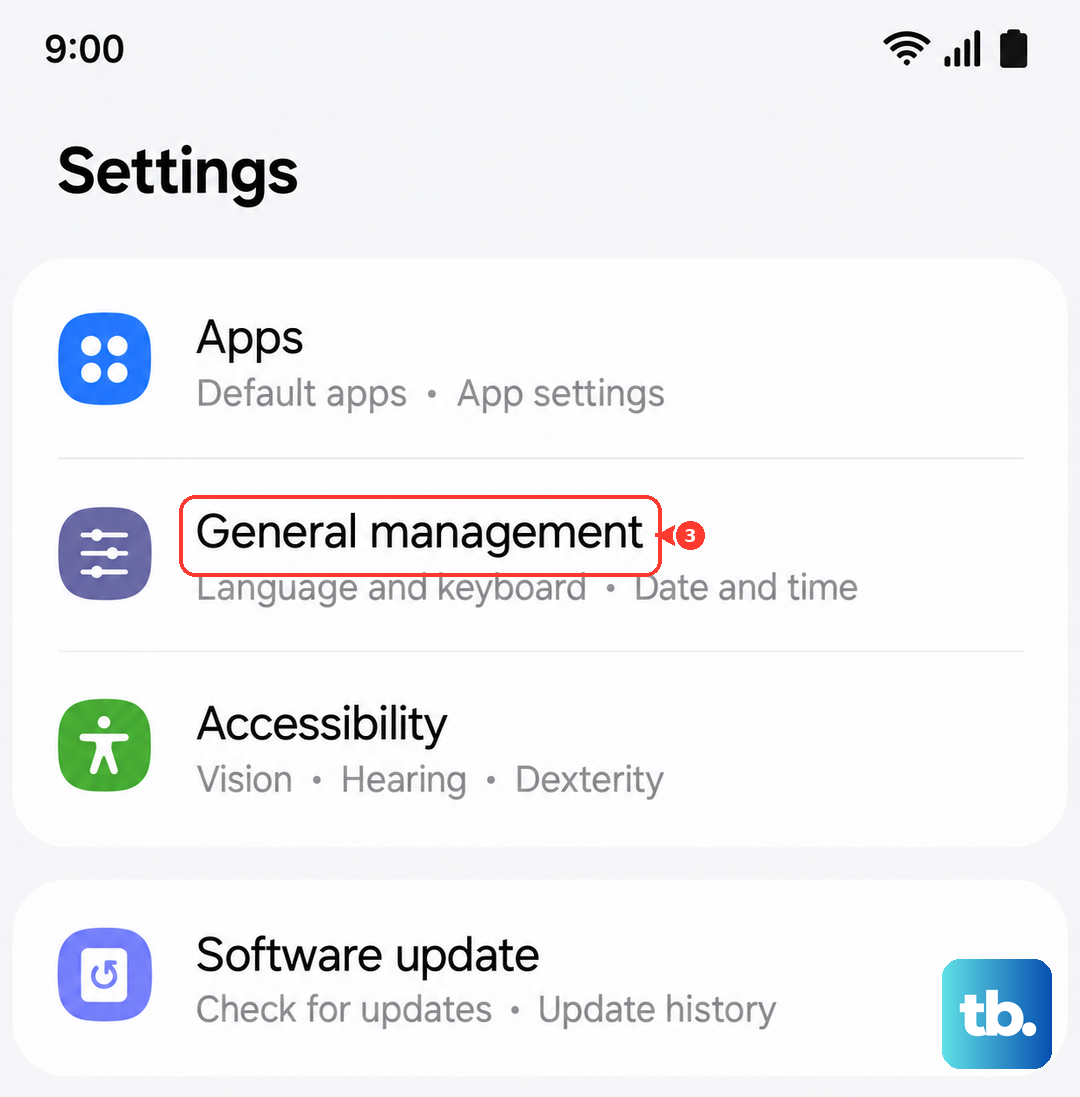
Make sure Automatic date and time is switched on. This allows your phone to sync with network time, ensuring everything is in order for a secure connection.
Reset Your Galaxy S26's Network Settings
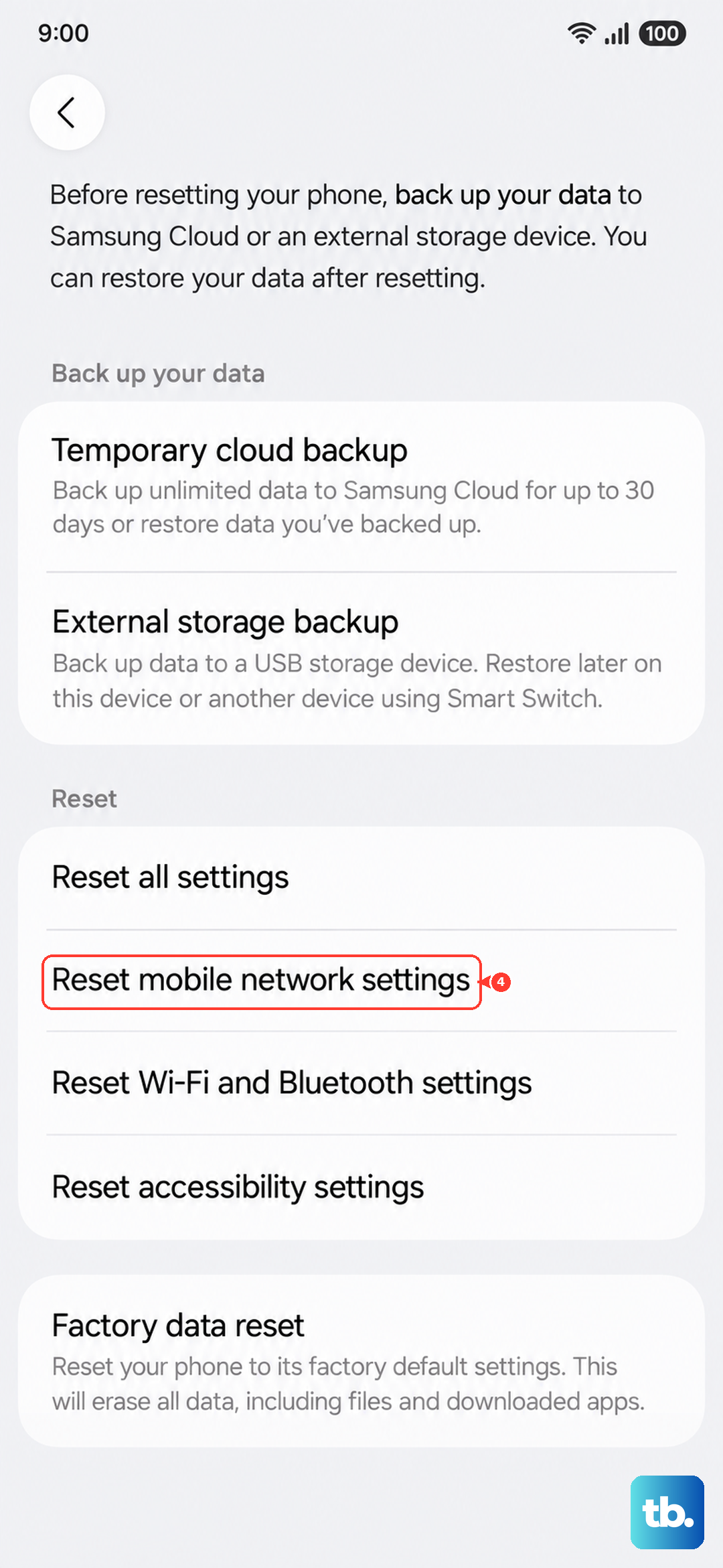
This is a more significant step, but it won't delete your personal files. It will erase all saved Wi-Fi networks, Bluetooth pairings, and mobile network preferences. Go to Settings > General management > Reset.
Tap on Reset network settings. You'll need to confirm your PIN or password. After the reset completes, you'll have to reconnect to your Wi-Fi and re-pair any Bluetooth devices like headphones or your watch.
Boot Into Safe Mode to Check for App Issues
A third-party app you installed could be causing the conflict. To test this, you need to boot into Safe Mode, which temporarily disables all downloaded apps. Press and hold the Side key until the power menu appears.
Then, tap and hold the Power off option on your screen. You'll see a prompt to reboot to Safe Mode. Tap it. If your Wi-Fi works perfectly in Safe Mode, you know a downloaded app is the problem. Start by uninstalling any recent apps, VPNs, or ad blockers.
Restart Your Router and Modem
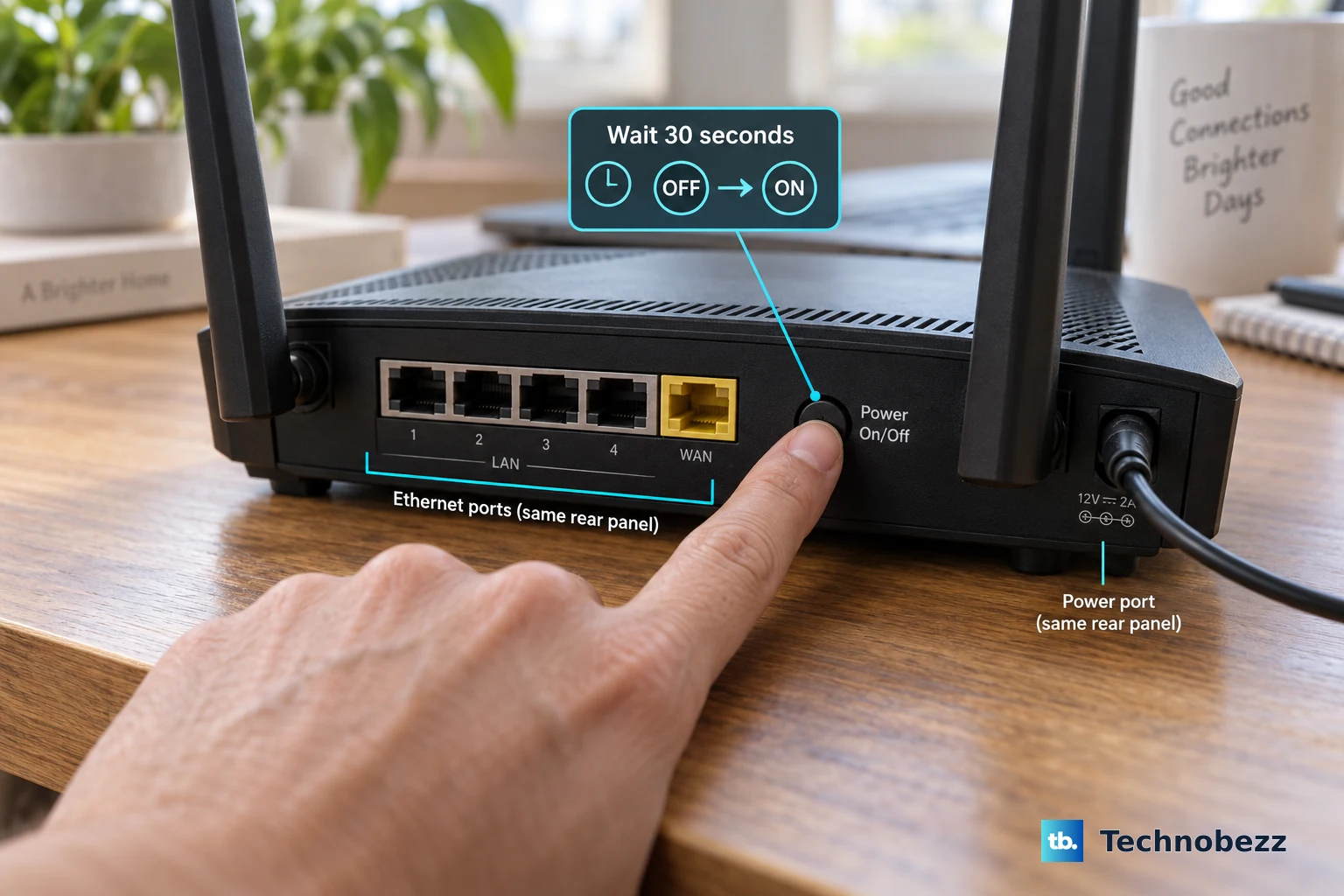
Before you do anything more drastic on your phone, rule out the source. The issue might be with your home network. Unplug your router and modem from power. Wait a full 60 seconds, this is important to clear their memory.
Plug the modem back in first and wait for all its lights to stabilize. Then plug the router back in. Once your network is fully back online, try connecting your S26 again. If other devices were also having trouble, this was almost certainly the fix.