
When you get a "Download Failed" error trying to receive a photo or video on your Samsung Galaxy S26 Ultra, it's usually a quick fix. MMS messages need a mobile data connection and the right settings to work, and a simple restart or setting toggle often clears it right up.
Let's walk through the most effective fixes, starting with the ones that take just a few seconds.
Restart Your Galaxy S26 Ultra
A force restart is a great first step. It clears out any temporary software glitches that might be hanging up the messaging service. Press and hold the Volume Down button and the Side/Power button together for about 10 seconds until you see the Samsung logo appear on the screen.
This is different from a normal restart and can resolve deeper system hiccups. Once your phone boots back up, try downloading the MMS again.
Check Your Mobile Data and Connection
MMS doesn't download over Wi-Fi alone, it requires an active mobile data connection. Swipe down from the top of your screen to open the Quick Settings panel and make sure the Mobile Data icon is turned on.
Also, check your signal strength. If you're in a low-coverage area, the download might time out before it can complete. Try moving to a different location or, if you're indoors, stepping near a window.
Verify MMS Auto-Download Settings
Your phone might be set to not download MMS automatically to save data. You'll need to enable this in the Samsung Messages app. Open the app, tap the three-dot menu in the top right, and go to Settings.
From there, tap Multimedia messages. Make sure the switch for Auto download is turned on. While you're here, if you travel often, you might also want to enable Roaming auto download.
Clear the Messages App Cache
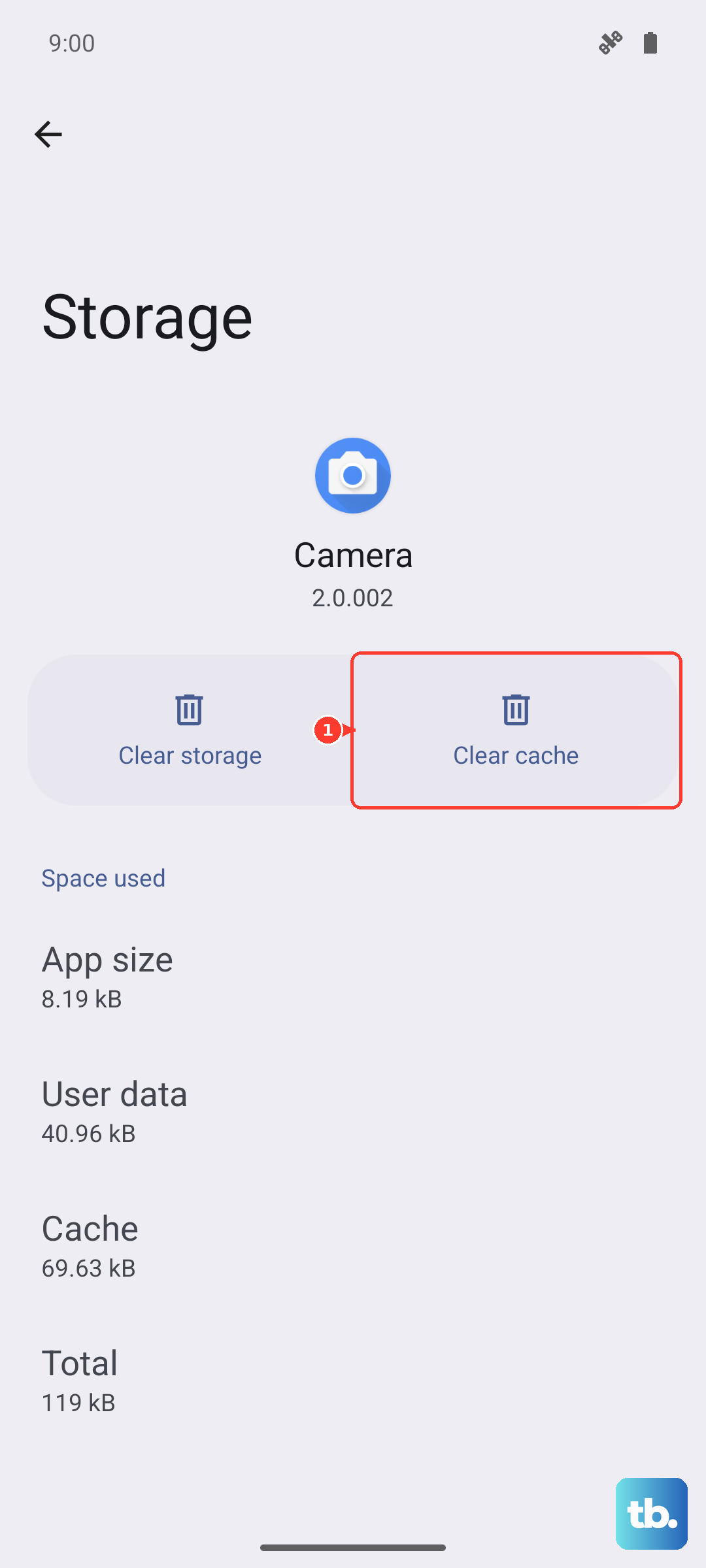
Corrupted temporary files in the app's cache can cause download failures. Clearing this cache is safe and won't delete your messages. Go to your phone's Settings and select Apps.
Find and tap on Messages (the Samsung app). Select Storage and then tap Clear cache. After doing this, force close the Messages app and reopen it to see if the MMS will now download.
Review Your APN Settings
Incorrect Access Point Name (APN) settings are a common culprit for MMS issues. These settings tell your phone how to connect to your carrier's multimedia service. The correct settings are unique to your carrier.
You can find and check them by going to Settings > Connections > Mobile networks > Access Point Names. I'd recommend contacting your carrier's support or visiting their website to get the exact, up-to-date APN configuration for the Galaxy S26 Ultra.
Reset Your Network Settings
If the APN looks correct or you're not sure, a network settings reset can wipe the slate clean. This will erase all Wi-Fi passwords, Bluetooth pairings, and mobile network settings, returning them to factory defaults.
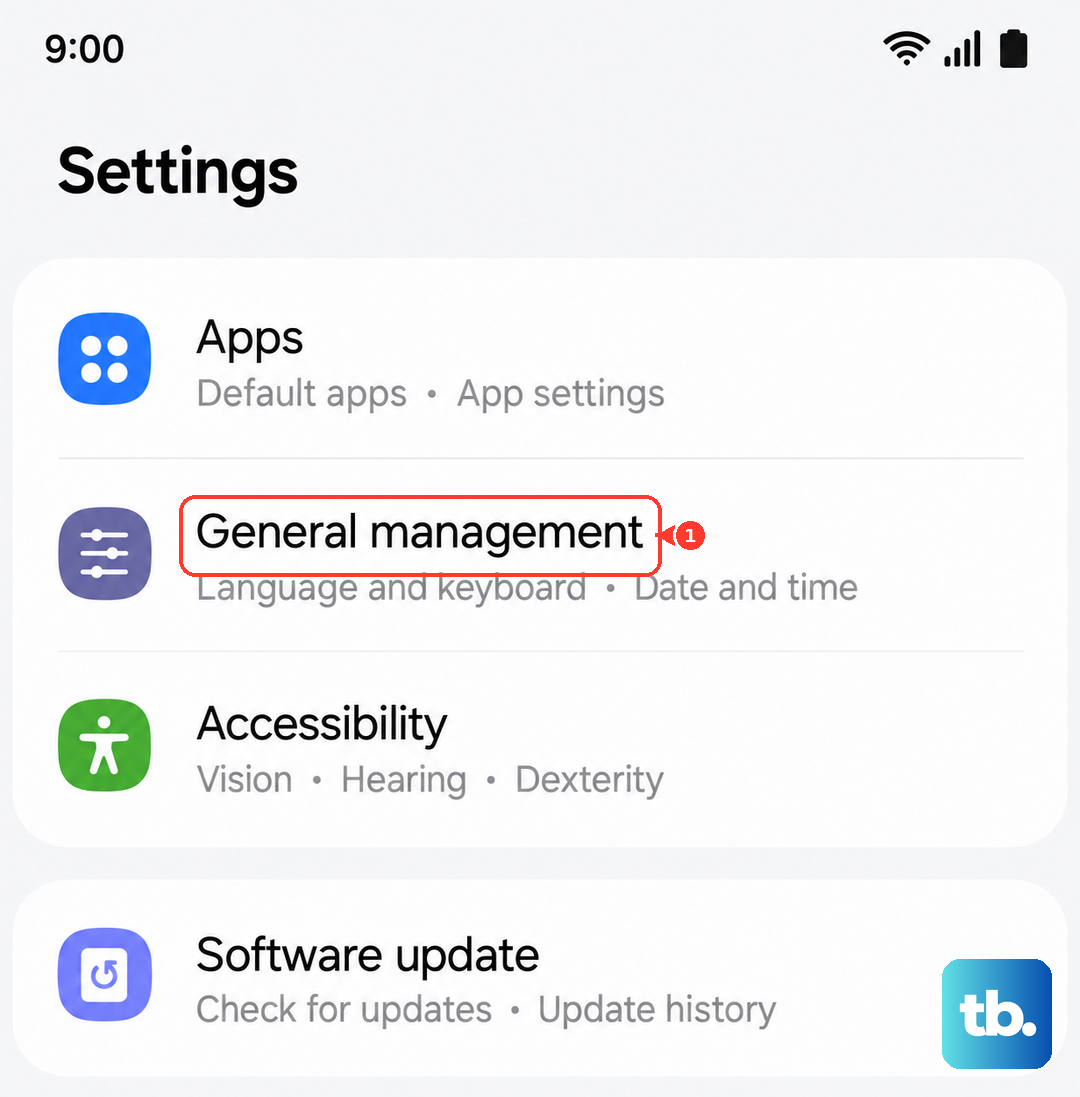
To do this, navigate to Settings > General management > Reset > Reset network settings. Confirm the reset and your phone will reboot. You'll then need to reconnect to Wi-Fi networks and re-pair Bluetooth devices, but this often resolves persistent MMS problems.
Update Your Phone's Software
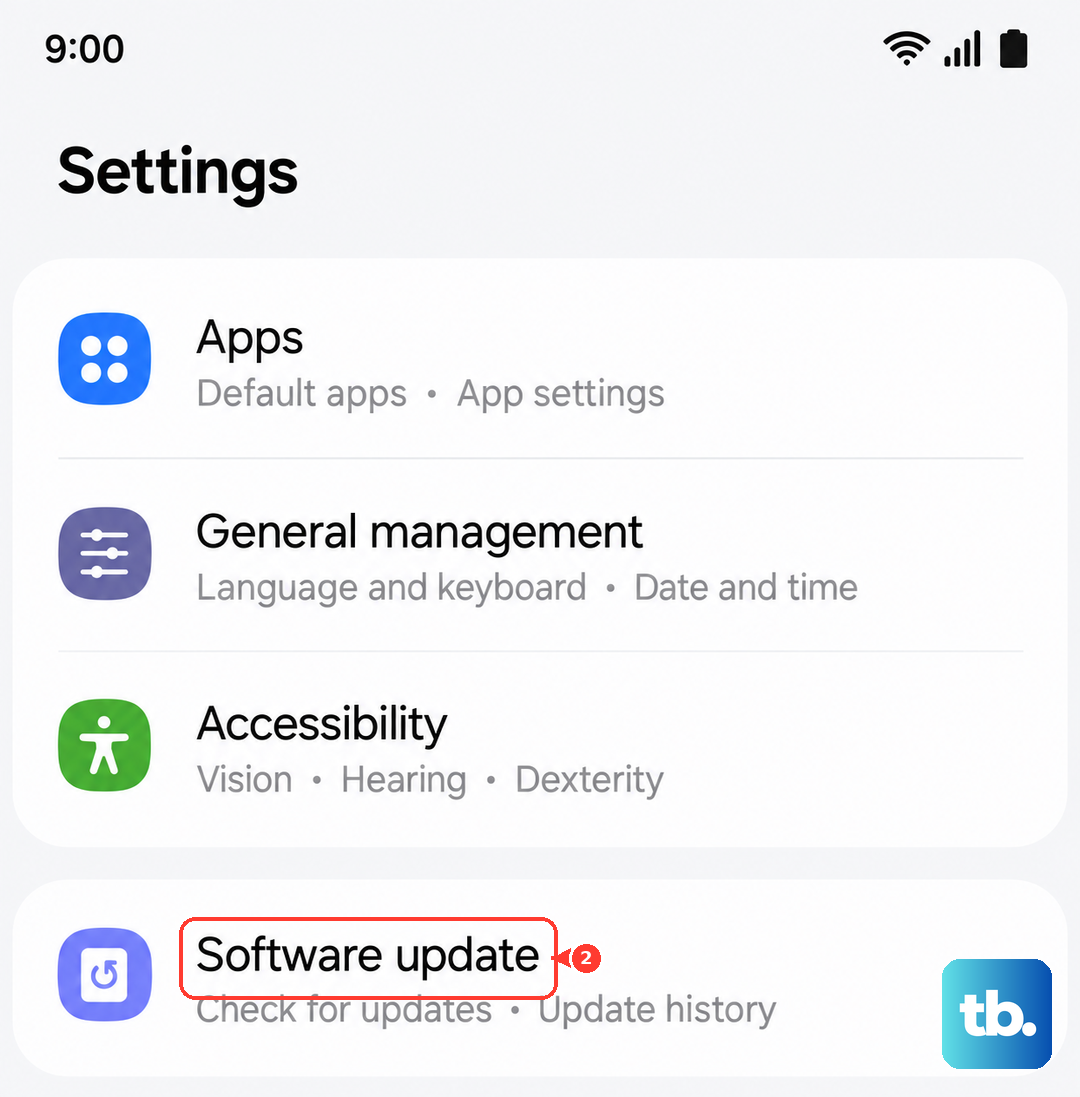
Since the S26 Ultra is a new device, early software bugs can sometimes affect messaging services. Samsung releases updates to fix these kinds of issues. Check for an update by going to Settings > Software update > Download and install.
If an update is available, install it. Make sure your phone is connected to Wi-Fi and has a good charge, as the process can take several minutes.
Try a Different Messaging App
Sometimes the issue is isolated to the Samsung Messages app itself. Downloading a popular alternative like Google Messages from the Play Store can be a good test. Set it as your default messaging app temporarily and see if MMS downloads work.
If they do, the problem is likely with the Samsung app. You can either keep using the new app or, after confirming MMS works, you might try clearing the data for the Samsung Messages app (warning: this will delete your message history within that app) before switching back.
Ensure You Have Adequate Storage
Your phone needs available space to save incoming multimedia files. Go to Settings > Device care > Storage to see how much space is free. If you're running low, consider deleting old downloads, cached data from other apps, or unused applications.
The S26 Ultra has a massive camera system, and photos and videos from it are large. Regularly moving files to cloud storage or a computer can help prevent storage-related download errors.
If you've worked through all these steps and are still seeing the "Download Failed" error, your final step should be to contact your mobile carrier directly. There may be a provisioning issue with your line or a service outage in your area that only they can identify and resolve.