
When your brand new Samsung Galaxy S26 Ultra starts restarting on its own, it can feel like you've got a lemon. This is especially frustrating on a flagship device. Since it's a 2026 model running the latest One UI 8.5, early software bugs are a real possibility, but there are plenty of things you can try yourself.
Before you start, it's a good idea to make sure your data is backed up. You can use Samsung Cloud or just plug it into a computer and copy your important files. This keeps your photos and documents safe just in case.
Perform a Force Restart
This is almost always the first thing I'd try. A force restart clears the phone's temporary memory and can knock out a minor software glitch causing the loop. For the S26 Ultra, press and hold the Volume Down button and the Side/Power button together for about 10 seconds.
Keep holding them until you see the Samsung logo appear on the screen, then let go. Your phone will boot up normally. This doesn't delete any of your personal data or settings.
Check for App Updates and Conflicts
Since the phone is new, some of your installed apps might not be fully optimized for Android 16 or One UI 8.5 yet. An outdated or buggy app is a very common cause of random restarts. Head over to the Galaxy Store and Google Play Store to check for updates.
If the restarts started after installing a specific app, that's a big clue. Try booting the phone into Safe Mode. This temporarily disables all third-party apps. Press and hold the power button, then tap and hold the "Power off" option on the screen until you see the Safe Mode prompt.
If the phone is stable in Safe Mode, a downloaded app is the culprit. You'll need to uninstall apps one by one, starting with the most recently installed, to find the offender.
Install the Latest System Update
Samsung is likely pushing out updates to stabilize the new S26 Ultra software. An update could contain a direct fix for the restart issue you're experiencing. Go to Settings > Software update > Download and install.
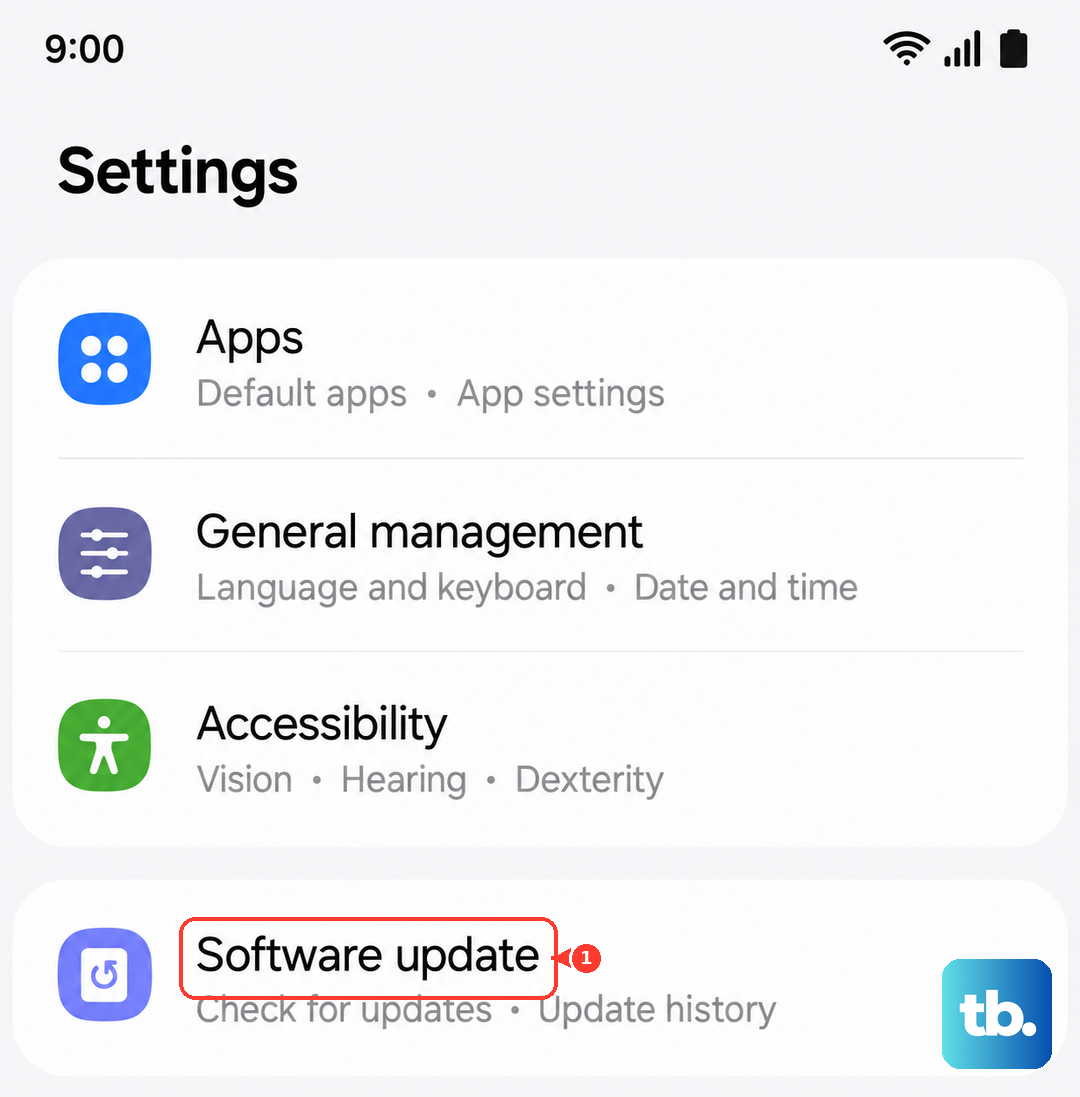
Make sure your phone is connected to Wi-Fi and has at least a 50% charge before starting the update. It's also worth checking if you have the "Auto download over Wi-Fi" option enabled to catch future fixes automatically.
Inspect the USB-C Port and S Pen Slot
This might seem unrelated, but a hardware issue can cause software instability. The S26 Ultra's S Pen slot is right next to the USB-C charging port. Debris like lint from your pocket can get trapped in the slot and migrate into the port.
Even a tiny bit of conductive material in the port can confuse the phone's moisture detection system or cause a short, leading to a protective shutdown and restart. Power the phone off completely, then use a non-metallic tool like a plastic toothpick or a can of compressed air to gently clean out both the USB-C port and the S Pen slot.
Be very careful not to damage the delicate pins inside the port. I've seen this simple fix resolve what seemed like a major software crash on other Galaxy models.
Review Device Care and Battery Settings
One UI has a built-in diagnostic tool. Go to Settings > Battery and device care. Tap on "Diagnostics" to run tests on your phone's hardware, including the battery.
Also, check your battery protection settings. If you've turned on battery protection, the S26 Ultra can cap charging (Maximum mode lets you pick a limit such as 80% or 85%) to help prolong battery health. While this shouldn't cause restarts, it's good to know it's active. You can find it in Settings > Battery > More battery settings.
If your storage is completely full, it can also cause system instability. The Device Care section will show your storage status and can help you clean up unnecessary files.
Reset All Settings
If a specific setting got corrupted, it could be causing the problem. This reset will revert all your preferences, like Wi-Fi passwords, wallpaper, and display settings, back to factory defaults without touching your personal data, photos, or apps.
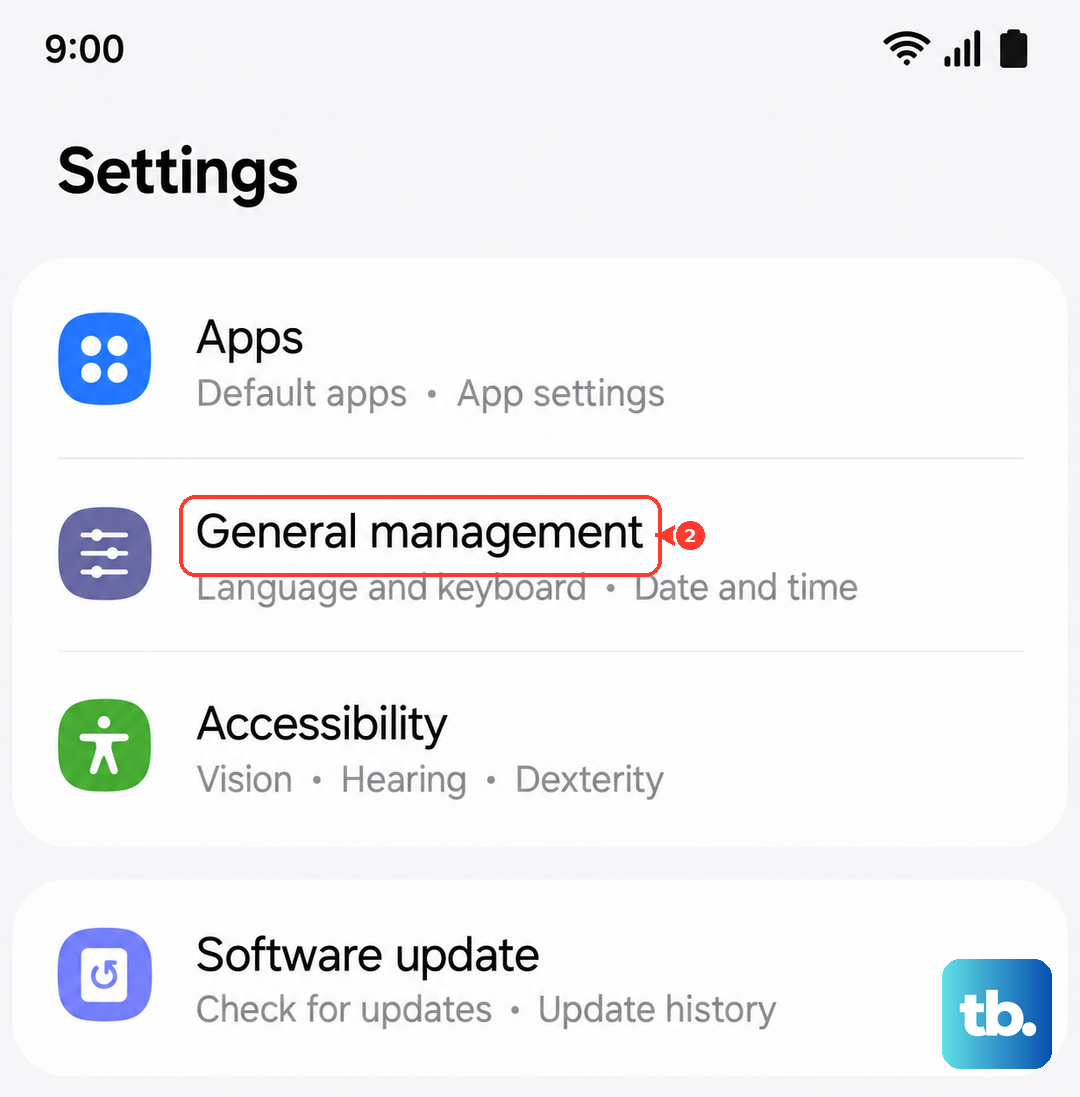
Go to Settings > General management > Reset > Reset all settings. You'll need to enter your PIN or password, and then confirm. After the phone reboots, you'll have to set up your connections and preferences again, but it often clears up weird software behavior.
Wipe the Cache Partition
This clears temporary system files that can sometimes become corrupted. It's a safe step that doesn't affect your personal data. First, power off your S26 Ultra completely.
Then, press and hold the Volume Up button and the Side/Power button together. When you feel a vibration or see the Samsung logo, let go of the power button but keep holding the volume up button until you see the Android Recovery screen.
Use the volume buttons to navigate to "Wipe cache partition" and press the power button to select it. Confirm the action, and once it's done, select "Reboot system now."
Consider a Factory Reset
This is the most thorough software fix. A factory reset will erase everything on your phone and return it to the state it was in when you first took it out of the box. This will eliminate any problematic app data or deep system corruption.
Absolutely make sure your data is backed up before proceeding. To do this, go to Settings > General management > Reset > Factory data reset. Read the information carefully, scroll down, and tap "Reset." The process will take several minutes.
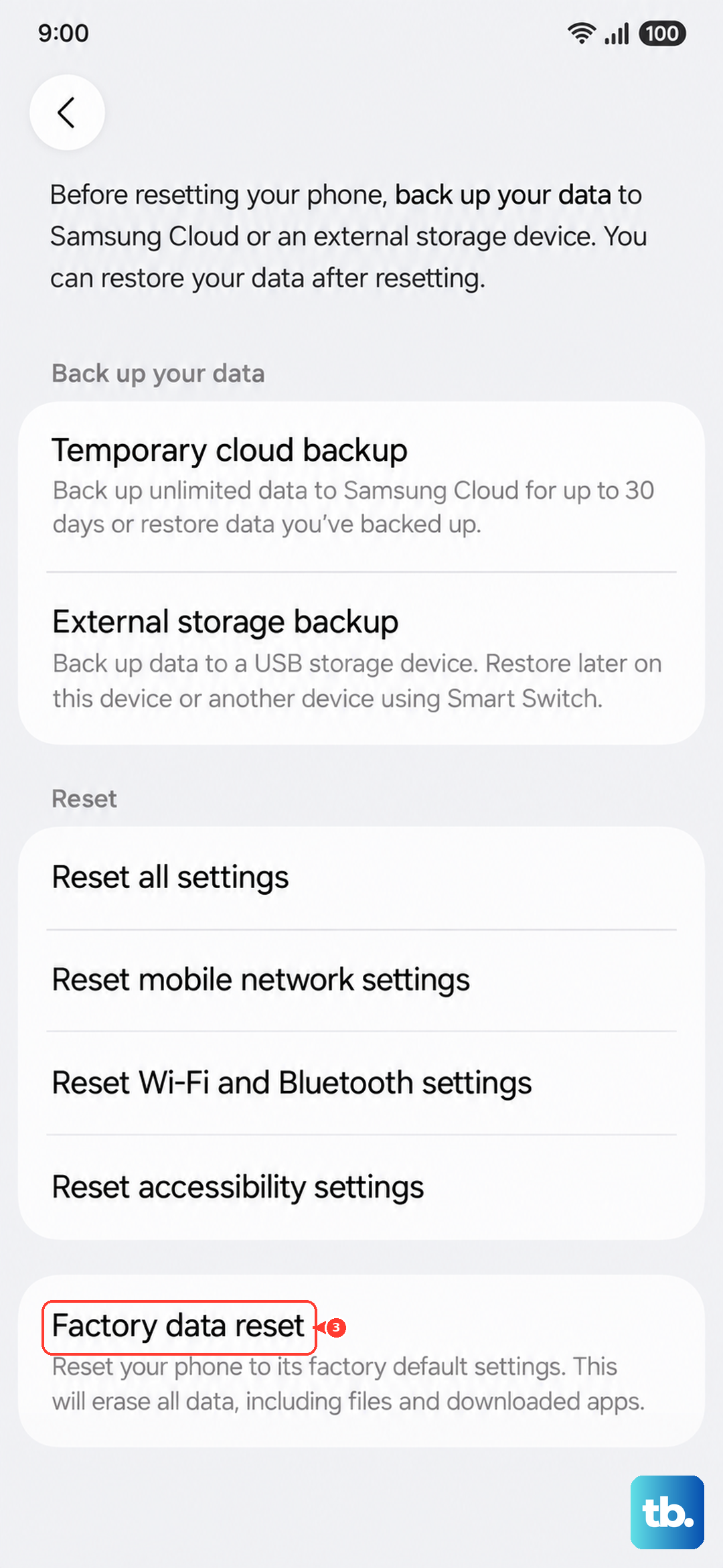
After the reset, you can choose to set the phone up as new instead of restoring from a backup. Setting it up fresh can help determine if the issue was with your specific data profile.
Check for Hardware Issues
If the problem persists through a factory reset, it's more likely to be a hardware fault. Since the S26 Ultra is a brand new device, it should be under warranty. Pay attention to when the restarts happen.
Does it occur more often when using the camera, which stresses the processor? Or when you plug in a charger? If you're using a third-party charger or cable, especially for the 60W Super Fast Charging, try switching to the official Samsung 60W charger to rule out power delivery issues.
At this point, contacting Samsung Support or your carrier is the next logical step. They can run remote diagnostics and, if needed, arrange a repair or replacement under warranty.