
If your Samsung Galaxy S26+ is refusing to send picture messages or group chats, it's a frustrating roadblock. This is often a quick fix related to your data connection or a setting that got flipped. Since the S26+ is brand new with One UI 8.5, there's also a chance a software bug is the culprit. Let's run through the fixes, starting with the most common one.
Turn Mobile Data On and Check Your Signal
MMS doesn't use your regular cellular signal or Wi-Fi to send. It requires an active mobile data connection. First, pull down the quick settings panel from the top of your screen and make sure the Mobile Data icon is lit up. If you have a weak signal, try moving to a location with better reception.
You can also go into Settings > Connections > Mobile networks to double-check that Mobile data is enabled. Sometimes being on Wi-Fi can interfere, so try temporarily turning Wi-Fi off to force the message to send over your cellular data.
Verify Your MMS App Settings
Open the Samsung Messages app and tap the three-dot menu in the top right, then go to Settings. Look for the Multimedia messages section within the settings menu.
Here, ensure that Auto download is turned on. If you're traveling, you might also need to enable Roaming auto download. I've seen cases where a recent update or app reset can toggle these off.
Clear the Cache for Your Messages App
Corrupted temporary files can cause all sorts of app misbehavior. Go to Settings > Apps, then find and select Messages from the list. Tap on Storage and then hit Clear cache.
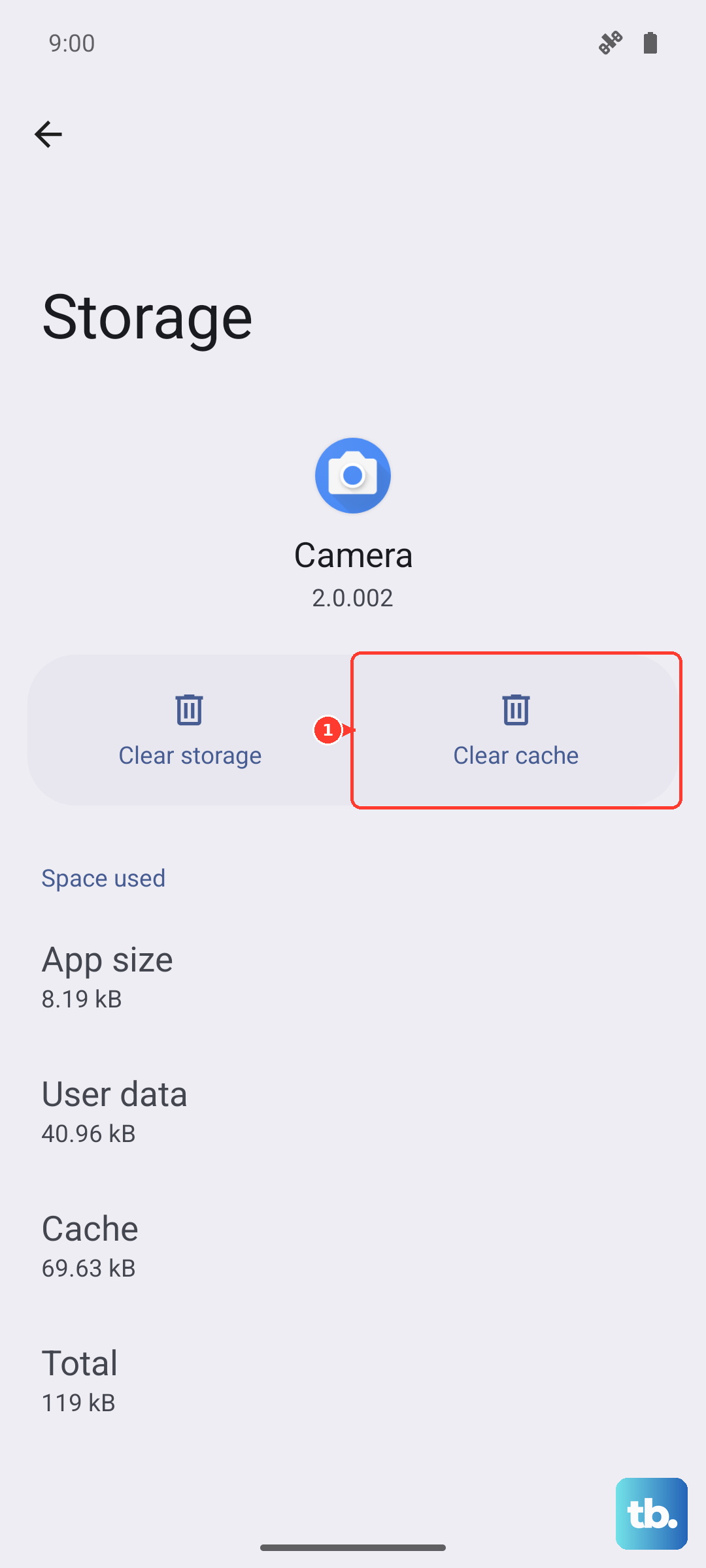
This won't delete any of your actual messages. If the problem persists, you can try Clear data, but be warned this will erase your entire message history within the Samsung app, so only do this if you're okay with that loss.
Check and Update Your APN Settings
Incorrect Access Point Name (APN) settings are a classic reason MMS fails. These tell your phone exactly how to connect to your carrier's multimedia service. Go to Settings > Connections > Mobile networks > Access Point Names.
You should see an APN list, with one selected (usually your carrier's name). If the list is empty or looks wrong, you'll need the correct settings from your carrier. A quick web search for "[Your Carrier] APN settings 2026" often works, or you can contact their support directly.
Perform a Quick Restart
It sounds too simple, but a restart clears out minor software glitches that can hang up the messaging service. Just press and hold the Side/Power button and select Restart from the menu that appears.
Give your S26+ a full minute to boot back up completely, then try sending an MMS again. If the phone is acting sluggish or unresponsive, you might need a force restart instead.
Update Your One UI Software
Since the Galaxy S26+ is so new, Samsung is likely pushing out updates to squash early bugs in One UI 8.5. An update could directly address messaging issues. Head to Settings > Software update and tap Download and install.
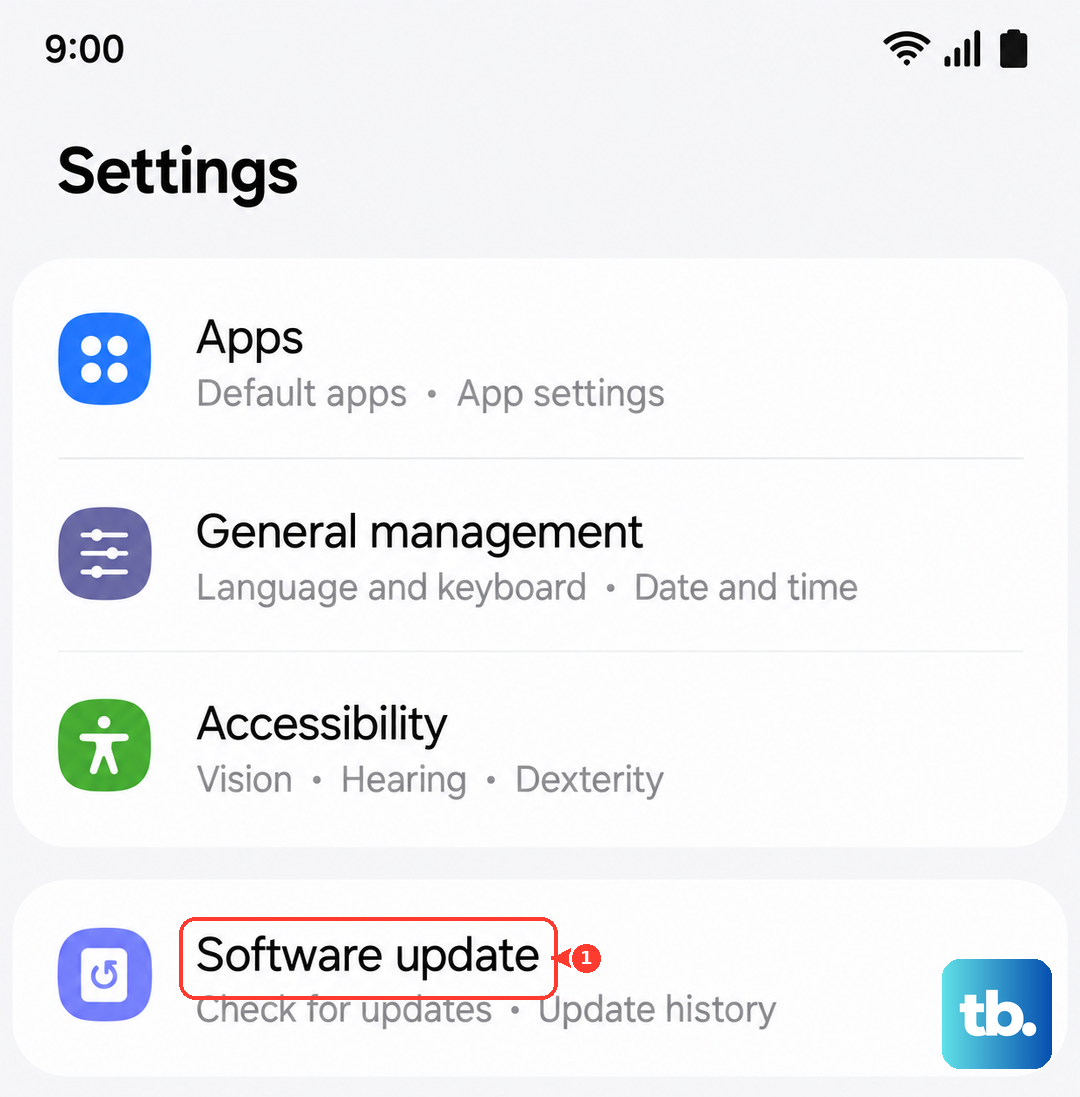
If an update is available, let it install completely. Your phone will restart on its own. I'd recommend checking for updates as one of your first steps, as it's a common fix for new-device quirks.
Reset Your Network Settings
This is a more thorough step that resets all your connectivity profiles back to factory defaults. It will erase saved Wi-Fi networks, Bluetooth pairings, and your mobile data settings (including APNs), but it often resolves stubborn MMS problems.
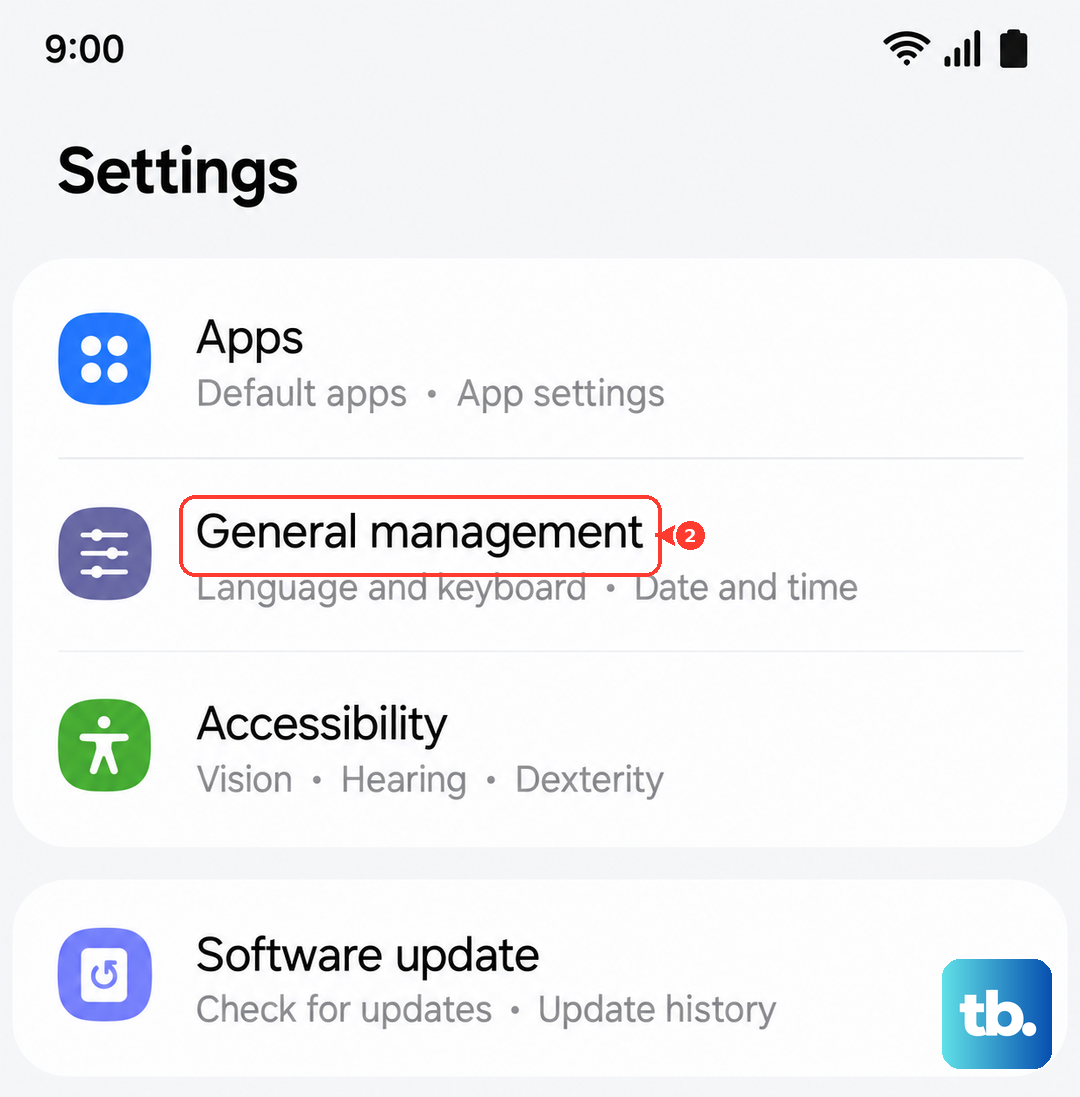
Go to Settings > General management > Reset > Reset network settings. Confirm the action, and your phone will reboot. Afterward, you'll need to reconnect to Wi-Fi and your mobile data should reconfigure automatically, but double-check your APN afterward.
Check for a System-Level Messaging Service
Sometimes the issue lies deeper than the Messages app itself. There might be a system service responsible for MMS. Go to Settings > Apps, then tap the three-dot menu and select Show system apps.
Scroll through the now-longer list and look for services named like IMS Service, MMS Service, or Carrier Services. If you find one, select it, go to Storage, and try Clear cache. The Clear data option might be grayed out, which is normal for system services.
Ensure You Have Enough Storage Space
Your phone needs a little free space to process and send multimedia files. If your internal storage is completely full, it can block new messages. Go to Settings > Device care > Storage to see how much space you have left.
Try clearing out some old downloads, cached data from other apps, or unused media files. You don't need gigabytes free, but having less than 100MB can start to cause issues with tasks like sending MMS.
Try Google Messages as an Alternative
If Samsung Messages just won't cooperate, switching to another app is a reliable workaround. Download Google Messages from the Play Store. Once installed, it will prompt you to set it as the default messaging app.
Google Messages often has excellent compatibility with different carriers and network types. After setting it as default, try sending your MMS again. If it works, you've confirmed the problem is with the Samsung app, and you can either stick with Google Messages or use it while waiting for a Samsung app update.