
Missing calls on your new Samsung Galaxy S26 is a real problem, especially when you're expecting something important. The phone is right there, but it stays silent. Since the S26 runs the brand new One UI 8.5, there can be some early software quirks that affect the ringer.
Let's get straight to the most common fix. Pull down the notification shade twice to see your quick settings tiles. Look for the sound mode icon, it might say "Sound," "Vibrate," or "Mute." If it's set to Mute or Vibrate, tap it to switch back to Sound mode. This is the first thing I'd check.
Check Do Not Disturb and Modes
One UI has a powerful Modes and Routines feature that can automatically silence your phone. If you've set up a Work, Sleep, or Driving routine, it might be activating and blocking calls without you realizing it. Open your quick settings panel and look for a moon icon or a mode name like "Sleep."
If you see one active, tap it to turn it off. For a deeper check, go to Settings > Modes and Routines. Here, you can see all your profiles and make sure none are currently turned on. Also, look at the schedules for each one to ensure they aren't set to activate automatically at certain times.
Adjust Your Volume Properly
On Samsung phones, the volume buttons control media by default when you're using an app. To make sure you're adjusting the ringtone volume, you need to do it from the Settings or use the volume slider that pops up on screen. When you press a volume button, a vertical slider appears on the side of the screen.
Tap the three-dot menu on that slider and make sure "Ringtone" is selected, then drag the slider up. You can also set it permanently by going to Settings > Sounds and vibration > Volume. Increase the "Ringtone and notifications" slider to the max and test a call.
Change Your Ringtone and Sound Settings
A corrupted ringtone file can cause silence. Try switching to a different built-in Samsung tone to see if that's the issue. Head to Settings > Sounds and vibration > Ringtone. Pick a new tone from the list and tap "Apply."
While you're in the sound settings, scroll down and verify that "Vibrate for calls" is turned on if you want it. Also, check "Sound mode" at the top of the menu to confirm it's set to "Sound," not "Vibrate" or "Mute."
Disconnect Bluetooth Accessories
If your Galaxy S26 is connected to a smartwatch, wireless earbuds like Galaxy Buds, or a car stereo, incoming call audio might be routed there. Your phone itself would then stay quiet. The quickest way to test this is to turn Bluetooth off entirely.
Swipe down the notification panel and tap the Bluetooth icon to turn it grey. You can also go to Settings > Connections > Bluetooth and toggle the switch off. Try a test call with Bluetooth disabled to see if the ringtone plays through the phone's speaker.
Review Blocked Numbers and Call Settings
You might have accidentally added someone to your block list, or a spam filter could be too aggressive. Open your Phone app, tap the three-dot menu in the top right, and go to Settings > Block numbers. Review the list to make sure no wanted contacts are there.
Also, check for features that silence unknown callers. In the same Phone settings menu, look for "Call blocking and identification" or "Spam protection." Some options here can send all unknown calls straight to voicemail without a ring.
Disable Call Forwarding
Call forwarding is a common culprit. If it's enabled, your S26 won't ring because calls are being sent to another number. Open the Phone app, tap the three-dot menu, and select Settings > Supplementary services > Call forwarding.
You'll see several options like "Always forward" or "Forward when busy." Tap each one and make sure they are all set to "Disable" or that no forwarding number is entered. This ensures calls come directly to your device.
Check App-Specific Notification Permissions
If you're missing calls from apps like WhatsApp, Facebook Messenger, or Skype, the issue is with that app's notifications, not your phone's main ringer. Open Settings > Apps, select the problematic app, and tap "Notifications."
Make sure notifications are turned on for that app. Then, tap on the specific notification category for "Incoming calls" or "Voice calls" and ensure the sound is set to a tone and isn't silenced. Also, check that "Do Not Disturb" isn't overriding this app's notifications.
Perform a Soft Reset
A quick reboot can clear out temporary glitches in One UI 8.5 that might be affecting the sound system. Press and hold the Volume Down button and the Side/Power button simultaneously for about 10 seconds.
Release the buttons when you see the Samsung logo appear on the screen. Wait for the phone to restart completely, then test with a call. This force restart method is the best first step for any odd software behavior on the S26.
Update Your Software
Given that the Galaxy S26 and One UI 8.5 are new in 2026, Samsung is likely releasing updates to fix early bugs, including potential audio issues. Connect to Wi-Fi and go to Settings > Software update > Download and install.
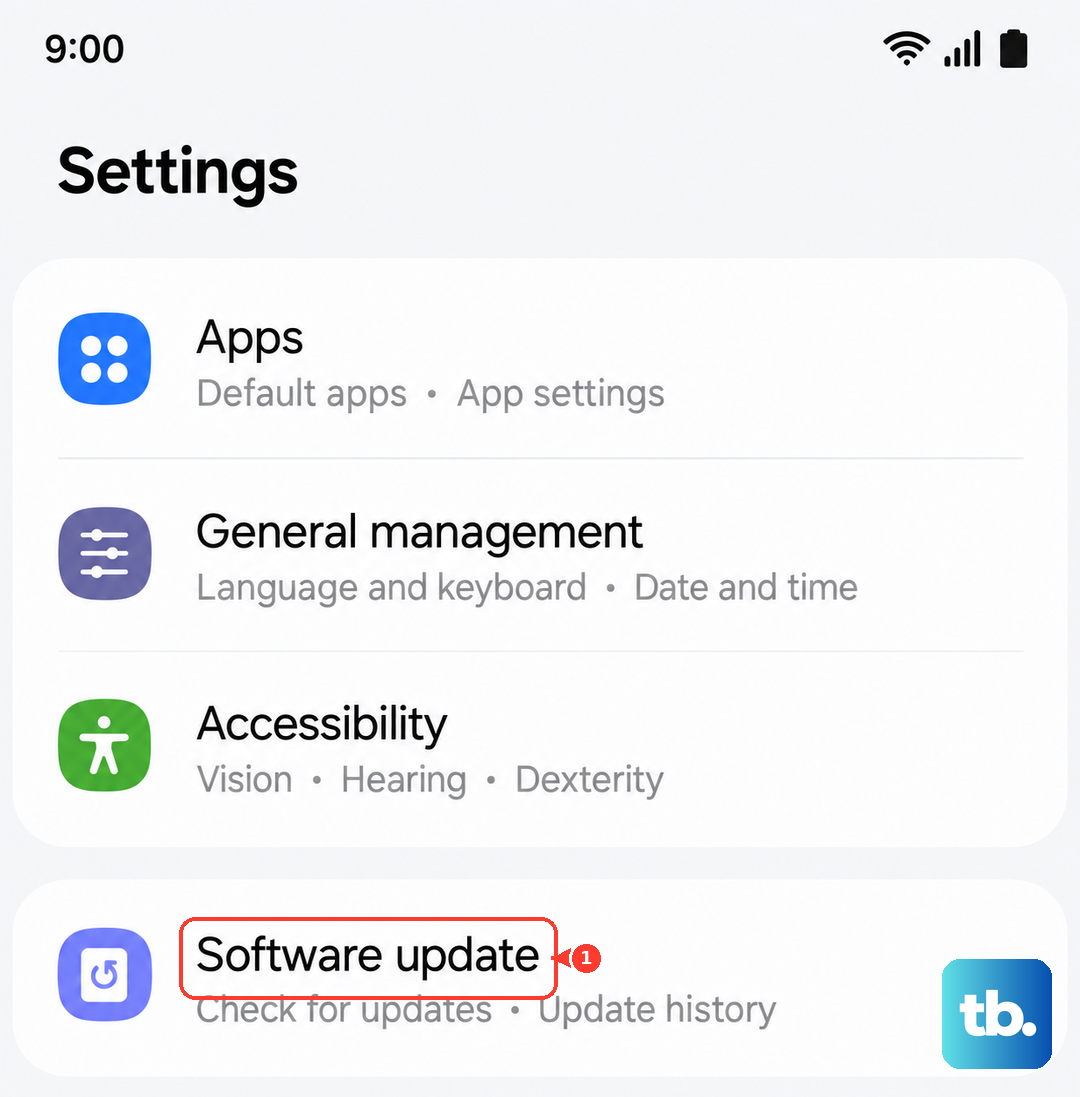
If an update is available, let it install. It's a good habit to check here frequently during the first few months with a new device model, as patches come out regularly.
Reset App Preferences
This is a useful middle-ground step. It resets all your notification settings, app permissions, and default apps without deleting any personal data. Go to Settings > Apps > Menu (three dots) > Reset app preferences.
Tap "Reset" on the confirmation prompt. Afterward, you'll need to re-allow notifications for your apps, but it can resolve conflicts where a system setting was misconfigured by an app installation.
Check for Physical Obstructions and Clean the Speaker
The S26's earpiece and main speaker grill are small and can easily get clogged with lint from your pocket. Carefully inspect the thin grills at the top of the screen and along the bottom edge of the phone.
Use a soft, dry toothbrush or a can of compressed air to gently dislodge any debris. Don't use sharp objects like pins, as you can damage the internal speaker mesh. A blocked speaker can make your ringtone sound muffled or completely silent.
Reset All Settings
If the problem persists, this will revert all your system settings, like sound, network, and display, back to factory defaults without touching your photos, messages, or apps. Go to Settings > General management > Reset > Reset all settings.
Enter your PIN or password if prompted, and confirm. You'll need to reconfigure your Wi-Fi, wallpaper, and sound preferences, but it often fixes deep-seated configuration errors.
Consider a Factory Reset (Last Resort)
This erases everything on your phone, so it's the final step. Before you begin, ensure all your important data is backed up to your Samsung account or Google Drive. Go to Settings > General management > Reset > Factory data reset.
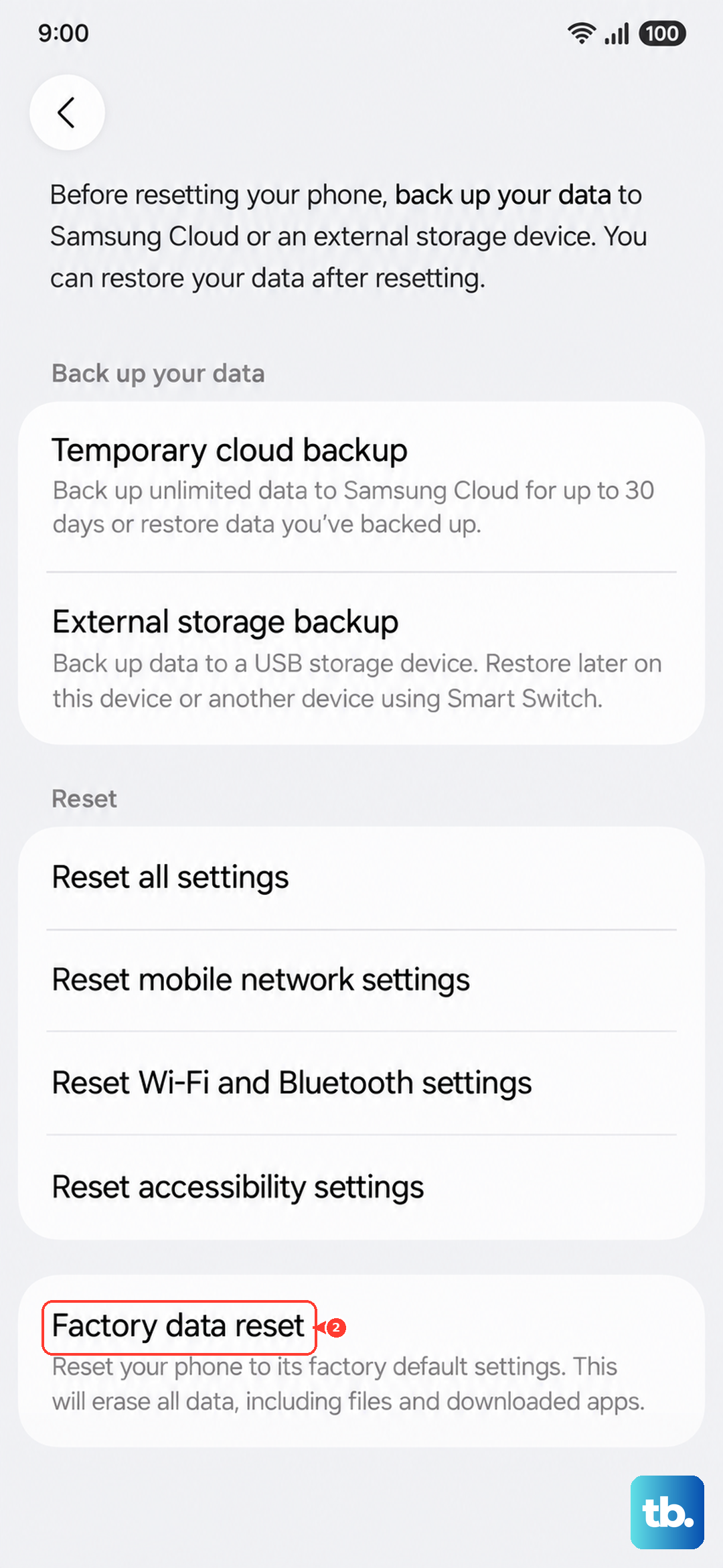
Tap "Reset" and then "Delete all." The phone will reboot and take several minutes to wipe itself. After setup, test a call immediately before restoring your apps to see if the issue was software-related. If the phone still doesn't ring after a clean factory reset, it may indicate a hardware problem with the speaker.