Your Samsung Galaxy S26 was supposed to be the fast, fluid flagship you upgraded for, so a screen that locks up mid-scroll or refuses to respond to a single tap feels especially jarring on a brand-new phone. Maybe it froze while you were charging it, maybe it stalls the moment a particular app opens, or maybe the whole display just went unresponsive with no warning. The good news is that most freezing on a current Galaxy phone comes from something fixable, like a stray screen accessory, a memory crunch, a software bug waiting on an update, or a single misbehaving app. The fixes below are ordered from the gentlest and safest to the most serious, so start at the top and only move down if the freezing continues.
Start With What Is Touching the Screen
Before you assume the phone itself is broken, rule out the simplest culprit, which is something physically interfering with the display.
Take off any screen protector, case, or accessory that may be pressing against or sitting over the screen. A poorly fitted protector or a layer of grime can make a perfectly healthy screen seem frozen or unresponsive.
While you have the accessories off, make sure the screen itself is clean and dry, since moisture and smudges can interfere with touch input. Samsung lists this as the first step for a frozen or slow-responding screen, so it is worth doing carefully before anything more involved.
If the display starts responding again once the protector or case is gone, you have found your answer.
Force the Phone to Reboot With the Buttons
If the screen is completely frozen and will not react to taps at all, a hardware force restart is your fastest safe move. This is a clean reboot triggered by the physical buttons, and it does not erase any of your data.
Press and hold the Volume down and Side buttons together.
Keep holding for about 7 to 10 seconds until the device powers off and back on.
Watch for the screen to turn black when the device turns off, and then the Samsung logo will appear.
Once the Samsung logo shows up, you can let go of the buttons and let the phone finish starting. A force restart clears a lot of temporary glitches that cause a one-time freeze, so for many people this single step solves the problem.
Restarting Normally From the Power Menu
If your phone is sluggish rather than fully locked and you can still interact with it a little, a standard restart is gentler.
Press and hold the Volume down button and Side button simultaneously, and when the power options appear, tap Restart twice. This gives the system a fresh start without the abrupt cutoff of a force restart.
Make the Screen More Responsive
Sometimes the screen is not truly frozen but is reacting so slowly that it feels that way, and this is especially common when a screen protector is installed. One UI has a setting that boosts how sensitively the display registers your touch.
Go to Settings > Display and tap the switch next to Touch sensitivity.
With this turned on, the screen is tuned to respond through a protector and to lighter touches, which can clear up the lag that makes the phone feel unresponsive. If you have a protector on and the phone seems to ignore some taps, this is a quick toggle worth trying.
Free Up Memory and Optimize Performance
Freezing often comes down to the phone running short on available memory, with too many background apps competing for RAM or storage filling up. One UI includes a one-tap cleanup that closes background apps and reclaims memory for you.
Open Settings > Device care (it may appear as Battery and device care) and tap Optimize now.
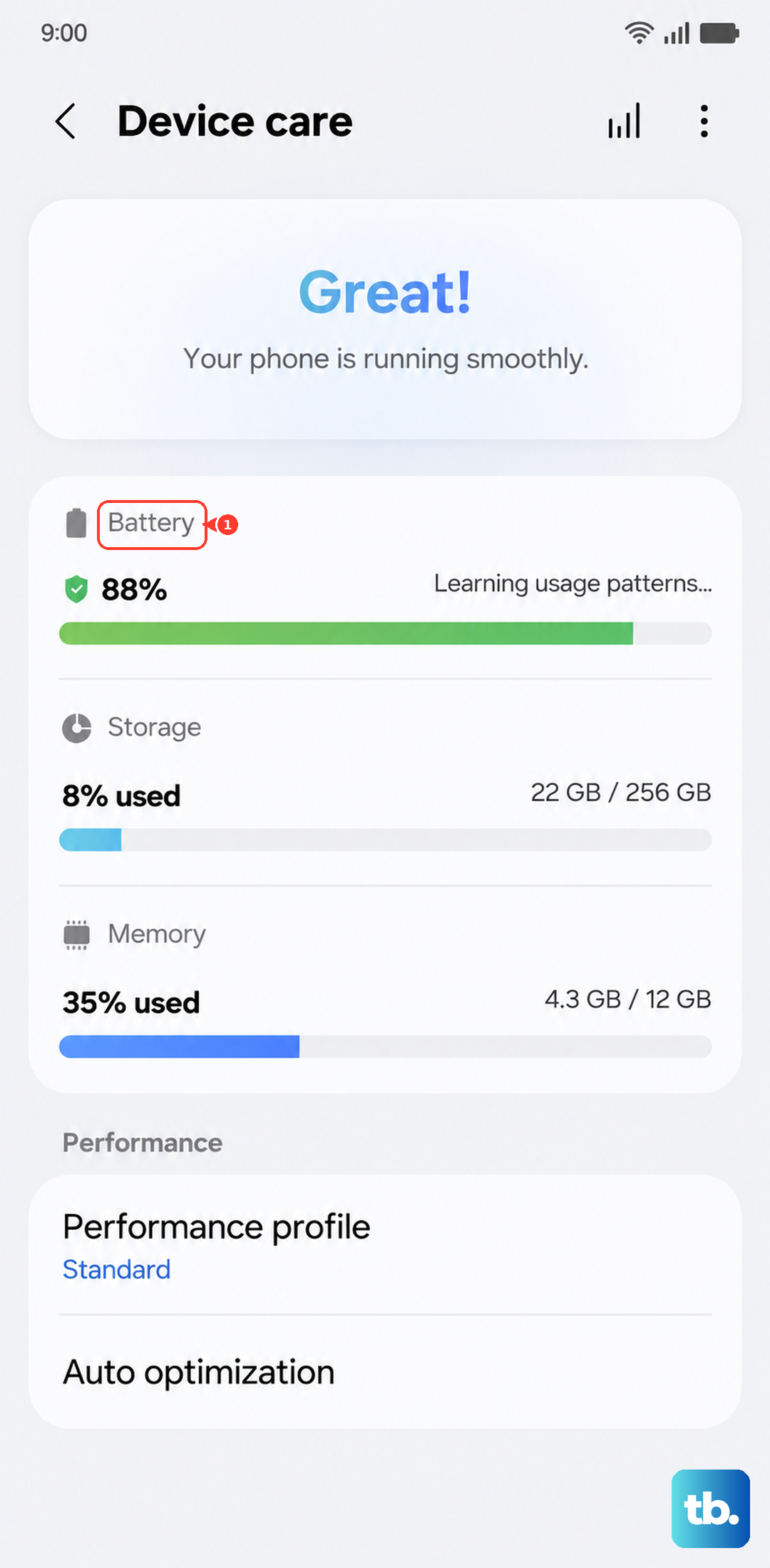
This closes background processes and clears memory in one pass, which can resolve freezing that is caused by low available RAM or storage. It only takes a few seconds, and it is completely safe to run as often as you like.
Install Any Waiting Software Update
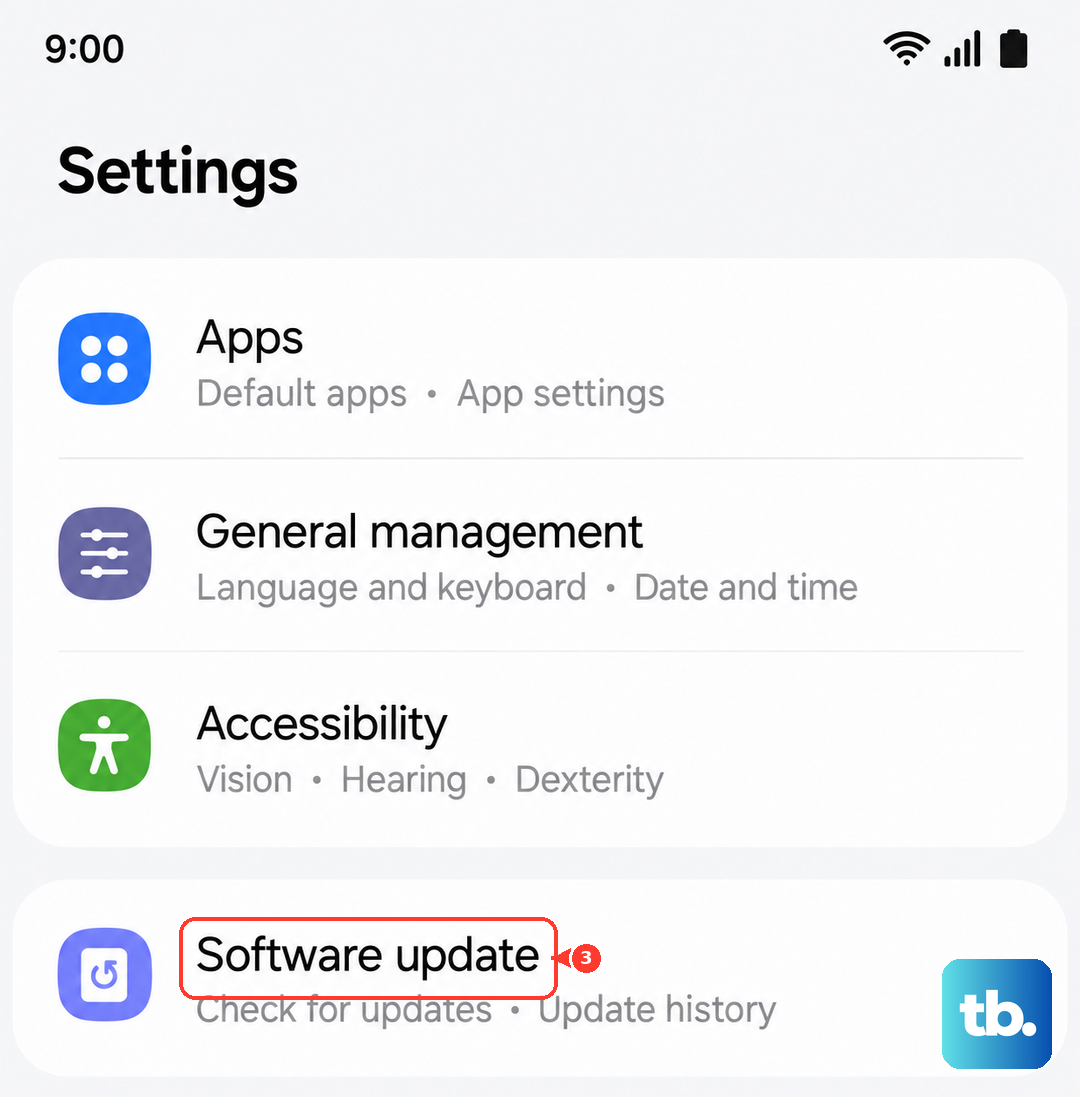
Because the S26 series launched with One UI 8.5, keeping that software current is one of the most effective ways to clear stability bugs that cause freezing. Samsung pushes fixes through updates, so a pending one may already contain the patch you need.
Go to Settings > Software update.
Tap Download and install (you may also see a Check for updates option).
If an update is available, choose Install now, or pick Schedule install or Later if you would rather wait.
Do not disconnect or use the device until the update finishes installing, since interrupting it can cause its own problems. If you would rather update from a computer, Samsung's free Smart Switch desktop app for Windows and Mac can update or restore the phone over a cable.
Test for a Bad App Using Safe Mode
If your S26 freezes only at certain times, or after you installed or updated a particular app, a downloaded app is a likely cause. Safe Mode runs the phone with only its built-in apps so you can confirm whether one of your own downloads is to blame. On the S26, which does not have a dedicated power-off button, you enter Safe Mode through Quick settings.
- 1.Swipe down with two fingers from the top of the screen to open Quick settings.
- 2.Tap the Power icon.
- 3.Touch and hold Power off until the Safe mode icon is displayed.
- 4.Tap Safe mode to start your device in Safe Mode.
Use the phone for a while in Safe Mode.
If the freezing stops entirely, a downloaded app is the problem, so restart normally and uninstall the apps you most recently added or updated.
Once you remove the offending app, the freezing should not return.
When It Only Freezes While Charging
If the phone seems to lock up or refuse to charge specifically when it is plugged in, look for a water-drop icon on the screen. That icon means moisture has been detected in the USB-C port, and the phone deliberately blocks charging to protect itself. This is a built-in safety measure rather than a sign the phone is broken.
To clear it, power off the phone and let it dry out completely.
Gently wipe the USB-C port with a dry cloth, shake the device gently with the port facing down to remove excess moisture, and then let it air-dry in a ventilated area.
On supported models you can use a wireless charger in the meantime so the battery does not run flat while the port dries.
A Note on Charging Settings
While you are looking at charging behavior, you can confirm your fast-charging options under Settings > Battery > Charging settings, where you can toggle Fast charging or Fast wireless charging. Keep in mind that Super fast charging requires a Samsung-approved 25W or 45W adapter, so a different charger may charge more slowly even when everything is working normally.
The Last Self-Service Step Is a Factory Data Reset
If the freezing persists no matter what you try, a factory data reset returns the phone to its original software state and clears out whatever stubborn issue is causing the lockups. This step erases everything on the device, so a backup first is essential.
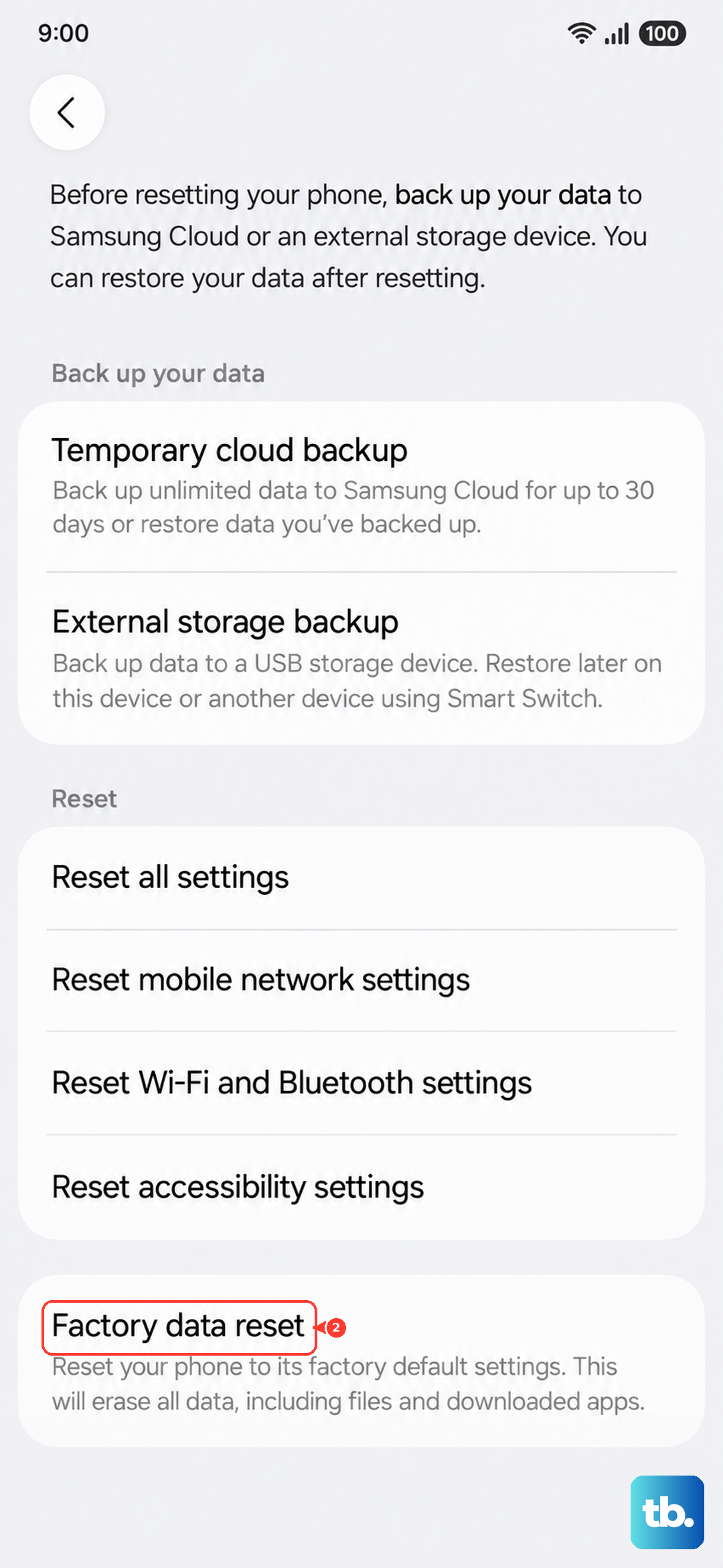
Back up your data before you begin, either to Samsung Cloud, Samsung's built-in backup service, or to a computer using the Smart Switch app. Samsung's own warning is direct about this: "Please save any information you need prior to the factory reset because your personal information may not be recovered."
Go to Settings > General management > Reset.
Review the information shown and confirm to begin the reset.
After the reset completes, you can sign back in and restore your backup. Because this wipes the device entirely, treat it as a genuine last resort that you only reach after the earlier steps have failed.
If It Still Freezes, Get It Serviced
A reset clears software causes, so if your Galaxy S26 keeps freezing even after a clean reset, the trouble may be with the hardware itself. On a phone this new, that is worth taking seriously rather than living with. Samsung directs you to its Support Center to arrange professional service. Reaching out at this point gets a technician to look at a problem that the on-device fixes could not resolve.
Frequently Asked Questions
Will a force restart delete my data?
No. Pressing and holding the Volume down and Side buttons for about 7 to 10 seconds until the Samsung logo appears is a safe hardware reboot that does not erase anything on your phone. The only step in this guide that deletes data is the factory data reset, which is why you back up first.
Why does my Galaxy S26 freeze only when I plug it in to charge?
Check for a water-drop icon on the screen, which means moisture was detected in the USB-C port and charging has been blocked as a safety measure. Power the phone off, wipe the port with a dry cloth, gently shake it with the port facing down, and let it air-dry in a ventilated area before charging again.
How do I know if an app is causing the freezing?
Boot into Safe Mode by opening Quick settings with a two-finger swipe down, tapping the Power icon, then touching and holding Power off until the Safe mode icon appears, and tapping Safe mode. If the phone no longer freezes in Safe Mode, a downloaded app is responsible, so restart normally and uninstall recently added or updated apps.
Does keeping One UI updated actually help with freezing?
Yes. The S26 series launched with One UI 8.5, and Samsung delivers stability fixes through software updates, so installing a pending update via Settings > Software update can resolve many freezing and stability bugs. Let any update finish fully before using the phone again.
What should I do if nothing fixes the freezing?
If the phone still freezes after you have tried the steps above and even after a factory data reset, the issue may be hardware-related. Samsung directs you to its Support Center to arrange professional service, which is the right move for persistent freezing on a new device.