
When your Samsung Galaxy S25 gets stuck and won't update, you might see an error message, a download that won't start, or an installation that fails partway through. The process can get hung up for a few common reasons, but there are several straightforward ways to get it moving again.
Check Your Wi-Fi and Data
Major One UI updates require a strong Wi-Fi connection. First, make sure you're not on mobile data. Go to your Quick Settings panel and confirm the Wi-Fi icon is active. Try loading a webpage in Samsung Internet to test the stability. If pages are slow, restart your router or connect to a different network. Public Wi-Fi often blocks large update files.
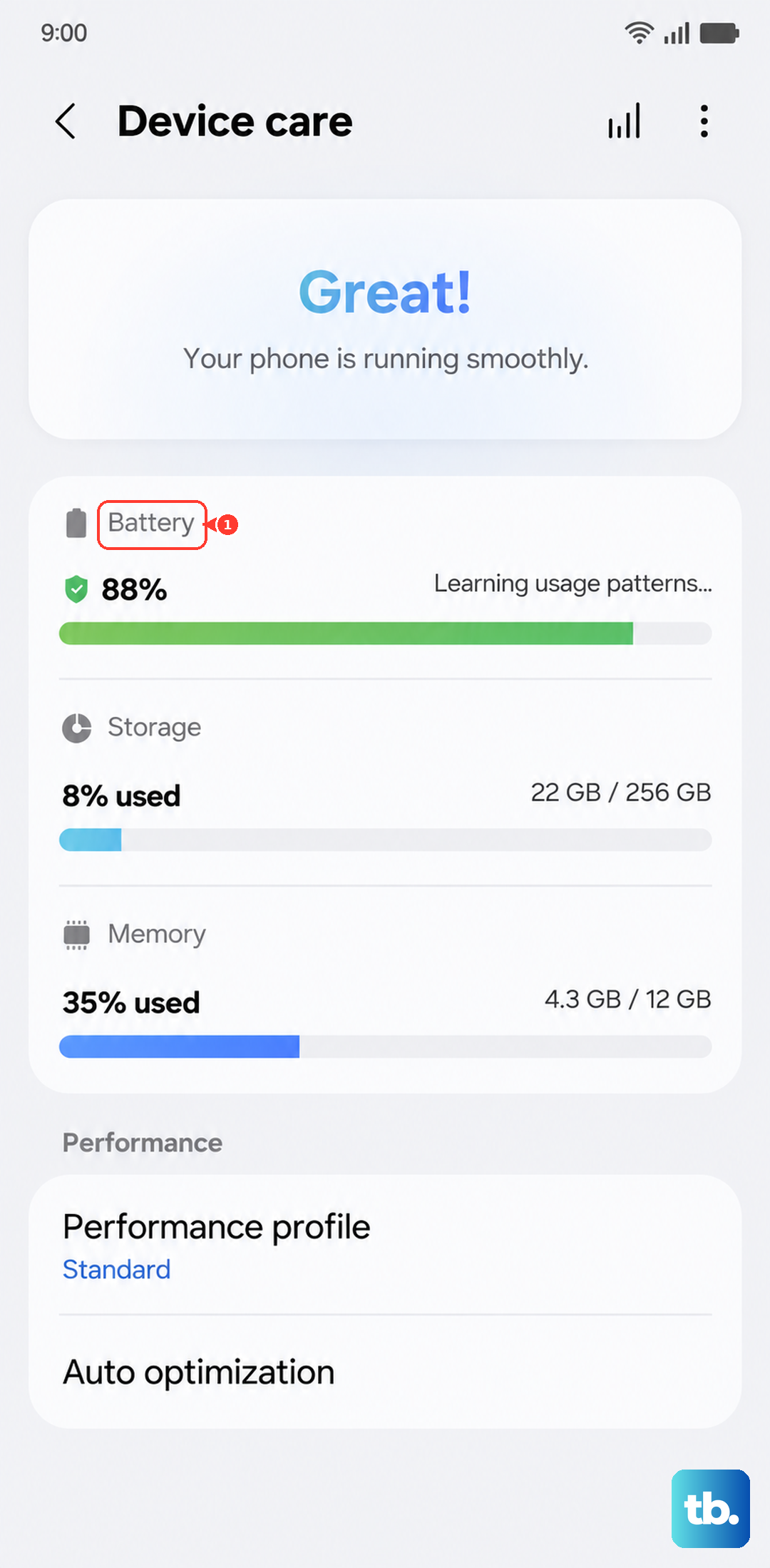
You can also temporarily disable any battery-saving modes. Go to Settings > Battery and device care > Battery > Power saving and make sure it's turned off. These modes can restrict background data and interrupt the download.
Free Up Storage Space on Your Phone
Your S25 needs enough free space to download and unpack the update file. A significant One UI update can require 8-10 GB. To check, go to Settings > Battery and device care > Storage. Look at the available space at the top.
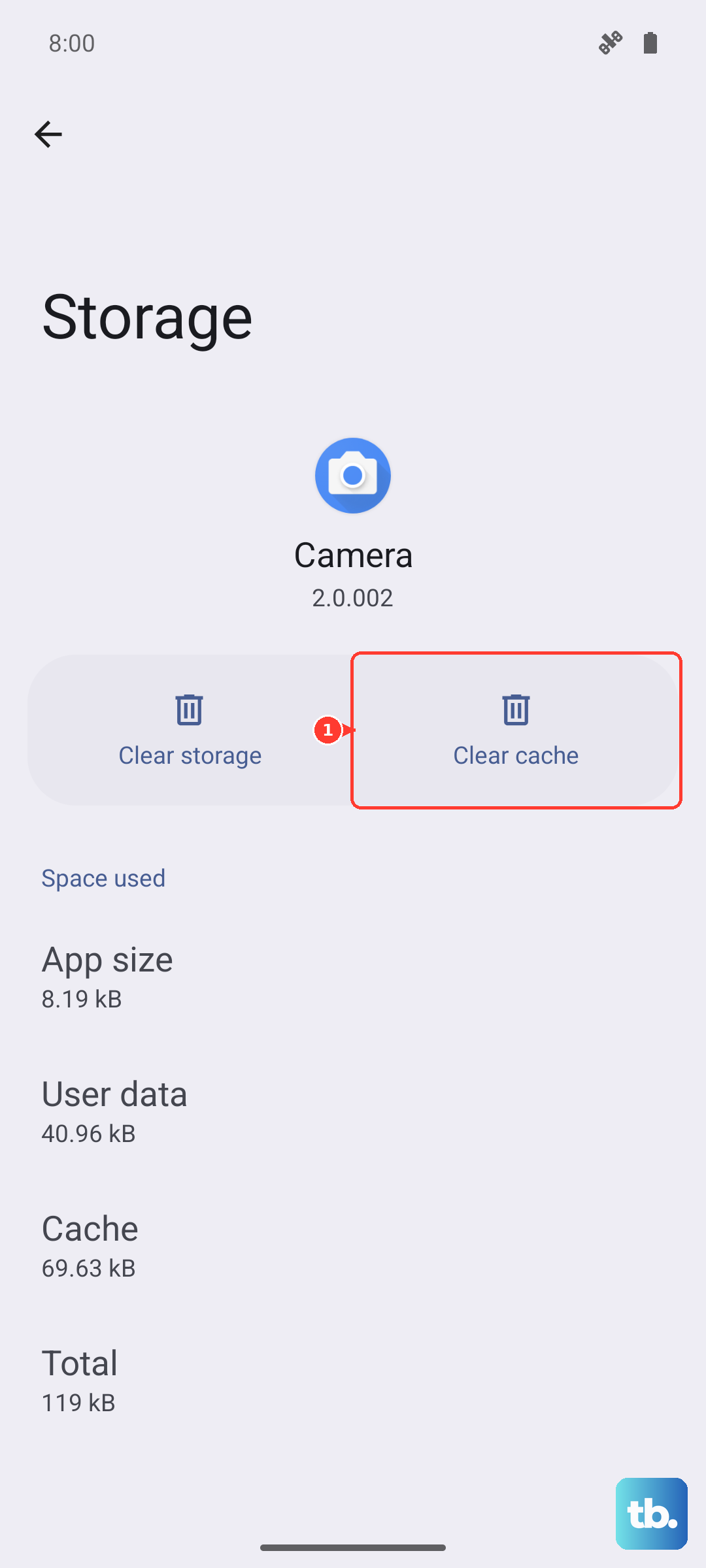
If you're low, the quickest fix is to clear cached data. Tap on Apps in the storage menu, then tap the filter icon and select Sort by size. You can clear the cache for large apps like social media or games. You can also move photos and videos to Samsung Cloud or Google Photos to free up space instantly.
Delete a Corrupted Update File
Sometimes a partial or failed download gets stuck in your system and blocks new attempts. To clear it, you need to wipe the cache partition. Turn off your Galaxy S25 completely. Connect the phone to a computer with a USB cable, then press and hold the Volume Up button and the Side button together until the Samsung logo appears, then release.
On the Galaxy S25, however, the Android Recovery menu no longer includes a Wipe cache partition option. A February 2026 update removed it because the S25 uses seamless (A/B) updates that clear and optimize the cache automatically. If you reach this menu, just select Reboot system now, then clear the stuck download instead by retrying from Settings > Software update or by clearing individual app caches under Storage. After your phone restarts, try checking for the update again in Settings > Software update.
Perform a Force Restart
A simple reboot can clear out temporary glitches that are halting the update process. Press and hold the Volume Down button and the Side button for about 10 seconds. Release when you feel a vibration or see the Samsung logo. Once the phone boots back up, go straight to Software update and try again.
Reset Your Network Settings
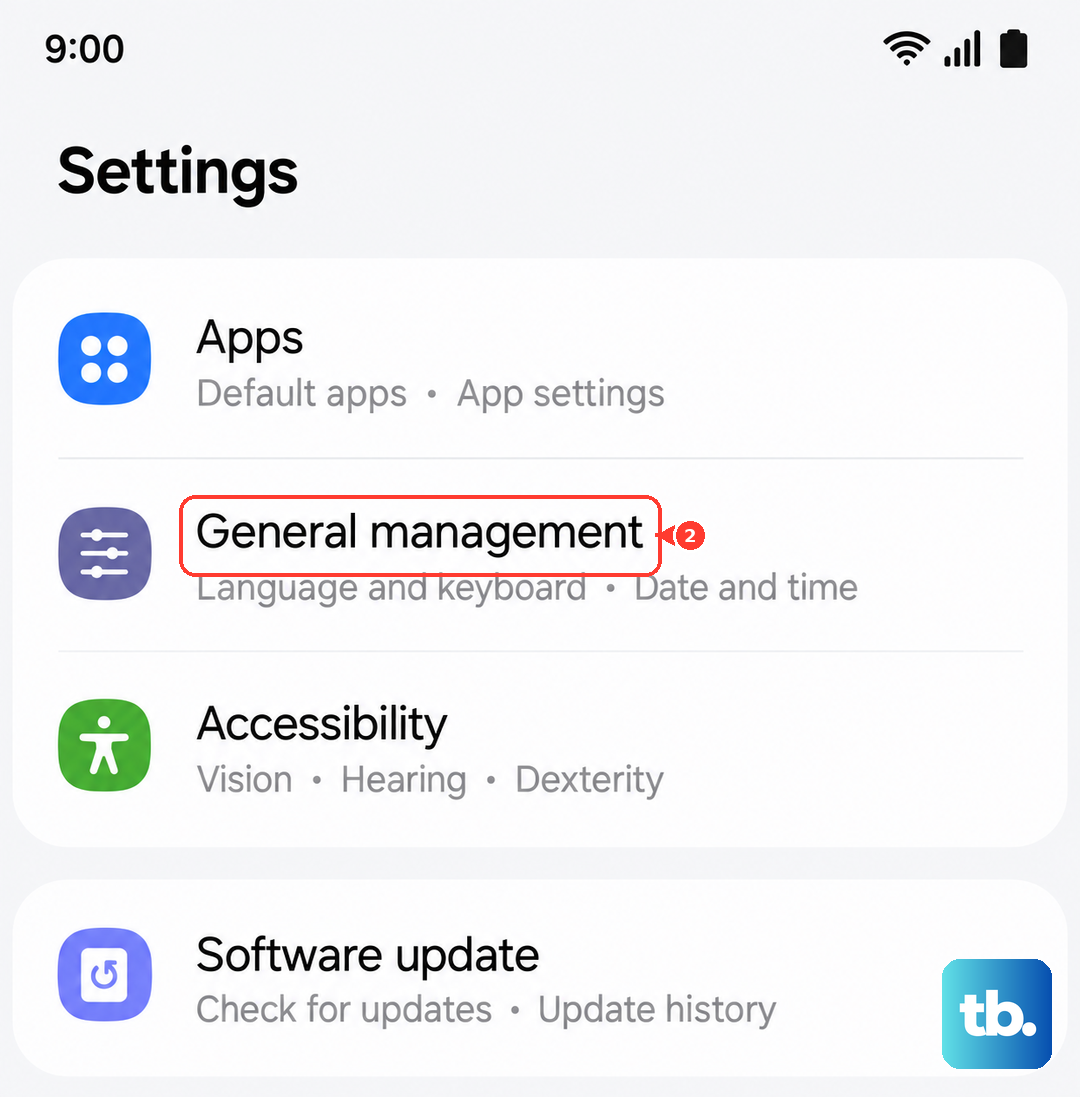
This clears all your saved Wi-Fi networks, Bluetooth pairings, and mobile data settings, which can resolve connection conflicts. Go to Settings > General management > Reset > Reset network settings. Tap to reset and enter your PIN if prompted.
After the phone restarts, you'll need to reconnect to your Wi-Fi. Go through the setup and enter your password. Once you're connected, immediately check for the software update. I've found this fixes a lot of "Download paused" errors.
Update Using Samsung Smart Switch on a PC
If the over-the-air update keeps failing, using a computer is a reliable workaround. Download and install Samsung Smart Switch on your Windows PC or Mac. Connect your S25 to the computer with a USB-C cable. Open Smart Switch and it should detect your phone.
If an update is available, you'll usually see a notification prompt. You can also click on More and select Update. The software will download the update file to your computer and install it directly to your phone, which bypasses any storage or unstable Wi-Fi issues on the device itself.
Check for Server Issues and Try Off-Peak Times
When Samsung releases a major One UI update, their servers can get overwhelmed. This can cause downloads to timeout or fail for everyone. You can check Samsung's status by visiting the official Samsung Members community forum or their social media channels for any outage reports.
If servers are busy, just wait a few hours. Trying the update late at night or early in the morning often works better, as there's less global traffic. Patience is usually the fix here.
Disable Apps That Might Interfere
Certain apps, like VPNs, firewalls, or aggressive battery optimizers, can block the connection to Samsung's update servers. Before you try updating, go to Settings > Apps, find your VPN or security app, and force stop it. You may need to temporarily uninstall it.
Also, check if any app has Device Admin permissions that could interfere. Go to Settings > Security and privacy > Other security settings > Device admin apps and review the list. You can disable admin rights temporarily, update your phone, and then re-enable them.
Ensure Your Device is Compatible and Fully Charged
While the Galaxy S25 will receive updates for years, it's always good to confirm. Go to Settings > About phone > Software information to see your current One UI version. Your phone must also have sufficient battery. Samsung requires at least a 30% charge, but I'd recommend having it plugged into a 25W charger or on a wireless charger during the update to prevent any power-related interruptions.