
When your Samsung Galaxy S25 Ultra's email stops syncing, it can leave you waiting on important messages or unable to send replies. These problems usually stem from a simple setting or a temporary glitch, and I've found that starting with a network refresh often gets things moving again.
Before you dive into the settings, take a quick moment to rule out the obvious. Make sure you have a solid internet connection, either via Wi-Fi or your mobile data. It's also worth checking your email provider's status page online, as outages with services like Gmail or Outlook do happen. Finally, double-check that you're using the correct email address and password.
Restart the Email App
A force stop clears the app's temporary data and can resolve minor hiccups. Swipe up from the bottom of your home screen and hold to enter the recent apps view. Find your email app, whether it's Gmail or Samsung Email, and swipe it all the way up to close it. Wait a few seconds, then tap the app icon to reopen it and see if your emails load.
Toggle Airplane Mode
This is a quick way to reset all your phone's radio connections. Swipe down twice from the top of your screen to open the full Quick Settings panel. Tap the Airplane mode icon to turn it on, wait about 15 seconds, and then tap it again to turn it off. Your phone will reconnect to Wi-Fi and cellular networks, which can clear up a stuck connection.
Check Your Sync Settings
Your S25 Ultra might not be checking for new emails as often as you'd like. Open the Settings app and go to Accounts and backup > Manage accounts. Select your email account and look for a sync or sync schedule option. Make sure automatic sync is turned on. For more control, open your specific email app and check its sync settings in the app's own settings menu.
Switch Between Wi-Fi and Mobile Data
Sometimes the issue is with one type of network. If emails won't come through on Wi-Fi, try turning it off to force the phone to use your mobile data. You can do this from the Quick Settings panel. If the problem is on mobile data, ensure it's enabled for your email app by going to Settings > Connections > Data usage > Mobile data usage, and make sure your email app is allowed to use data.
Verify Your Email Account Credentials
Passwords expire or get changed, especially if you use two-factor authentication. Try logging into your email account through a web browser on a computer. If you can't sign in there, you'll need to reset your password through your email provider's website. Once you have the new password, update it on your phone by going to Settings > Accounts and backup > Manage accounts, selecting the account, and choosing "Remove account." Then, add it back fresh with the new credentials.
Enable Background Data for Your Email App
Android can restrict background activity to save battery, which might prevent email checks. Go to Settings > Apps, select your email app, and tap Battery. Make sure the setting is not set to "Restricted." For a more aggressive battery saver, you might need to check Settings > Battery > Background usage limits to ensure your email app isn't in the "Sleeping" or "Deep sleeping" apps list.
Clear the Email App's Cache
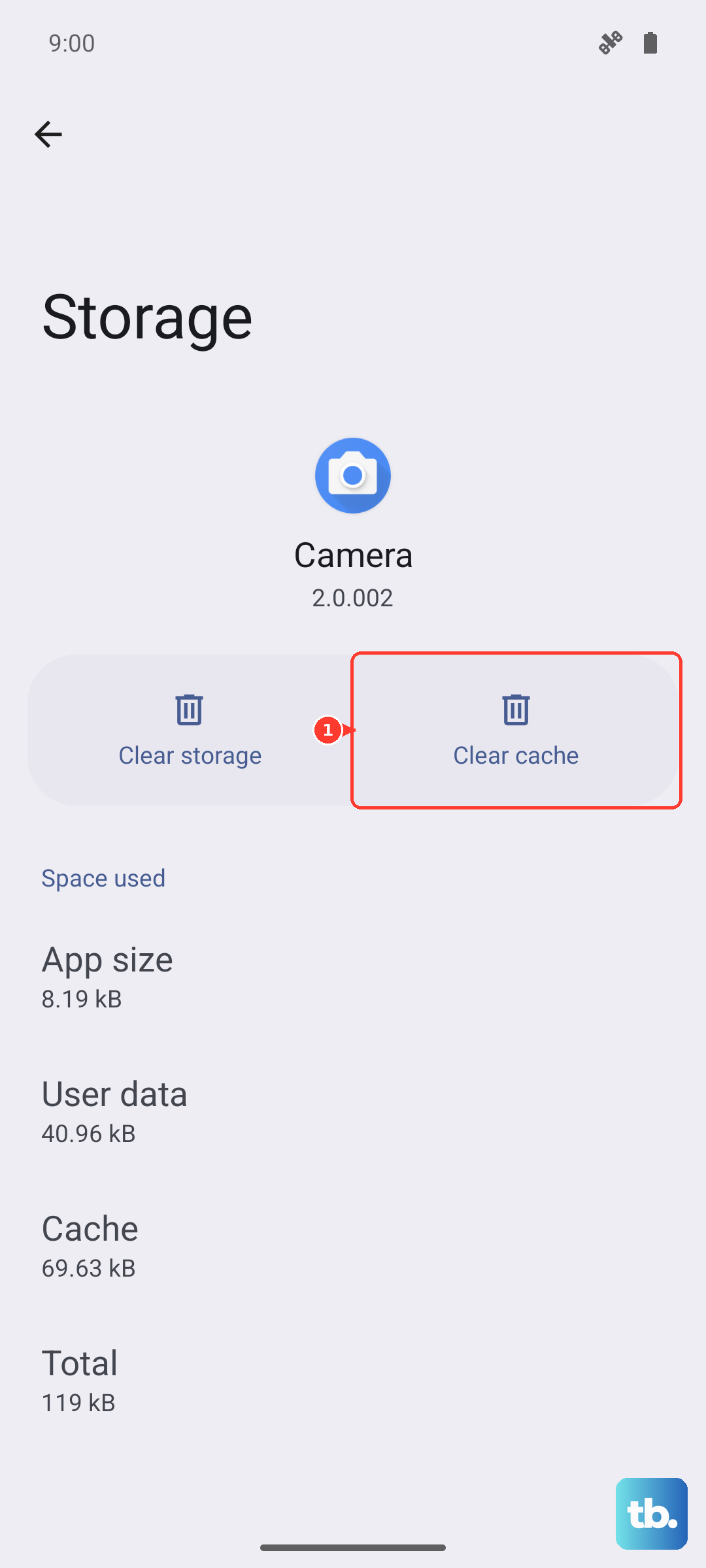
Corrupted temporary files can cause all sorts of strange behavior. Go to Settings > Apps, find and select your email app, then tap Storage. Tap "Clear cache." This won't delete your emails or account info, just the temporary data. After clearing, open the app again.
Check for App and System Updates
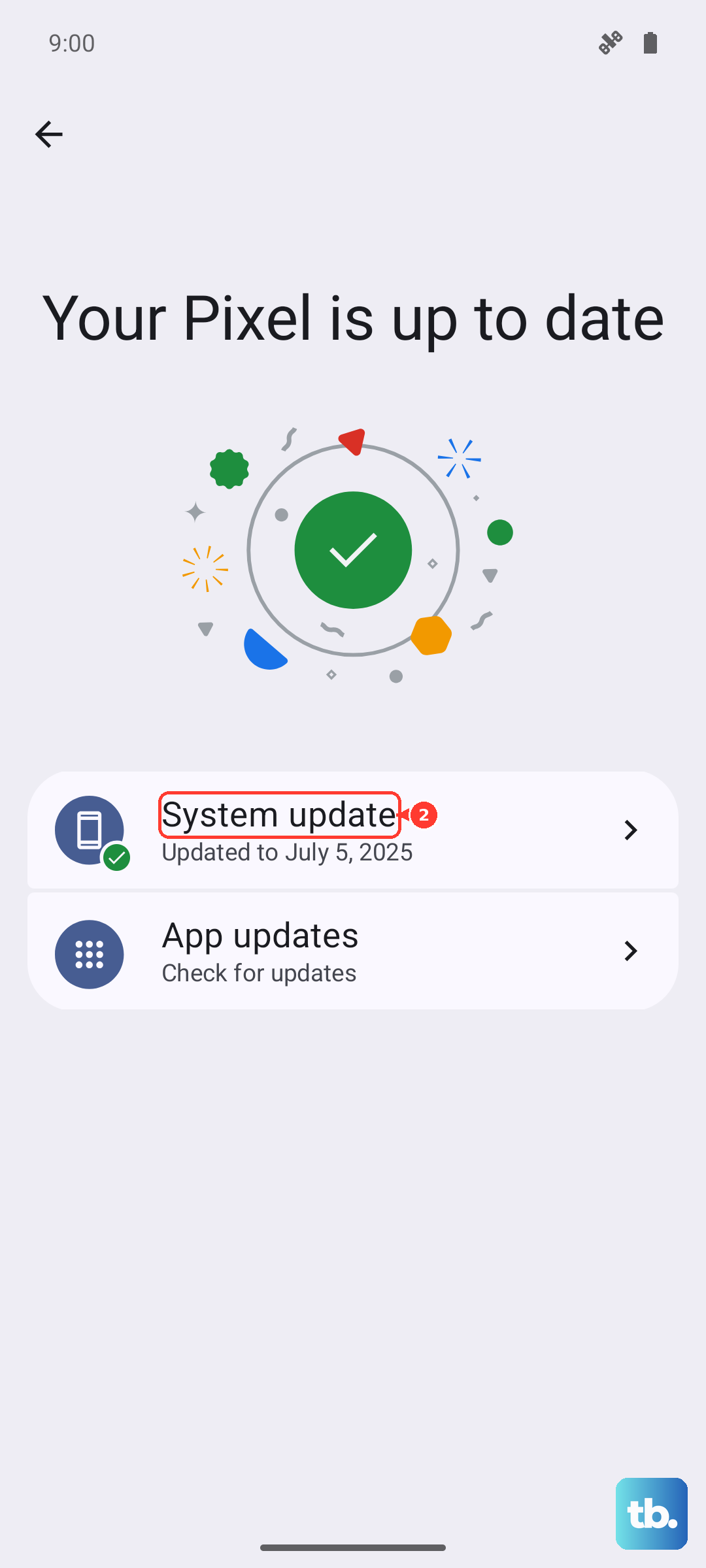
An outdated app or version of Android can have bugs that affect email. Open the Galaxy Store or Google Play Store, search for your email app, and see if an update is available. For system updates, which are crucial, go to Settings > Software update > Download and install. Keeping your S25 Ultra on the latest version of One UI 7 and Android 15 ensures you have the latest stability patches.
Disable Any Active VPN
A VPN can sometimes interfere with the connection to your email server. If you're using one, open the VPN app and disconnect it, or go to Settings > Connections > More connection settings > VPN and turn it off. Try checking your email without the VPN active to see if that was the blocker.
Review Your Notification Settings
If emails are arriving but you're not getting alerts, the notifications might be muted. Go to Settings > Notifications > App notifications. Find your email app in the list and tap on it. Make sure notifications are turned on, and you might want to check that they aren't set to "Silent" or minimized.
Force Restart Your S25 Ultra
A soft reset can clear out system-level glitches. Press and hold the Volume Down button and the Side key (power button) simultaneously for about 10 seconds. Release when you see the Samsung logo appear, and the phone will reboot. This is different from just turning the screen off and on.
Set Date and Time Automatically
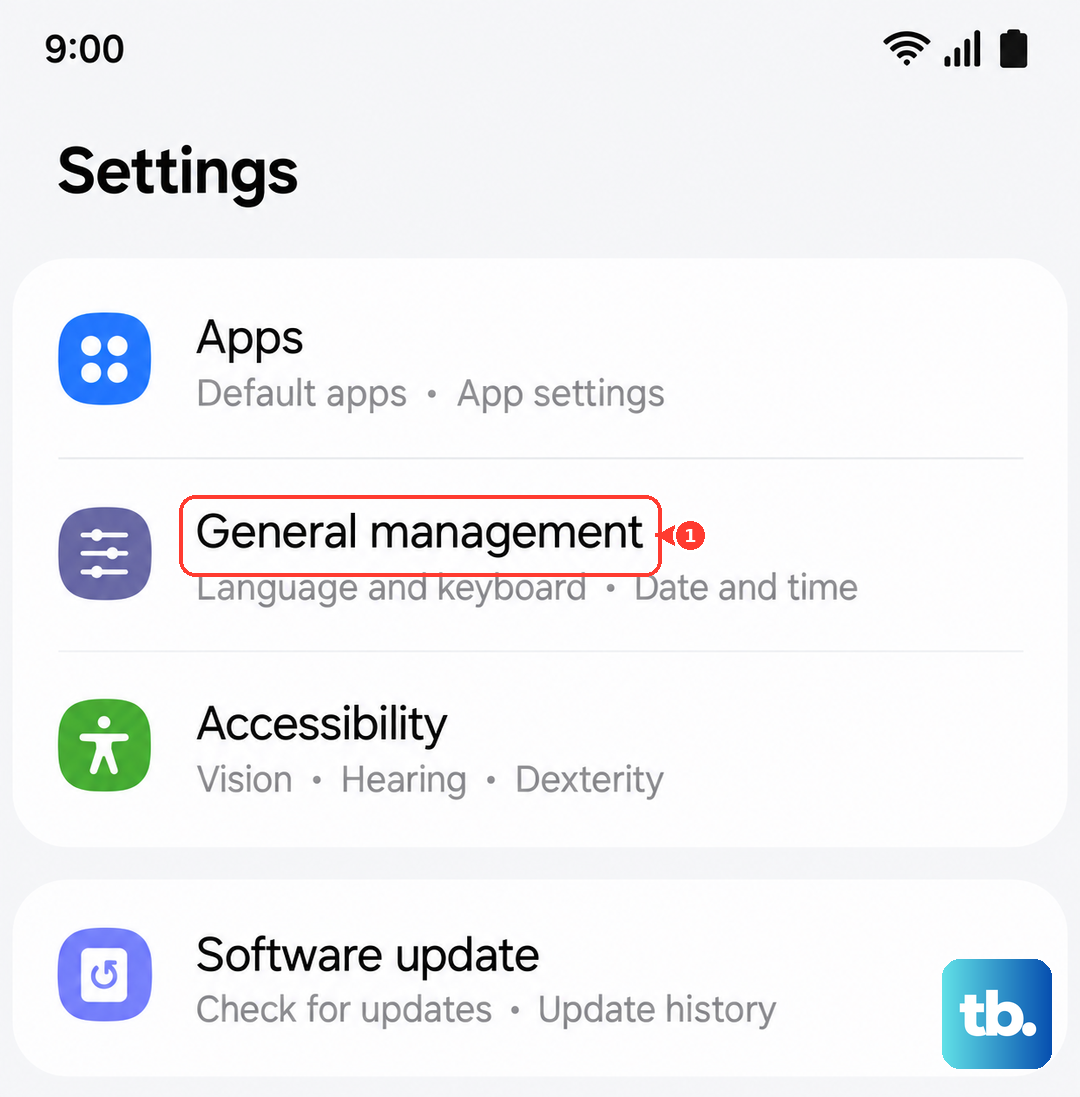
An incorrect system time can cause security certificate errors with email servers. Go to Settings > General management > Date and time. Make sure "Automatic date and time" is switched on. This lets your phone set the time via the network.
Remove and Re-add Your Email Account
This is a more thorough step that resets the connection from scratch. Go to Settings > Accounts and backup > Manage accounts. Select the problematic email account and tap "Remove account." Confirm, then go back and tap "Add account" to set it up again. You'll need to enter your password, so have it ready.
Reset All Network Settings
If you're still having connection-related email issues, this will reset Wi-Fi, mobile data, and Bluetooth settings to default without touching your personal data. Go to Settings > General management > Reset > Reset network settings. Tap to confirm. After the phone restarts, you'll need to reconnect to your Wi-Fi networks and re-pair Bluetooth devices.