Your Samsung Galaxy S25 Ultra was working fine, and now the display is just black. The phone might still be on (you can feel it vibrate, hear notifications, or see it light up briefly), or it may refuse to respond to any touch or button press at all. A black screen on a Galaxy phone is usually a software hiccup or a frozen system rather than a dead device, which means most owners can clear it at home in a few minutes. The fixes below are ordered from the easiest and safest to the official reset and service paths, so start at the top and stop as soon as your screen comes back.
Start With a Forced Restart of Your Galaxy S25 Ultra
A frozen or black-but-powered screen is most often cleared by a forced restart, which cuts power to the system without erasing a single thing. According to the manufacturer, you press and hold the Power button (or Side button) and the Volume down button for 20 seconds. The display goes fully black and then the Samsung logo appears as the phone restarts.
If you normally unlock with your face or fingerprint, have your backup PIN or password ready, because biometrics are disabled on the first unlock after a restart. This step does not delete any of your data, settings, or apps, so it is always safe to try first. If nothing happens after 20 seconds, hold the buttons a little longer before moving on.
Check the Hardware, Charging Port, and Cable
Before assuming it is a software fault, rule out physical damage. The official black-display guidance has you inspect the device, the charger, and the USB cable for any visible damage, and remove any case that covers the charging port. A bent cable or a blocked port can easily masquerade as a dead screen. If you spot bent pins, debris in the port, or a frayed cable, swap to a known-good USB-C cable before you go any further.
Give the Battery a Full Hour on the Charger
A deeply drained battery can look exactly like a black screen, with the phone too low on power to even show a charging icon. The official guidance is to connect and charge the phone using the appropriate charger for at least 1 hour. The battery charging indicator may take up to 10 minutes to appear on the display, so do not panic if you see nothing at first.
After the hour, disconnect the phone and then attempt to turn it on by pressing and holding the Power button (or Side button) for 15 to 20 seconds. One important note for this model: the Galaxy S25 Ultra ships without a wall charger in the box (you get a USB-C cable, the S Pen, and the manual only), so you will need a separately purchased USB-C wall charger along with the cable for this step.
Boot Into Safe Mode to Rule Out a Bad App
If the black screen started after you installed or updated an app, a third-party app may be the culprit. Safe mode loads the phone without any third-party apps running, which lets you confirm whether one of them is the problem.
- 1.Completely power off the phone.
- 2.Turn it back on, and when the Samsung logo displays, press and hold the Volume down button.
- 3.Wait for "Safe mode" to appear in the bottom-left corner of the screen.
If the screen behaves normally in Safe mode, an app is the cause. Uninstall recently added apps one at a time, then restart the phone normally to exit Safe mode and confirm the problem is gone.
Do a Normal Restart Once the Screen Responds
When the display is responding again, a standard restart is a gentle way to clear lingering glitches. Press and hold the Volume down button and the Side button (or Power button) at the same time, then select Restart and confirm Restart.
There are two other ways to restart that you may find easier. You can tap the Power icon in the Quick settings panel and choose Restart, or you can ask Bixby to restart the phone by voice. Any of these reloads the system without touching your data.
Install the Latest One UI and System Updates
A firmware or One UI bug can cause display glitches, and the manufacturer regularly ships fixes through software updates. With a working screen, swipe down with two fingers from the top-right corner of the screen and tap the Settings icon.
- 1.Open Settings and tap Software update (it may be labeled System updates).
- 2.Tap Download and install (it may read Check for system updates or Check for software updates).
- 3.Follow the prompts to download and apply the update.
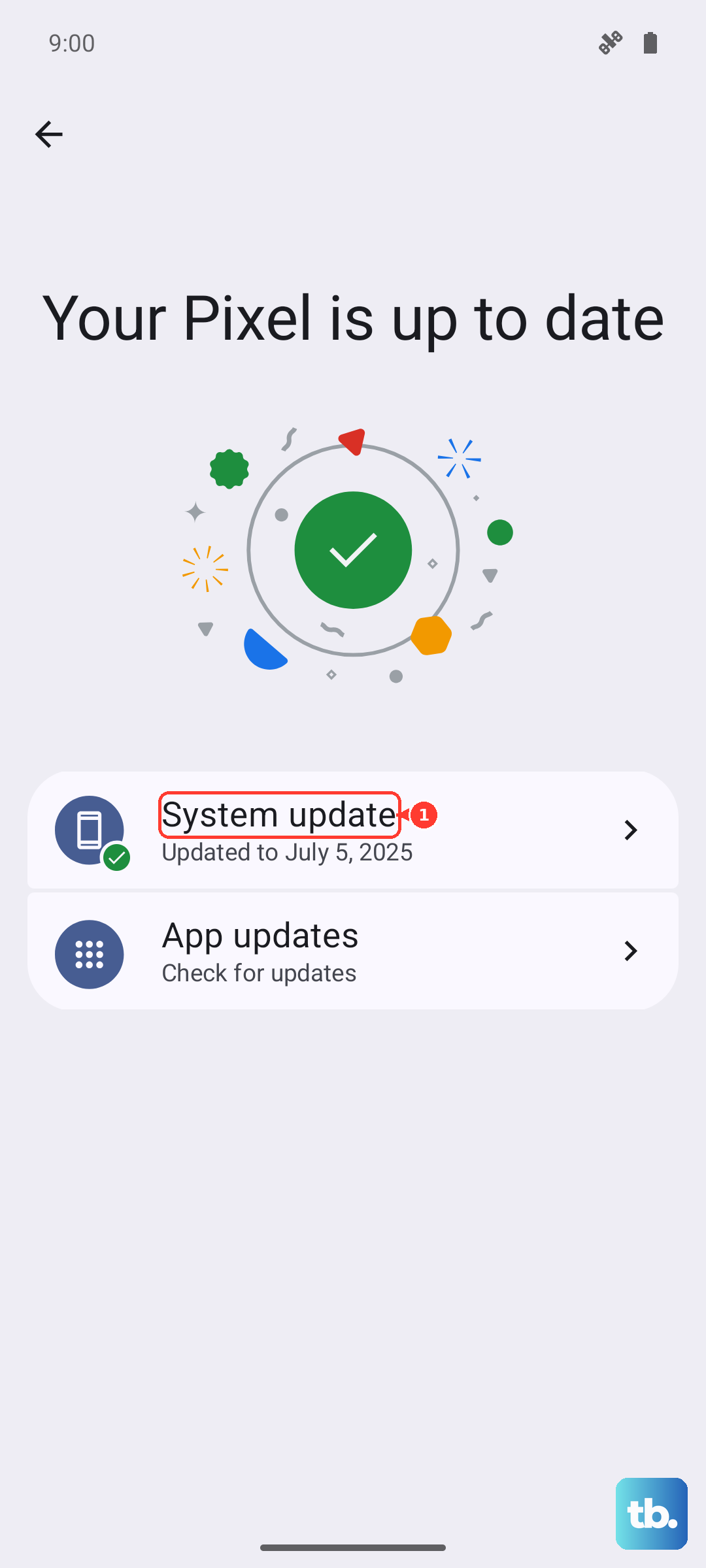
During the update the device cannot be used, and you cannot make calls, including to emergency services, until it finishes. Make sure the phone has plenty of charge before you begin so it does not power off mid-update.
Back Up and Factory Reset From Settings as a Last Software Resort
If the black screen keeps returning but the phone still boots, a factory reset is the strongest software fix. This step erases your data, so back up everything first. You can use Samsung Smart Switch, the free official software for Windows and Mac, to back up your files and content before you wipe the phone.
Once your backup is done, go to Settings > General management > Reset > Factory data reset > review the information > Reset > Delete all, entering your security credentials or Samsung account password if prompted. The manufacturer warns that a factory reset erases your personal data and that it may not be recoverable, so be sure your backup is complete before you confirm.
Wipe Through Recovery Mode When the Phone Will Not Boot
If you cannot reach Settings at all because the screen stays black, Recovery mode lets you reset the phone using only the hardware buttons. This permanently deletes all personal data, settings, downloaded apps, messages, contacts, and photos, so only use it if you have a backup or have exhausted the safer steps. Samsung Smart Switch can also update or recover a Galaxy phone from a computer when the screen is unresponsive, which is worth trying before a full wipe.
- 1.With the phone powered off, press and hold the Volume Up and Side (Power) buttons together until the device vibrates and the Samsung logo appears. On models without a Home button, you may need the phone connected to a computer by USB-C for this to work.
- 2.Use the Volume Up and Volume Down buttons to highlight "Wipe data/factory reset" (it may read "Delete all user data"), then press the Power button to select it.
- 3.Select "Factory data reset" or "Yes - delete all user data" and press the Power button to confirm.
- 4.Choose "Reboot system now" to restart the phone.
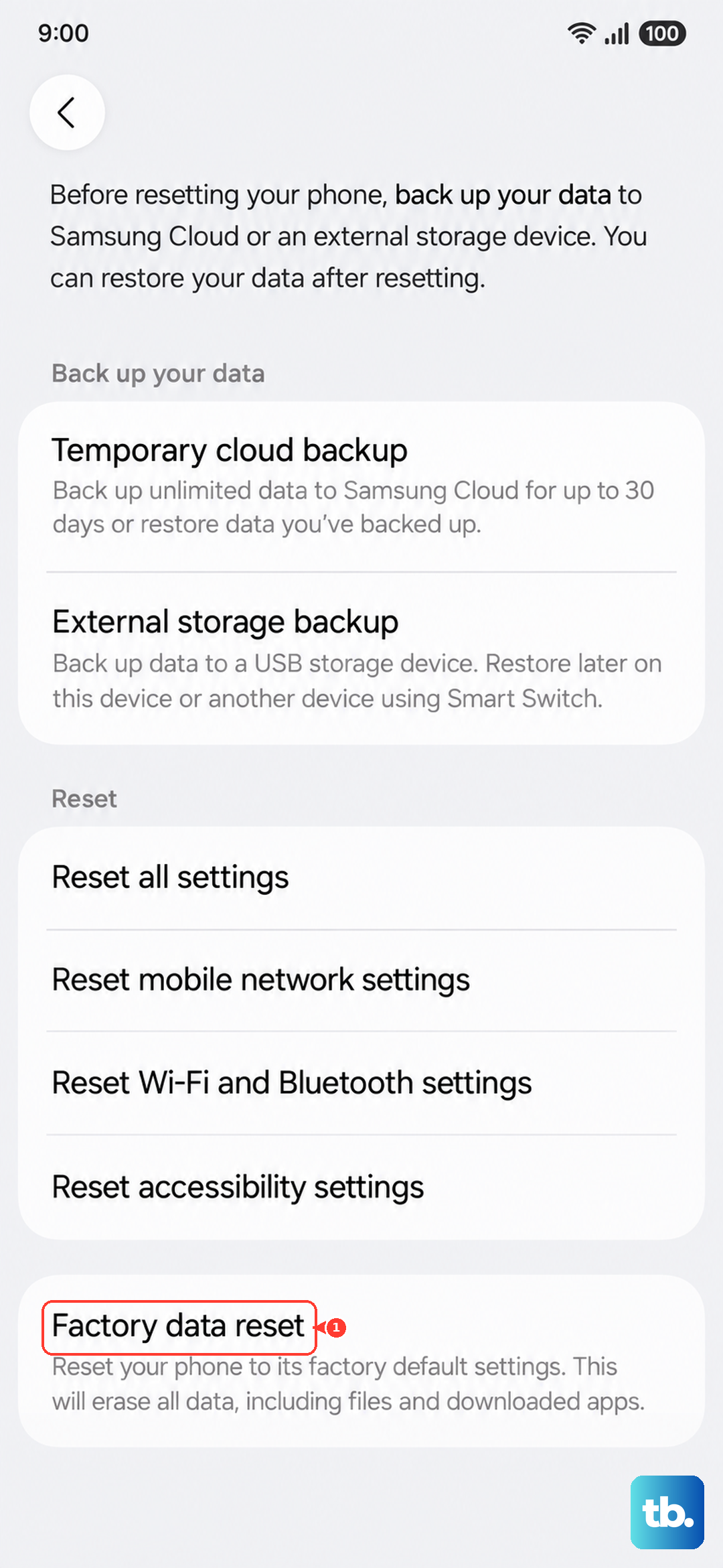
This action permanently deletes all personal data, so treat it as a true last resort before service.
When to Contact Samsung Support for Service
If the screen still will not turn on after the forced restart, the charge-and-retry, and (where you can reach it) a reset, the official guidance is clear that your device needs service. Contact the Samsung Support Center for further assistance.
Use the official Galaxy S25 Ultra support page to request a repair or warranty service. The Samsung Members app on a working Galaxy device is the official in-device support and diagnostics tool, which can help document the issue before you hand the phone in. A screen that stays dark through every software step usually points to a hardware fault that an authorized technician should handle.
Frequently Asked Questions
How do I force restart a Galaxy S25 Ultra with a black screen?
Press and hold the Power button (or Side button) and the Volume down button for 20 seconds. The screen goes black and the Samsung logo appears as the phone restarts. This does not erase any of your data.
Will any of these fixes delete my data?
The forced restart, hardware inspection, charge-and-retry, Safe mode, normal restart, and software update do not erase anything. Only the factory reset from Settings and the Recovery mode wipe delete your data, so back up first using Samsung Smart Switch before using either of those.
Why does my charging indicator not show up right away?
A deeply drained battery may need time before the phone can display anything. After you connect the appropriate charger, the battery charging indicator may take up to 10 minutes to appear on the screen, so charge for at least 1 hour before trying to power on.
Does the Galaxy S25 Ultra come with a wall charger?
No. The box includes a USB-C cable, the S Pen, and the manual only, with no wall charger or power adapter. To charge and retry, you will need a separately purchased USB-C wall charger along with the cable.
What should I do if the screen is still black after a reset?
If the screen will not turn on after the forced restart, charge-and-retry, and any reset you can reach, the device needs service. Contact the Samsung Support Center, or use the official Galaxy S25 Ultra support page to request a repair or warranty service.