Your Samsung Galaxy S25 should feel fast on both Wi-Fi and 5G, so when pages crawl, videos buffer, and apps stall on loading spinners, it is genuinely frustrating. The good news is that most slow-internet problems on the S25 come from a temporary connection glitch, a background data setting, or your network rather than the phone itself. The fixes below are ordered from the quickest and safest to the most involved, so start at the top and stop as soon as your speeds recover.
Before you change anything, it helps to know whether the slowness affects Wi-Fi, mobile data, or both. That single observation tells you which fixes matter most for you, and several of the steps below are split into Wi-Fi-specific and mobile-data-specific paths for exactly that reason.
Refresh your connections with Airplane mode
The fastest and safest first move is to flip Airplane mode on and back off. This forces your Galaxy S25 to drop and re-establish its mobile and Wi-Fi connections, which often clears a stalled or weak link in seconds.
Open the Quick settings panel.
Tap the switch next to Airplane mode to turn it on.
Wait a few seconds.
Tap the switch again to turn Airplane mode off.
Airplane mode turns off all network connections, including mobile data, Wi-Fi, and Bluetooth, so toggling it gives every radio a clean restart. This step does not change any of your settings, which makes it the ideal thing to try first.
Restart the phone to clear temporary glitches
If a quick refresh did not help, a full restart clears temporary software hiccups that can drag down connection speeds. Hold the Side (Power) button and the Volume down button until the power options appear, then tap Restart and tap Restart again.
If your Galaxy S25 is frozen or unresponsive, you can force it to restart instead. Press and hold the Volume down button and the Side button (or Power button) at the same time until the screen goes black and the Samsung logo appears, after which the phone turns back on by itself.
Rule out cases, distance, and interference
Slow wireless speeds are often a physical problem rather than a software one. Physical obstructions and signal interference are a common cause of sluggish connections, and they are easy to test for.
Remove any third-party cases or accessories that might block the antennas, then move to an area without sources of interference. For Wi-Fi specifically, get closer to your router and away from thick walls or other electronics. If your speed jumps once you move, you have found your culprit.
Power cycle your router and rejoin the network
When Wi-Fi is the slow part, the router is the next thing to check. Power cycle (restart) your router, and restart your phone as well, so both devices negotiate a fresh connection.
If a saved Wi-Fi network shows as connected but has no internet or very slow internet, forgetting and rejoining it can resolve the problem.
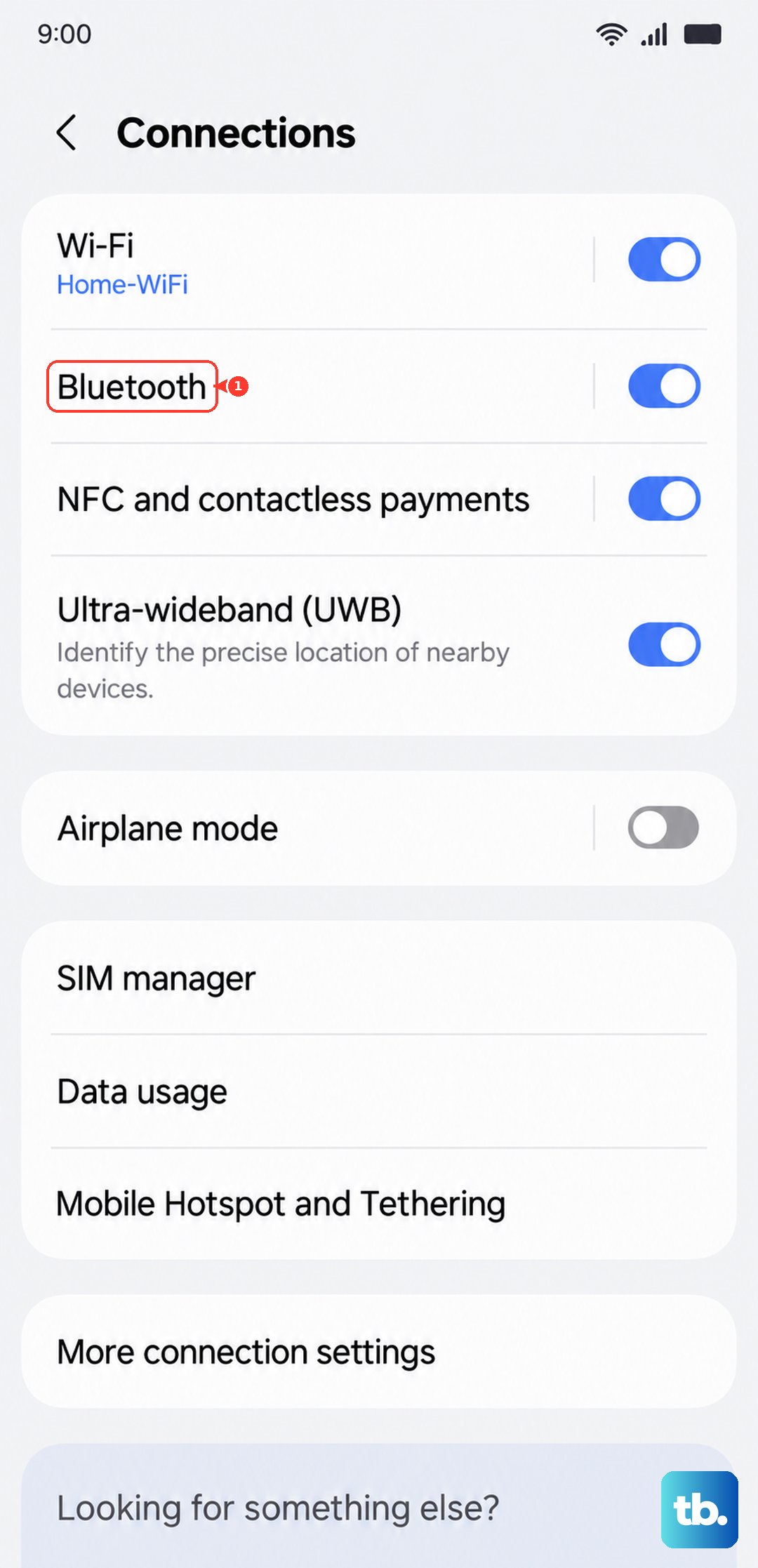
Go to Settings > Connections > Wi-Fi.
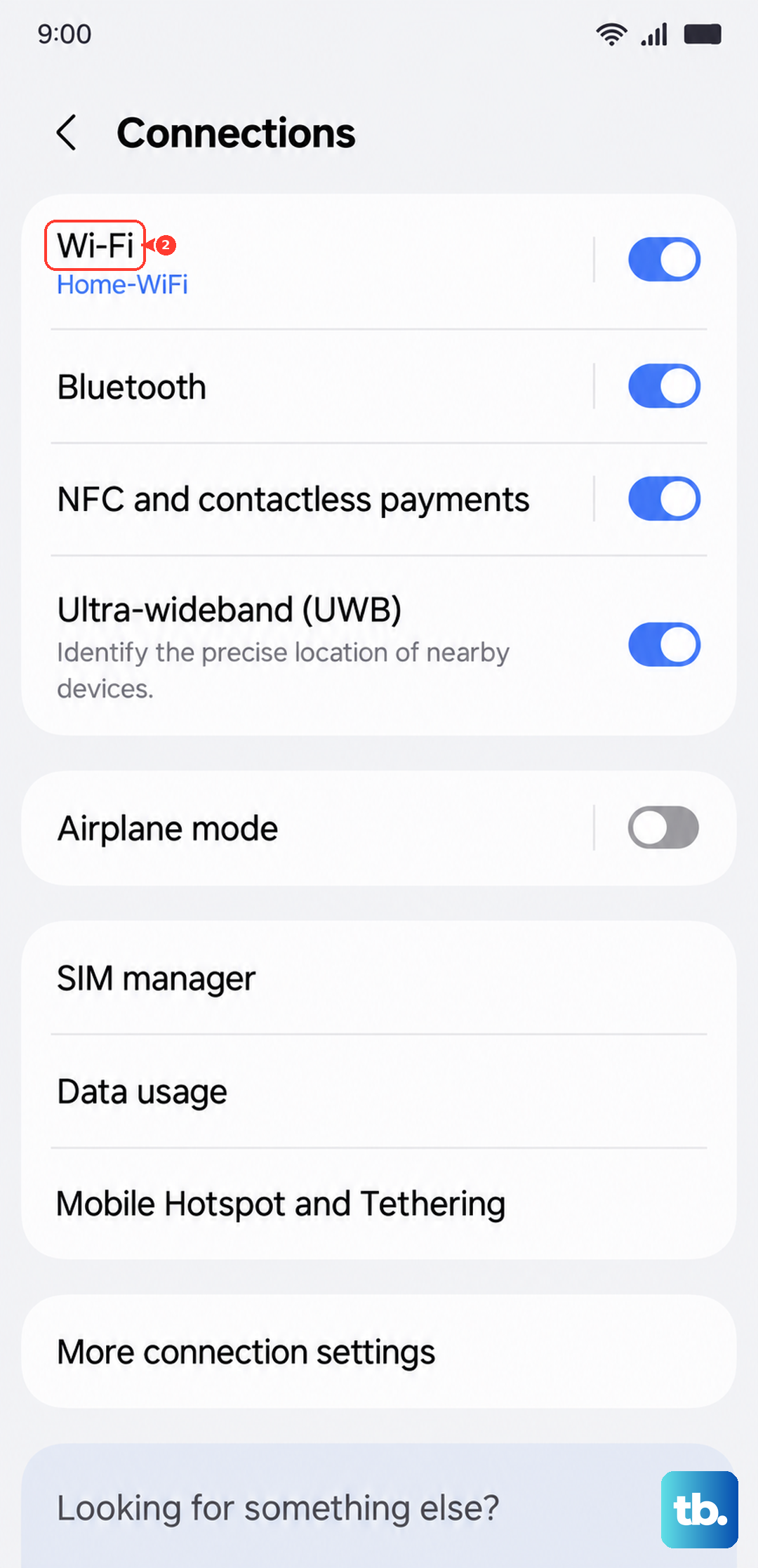
Tap the gear icon next to the network.
Tap Forget.
Reselect the network and re-enter the password.
If the internet is still unavailable after rejoining, the problem is upstream of your phone, so contact your internet service provider.
Turn off Data saver and review your data usage
Data saver can quietly throttle your experience because it prevents some apps from sending or receiving data in the background, which can make apps feel slow to load. If it is on, turning it off may immediately restore normal speeds.
Go to Settings > Connections > Data usage > Data saver.
Tap the switch next to 'Turn on now' to turn it off.
While you are in this area, open Settings > Connections > Data usage to review your mobile data usage or Wi-Fi data usage. If you are near a plan limit, your carrier may be throttling your speeds, which would explain slowness that has nothing to do with the phone.
Install the latest software update
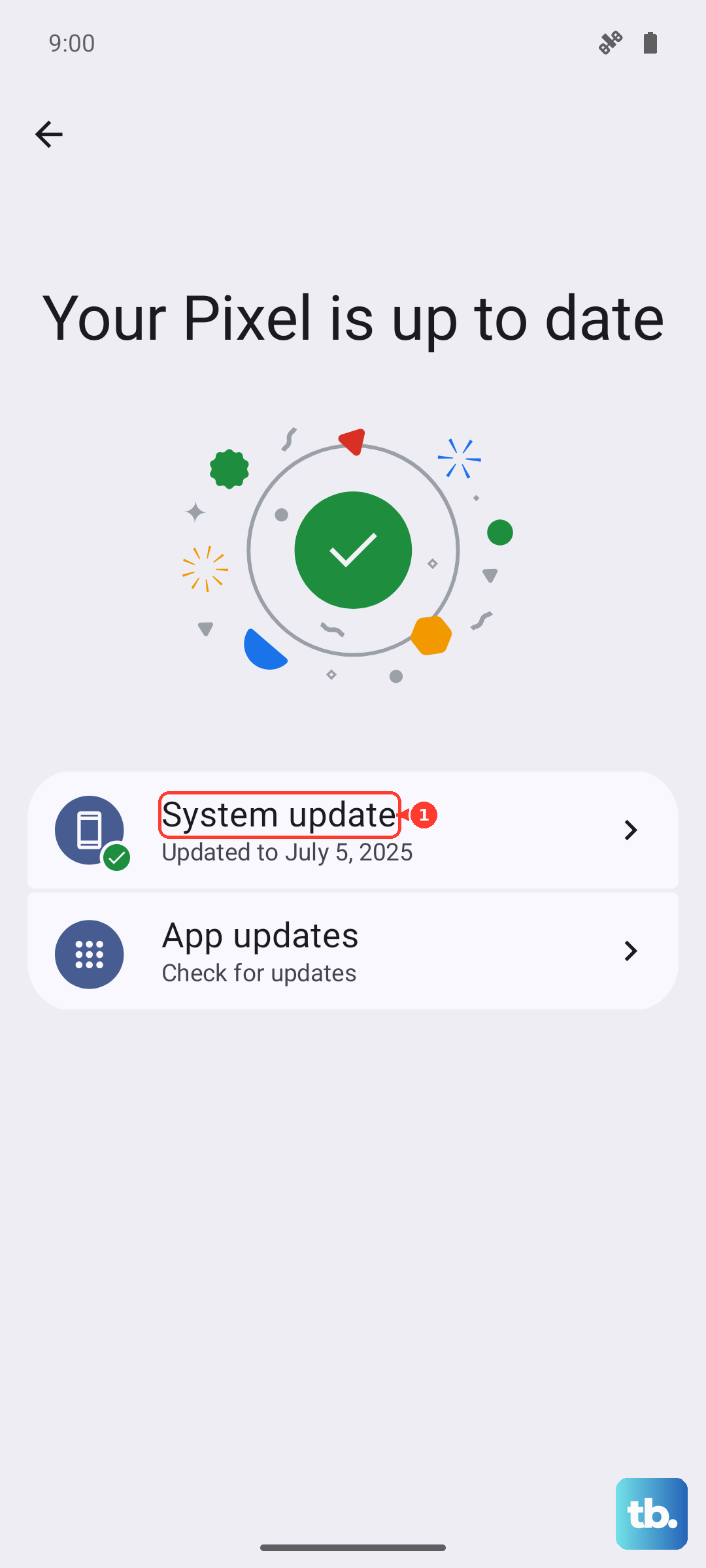
Keeping One UI, Android, and your carrier settings current can fix connectivity bugs that cause slowdowns. The Galaxy S25 has received Samsung's official One UI 8 and One UI 8.5 updates since launch, so it is worth confirming you are on the newest version.
Go to Settings > Software update (or 'System updates', depending on your device).
Tap Download and install.
Follow the prompts to apply any available update.
Check the SIM card and rule out a carrier issue
If only your mobile data is slow, the cause is frequently carrier signal or plan related rather than something on the phone. Start by inspecting the device and confirming the SIM card is installed correctly, with no physical or liquid damage present.
Your carrier manages signal quality, coverage, and the APN and network configuration that your phone uses to connect. If mobile data stays slow after you have tried the resets below, contacting your carrier is the right move because the fix may be on their side.
Reset Wi-Fi and Bluetooth settings
If Wi-Fi specifically is slow or unstable, resetting the network settings tied to it can clear out a misconfigured or corrupted connection profile. This does not erase your apps or personal data, but you will need to reconnect your Wi-Fi networks and Bluetooth devices afterward.
Go to Settings > General management > Reset.
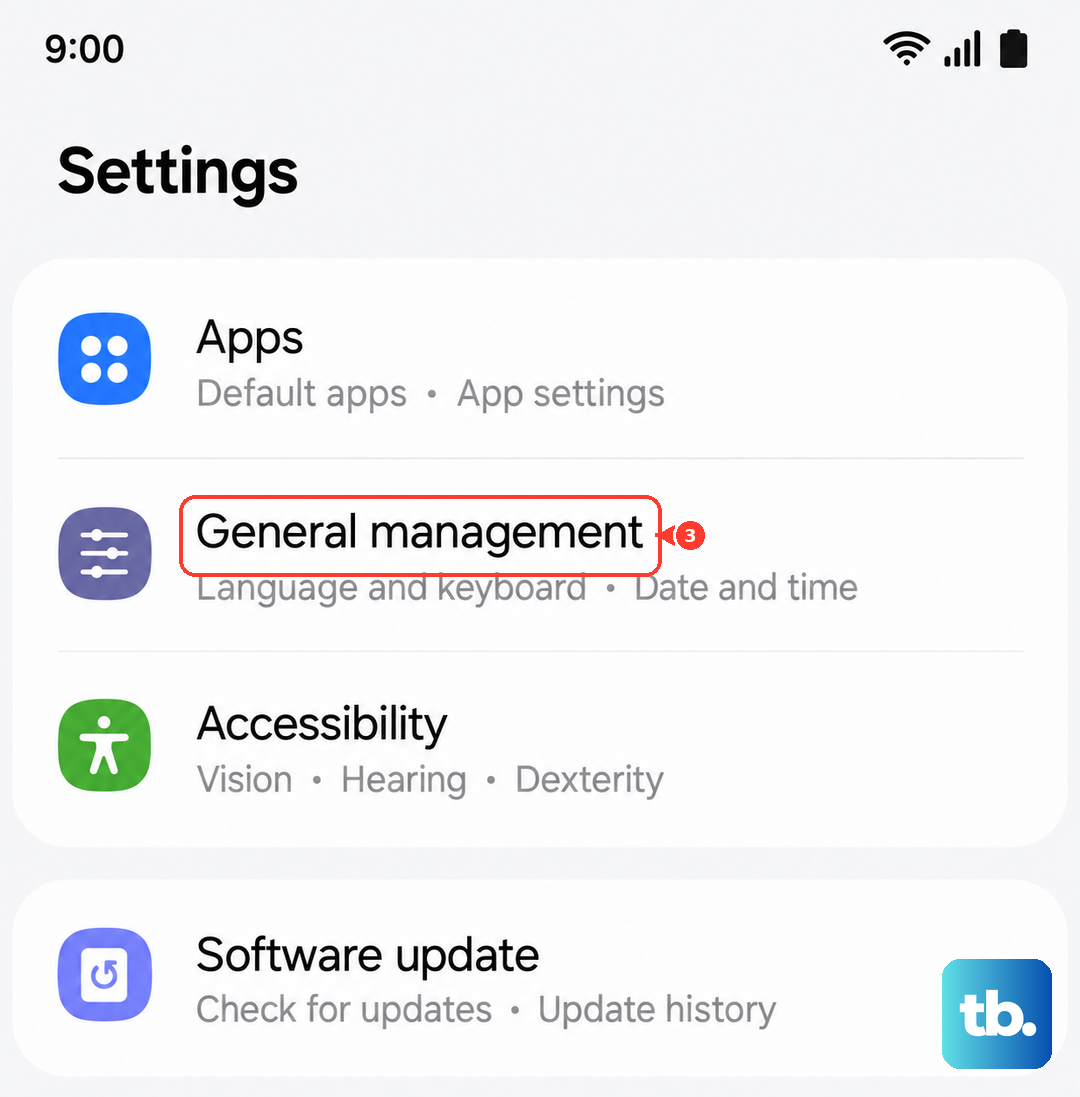
Tap Reset Wi-Fi and Bluetooth settings.
Review the information.
Tap Reset settings.
Once it finishes, reconnect to your Wi-Fi network and re-enter the password, then re-pair any Bluetooth devices you use.
Reset mobile network settings
If mobile data is the part that is slow, resetting the mobile network settings restores your network-related configuration without erasing your personal data. This is the mobile-data counterpart to the Wi-Fi reset above.
Go to Settings > General management > Reset.
Tap Reset mobile network settings.
Review the information.
Tap Reset settings.
After the reset, you may need to reconnect to networks, so give the phone a moment to re-register on your carrier before testing your speed again.
Factory reset as a last resort, then contact support
If nothing above has worked, a factory data reset returns the phone to its original software state and clears out any deep configuration problem. This step erases everything on the device, so it is genuinely a last resort.
Back up your data first. Samsung's own warning is direct: 'Please save any information you need prior to the factory reset because your personal information may not be recovered.' Once your backup is complete, go to Settings > General management > Reset > Factory data reset and follow the prompts.
If network or data issues remain even after a factory reset, the problem is no longer something you can fix from the settings menu. Contact your carrier for signal, coverage, or APN concerns, or contact Samsung Support for help with possible hardware faults.
A quick note on Wi-Fi 7 and the 6 GHz band
The standard Galaxy S25, S25+, and S25 Ultra all support Wi-Fi 7, which can deliver very fast wireless speeds. However, Wi-Fi 7 and 6 GHz band availability depend on having a compatible router and can vary by market.
That means a missing 6 GHz band is often a router or region limitation rather than a fault with your phone. If you want the fastest Wi-Fi your S25 can manage, confirm with your router maker whether your hardware and region support the band you are expecting.
Frequently Asked Questions
Why is only my mobile data slow while Wi-Fi is fine?
When only mobile data is slow, the cause is often carrier signal or plan related rather than the phone. Check that your SIM card is installed correctly with no damage, then try resetting mobile network settings at Settings > General management > Reset > Reset mobile network settings. If it is still slow, contact your carrier, since they manage signal quality, coverage, and your network configuration.
Will resetting network settings delete my photos or apps?
No. Both Reset Wi-Fi and Bluetooth settings and Reset mobile network settings restore network-related settings without erasing your apps or personal data. You will, however, need to reconnect to Wi-Fi networks and re-pair Bluetooth devices after a Wi-Fi and Bluetooth reset.
Does Data saver slow down my Galaxy S25?
It can. Data saver prevents some apps from sending or receiving data in the background, which can make apps feel slow. You can turn it off at Settings > Connections > Data usage > Data saver by tapping the switch next to 'Turn on now'.
How do I restart my Galaxy S25 if the screen is frozen?
Press and hold the Volume down button and the Side button (or Power button) at the same time until the screen goes black and the Samsung logo appears. The phone will then turn back on by itself.
Do I need a special app to fix slow internet on the S25?
No separate desktop diagnostic app is required for connectivity fixes. You can handle everything with built-in tools like Software update, the network resets in Settings > General management > Reset, and Data saver. Carrier-side issues are resolved by contacting your mobile service provider.