
Running out of space on your Samsung Galaxy S25+ can be a real headache, stopping you from taking new photos or installing app updates. The good news is that Android 15 and One UI 7 give you a lot of control to clean things up. You can often free up dozens of gigabytes without losing anything important.
See What's Hogging Your Space
Open Settings > Device care > Storage. This screen gives you a clear breakdown of what's using your phone's memory. Wait a moment for it to fully load and analyze your data. You'll see categories like Apps, Images, Videos, and Audio, with the biggest offenders listed right at the top.
Use the Built-In Cleaner
Right on that Storage page, tap the Clean now button. This is Samsung's quick-clean tool that scans for temporary files, app caches, and leftover installation data. It's a safe first step that can instantly free up a few gigabytes. I'd start with this one, as it handles the digital clutter you don't even see.
Clear App Caches Manually
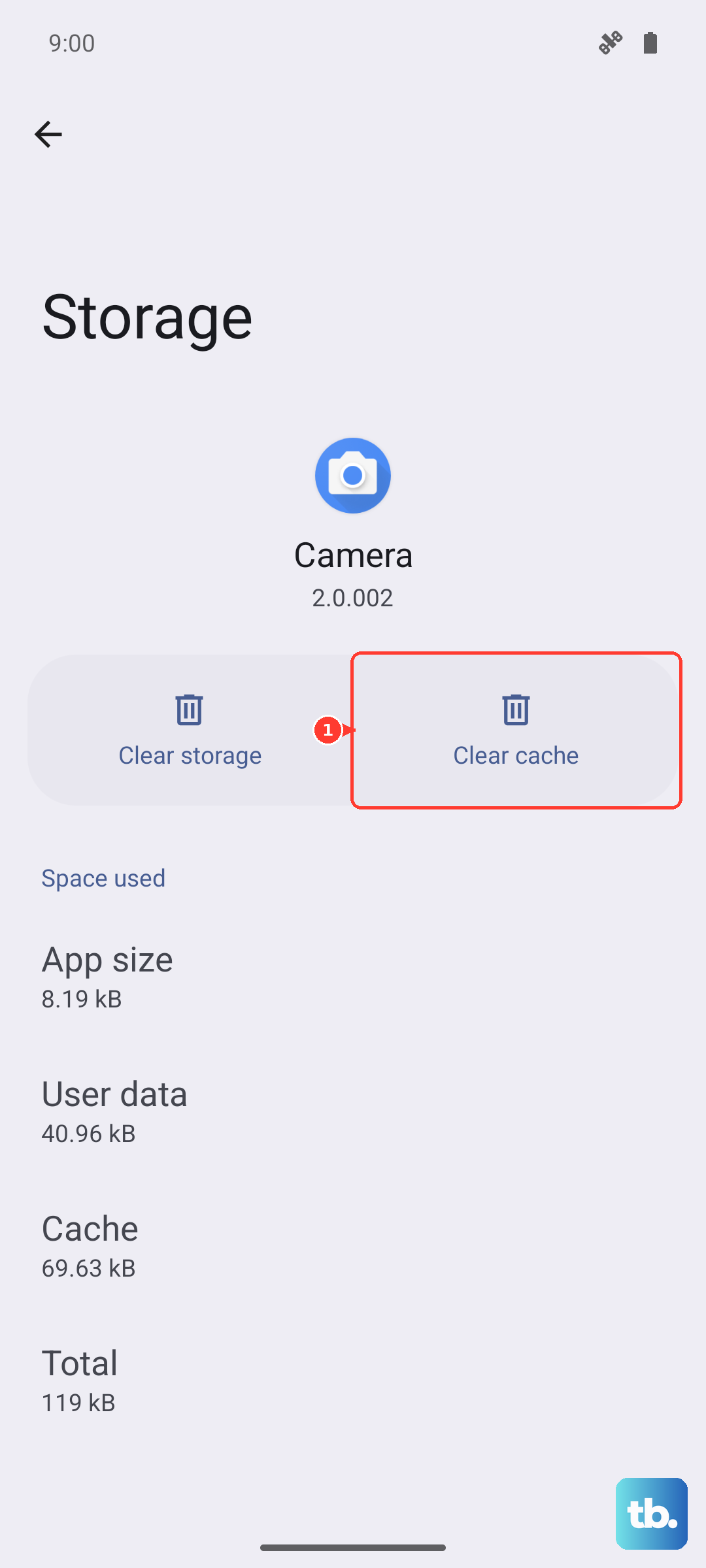
Go back to Settings > Apps, then select an app that's using a lot of space, like Instagram, TikTok, or Chrome. Tap Storage, and you'll see two numbers: the app size and the cache. Tap Clear cache to wipe temporary files without affecting your login or personal data. For apps like Spotify or Netflix, this can reclaim a surprising amount of room.
Manage Your Photos and Videos
Open the Gallery app and use the search function to find categories like Screenshots or Duplicates. You can safely delete hundreds of old screenshots in one go. Also, remember to empty the Trash folder in the Gallery, as deleted items sit there for 30 days. For long-term management, enable storage optimization in Google Photos or Samsung Cloud to keep full-resolution versions in the cloud.
Offload or Uninstall Unused Apps
In Settings > Device care > Storage > Apps, you can sort apps by size or last used date. For apps you rarely open, consider uninstalling them completely. If you want to keep the data, some apps allow you to offload them, which removes the app but saves your documents and login info for when you reinstall it later.
Delete Downloaded Media from Streaming Apps
Music, podcast, and video apps store files locally for offline use. Open apps like Spotify, YouTube Music, or Netflix and navigate to your downloads library. Remove albums, playlists, or shows you've already finished. In Spotify, you can go to Settings > Storage and tap Remove all downloads to wipe everything at once.
Clear Browser Data
If you use Samsung Internet or Chrome, cached websites and history can take up space. In Samsung Internet, tap the three-line menu, go to Settings > Privacy and security, and select Delete browsing data. Make sure Cached images and files is checked, then hit delete. This is a quick fix that often frees up over a gigabyte.
Review and Trim Message Attachments
Open the Samsung Messages app, tap the three dots, and go to Settings > More settings > Manage storage. Here, you can see how much space is taken by images, videos, and other files from your conversations. You can delete large attachments by thread or in bulk. It's amazing how many forgotten videos from group chats are sitting in there.
Check for System Update Residual Files
After a major OS update, like moving to Android 15, old system files can sometimes linger. If you see a very large "System" or "Miscellaneous files" category in your storage breakdown, a simple restart can help. Press and hold the Volume Down and Side button for about 10 seconds until the phone reboots. This allows the system to re-index and clean up temporary update data.