
Missing notifications on your Galaxy S25+ can mean missing important messages, emails, or alerts. The problem usually isn't with the apps themselves, but with how One UI 7 manages and displays alerts. I'd start by checking a few quick settings that often get changed by accident.
First, pull down the notification shade twice to see the full quick settings panel. Look for the "Do Not Disturb" or "Mute" icons. If they're highlighted, tap them to turn them off. Also, check if you've enabled a "Focus mode" or a Bixby Routine that silences alerts during certain times.
Check App-Specific Notification Settings
Android 15 and One UI 7 give you granular control over each app's notifications. The issue might be isolated to one app, like Gmail or WhatsApp. Open Settings > Notifications > App notifications. Find the app that's not alerting you and tap on it.
Make sure the toggle at the top is set to "On." Then, check that the specific notification categories within the app (like "Primary" for Gmail or "Messages" for WhatsApp) are also enabled and not set to "Silent." Sometimes an update can reset these preferences.
Disable Adaptive Notifications and Battery Optimization
Samsung's software tries to learn your habits and can sometimes be too aggressive. Go to Settings > Notifications > Advanced settings. Look for options like "Adaptive notifications" and turn it off. This prevents the phone from automatically silencing alerts it thinks you don't want.
Next, check battery optimization. Go to Settings > Battery and device care > Battery > Background usage limits. Ensure the problematic app isn't in the "Deep sleeping apps" or "Sleeping apps" lists. If it is, remove it. This allows the app to run normally in the background to check for new messages.
Clear the Cache for the Notification Service
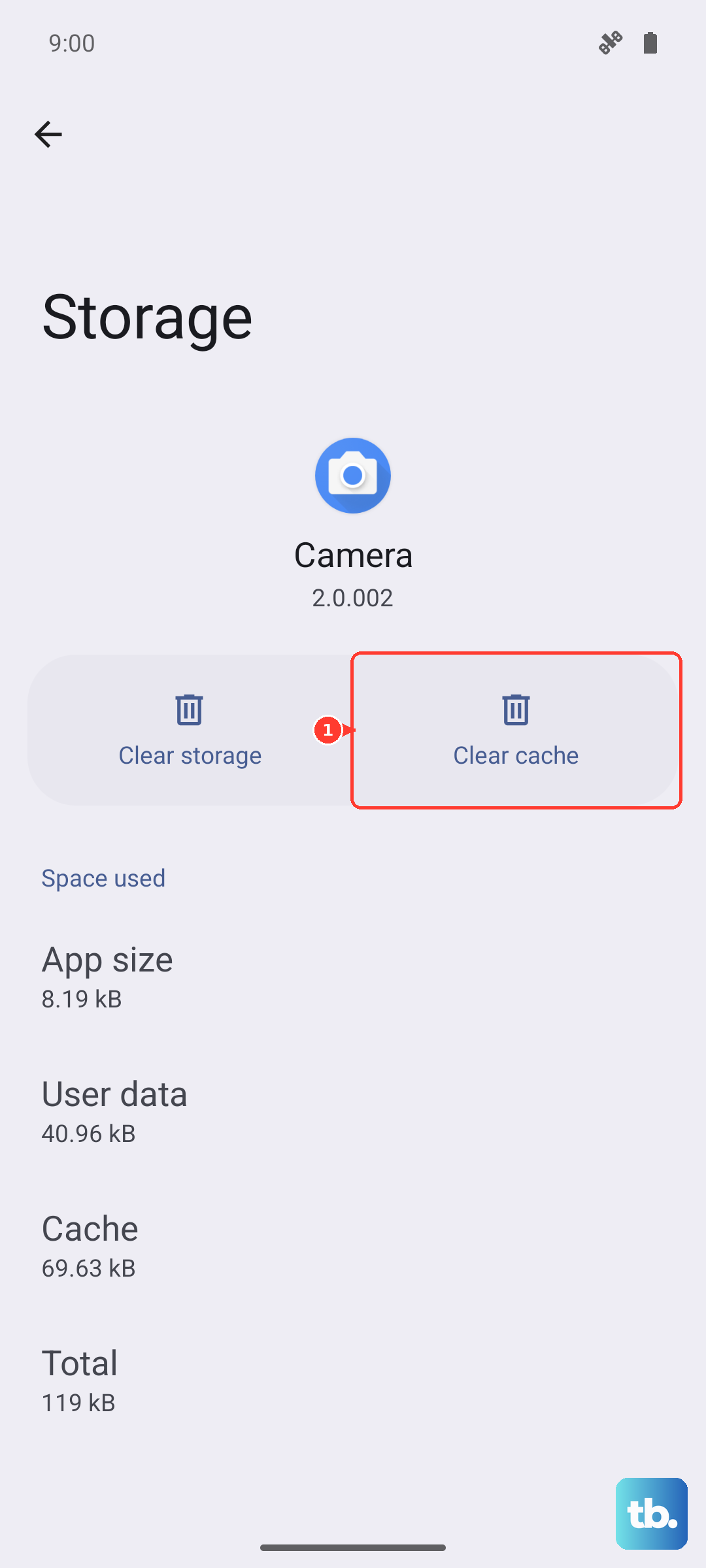
The system service that handles all notifications can get bogged down with temporary data. Clearing its cache is a safe first reset. Open Settings > Apps. Tap the three-dot menu in the top right and select Show system apps.
Scroll down and find the app simply called "Notification." Tap on it, then go to Storage. Tap "Clear cache." This doesn't delete any of your settings or data, it just clears temporary files. Restart your phone afterward for good measure.
Force Restart Your Galaxy S25+
A simple force restart clears the phone's memory and stops all background processes, which can resolve a temporary software hang affecting alerts. Press and hold the Volume Down button and the Side Key (power button) together for about 10 seconds.
Keep holding until you see the Samsung logo appear on the screen, then release. The phone will boot up normally. This is different from a standard restart and often fixes odd glitches immediately after the phone finishes starting up.
Reset All App Preferences
This is a useful middle-ground fix. It resets permissions, notification settings, and background data restrictions for all apps back to their defaults, but it won't delete any of your personal app data or accounts. You'll just need to re-allow permissions when apps ask for them again.
Go to Settings > General management > Reset. Select Reset app preferences. Tap "Reset" on the confirmation screen. Afterward, test your notifications. You may need to go back into the notification settings for your key apps and re-enable them as described earlier.
Check for Software Updates
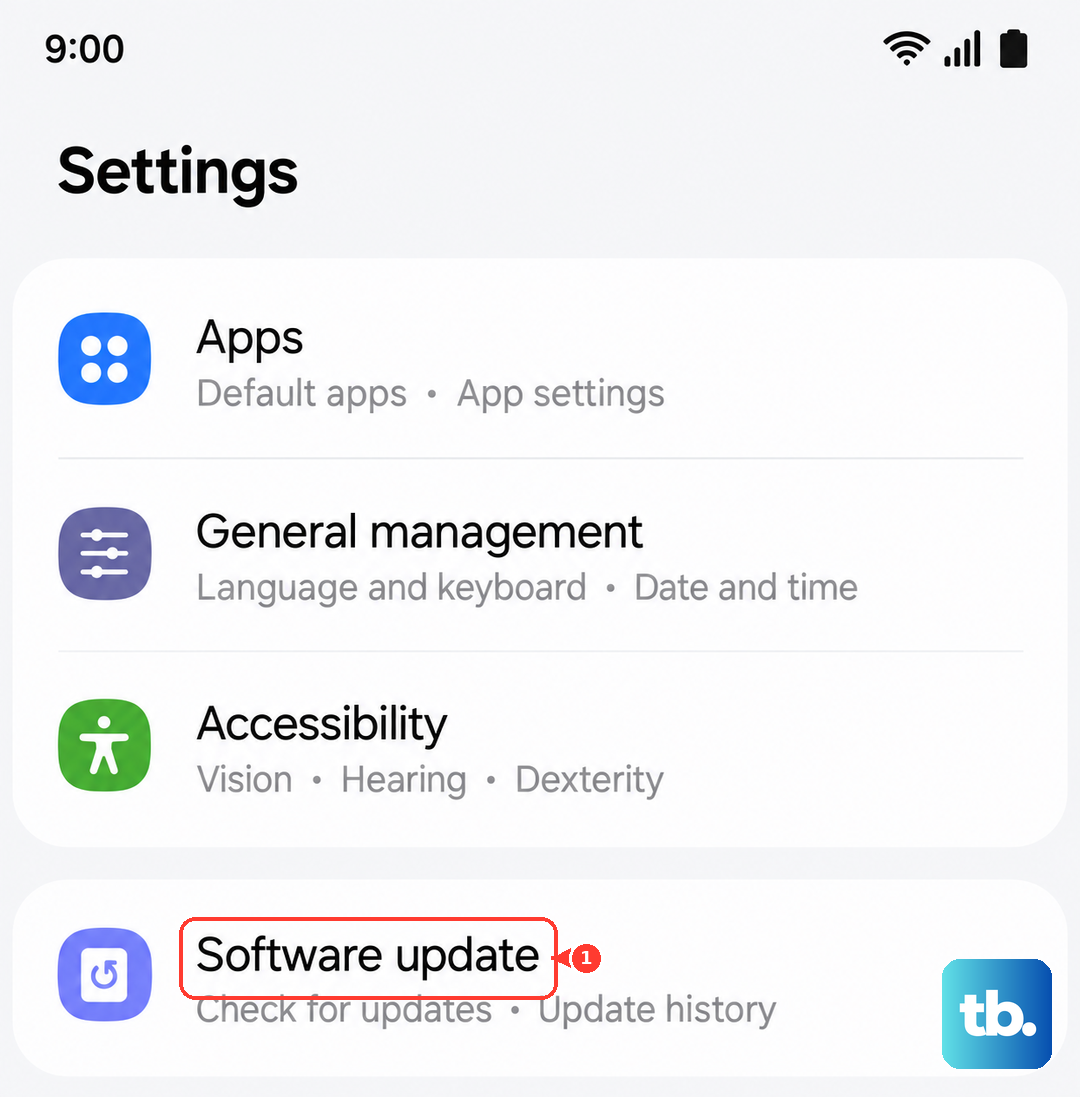
Samsung frequently releases updates that patch bugs, including ones related to notifications. Connect to Wi-Fi and go to Settings > Software update > Download and install. If an update is available, install it.
It's a good idea to do this after a major phone setup or a big app update. The initial setup and indexing process on a new S25+ can sometimes cause system services to behave oddly, and a subsequent update can smooth things out.
Review Do Not Disturb and Bixby Routines
Do Not Disturb has schedules and exceptions. Go to Settings > Notifications > Do Not Disturb. Check if a schedule is enabled for times you're missing alerts. Also, scroll down to "Allowed during Do not disturb" and add the contacts and apps whose alerts you don't want to miss as exceptions.
Modes and Routines are powerful but can silently change settings. Open the Modes and Routines app (or find it in Settings). Look through your active routines for any that might be turning on Do Not Disturb, changing notification sounds, or putting specific apps to sleep when you don't expect it.
Ensure the App Has Background Data Access
If an app can't use data in the background, it can't check for new notifications. Go to Settings > Apps, select the problematic app, and tap Mobile data. Make sure "Allow background data usage" is enabled.
Also, check the general background data setting. Go to Settings > Connections > Data usage > Data saver. If Data saver is on, it restricts background data for all apps. You can turn it off, or tap "Allow apps to use data in background" to add exceptions for your critical messaging apps.
Clear Cache and Data for the Problem App
If one specific app is the culprit, its own data might be corrupted. Go to Settings > Apps, find the app, and select it. Tap Storage, then tap "Clear cache." If that doesn't work, you can try "Clear data."
Warning: "Clear data" will reset the app to its freshly installed state, deleting your in-app settings and accounts. You'll need to log back in. Do this only for the single app giving you trouble, and only after trying other steps.
Boot into Safe Mode to Check for App Conflicts
Safe mode temporarily disables all third-party apps you've downloaded. If notifications work perfectly in safe mode, then a recently installed app is likely causing the conflict. To enter safe mode, press and hold the Side Key until the power menu appears.
Then, press and hold the "Power off" option on the screen. A prompt will ask if you want to reboot to safe mode. Tap "OK." Test your notifications. To exit, just restart the phone normally. If the problem is gone in safe mode, start uninstalling recent apps one by one to find the culprit.