
When your Samsung Galaxy S25 keyboard won't open, it's usually a quick software hiccup. I'd start by force stopping the keyboard app, as that resolves most temporary glitches on One UI 7.
Head to Settings > Apps. Tap the three-dot menu and select Show system apps. Find and tap Samsung Keyboard. On its app info page, tap Force Stop to close it completely. Try opening a text field again, and the keyboard should restart fresh.
Restart Your Galaxy S25
A simple restart clears out temporary system bugs that can affect apps. Press and hold the Side button and Volume Down button for about ten seconds until you see the Samsung logo. This force restart is often all it takes to get the keyboard responding again.
Clear the Keyboard's Cache and Data
Corrupted temporary files can prevent the keyboard from loading. Clearing the cache is safe and won't delete your personal typing data, but clearing data will reset your keyboard's custom settings and learned words.
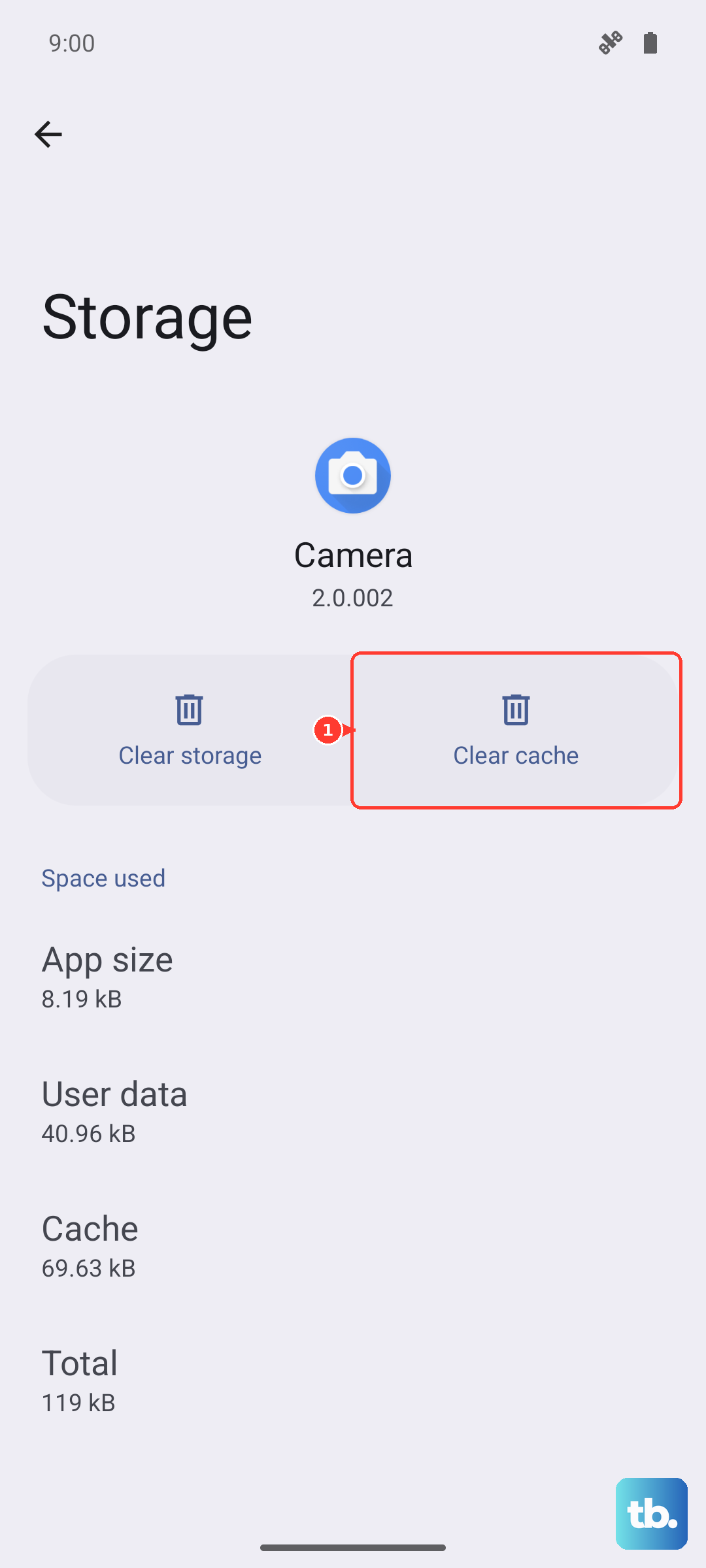
Go back to Settings > Apps > Samsung Keyboard. Tap Storage. First, tap Clear Cache. If that doesn't work, return to this screen and tap Clear Data, then confirm. You'll need to grant the keyboard permissions again when you next use it.
Update the Keyboard and System Apps
An outdated keyboard app can have bugs that cause it to crash on launch. Open the Google Play Store, tap your profile icon, and go to Manage apps & device. Under "Updates available," see if Samsung Keyboard is listed and update it.
Also check for updates to other related system apps like Samsung Dictionary or Android System Intelligence, as they work closely with the keyboard.
Check for a System Software Update
Sometimes, the issue is with the core One UI 7 software. Samsung regularly releases updates with bug fixes that can resolve app compatibility problems.
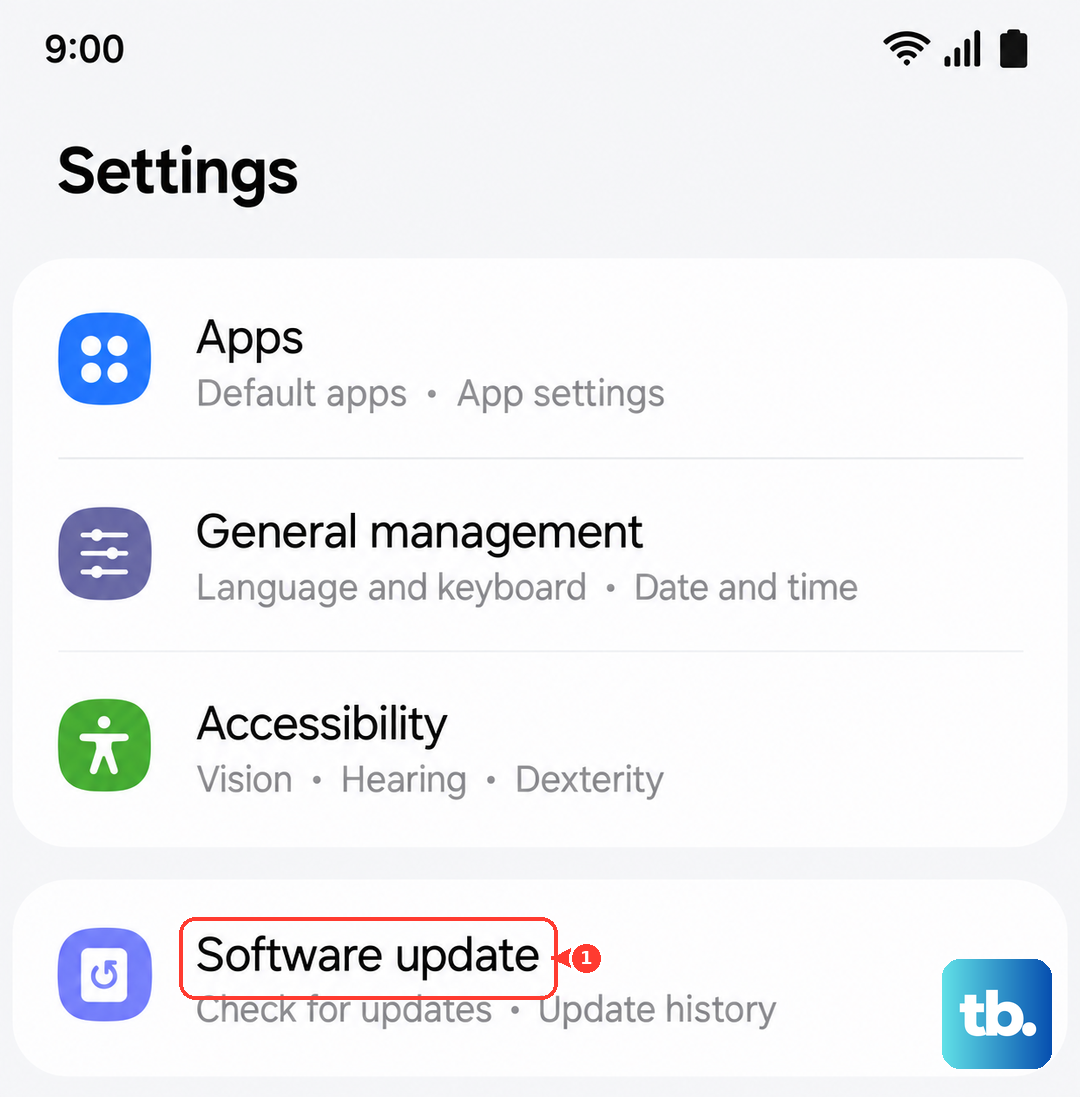
Go to Settings > Software update and tap Download and install. Make sure your phone is connected to Wi-Fi and has sufficient battery before proceeding.
Boot Into Safe Mode
If a recently installed third-party app is causing a conflict, Safe Mode will tell you. It temporarily disables all apps you downloaded.
Press and hold the Side button until the power menu appears. Tap and hold the Power off option until you see a prompt to reboot to Safe Mode. Tap it. If your keyboard works normally in Safe Mode, you know a third-party app is the culprit. Start by uninstalling recent apps one by one to find the problem.
Reset All Settings
This will revert all your system settings (like Wi-Fi passwords, ringtones, and display settings) back to factory defaults without touching your personal data or apps. It can fix deeper configuration conflicts.
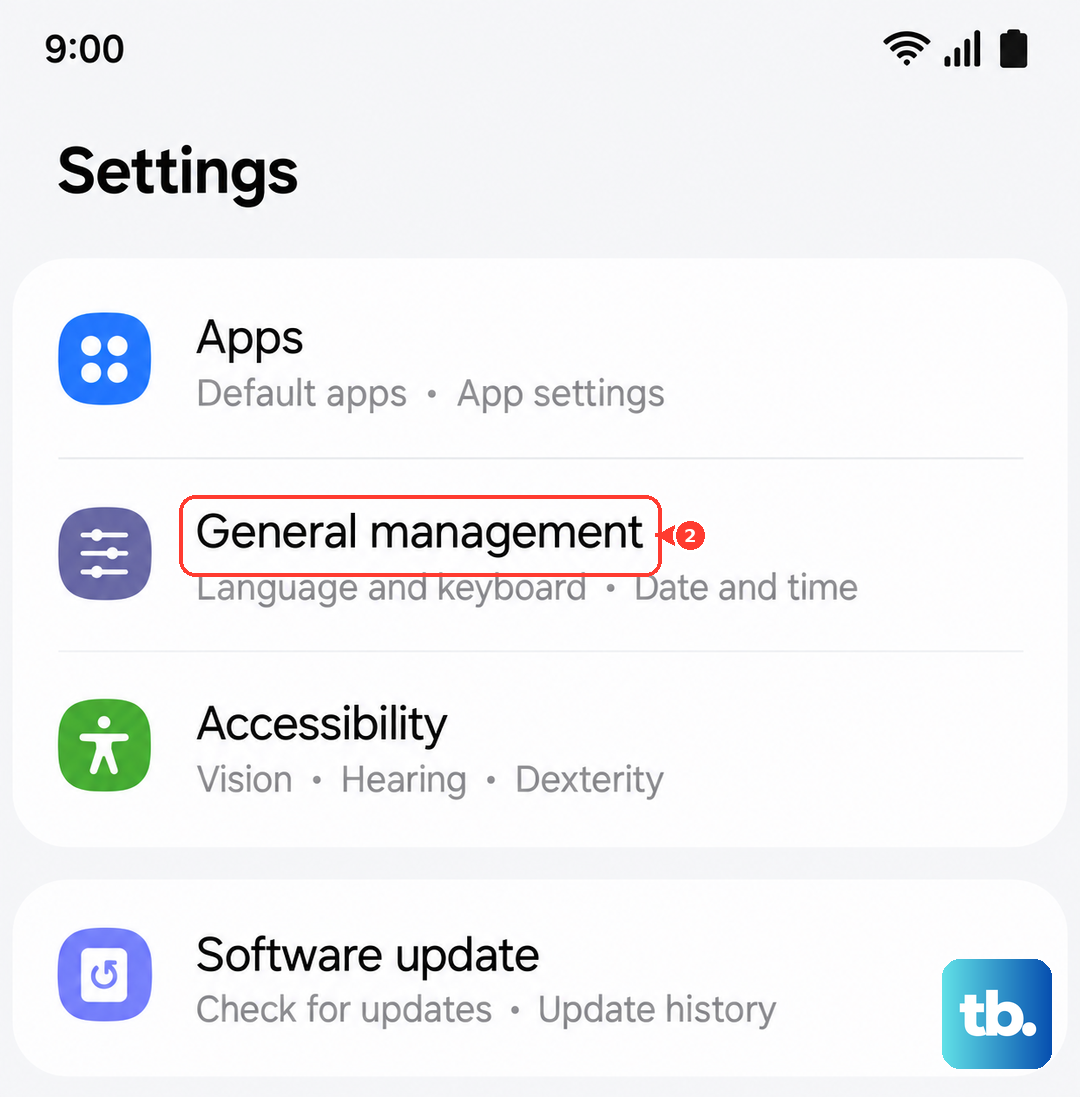
Navigate to Settings > General Management > Reset. Select Reset all settings and enter your PIN if prompted. After the phone reboots, you'll need to reconfigure your preferences, but the keyboard should be functional.
Try a Different Keyboard App
As a workaround, installing a third-party keyboard from the Play Store can get you typing immediately. Apps like Gboard or SwiftKey are popular alternatives.
After installing one, go to Settings > General Management > Keyboard list and default. Tap Default keyboard and select your new keyboard. This can help determine if the problem is isolated to the Samsung keyboard itself.
Reset the Dictionary Provider
The Dictionary app on your S25 provides word suggestions and corrections. If it malfunctions, it can crash the keyboard. Go to Settings > Apps, show system apps, and find Dictionary.
Tap it, go to Storage, and tap Clear Cache followed by Clear Data. This resets its learned words and can resolve conflicts with the main keyboard service.