Your Galaxy S25 FE looks like it's working perfectly, but the second you plug in a USB-C headset or reach for your earbuds, the audio either stays trapped on the phone speaker, cuts in and out, or refuses to play at all. It's frustrating, especially on a phone this new, and the first instinct is usually to blame the headphones. Before you replace anything, work through the checks below, because most headphone problems on this model come down to where the sound is being routed, a flaky Bluetooth handshake, or a USB-C port that needs attention rather than a true hardware fault.
If you suspect one side has failed, an online quick headphone test settles it quickly. Play each channel on its own and you will know whether it is the headphones or the source.
One thing matters before you start. The Galaxy S25 FE has no analog headphone jack. According to Samsung's official specifications, this model handles audio over its USB Type-C port (USB 3.2 Gen 1) or over Bluetooth 5.4, and that single fact changes how you troubleshoot. There is nothing to plug a 3.5mm plug into directly, so every fix here is about your Bluetooth headset, your USB-C wired headset, or a USB-C-to-3.5mm adapter.
Pin Down Which Audio Path You're Actually Using
Because there's no 3.5mm jack, the very first step is to identify exactly how your headphones connect. You're using one of three paths, a Bluetooth headset, a USB-C wired headset, or a USB-C-to-3.5mm adapter feeding a standard wired pair.
This matters because the fix differs completely depending on the path. A Bluetooth dropout is solved by re-pairing, while a wired-headset failure points you toward the USB-C port. Confirm your path first, then test that exact connection rather than guessing, since the phone has nothing to accept an analog plug on its own.
Restart the Phone to Clear a Temporary Audio Glitch
A simple restart clears the temporary system and connection hiccups that often strand audio on the wrong output. It costs nothing and resolves a surprising number of "no sound" complaints, so try it before anything more involved.
- 1.Press and hold the Volume down button and the Side (Power) button at the same time.
- 2.After a few seconds, tap Restart.
- 3.Tap Restart again to confirm.
Once the phone is back up, reconnect your headphones and test playback again.
Force a Reboot When the Screen Freezes or Sound Is Stuck
If the screen is unresponsive, or audio simply will not route no matter what you do, a normal restart may not be possible. In that case, you need a forced reboot, which Samsung supports for a frozen or unresponsive phone.
Press and hold the Power (Side) button and the Volume down button simultaneously for more than 7 seconds, until the phone restarts on its own.
Use this only when the device is genuinely stuck. For a responsive phone, the standard restart above is the better choice.
Check Where Your Sound Is Actually Going
Very often the headphones are fine and the audio is simply playing through the wrong device, such as the phone speaker or another paired Bluetooth gadget you forgot about. Samsung lets you control this per app, so you can route an app's sound deliberately.
Go to Settings > Sounds and vibration > Separate app sound, where you can choose either Phone or a Bluetooth device for an app's audio.
Make sure your media is set to play through your headphones and not the speaker or a stray paired device, then test again.
Re-Pair Your Bluetooth Headphones
For wireless headphones, a dropped or corrupted connection is the most common reason sound disappears, and re-pairing usually clears it. Start by putting the headset into pairing mode according to its own instructions, then connect from the phone.
You can open the Bluetooth menu two ways. From Quick settings, swipe down from the top of the screen, then touch and hold the Bluetooth icon to open the Bluetooth settings menu.
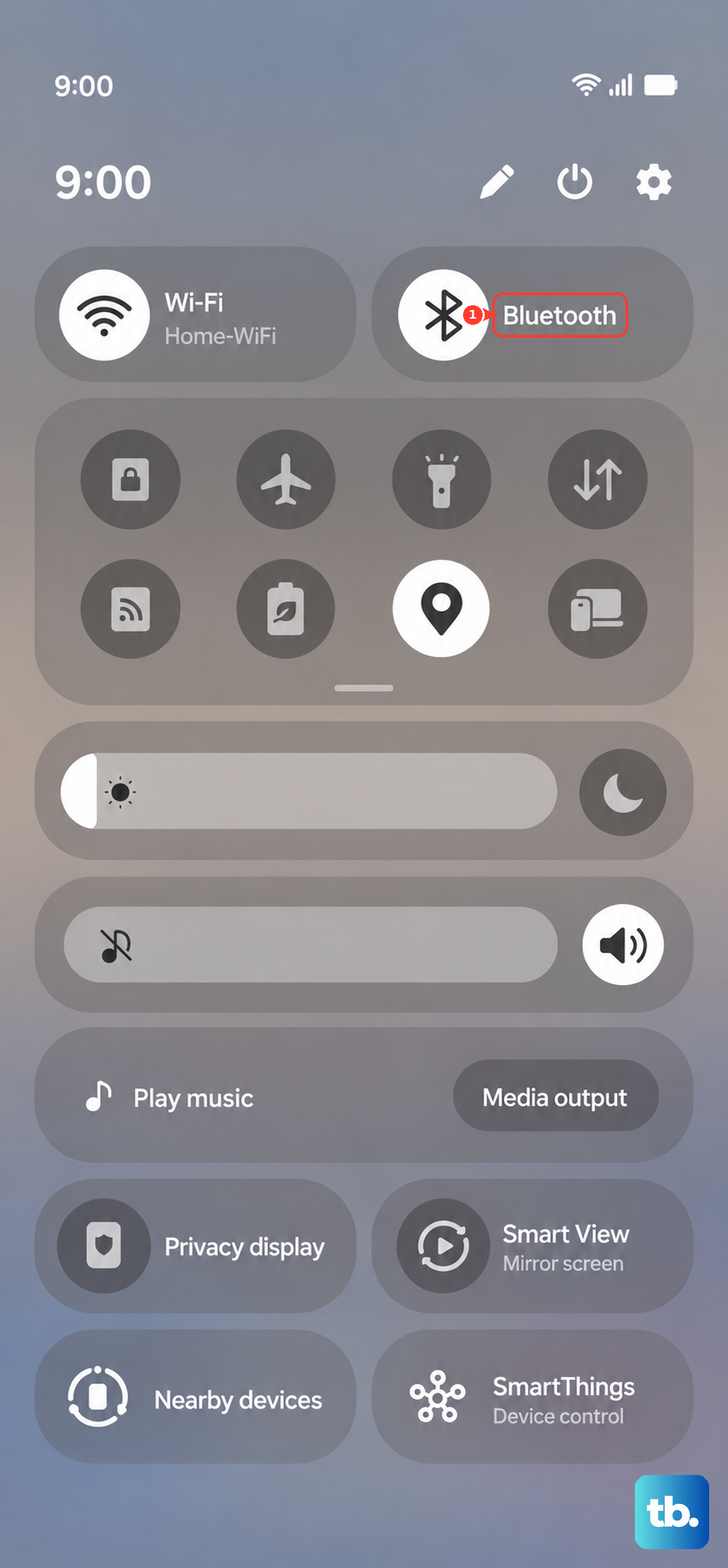
Alternatively, go to Settings > Connections > Bluetooth and tap Scan at the top.
Make sure Bluetooth is on.
Scroll to Available devices.
Select your headphones.
Tap OK if you're prompted to confirm pairing.
If the headset connects but still plays no sound, recheck the audio routing in the previous step, since the phone may still be sending media elsewhere.
Inspect and Dry the USB-C Port for Wired Headsets
If you're using a USB Type-C headset or a USB-C-to-3.5mm adapter, start by making sure the connector is fully and firmly seated in the port. A loose or partly inserted plug is an easy thing to miss and a common cause of intermittent or absent audio.
If the phone shows a moisture or water-drop warning, the port is deliberately blocked for safety, and charging or port use will not work while moisture is detected.
Power off the device and let it dry completely.
Unplug it, wipe with a dry cloth, or gently shake the device with the port facing downwards to release excess moisture.
Then place it on a cloth in a well-ventilated area, or dry it with a fan, before trying your wired headphones again.
Run the Built-In Hardware Test in Samsung Members
Your S25 FE includes a diagnostics tool that can self-test the audio hardware directly, which takes the guesswork out of whether the problem is the phone or the headphones. The Samsung Members app can check wired headphones, the speaker, Bluetooth, and the USB connection among its functions.
Open the Samsung Members app.
Tap Diagnostics on the Discover tab.
Tap Phone diagnostics.
Tap an individual test (for example Wired headphones, Speaker, Bluetooth, or USB connection), or tap Test all.
The results tell you whether the audio hardware itself is working and offer suggestions if a test fails, which helps you decide whether to keep troubleshooting or seek a repair.
Boot Into Safe Mode to Rule Out a Misbehaving App
A third-party app can grab or block audio in ways that look like a hardware fault. Safe mode loads the phone without any third-party apps running, so it's the cleanest way to test that theory.
Completely power off the phone.
Turn it on, and when the Samsung logo appears, press and hold the Volume down button until 'Safe mode' appears in the bottom-left corner.
Now test your headphones.
If they work normally in Safe mode, a downloaded app is the culprit, so uninstall recently added apps one at a time until the problem disappears.
To leave Safe mode, simply restart the phone normally.
Install Any Pending Software Update
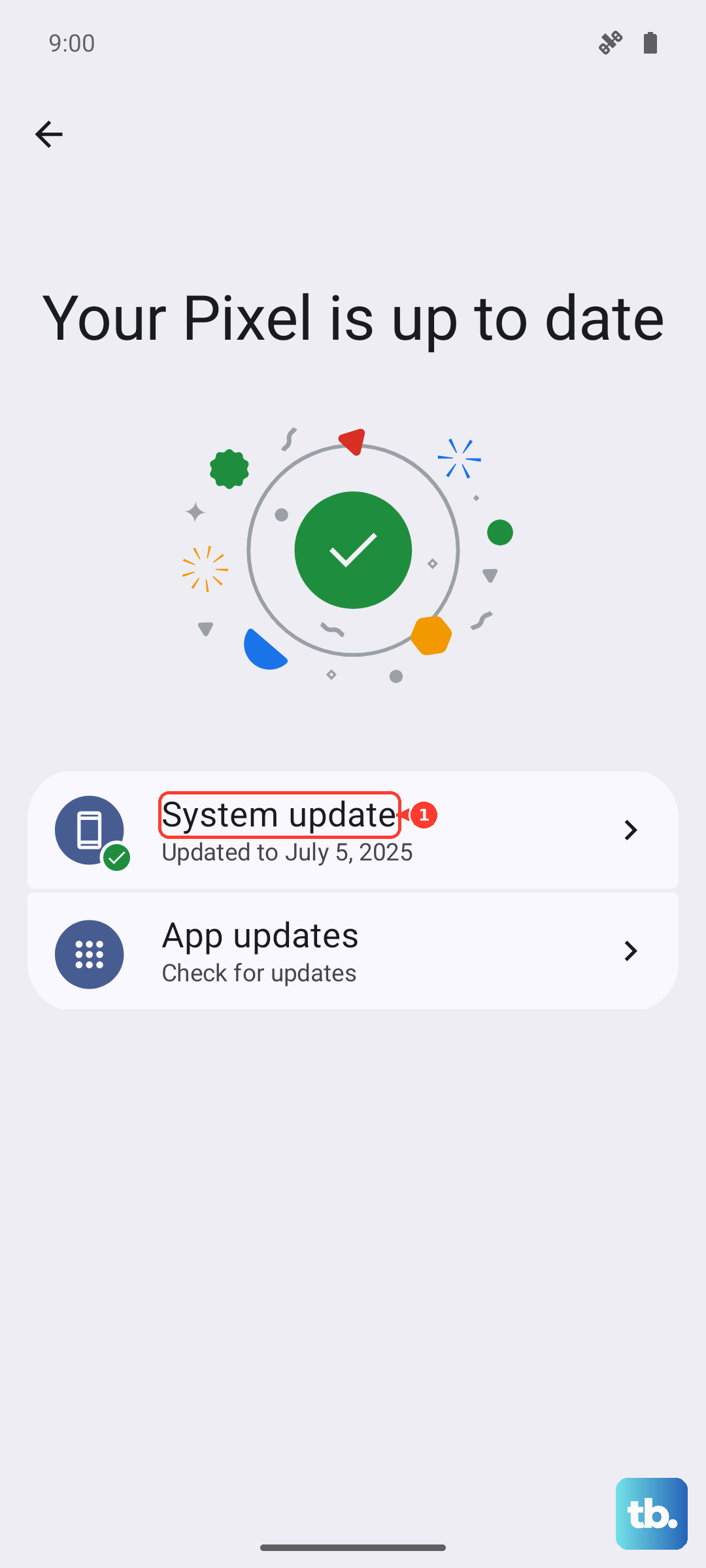
A software bug can break audio routing, and Samsung regularly ships fixes through updates, so it's worth confirming you're current. This model is eligible for up to seven generations of OS upgrades and seven years of security updates, meaning patches will keep arriving for years.
Open Settings, tap Software update (it may be labeled System updates), tap Download and install, and follow the on-screen instructions to install.
You can confirm your current build under Settings > About phone > Software information.
Back Up and Factory Reset as a Last Resort
If none of the above restores your headphones, a factory data reset returns the software to a clean state and can clear a deep configuration problem. This step erases everything on the phone, so treat it as a genuine last resort and only after you've ruled out the headphones and port.
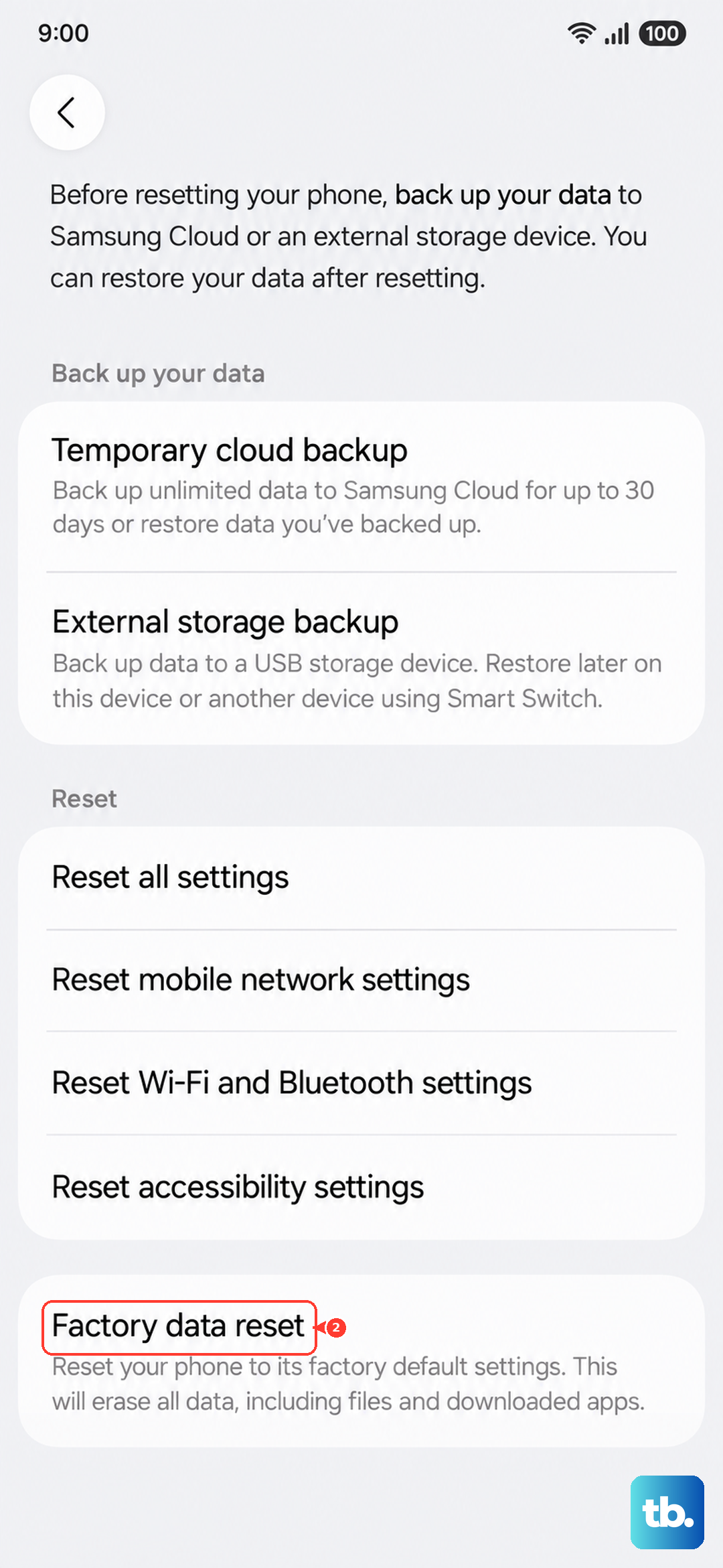
Samsung's warning is explicit. "Please save any information you need prior to the factory reset because your personal information may not be recovered." Back up your data first, then proceed.
Go to Settings > General management > Reset > Factory data reset.
Review the information shown.
Swipe to and tap Reset.
Tap Delete all (enter your security credentials and Samsung account password if prompted).
When to Contact Samsung Support or Request a Repair
If audio still fails even after a factory reset, the problem most likely lies in the hardware, whether that's the headset, the USB-C port, or the speaker. At that point, it's time to bring in official support rather than keep experimenting.
Use Samsung Support to chat, call, or text a Samsung Care Pro, or to submit a service request, which can be handled as a walk-in, mail-in, or 'We Come to You' repair. Have your model number or IMEI ready to speed things along.
Frequently Asked Questions
Does the Galaxy S25 FE have a headphone jack?
No. According to Samsung's official specifications, the Galaxy S25 FE has no 3.5mm headphone jack. It uses its USB Type-C port (USB 3.2 Gen 1) for wired audio and Bluetooth 5.4 for wireless audio, so you'll need a USB-C headset, a Bluetooth headset, or a USB-C-to-3.5mm adapter.
My Bluetooth headphones connect but play no sound. What's wrong?
The headset is likely paired while audio is being sent to a different output. Open Settings > Sounds and vibration > Separate app sound and make sure the app's audio is set to your Bluetooth device rather than Phone. If it still fails, re-pair the headset from Settings > Connections > Bluetooth.
Why won't my USB-C wired headphones work even though they're plugged in?
First make sure the connector is fully seated in the port. If the phone shows a moisture or water-drop warning, the port is blocked for safety until it dries. Power off the device, wipe it dry, gently shake it port-down to release moisture, and let it air-dry before trying again.
How do I know if the problem is the phone or the headphones?
Run the built-in diagnostics. Open the Samsung Members app, tap Diagnostics on the Discover tab, tap Phone diagnostics, then run the Wired headphones, Speaker, Bluetooth, and USB connection tests individually or tap Test all. The results show whether the audio hardware is working.
How do I force restart the S25 FE if it freezes during audio playback?
Press and hold the Power (Side) button and the Volume down button simultaneously for more than 7 seconds until the phone restarts. Use this only when the screen is unresponsive or audio is stuck, otherwise use the standard restart from Settings.