
Your Samsung Galaxy S25 Edge not getting calls? That's a headache, especially with a phone this new. Let's walk through what's probably causing it and how to fix it, from the quick checks to the more involved resets.
Most cases come down to a setting that got flipped accidentally or a temporary network hiccup. I've seen these issues pop up on the S25 series, and they're usually pretty straightforward to resolve.
Quick checks to rule out the obvious
Start with Airplane Mode. Swipe down twice from the top of the screen and check the Airplane Mode icon make sure it's greyed out. Toggle it on, wait a few seconds, then off again to force your phone to reconnect to the network.
Try a proper force restart. Press and hold the Volume Down and Side (power) buttons together for about 10 seconds until the Samsung logo appears. This clears out temporary software glitches that can interfere with calls.
Check your signal strength in the status bar. If you're in a weak area, calls might not come through. Also verify your account is active unpaid bills can block incoming calls without warning.
Is Do Not Disturb blocking calls?
Do Not Disturb is a common culprit. Go to Settings > Notifications > Do Not Disturb and make sure it's turned off. Even if you set it to allow calls from favorites, some S25 Edge configurations can still block unknown numbers.
Quick check: swipe down and look for the DND icon in Quick Settings. If it's blue or highlighted, tap it to disable.
Call blocking and Samsung's spam protection
Your S25 Edge has built-in call blocking features you might have enabled without realizing it. Open the Phone app, tap the three-dot menu in the top right, then Settings. Look for Caller ID and spam protection make sure it's on (it helps identify spam, but sometimes can block legitimate calls).
Scroll down to Block numbers and review the list. If you accidentally blocked someone, remove them. Also check Block unknown/private numbers if it's on, anyone calling with a hidden number won't get through.
Call forwarding turned on by accident?
Call forwarding can redirect incoming calls to another number. To check: open the Phone app > three-dot menu > Settings > Supplementary services (or Call settings on some versions) > Call forwarding. Disable any active forwarding for voice calls.
Also check Call barring in the same menu. If incoming calls are barred, you won't receive anything. Make sure it's set to off.
SIM card issues
The SIM card might be loose or dirty. Power off your S25 Edge, eject the SIM tray using the tool, then remove and reinsert the card. Make sure it's seated flat and the tray clicks in firmly.
If you have another phone handy, pop the SIM into it and see if calls come through. If they do, the problem is your phone's software or hardware. If they don't, contact your carrier for a replacement SIM.
Reset network settings
This is a solid middle-ground fix. Go to Settings > General management > Reset > Reset network settings. Confirm this will wipe saved Wi‑Fi networks and Bluetooth pairings, but not your personal data.
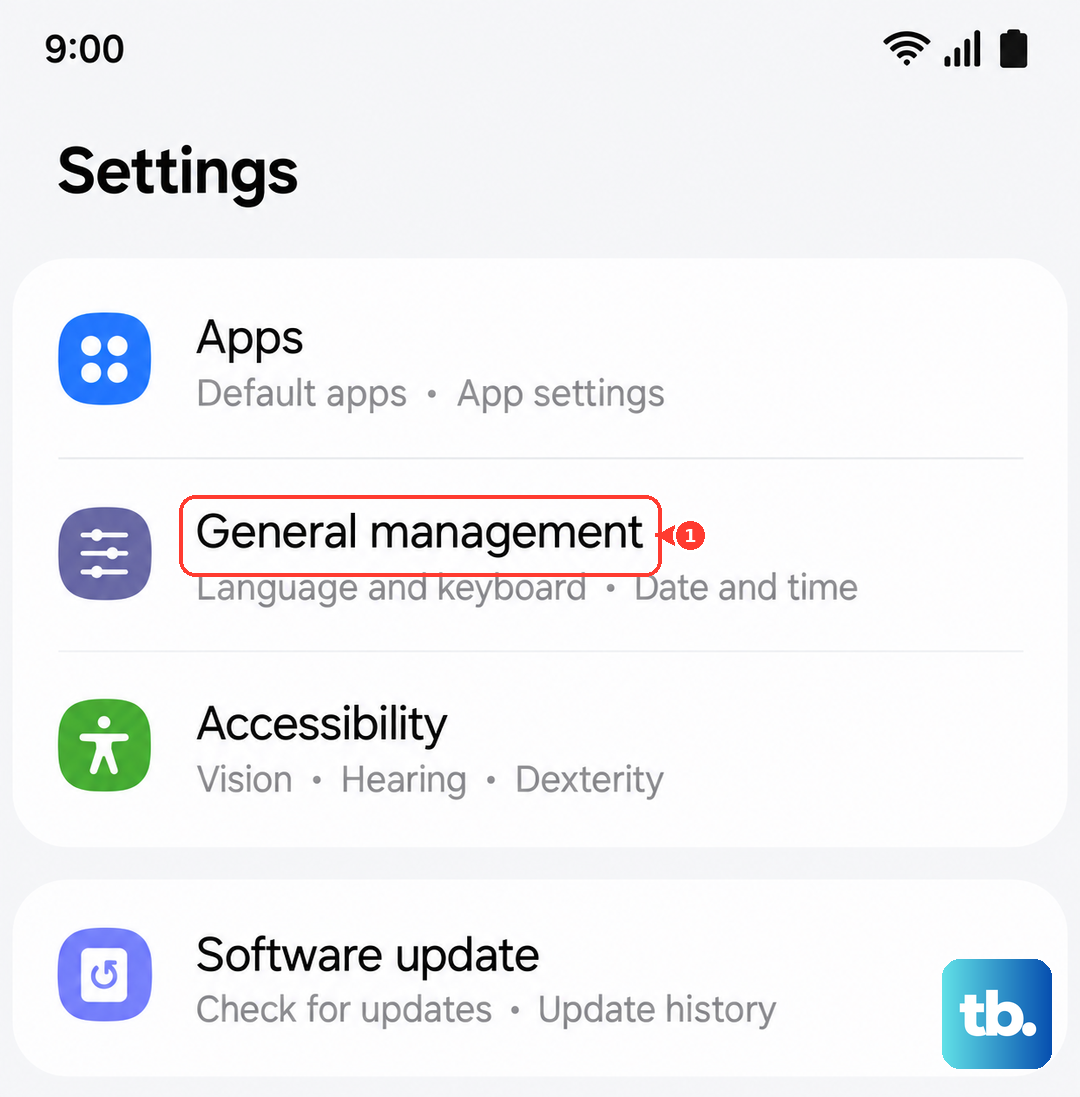
After the reset, the phone will reconnect to mobile networks fresh. Test a call from a friend's line.
Clear the Phone app data
Over time, cached data in the Phone app can cause glitches. Go to Settings > Apps > Phone > Storage. Tap Clear cache first, then Clear data. This resets the app to its factory state you won't lose contacts.
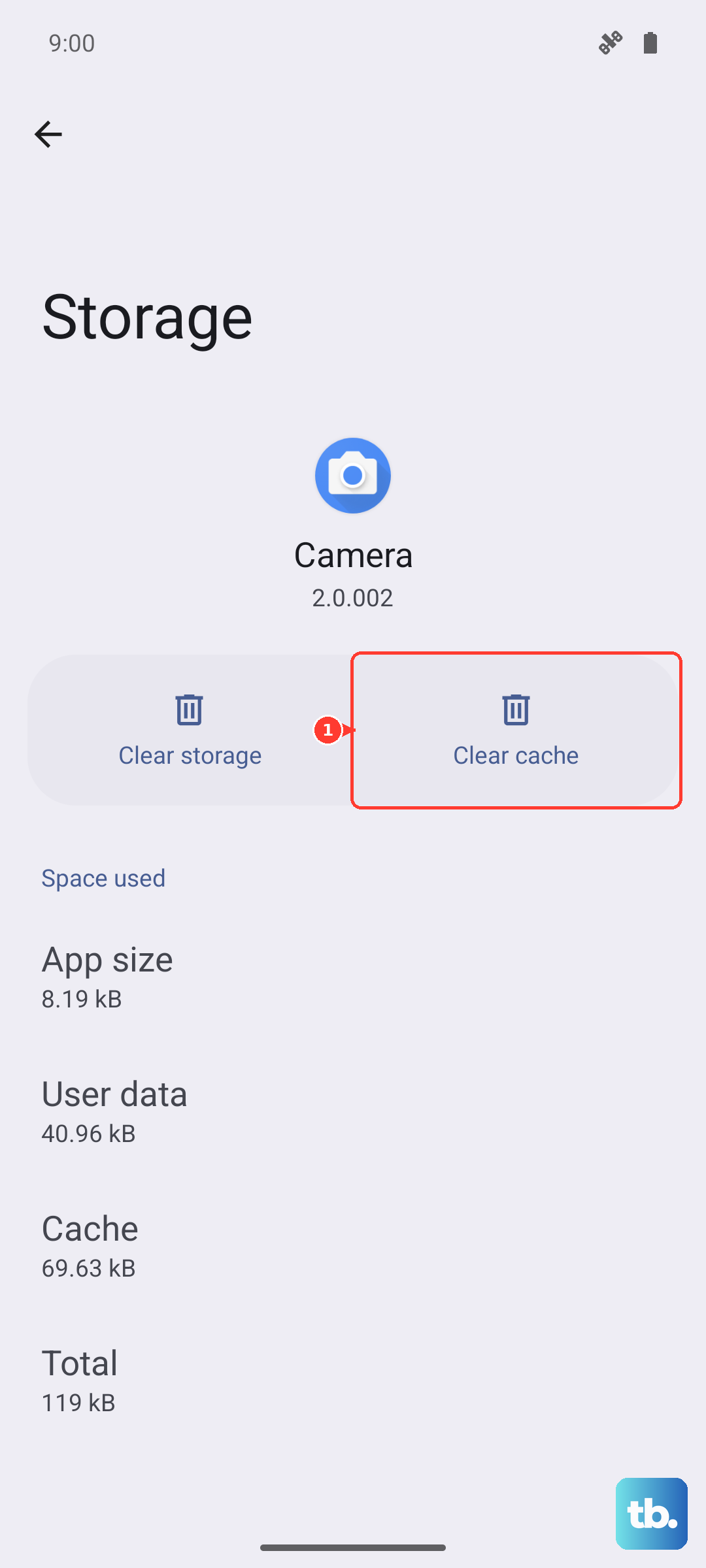
Restart your phone after doing this to let the app rebuild cleanly.
Software update check
Outdated software can introduce call-handling bugs. Go to Settings > Software update > Download and install. If there's a pending update, install it. The S25 Edge shipped with Android 15, and early software updates often include carrier-specific call fixes.
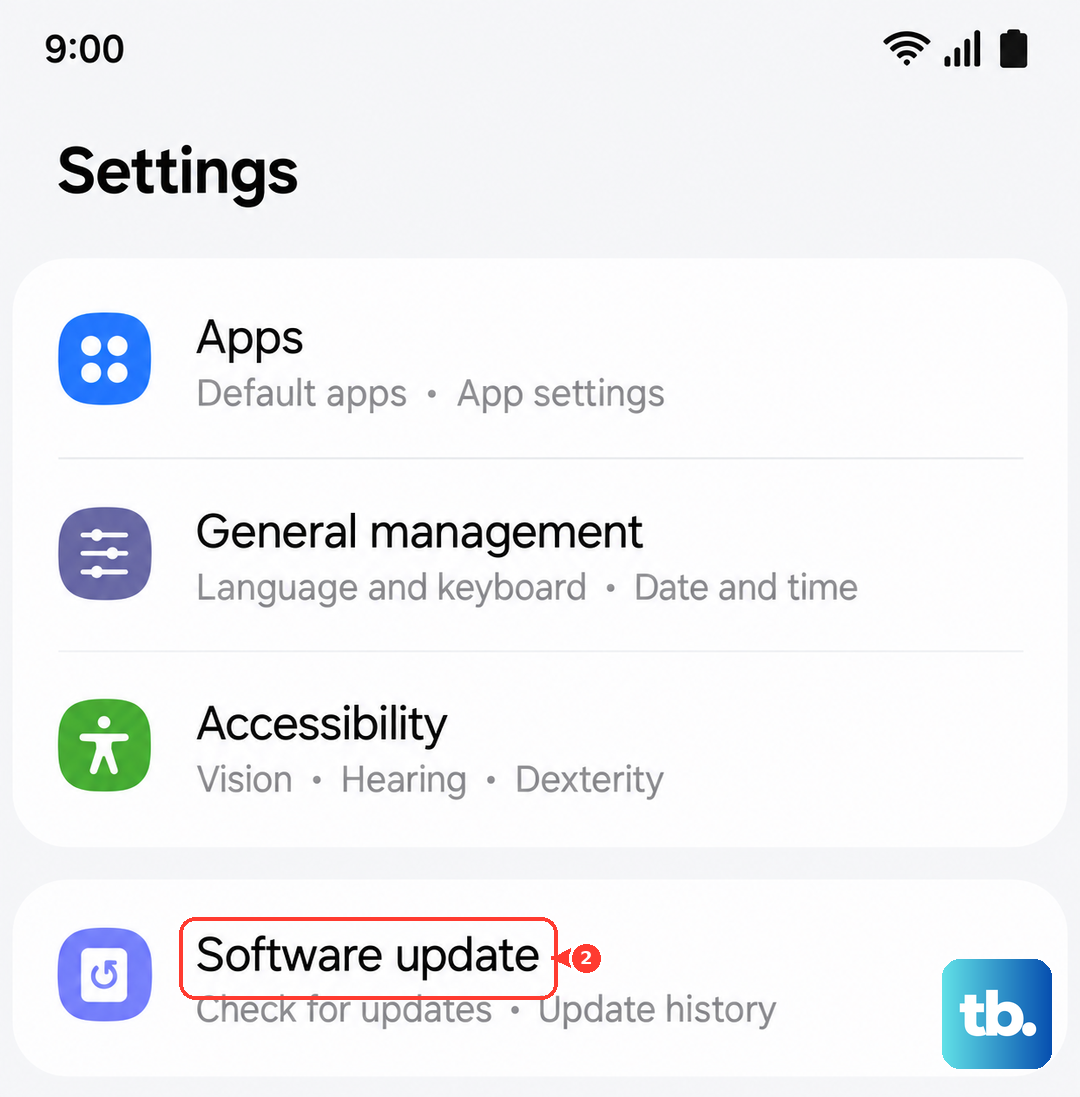
Forcing an update can also fix issues if the phone hasn't auto‐updated.
Disable recently installed apps
A third‑party app especially one that manages calls, SMS, or permissions can interfere. Think of apps like Truecaller, call recording tools, or automation apps. Go to Settings > Apps, sort by recently installed, and try disabling them one at a time.
Test calls between each disable to see if the culprit emerges. I've seen this fix on several S25 units after a new messaging app was installed.
Factory reset as a last resort
If nothing above worked, a full reset may be necessary. Back up everything first photos, contacts, messages, app data because this erases it all. Go to Settings > General management > Reset > Factory data reset. Follow the prompts and set up your phone fresh.
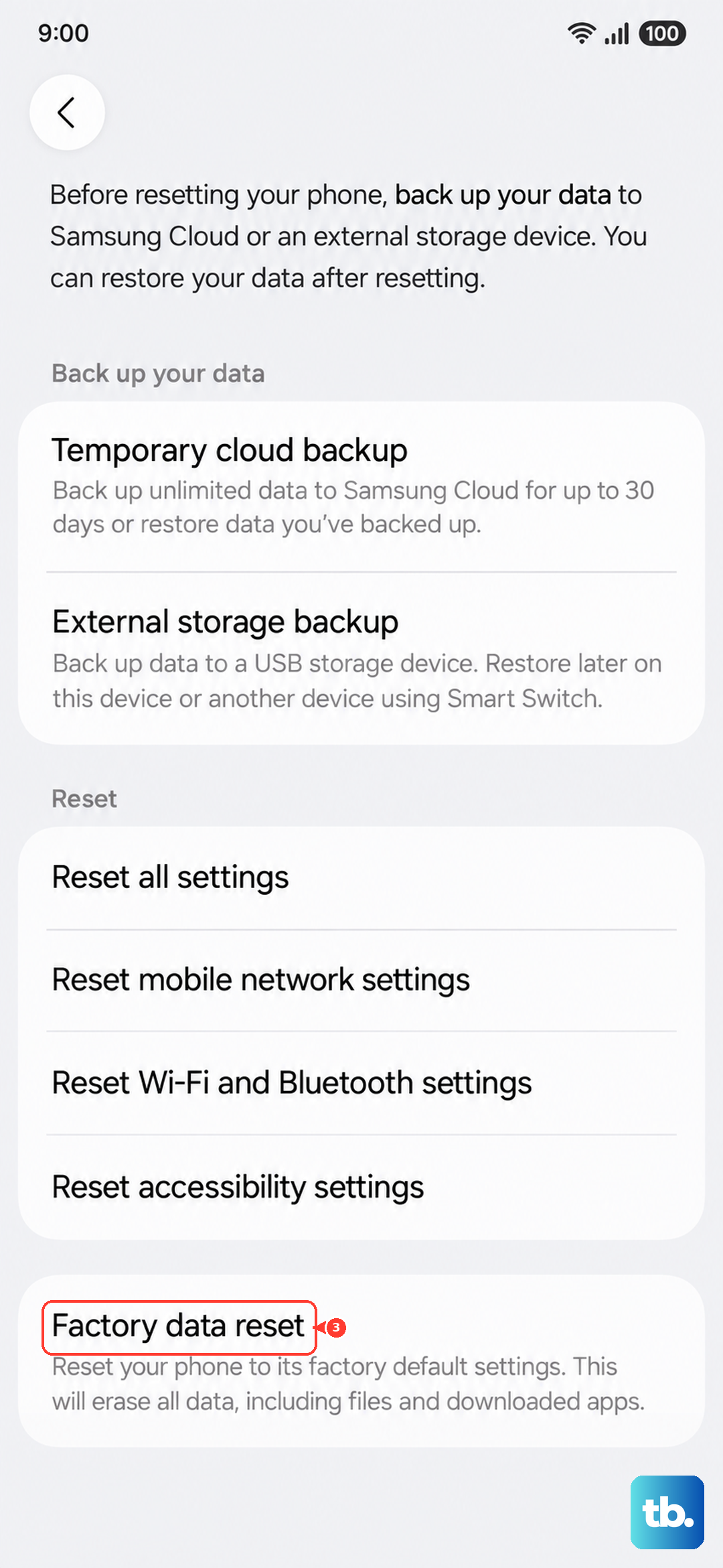
Only do this after exhausting the other steps. In most cases, you won't need to go this far.