
You tilt your Samsung Galaxy S25 Edge to watch a video or scroll through photos, and the screen stays stubbornly in portrait mode. It's a common hiccup, and usually not a sign of hardware failure. Here's how to fix auto-rotate when it stops working on the S25 Edge.
Check the Quick Settings Toggle
This is the first thing to check because it's the easiest fix. Swipe down from the top of your screen to open the notification panel. Look for the auto-rotate icon, which might say Portrait or Auto rotate underneath it. Tap it once to toggle it on. The icon should turn blue, and the text should say Auto rotate. That's it, your screen should now rotate freely.
If you see Portrait locked in gray, auto-rotate is disabled. Tap the icon to enable it. Sometimes the icon isn't visible in the first row of quick settings, so swipe left to check additional tiles if needed.
Enable Home Screen Rotation Separately
Samsung's One UI 7 on the S25 Edge keeps the home screen locked in portrait by default, even when auto-rotate is on. If you want your home screen and app drawer to rotate, you need a separate setting. Tap and hold the auto-rotate icon in the notification panel, or tap the text underneath it. A small menu pops up with a toggle for Home Screen and Voice call screen. Turn that on, and your home screen will rotate alongside everything else.
This setting only affects the launcher. Apps like YouTube and Chrome will still rotate as long as auto-rotate is enabled globally.
Restart Your Galaxy S25 Edge
A simple restart clears temporary software glitches that can break auto-rotate. Press and hold the Side button and Volume Down button together until the power menu appears. Tap Restart and wait for the phone to boot back up. If the power menu doesn't show up, use the force restart method below instead.
After the restart, test rotation in an app that supports it, like the Gallery or Chrome.
Force Restart the Phone
If a normal restart doesn't help, a force restart can resolve deeper system issues without erasing your data. Press and hold both the Volume Down and Side buttons for about 10 seconds. Keep holding them even if the screen goes black. Release when you see the Samsung logo appear. This is the same as pulling the battery on older phones and often fixes sensor-related glitches.
Check for App Conflicts
Not every app supports landscape mode. If auto-rotate works in YouTube but not in a game or reading app, that app likely locks its orientation intentionally. But if the issue happens across multiple apps, a third-party app might be interfering. Try booting into Safe Mode by pressing and holding the power icon in the shutdown menu until the Safe Mode prompt appears. In Safe Mode, only preinstalled apps run. If auto-rotate suddenly works, a downloaded app is the culprit. Uninstall recently added ones one at a time until the problem goes away.
Update Your Software
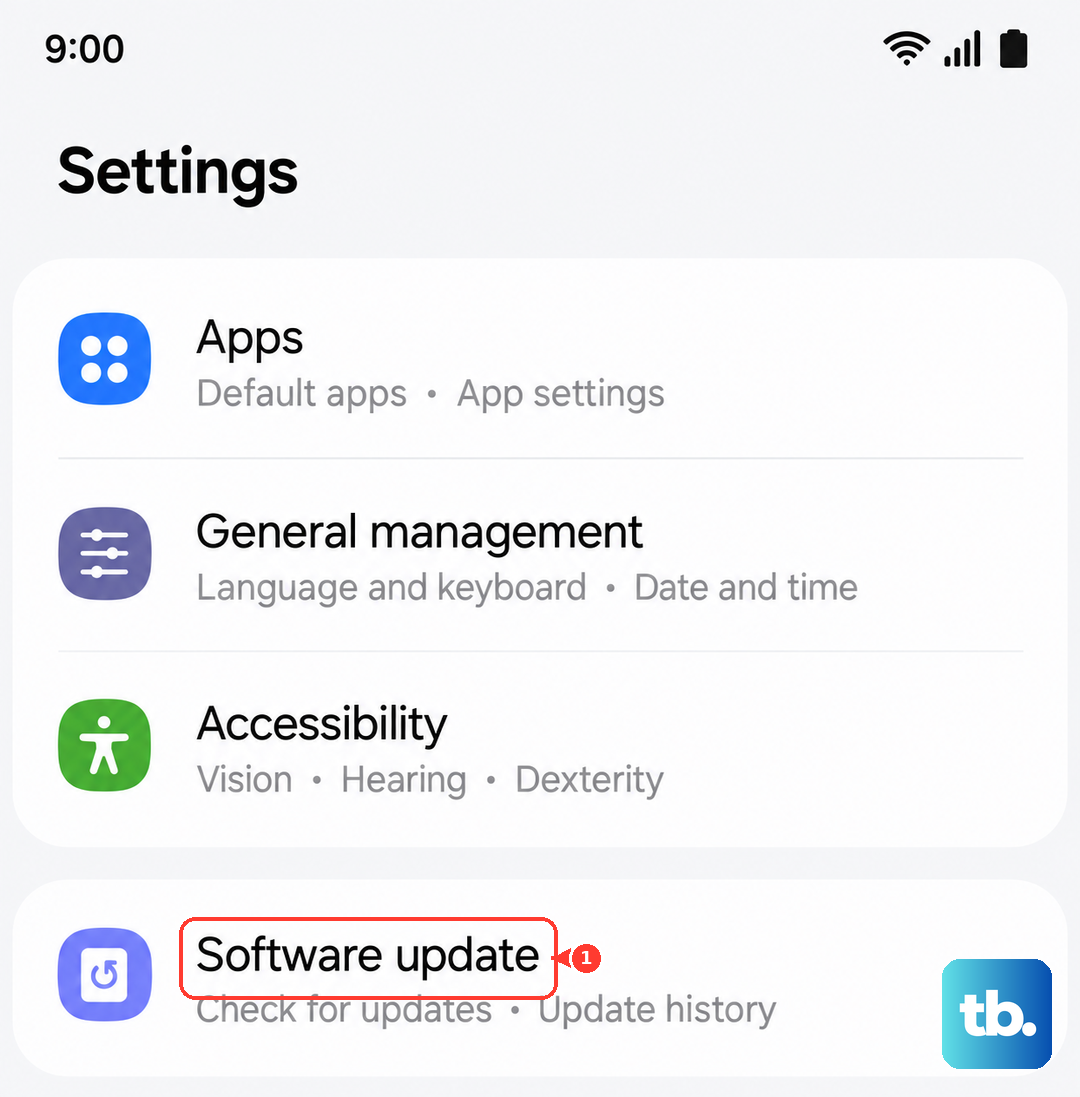
Samsung regularly pushes updates for the S25 Edge that fix bugs and improve sensor behavior. Go to Settings > Software Update and tap Download and Install. If an update is available, follow the on-screen steps. After the update, restart the phone and test auto-rotate.
Test the Sensors with Samsung Members
Auto-rotate relies on the accelerometer and gyroscope. You can test them without any third-party apps. Open the Samsung Members app, tap the Support tab, then select Phone Diagnostics. Choose Sensor from the list. The test will show real-time values for the x, y, and z axes. Tilt your phone: those numbers should change. If they don't budge, your sensors might be faulty. You can also dial *#0*# in the Phone app and tap Sensor to access a similar test, though this code may not work on all carrier models.
If the sensors respond correctly, the issue is software-related and one of the other fixes should resolve it.
Clear the System Cache
A corrupted system cache can mess with sensor communication. Turn off your S25 Edge. Then press and hold the Volume Up and Side buttons together until the Samsung logo appears, then release both. Use the volume keys to navigate to Wipe cache partition and press the Side button to select it. Confirm with Yes. After it finishes, select Reboot system now. This doesn't delete your personal data, only temporary system files. Test auto-rotate after the reboot.
Start with the quick settings toggle and a restart, as those solve most cases. If you've tried all the steps above and auto-rotate still won't work, the sensors themselves may be damaged, especially if the phone has been dropped or exposed to moisture. In that scenario, a repair shop can diagnose and replace the hardware.