
When your Galaxy S24 stops responding to "Hey Google" or Bixby, it can feel like you've lost a helpful assistant. The good news is that this is usually a quick software or settings fix. Let's get your voice commands working again.
I'd start by checking the most common culprit, which is the voice assistant settings themselves. Sometimes a recent update or a simple toggle can turn them off without you realizing.
Verify Your Voice Assistant is Enabled
Open your Settings app and head to Apps > Default apps. Here, you can see which digital assistant is set as your default. Tap on Digital assistant app to choose between Google Assistant and Bixby.
If you use Google Assistant, open the Google app and tap your profile picture in the top right. Go to Settings > Google Assistant > Hey Google & Voice Match. Make sure "Hey Google" is turned on. For Bixby, open the Bixby app, tap the menu icon, go to Settings, and ensure "Voice wake-up" is enabled.
Check for Microphone Blockages
The S24 has several microphone ports. If they're covered, your phone can't hear you. Check the small holes at the top and bottom of the phone frame. A phone case or a screen protector that isn't perfectly aligned can sometimes cover these.
Gently clean around the microphone areas with a soft, dry brush. Avoid using compressed air or sharp objects, as you could push debris further in or cause damage. In my experience, this is a simple fix that gets overlooked.
Review Your Sound and Accessibility Settings
Certain modes and features can interfere with voice detection. First, check if your phone is in Silent or Do Not Disturb mode by looking at the notification panel. While it shouldn't block the microphone, turning these modes off is a good test.
Next, go to Settings > Accessibility > Sound detectors. If this feature is turned on, it can prevent "Hey Google" from working. Make sure it's switched off. Also, in the same Accessibility menu, check Interaction and dexterity for any voice control settings that might be conflicting.
Retrain the Voice Model
If the assistant hears you but doesn't activate, it might not recognize your voice properly. You can retrain it easily. For Google Assistant, go back to Hey Google & Voice Match in the Google app settings and tap "Retrain voice model."
Follow the prompts to say "Hey Google" and "Ok Google" a few times. For Bixby, you'll find a similar "Re-register voice" option in the Bixby app settings under "Voice wake-up." This process only takes a minute and often solves recognition issues.
Update Your Apps and Software
An outdated Google app or system software can cause glitches. Open the Galaxy Store and check for updates to Bixby and related services. Then, open the Play Store, tap your profile icon, and go to Manage apps & device > Updates available to update the Google app.
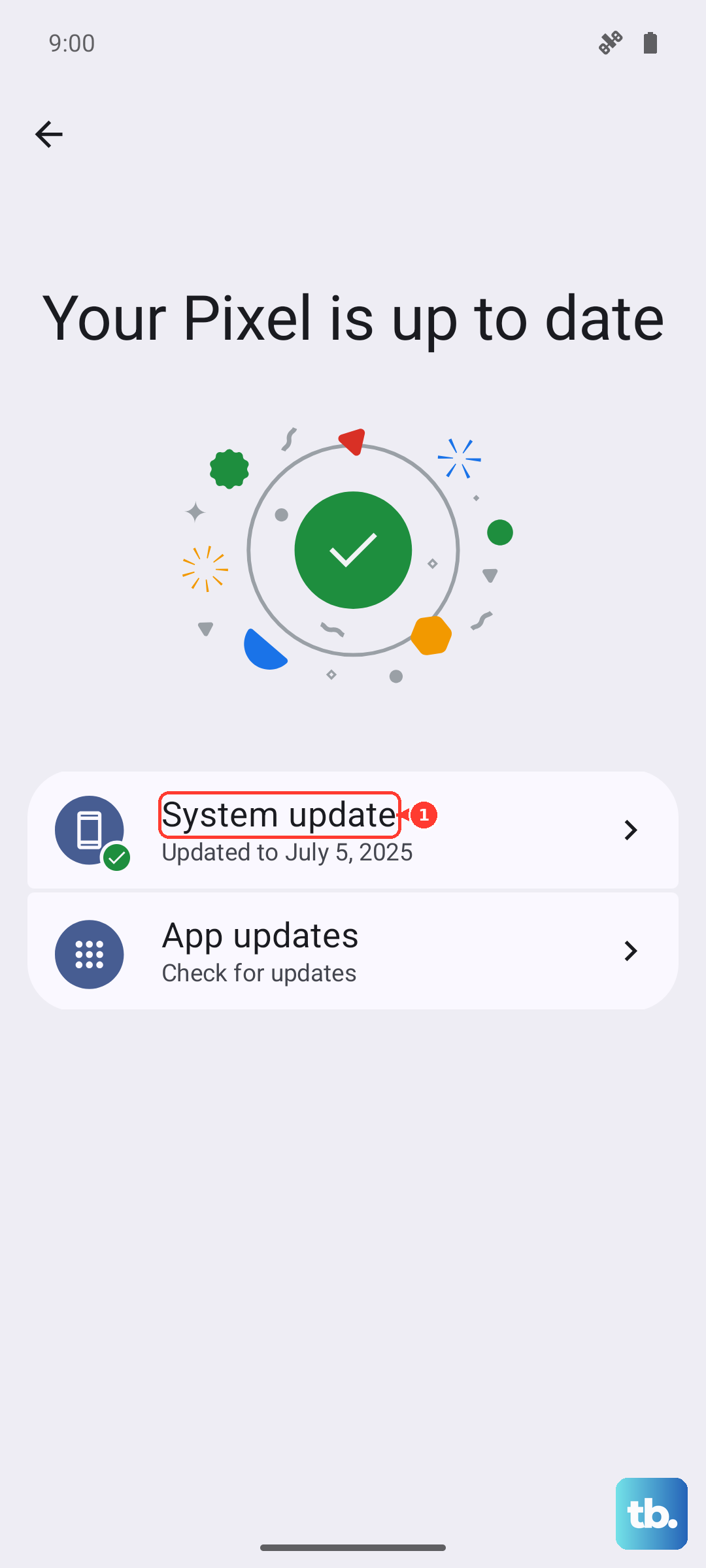
Finally, check for a full system update. Go to Settings > Software update > Download and install. One UI updates frequently include bug fixes for microphone and voice recognition issues.
Clear the App Cache and Data
If the problem is with a specific assistant app, clearing its cached data can help. Go to Settings > Apps, then select either "Google" or "Bixby" from the list. Tap on Storage and then Clear cache.
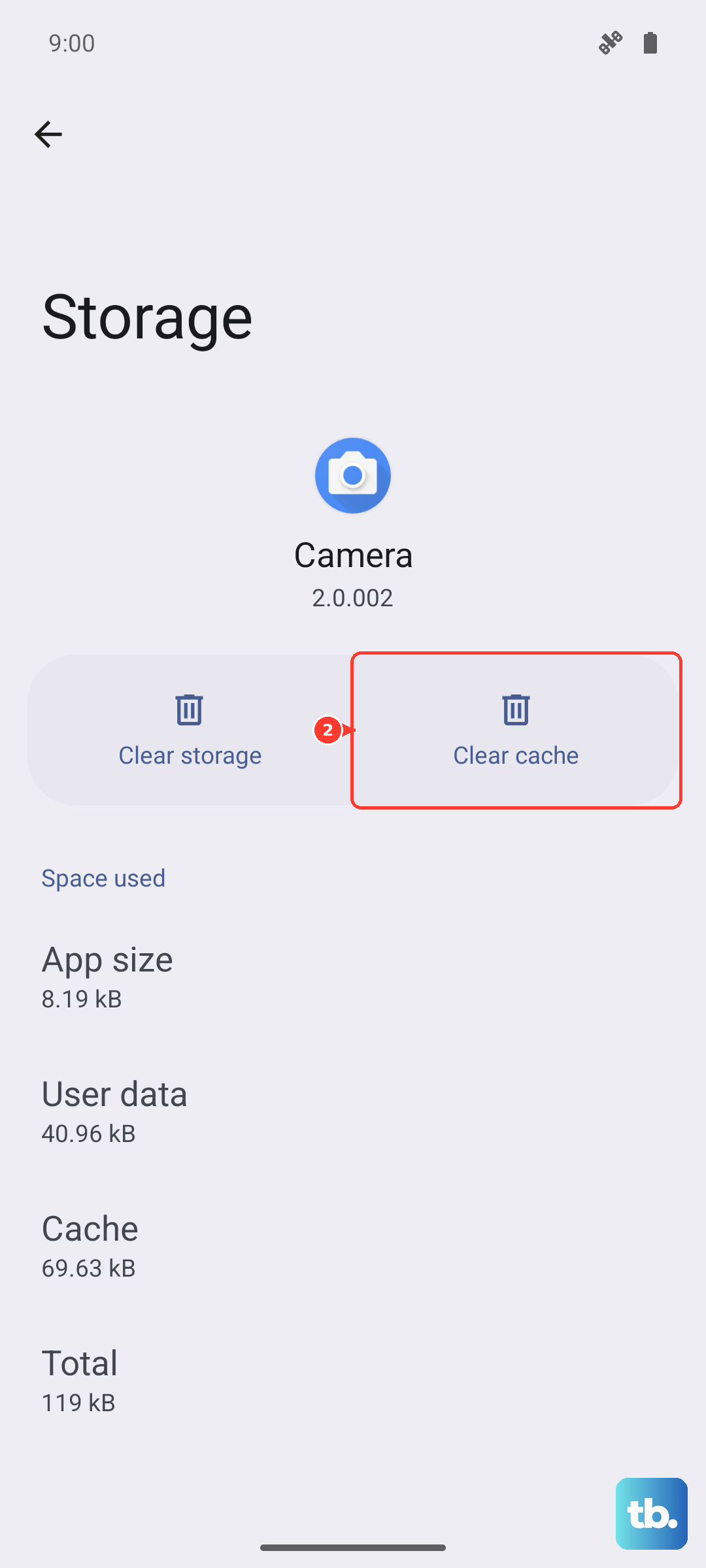
If the issue persists, you can tap Clear data next. Just be aware this will reset the app to its default state, so you'll need to go through the voice setup again. This won't delete your personal files or accounts.
Perform a Force Restart
A soft reset can clear out temporary system errors that might be affecting the microphone or voice services. Press and hold the Volume Down button and the Side button together for about 10 seconds.
You'll see the Samsung logo appear on the screen. Release the buttons and let the phone reboot completely. This is different from a normal restart and often fixes odd glitches.
Check for Conflicting Apps
Other apps that use microphone permissions can sometimes cause conflicts. Go to Settings > Privacy and security > Permission manager > Microphone.
Look through the list of apps that have microphone access. If you see any voice recorder, call recorder, or chat apps you don't actively use, consider turning their permission off. You can always turn it back on later if needed.
Reset All Settings
If you've tried everything else, resetting your phone's settings can resolve deeper configuration conflicts. This won't erase your photos, messages, or apps. Go to Settings > General management > Reset > Reset all settings.
You'll need to re-enter your Wi-Fi passwords and reconfigure some preferences like ringtones and display settings, but it's a reliable way to rule out a corrupted system setting. After the reset, go back and re-enable "Hey Google" or Bixby voice wake-up.