When your Samsung Galaxy S24 stops ringing for incoming calls, it's easy to miss important conversations. This problem on One UI 7 can stem from a misconfigured setting, a network hiccup, or a software bug. I'd start by checking a few quick things that often get overlooked.
First, pull down the Quick Settings panel from the top of your screen. Make sure the Do Not Disturb or Airplane Mode icons aren't highlighted. If they are, tap them to turn them off. A simple restart can also clear out temporary glitches, just press and hold the Volume Down and Side button for about 10 seconds until the Samsung logo appears.
Check Your Do Not Disturb and Focus Modes
One UI's Focus Modes are powerful but can silently block calls. Open Settings > Notifications > Do Not Disturb. Look at the schedule and rules to see if calls are being allowed. You can also check Settings > Modes and Routines to see if an active routine is changing your call permissions.
While you're there, tap on "Allowed notifications" within Do Not Disturb settings. Make sure calls from your contacts or at least from starred contacts are permitted. It's a common setting to have changed without realizing it.
Review Call Blocking and Spam Protection
Samsung's built-in spam protection is great, but it can sometimes be too aggressive. Open your Phone app and tap the three-dot menu in the top right, then go to Settings > Caller ID and spam protection.
You can temporarily turn off "See caller and spam ID" to test if it's the cause. Also, tap on "Block numbers" to review your list. Numbers blocked here won't ring your phone at all, they'll go straight to voicemail.
Verify Your Network and SIM Card
Poor signal is an obvious culprit, but sometimes the issue is with the SIM itself. Try removing the SIM tray with the ejector tool and carefully re-seating the SIM card. If you have access to another phone, test your SIM card in it to see if calls come through.
If the SIM works elsewhere, the problem is likely with your S24. If it doesn't, you'll need to contact your carrier. They can check for outages, reprovision your line, or send a replacement SIM. You might see an error like "Not registered on network" if there's a provisioning issue.
Disable Call Forwarding and Barring
Call forwarding could be silently sending your calls to another number. In the Phone app, go to Settings > Supplementary services. Tap on "Call forwarding" and make sure all options like "Always forward" or "When busy" are set to "Disable".
Also check the "Call barring" section. This feature can block incoming or outgoing calls based on certain conditions. Ensure none of these bars are accidentally enabled, as they would prevent calls from reaching you.
Reset Your Network Settings
This is a reliable fix for persistent network issues on the S24. Go to Settings > General management > Reset > Reset network settings. Tap to confirm.
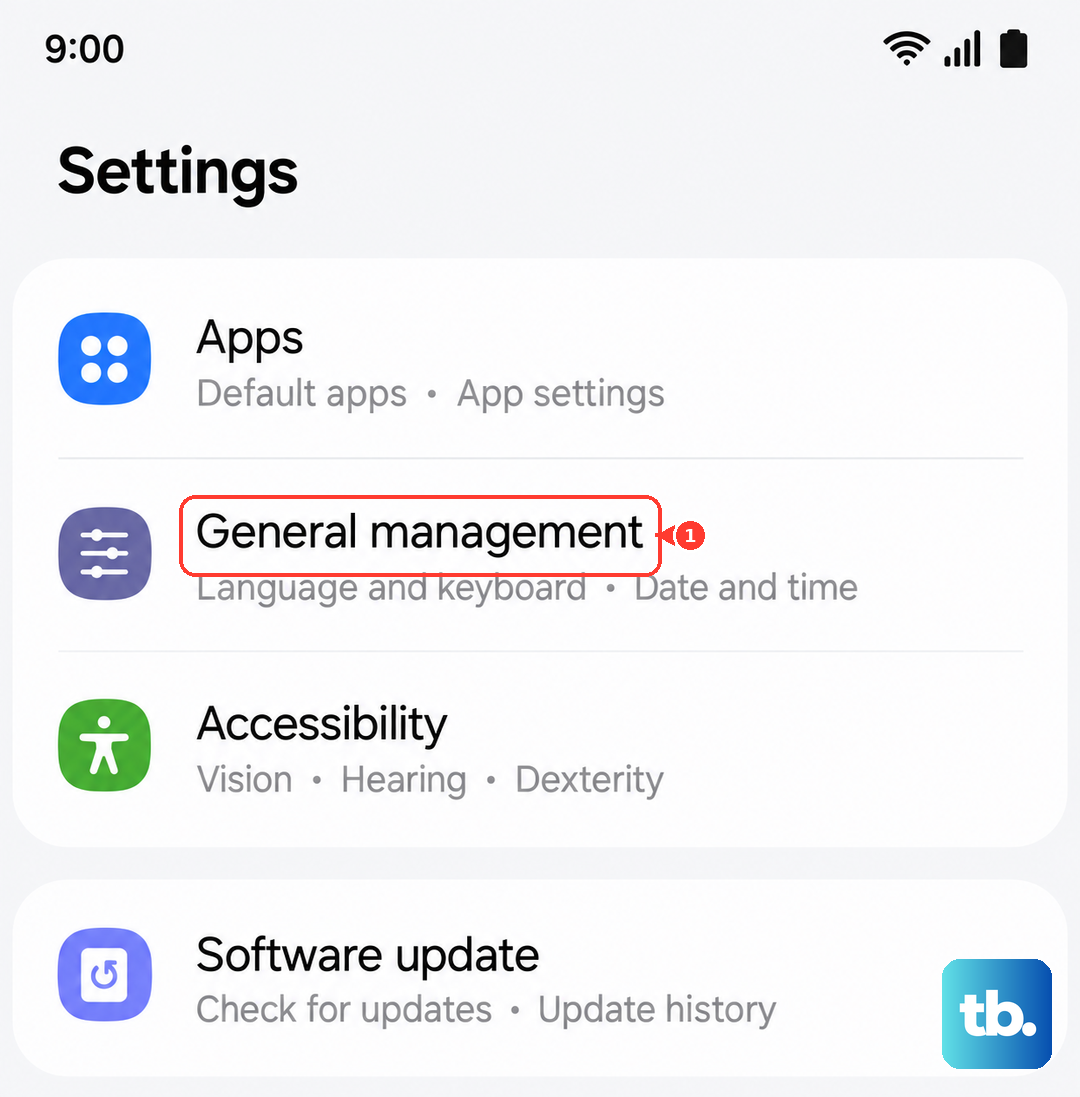
Be aware this will erase all saved Wi-Fi passwords, Bluetooth pairings, and mobile network preferences. You'll need to reconnect to your Wi-Fi and re-pair Bluetooth devices afterward, but it often clears up call connection problems.
Update Your Phone's Software
Samsung frequently releases updates that fix connectivity bugs. Go to Settings > Software update > Download and install. Let it check for and install any available updates.
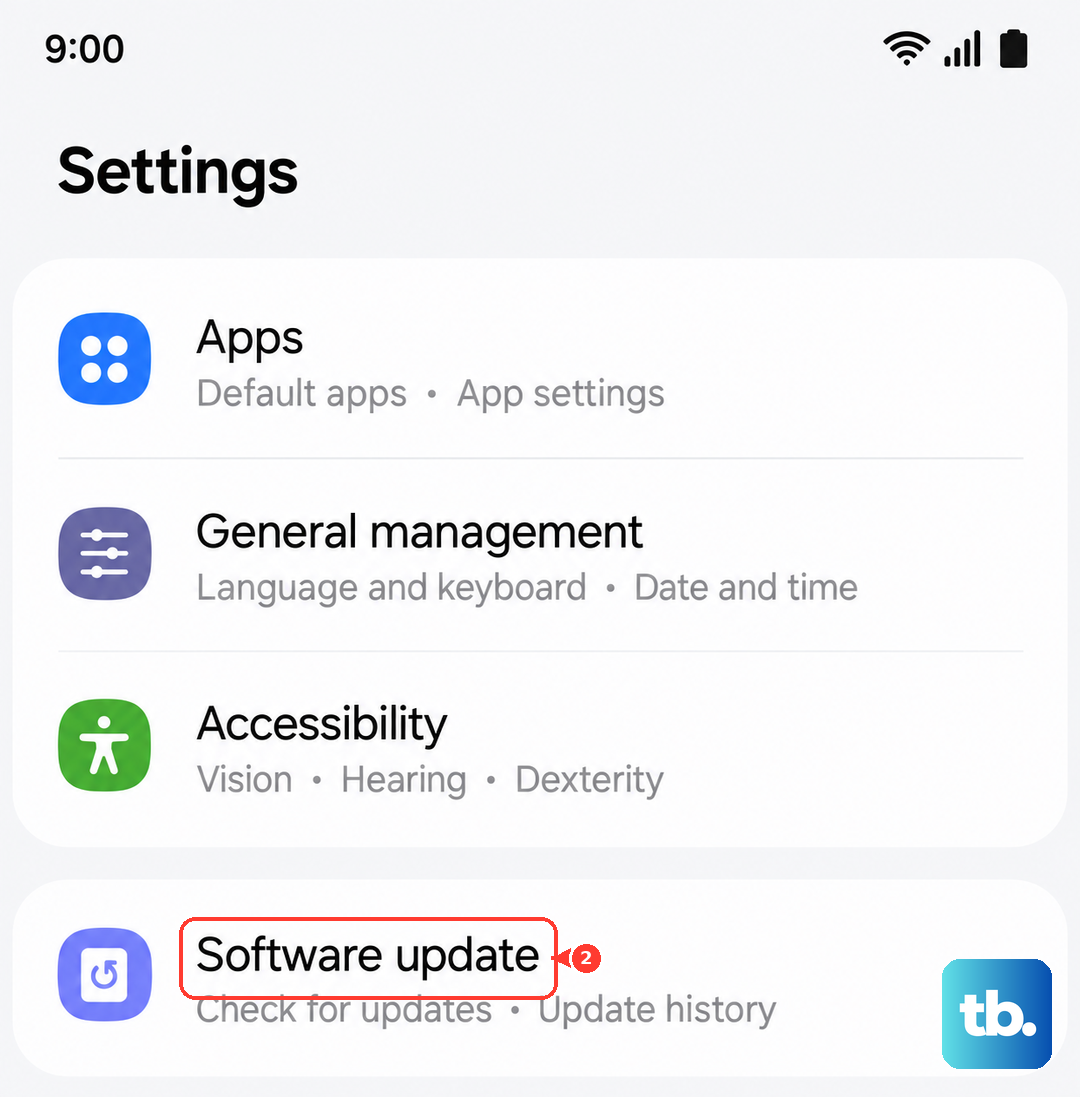
Make sure your phone is connected to Wi-Fi and has sufficient battery. After the update completes, restart your phone once more to ensure all the new software components are loaded correctly.
Clear the Phone App's Cache and Data
Corrupted data in the Phone app itself can cause call problems. Navigate to Settings > Apps, then find and tap on "Phone" in the list. Select Storage > Clear cache first.
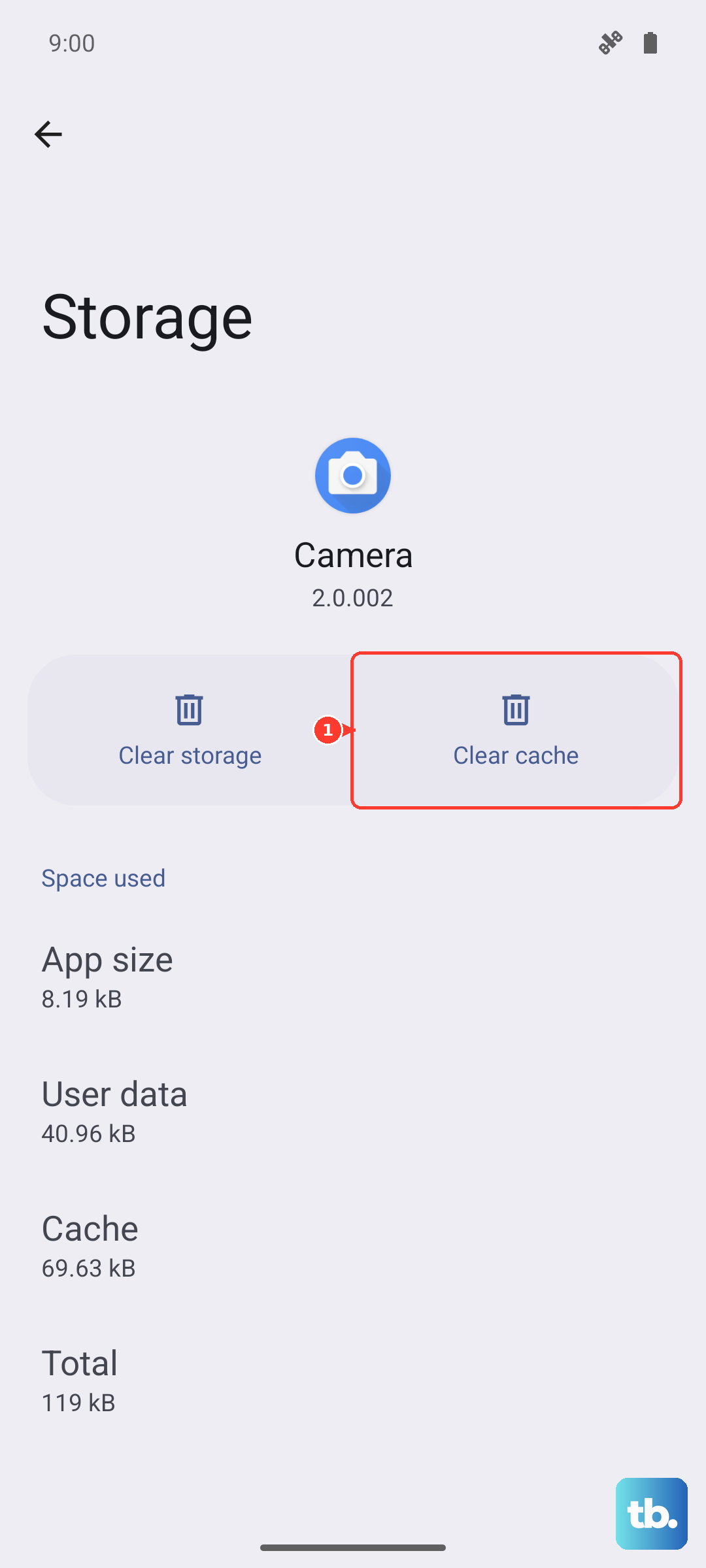
If the problem persists, go back and tap "Clear data". This will reset the app to its default state, so you may lose your call log and any custom settings within the dialer. Your contacts are safe as they're stored separately.
Check for Problematic Third-Party Apps
Apps with call screening or dialer functions can interfere. Think about any apps you've recently installed related to calls, security, or battery saving. You can boot your S24 into Safe Mode to test.
Press and hold the power button until the power menu appears. Then, tap and hold the "Power off" option until you see a prompt to reboot into Safe Mode. In this mode, all third-party apps are disabled. If calls work normally here, a recently installed app is likely the culprit.
Ensure Your Carrier Settings Are Current
Sometimes carrier-specific updates are delivered separately. While connected to mobile data (not just Wi-Fi), go to Settings > Software update and tap "Download and install". Carrier updates often happen automatically in the background, but a manual check can trigger one.
You can also contact your carrier directly. They can push carrier settings updates to your phone remotely, which can resolve calling and network registration issues specific to their service.
Perform a Factory Reset
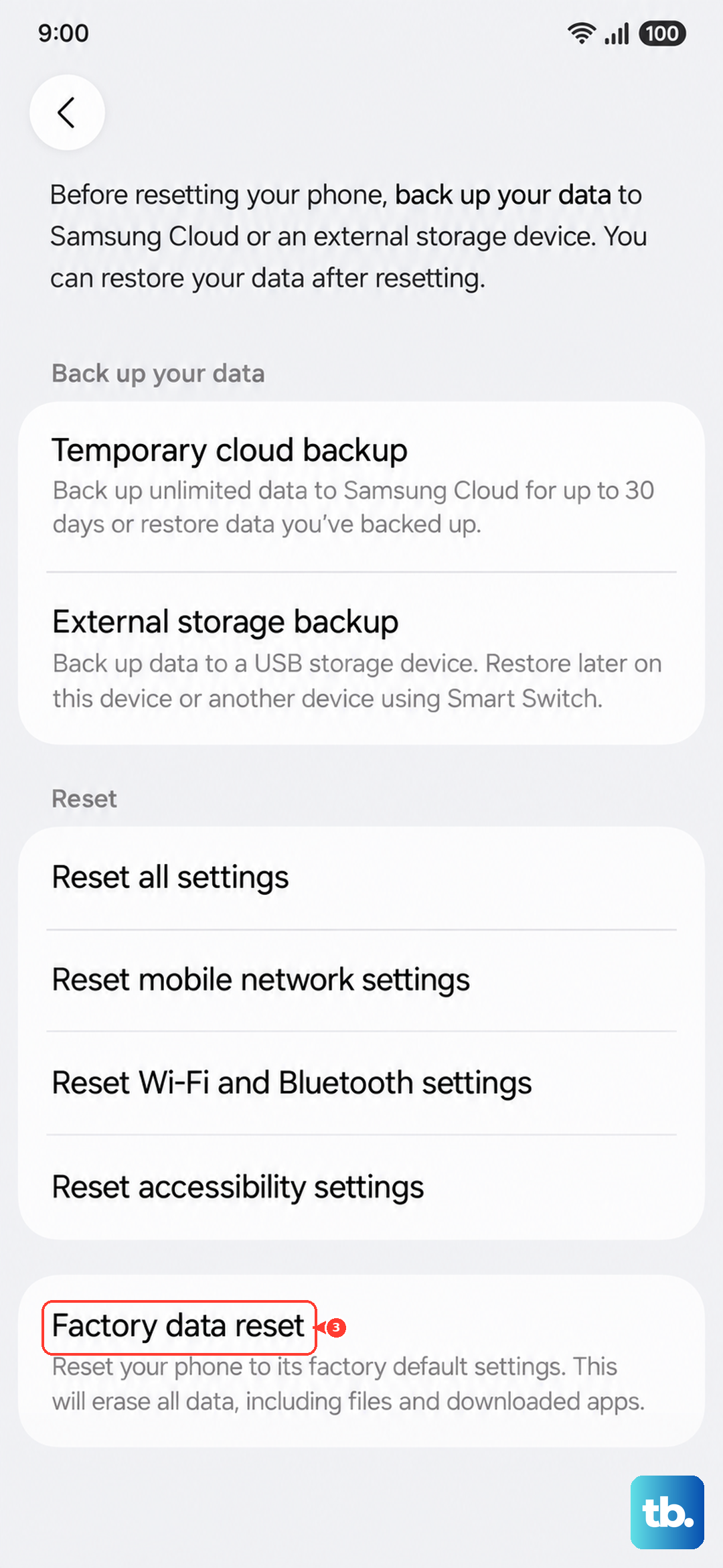
This is your last resort before considering hardware. A factory reset will wipe your S24 back to its original out-of-the-box state. It's crucial to back up everything important first using Samsung Cloud or a computer.
Go to Settings > General management > Reset > Factory data reset. Scroll down and tap "Reset". After the process completes, set up the phone as new initially to test calling. If calls work, you can then restore your backup, though be cautious as you might restore the problematic setting or data.