Your Samsung Galaxy S23 was working fine, and now the screen is locked solid. Taps do nothing, the keyboard won't come up, and the power menu won't even appear. A frozen S23 is almost always a software hang rather than a broken phone, and because this model has a sealed, non-removable battery, you cannot pop the back off to pull the power. The good news is that Samsung has a supported recovery path for exactly this situation, and most owners get moving again within a couple of minutes. Work through the fixes below in order, starting with the safest, and stop as soon as your phone is responsive again.
Force the frozen screen to reboot
When the display is fully unresponsive, a forced restart is Samsung's official recovery for the S23, and it does not delete any of your data. Because the battery is sealed, this hardware-button sequence is the equivalent of pulling the battery on older phones.
- 1.Press and hold the Volume down button and the Side button (or Power button) simultaneously.
- 2.Keep holding for more than 7 seconds, until the device turns off and turns back on.
- 3.Release when the phone vibrates and the Samsung logo appears on screen.
That vibration is your signal that the reset took. If nothing happens on your first try, make sure you are pressing Volume down (not Volume up) together with the Side button, and hold a little longer. The phone should reboot to your lock screen with all your apps and files intact.
Restart from the power menu if the screen still reacts
Sometimes the S23 is badly sluggish rather than completely frozen, so taps eventually register after a long delay. If your touchscreen is still responding at all, a normal restart is gentler than the forced reboot and clears the same kind of temporary glitch.
Swipe down from the top right to open Quick Settings.
Then tap the Power icon.
Tap Restart, then tap Restart again to confirm.
Let the phone shut down fully and boot back up before you start using it. A clean reboot like this closes everything that was running and often resolves stutter and momentary lockups on its own.
Make room when storage is nearly full
A Galaxy S23 with very little free space can freeze, because the system needs working room to manage memory and temporary files. Clearing out what you no longer use frequently steadies a phone that keeps locking up under everyday load.
Go to Settings > Battery and device care > Storage, then delete unnecessary apps and files. Large videos, old downloads, and apps you have not opened in months are the easiest wins. Aim to leave a comfortable buffer of free space rather than running right up against the limit.
Optimize the device to clear background load
One UI includes a built-in optimization tool that closes stuck background apps and frees up memory in a single tap. If your S23 keeps freezing during normal use, this is a quick way to clear whatever is bogging it down.
Go to Settings > Battery and device care and tap Optimise now. The phone will close apps running in the background and tidy up memory, which can stop repeated freezing. It is safe to run this whenever the phone starts feeling heavy.
Install the latest One UI update
Software bugs are a common cause of freezing, and Samsung pushes fixes through its regular updates. The S23 series is officially eligible for updates all the way up to One UI 8, so there is a good chance a newer build addresses whatever is hanging your phone.
Using two fingers, swipe down from the top right corner of the screen, and then tap the Settings icon.
Next tap Software update (the option may read System updates on some carrier models).
Tap Download and install, then follow the prompts to apply the update.
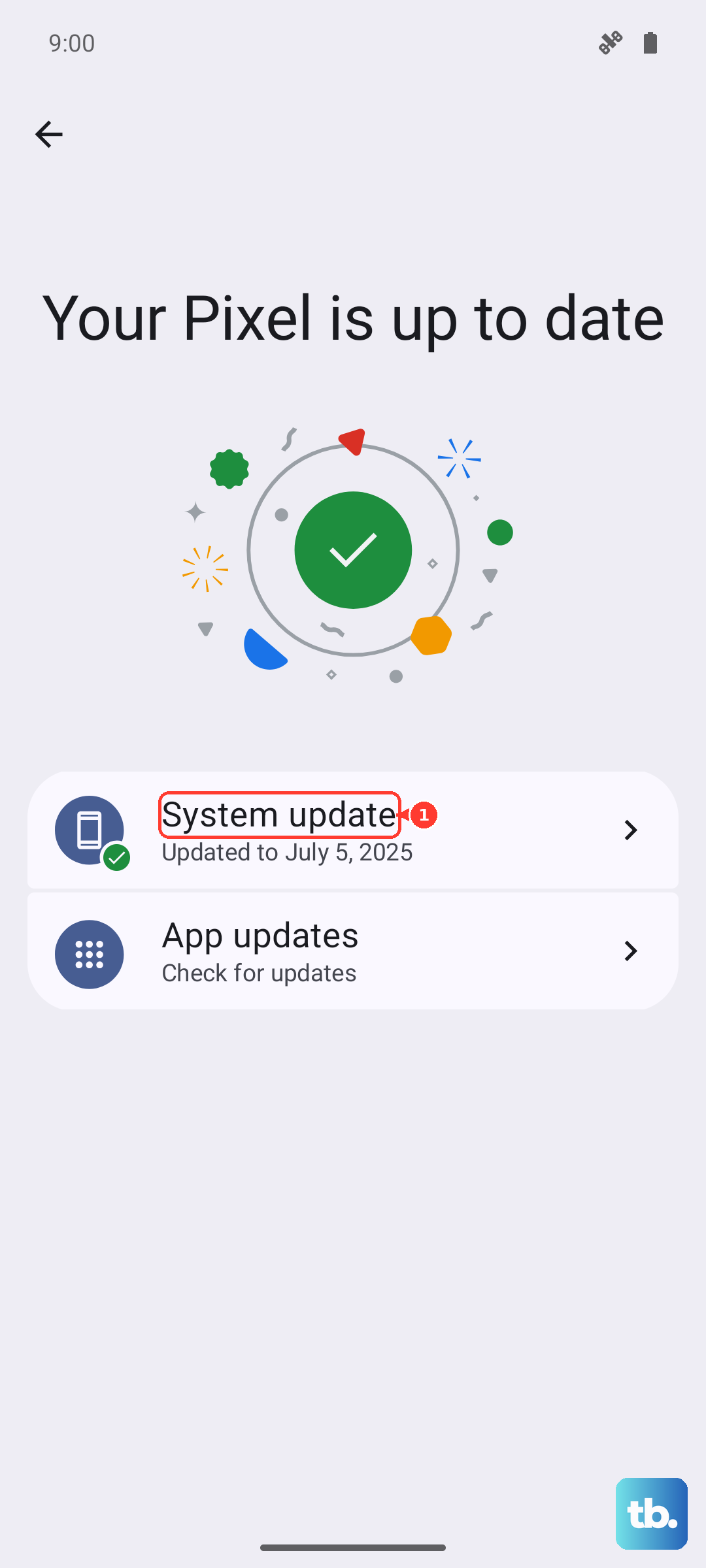
Keep the phone charged and on Wi-Fi while it downloads and installs. If the S23 is too unstable to update on its own, you can connect it by USB to a Windows or Mac computer and use Samsung Smart Switch, the official desktop tool that can update the phone's firmware over a cable when an on-device update fails.
Boot into Safe mode to expose a problem app
If the freezing started after you installed or updated a particular app, Safe mode is the way to confirm it. Safe mode loads the phone with only Samsung's built-in software and disables every third-party app, so you can see whether the trouble disappears.
Completely power off the phone.
After that, turn it on, and when the Samsung logo appears, press and hold the Volume down button.
Keep holding until Safe mode shows in the bottom left corner of the screen.
Use the phone for a while in this state. If it no longer freezes, a downloaded app is the culprit, so uninstall recently added or updated apps one at a time. When you are done, simply restart the phone normally to exit Safe mode and return to your full set of apps.
Reset all settings without losing your data
If freezing continues, a misconfigured system setting may be to blame. The S23 offers a non-destructive reset that returns your settings to their defaults while leaving your personal files, accounts, and apps untouched.
Go to Settings > General management > Reset > Reset all settings. This clears out tangled configuration without erasing anything you care about, so it is a sensible step to try before considering anything more drastic. You will need to set a few preferences back to your liking afterward, but your photos, messages, and apps all stay in place.
Factory data reset as a last resort
If the phone still freezes after everything above, a full factory data reset wipes the device back to its original state and clears out deeply rooted software problems. This step erases everything on the phone, so treat it as a genuine last resort and back up your data first.
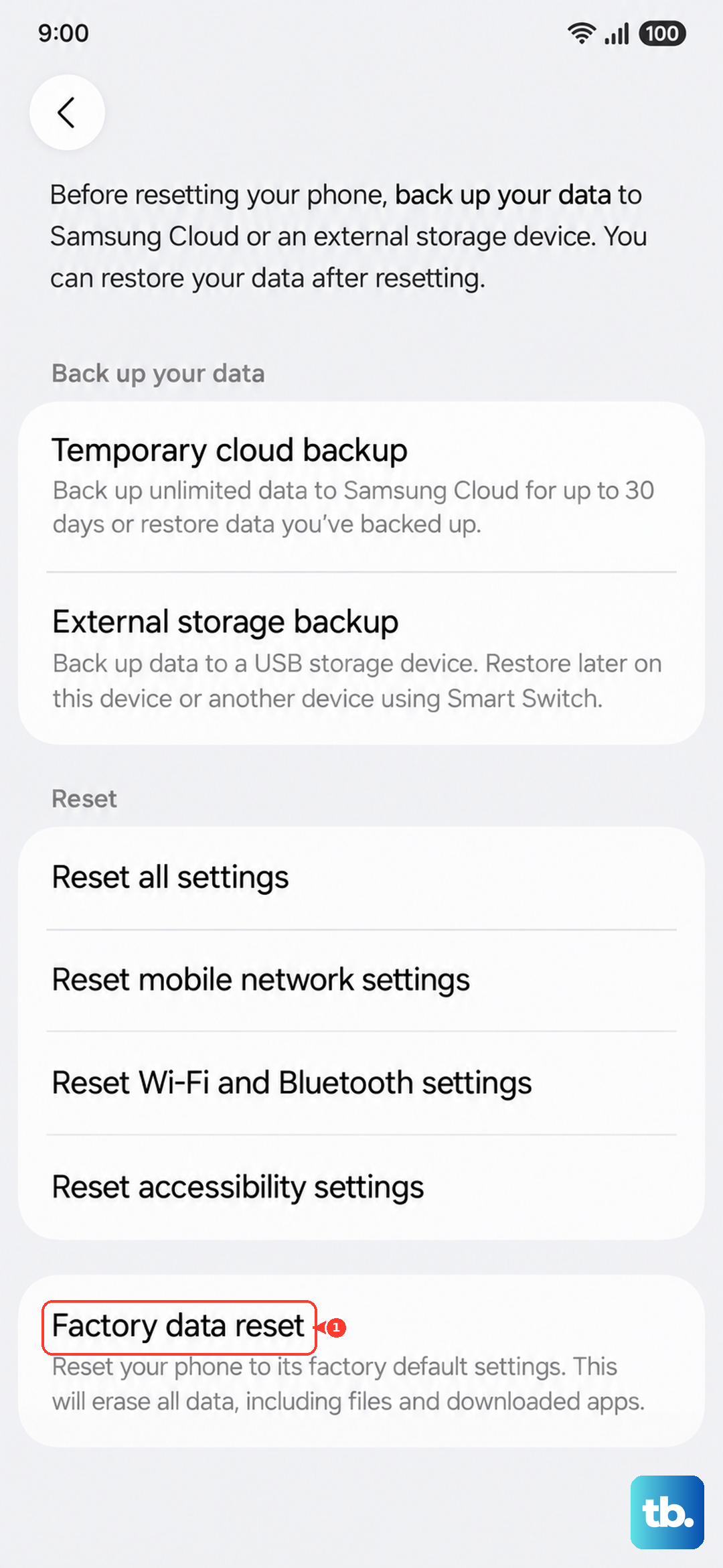
Samsung's warning is explicit: please save any information you need prior to the factory reset, because your personal information may not be recovered. Once you have a current backup of your photos, contacts, and anything else important, follow the official procedure.
Go to Settings > General management > Reset > Factory data reset.
Review the information shown on screen.
Tap Reset.
Note that a network connection is required so the phone can log out of your Samsung account before the reset completes, so keep the device on Wi-Fi or mobile data during the process. When it finishes, the S23 restarts as if it were new and you can restore your backup.
When to let Samsung check the hardware
If your Galaxy S23 keeps freezing even after a clean factory reset, that points toward a hardware issue rather than software, and continuing to reset it will not help. At that stage, Samsung recommends having the device looked at by a professional. Contact Samsung support or visit a Samsung service center so a technician can diagnose the phone and tell you whether a repair is needed.
Frequently Asked Questions
Will a force restart on my Galaxy S23 delete my data?
No. Holding Volume down and the Side button to force the phone to restart is Samsung's supported recovery for a frozen screen, and it does not erase any of your apps, photos, or settings. Only a factory data reset wipes your data.
Why can't I just pull the battery to fix the freeze?
The Galaxy S23 has a sealed, non-removable battery, so there is no battery to pull. Samsung's intended replacement for that old trick is the hardware-button force restart, which holds Volume down plus the Side button for more than 7 seconds until the phone vibrates and reboots.
How long should I hold the buttons to force a restart?
Press and hold Volume down and the Side button together for more than 7 seconds, until the device turns off and turns back on. You will know it worked when the phone vibrates and the Samsung logo appears.
My S23 keeps freezing after one app. What should I do?
Boot into Safe mode by powering off, then turning the phone on and holding Volume down when the Samsung logo appears until Safe mode shows in the bottom left. If the freezing stops in Safe mode, uninstall recently added or updated apps, then restart to exit Safe mode.
What if the phone still freezes after a factory reset?
Persistent freezing after a full factory data reset usually signals a hardware problem rather than software. Samsung recommends contacting its support team or visiting a Samsung service center so the device can be checked by a technician.