If videos on your Samsung Galaxy A56 are stuttering, freezing, or dropping frames, it can ruin the experience. This is a common annoyance, but the good news is it's usually something you can fix yourself without too much hassle.
If motion feels less smooth than it should, an online refresh rate test settles the question in seconds by measuring the true refresh rate.
Let's start with the quickest fix that often works. A simple restart can clear out temporary software glitches that might be interfering with video playback. On your A56, press and hold the Volume Down button and the Side key (power button) together for about 10 seconds until you see the Samsung logo appear.
Check Your Internet Connection for Streaming
If you're watching videos on YouTube, Netflix, or other streaming apps, a weak or unstable connection is the most likely culprit. The video data can't download fast enough, causing constant buffering and stutters.
Try switching between Wi-Fi and your mobile data to see if the problem is network-specific. If you're on Wi-Fi, you can try moving closer to your router or restarting the router itself. For a more thorough check, run a speed test using an app like Ookla's Speedtest.
Free Up Storage Space on Your Phone
Your Galaxy A56 needs free space to operate smoothly, especially for tasks like playing high-resolution video. When storage is critically low, the system struggles, which can lead to performance issues like video stutter.
Head to Settings > Device care > Storage. One UI will show you exactly what's taking up space. I'd start by clearing the cache of your video apps and deleting any downloaded videos or movies you no longer need.
Update Your Apps and One UI Software
An outdated video app or an old version of Samsung's One UI software can have bugs that cause playback problems. Developers and Samsung regularly release updates to fix these kinds of issues.
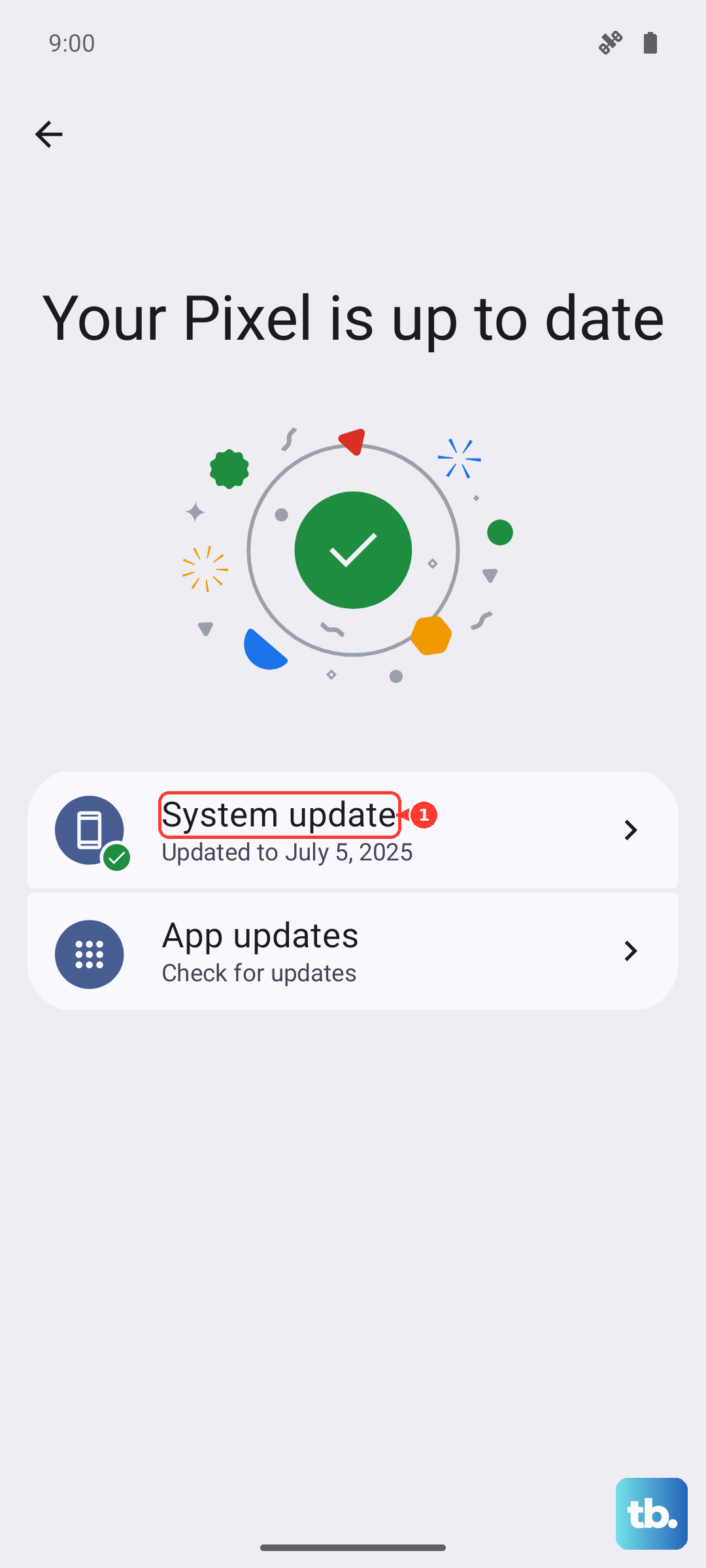
First, open the Galaxy Store or Google Play Store and check for updates to apps like YouTube, Netflix, or your preferred video player. Then, check for a system update by going to Settings > Software update > Download and install. Keeping your A56 on the latest One UI 7 (Android 15) build is important.
Close Background Apps and Boost Performance
Too many apps running in the background can consume your phone's RAM and processing power, leaving less for smooth video playback. Samsung's device care tools make it easy to clean this up.
Open Settings > Device care. Tap "Memory" to see which apps are using RAM and close any you don't need. You can also tap "Optimize now" for a quick cleanup. For a more aggressive approach, enable "Enhanced processing" in the device care settings, which temporarily boosts performance.
Clear the App Cache and Data
If the stuttering is happening in one specific app, corrupted cache data might be to blame. The cache helps apps load faster, but it can sometimes become faulty.
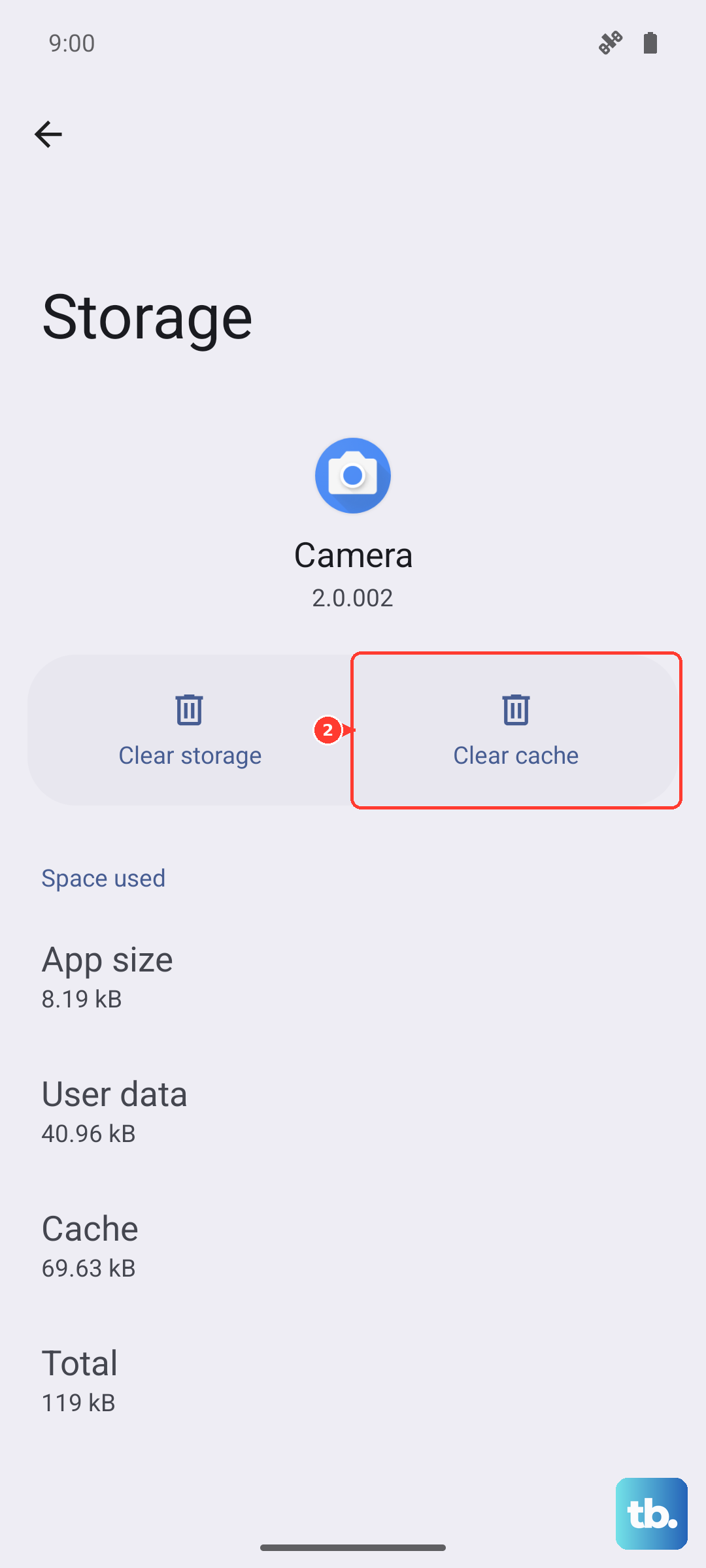
Go to Settings > Apps, select the problematic video app (like YouTube or Samsung Gallery), and tap "Storage". First, tap "Clear cache". This won't delete your personal data. If the problem persists, you can try "Clear data", but be aware this will reset the app to its default state and you may need to log back in.
Check for Overheating
Your Galaxy A56 will throttle its performance to prevent damage if it gets too hot. This can directly cause video stutter and lag. Feel the back of the phone; if it's noticeably warm, it's likely throttling.
Stop using the phone for a few minutes, remove any case, and avoid charging it while watching videos, especially with a fast 25W charger, as this generates more heat. Try playing the video again once the phone has cooled down.
Disable Battery Saving Modes
Power saving modes are great for extending battery life, but they work by limiting background activity and sometimes reducing processor speed. This can interfere with video decoding.
Swipe down your notification panel and make sure any power saving icon (like "Power saving" or "Adaptive power saving") is turned off. For a full check, go to Settings > Battery > Power saving and ensure all modes are disabled while you're trying to watch videos.
Try a Different Video Player
The issue might be with the app you're using to play the video, not the video file itself. This is especially true for videos you've downloaded or transferred from another device.
If you're using the Samsung Gallery app to play a local video, try using a different player like Google Photos or VLC from the Play Store. VLC is excellent at handling various video formats and codecs that the default player might struggle with.
Reset All Settings
If you've tried everything else and the stutter remains, a deeper software glitch in your settings could be the cause. Resetting all settings will revert your Wi-Fi, Bluetooth, and display preferences back to default without deleting any of your personal photos, messages, or apps.
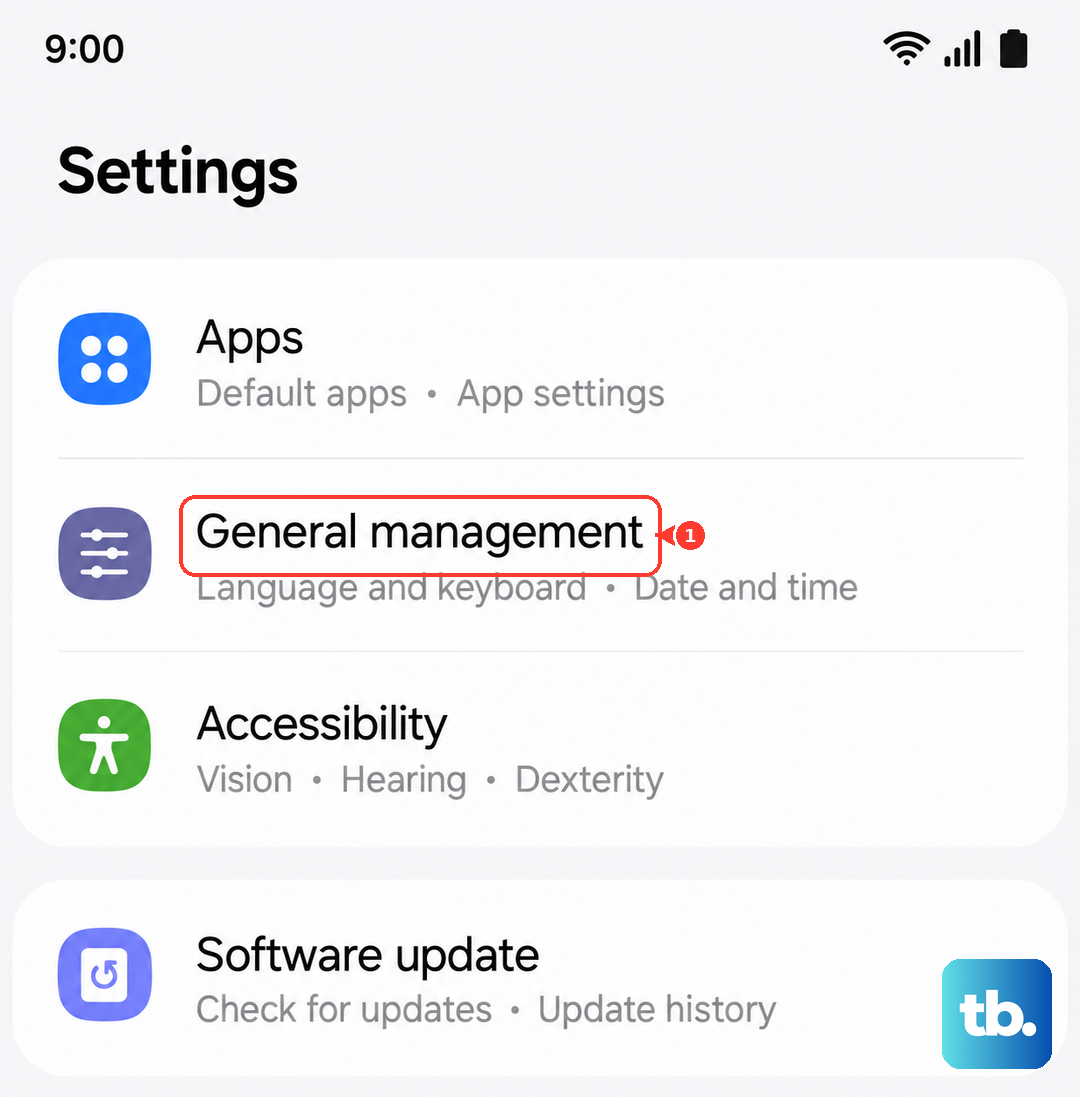
You can do this by going to Settings > General management > Reset > Reset all settings. You'll need to re-enter Wi-Fi passwords and reconfigure things like ringtones, but it often resolves persistent performance issues.