
If your Samsung Galaxy S24 is getting uncomfortably warm, you're not alone. Modern phones pack a lot of power into a slim body, and sometimes the heat management needs a little help. An overheating phone can slow down, cause the screen to dim, or even trigger a shutdown to protect the hardware.
Let's get straight to the most common fix. Close all your apps and give your S24 a quick restart. Press and hold the Volume Down button and the Side button together for about ten seconds until you see the Samsung logo. This clears out any temporary software glitches that might be making the processor work overtime.
Check for Rogue Apps and Background Activity
Sometimes, a single misbehaving app is the culprit. Open Settings > Battery and device care > Battery. Scroll down and tap on Battery usage. This will show you which apps have been using the most power since your last full charge.
If you see an app you don't recognize or a game you played hours ago still running in the background, that's a red flag. Tap on the app and select Restrict to prevent it from running in the background. For social media or messaging apps you need notifications from, try selecting Optimized instead.
You can also put your phone into Safe Mode to see if the overheating stops. This temporarily disables all third-party apps. Press and hold the power button, then tap and hold the "Power off" icon on your screen until the Safe Mode prompt appears. If your phone runs cool in Safe Mode, you know a downloaded app is causing the heat.
Adjust Your Display and Performance Settings
The brilliant screen on the S24 is a major battery and heat source. Lowering the brightness can have an immediate cooling effect. Also, consider reducing the screen timeout in Settings > Display so it turns off faster when not in use.
Switch from the highest 120Hz refresh rate to a standard 60Hz. Go to Settings > Display > Motion smoothness and select Standard. The difference in smoothness is noticeable, but so is the reduction in power draw and heat.
For a more aggressive approach, enable Power saving mode. You can find it quickly in your quick settings panel by swiping down twice from the top of the screen. This mode limits CPU speed, reduces background network usage, and dims the screen, all of which will cool things down.
Manage Your Charging Habits
Fast charging generates heat. If your S24 is getting hot while plugged in, try using a standard 10W or 15W charger instead of the maximum 25W. Also, make sure you're using an official Samsung cable and a compatible charger, as third-party accessories can sometimes cause inefficient charging that produces excess heat.
Take the phone out of its case while charging, especially if it's a thick protective case. Cases trap heat, preventing your phone from dissipating it properly. I've seen this simple step make a big difference for many users.
Be aware of the 'Battery protection' feature. It's located in Settings > Battery > More battery settings. When enabled, it limits charging to 80% to prolong battery health. While charging to this limit, the phone may stop and start charging more frequently as it maintains that level, which can sometimes feel warm. If you need a full charge for the day ahead, you can temporarily disable this.
Update Your Software and Reset Settings
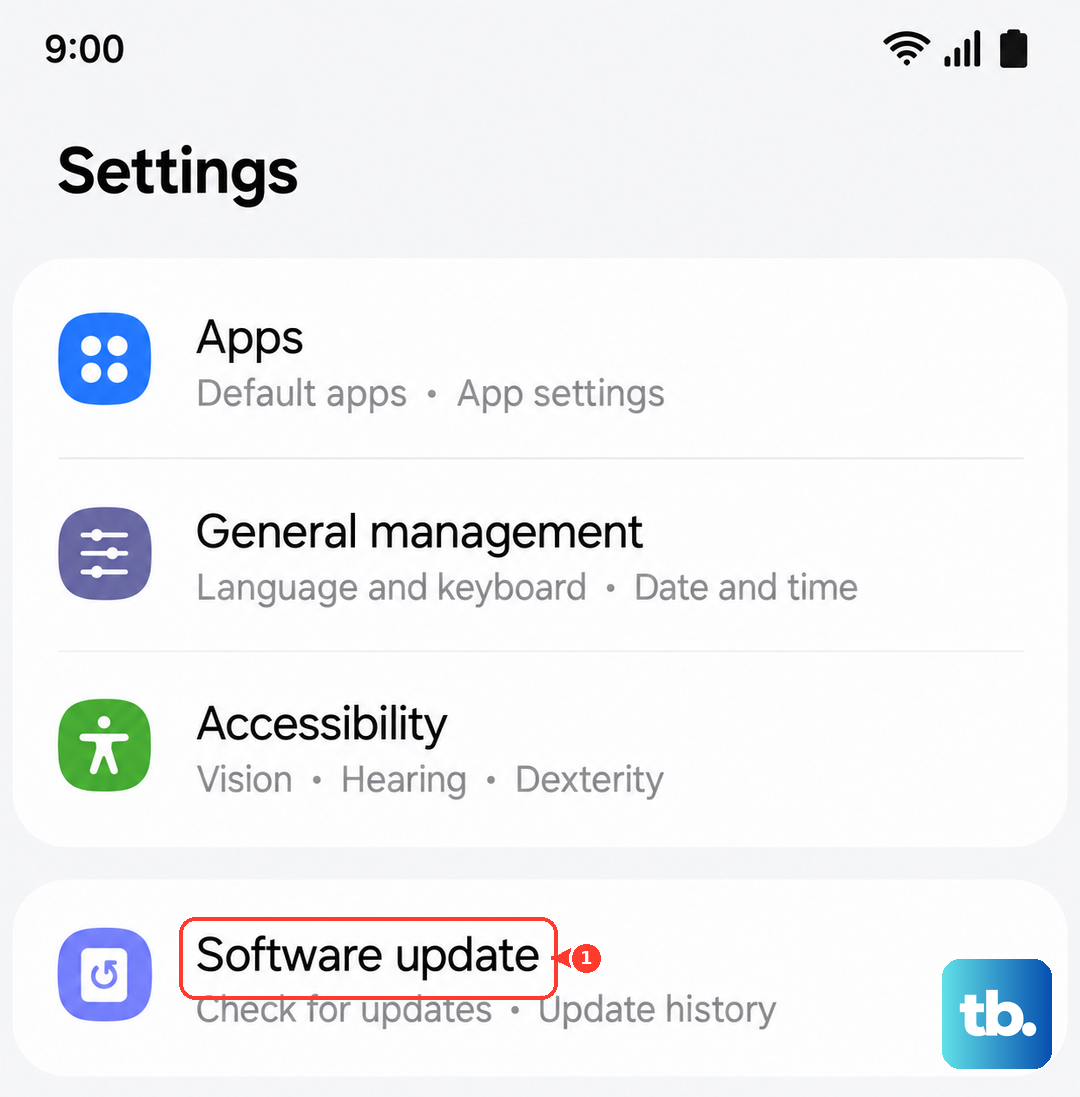
Samsung regularly releases updates that can improve thermal management. Go to Settings > Software update > Download and install to check for the latest One UI and Android security patches. Installing these is crucial, as they often contain fixes for bugs that cause excessive CPU usage.
If the overheating started after a recent update, try clearing the system cache. Turn off your phone, then press and hold the Volume Up and Side buttons together. When the Samsung logo appears, release only the Side button. Use the volume keys to navigate to "Wipe cache partition" and press the Side button to select it.
For persistent issues, a network settings reset can help. Navigate to Settings > General management > Reset > Reset network settings. This will erase your Wi-Fi passwords and Bluetooth pairings, but it can resolve problems where the modem is working too hard and generating heat.
Be Mindful of Your Environment and Usage
Avoid using your S24 in direct sunlight or in a hot car. Ambient heat makes it much harder for the phone to cool itself. Similarly, don't leave it on a soft surface like a bed or couch while gaming or streaming, as the fabric will insulate and trap heat.
Demanding tasks like recording 4K video, playing graphics-intensive games, or using GPS navigation for long periods will naturally make the phone warm. This is normal, but you can mitigate it by taking short breaks during long sessions and closing the app completely when you're done.
If you use wireless charging or PowerShare, know that these technologies generate more heat than wired charging. It's best to use them in a cool environment and to remove your phone case. If your phone is already hot, avoid wireless charging until it has cooled down.
Finally, if you've tried all these steps and your S24 is still overheating, especially during basic tasks, there might be a hardware concern. A faulty battery or an issue with the internal thermal paste can cause this. In that case, reaching out to Samsung Support would be the next logical step.