
Running out of storage on your Samsung Galaxy A56 can really slow you down, stopping you from taking new photos or updating apps. The good news is that One UI 7 on Android 15 gives you plenty of tools to clean things up. You can often free up several gigabytes without losing anything important.
See Exactly What's Filling Your Phone
Start by opening Settings > Device care > Storage. This screen shows a color-coded breakdown of what's using space. Tap on any category, like Images or Apps, to see the specific files and applications taking up the most room. I'd check here first to find the biggest offenders.
Use the Built-In Cleaner
Right on that same Storage page, you'll see a Clean now button. Tapping this lets the phone analyze and suggest junk files for removal, like residual app data, duplicate files, and unused downloads. It's a quick way to clear a gigabyte or two in about 30 seconds. You can review the items it selects before you delete them.
Clear App Caches and Data
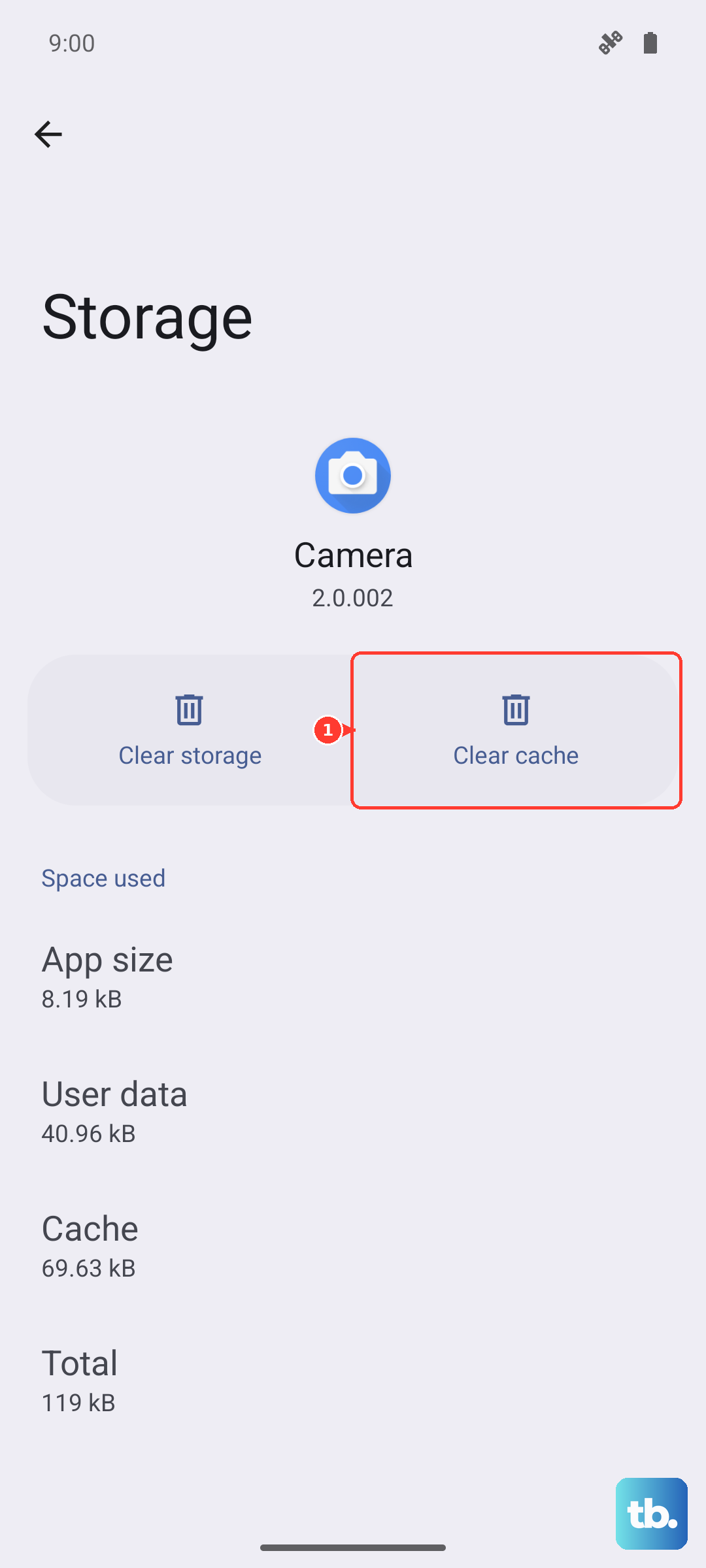
Back in Settings > Device care > Storage, tap on Apps. You'll see a list sorted by size. Tap on any large app, like Instagram, TikTok, or Facebook. Here, you can tap Clear cache to remove temporary files safely. If the app is still huge, you can tap Clear data, but be warned this will reset the app and log you out, so use it as a last resort for apps you can easily sign back into.
Manage Your Photos and Videos
Go to the Gallery app and tap the three-dot menu in the top right. Select Manage storage. This tool helps you find and delete duplicate photos, blurry shots, and large videos you might have forgotten about. Don't forget to also empty the Trash folder in the Gallery, as deleted items sit there for 15 days before being permanently removed.
Delete Old Downloads and Documents
Open the My Files app and look at the Downloads and Documents sections. Over time, PDFs, APK files, and other downloads you no longer need can pile up. You can sort files by size to quickly find and delete the largest ones. This is a common source of hidden storage bloat.
Review Offline Content in Streaming Apps
Apps like Spotify, Netflix, and YouTube Music store songs, shows, and podcasts for offline listening. Open each app and navigate to your downloads library. In Spotify, go to Your Library > Downloads. In Netflix, tap your profile icon and go to Downloads. Removing content you've already watched or listened to can recover multiple gigabytes.
Limit Message Media Auto-Download
Photos and videos sent through messaging apps like WhatsApp or Samsung Messages are saved automatically. To stop this, open Settings > Apps, select your messaging app, and look for permissions or data usage settings. You can often disable Media visibility or auto-download. Also, go into the app itself and manually clear old media from individual chats.
Move Files to a MicroSD Card
The Galaxy A56 supports expandable storage with a microSD card. If you have one inserted, you can move photos, videos, music, and documents directly to it. In the My Files app, long-press on files or folders, tap Move, and select your SD card as the destination. This is a permanent way to free up internal space for apps.
Perform a Force Restart
Sometimes, the storage calculation can get stuck, especially after a software update. A simple restart can help the system re-index files correctly. Press and hold the Volume Down button and the Side button together for about 10 seconds until the Samsung logo appears and the phone restarts. Check your storage again afterward to see if the numbers have adjusted.