Is your Samsung Galaxy A55 feeling sluggish and unresponsive? That's a common complaint, especially as storage fills up and apps pile up. The good news is you can usually fix it without any special tools or technical knowledge.
I'd start with a simple restart. It clears out temporary files and stops any stuck processes that might be dragging performance down.
Just press and hold the Volume Down button and the Side button (power button) together for about 10 seconds. Keep holding until you see the Samsung logo appear, then let go. Your phone will reboot, and that alone can make a noticeable difference.
Close Apps Running in the Background
Having too many apps open in the background eats up your phone's RAM. To close them, swipe up from the bottom of the screen and hold in the middle. You'll see all your recent apps.
Swipe left or right to find the apps you want to close, then swipe each one up off the screen. You can also tap the three dots at the bottom and select "Close all" to clear everything at once.
Check Your Available Storage Space
When your internal storage gets too full, your phone has less room to operate efficiently. Go to Settings > Battery and device care > Storage.
This screen shows you exactly what's taking up space. Look for large files, unused apps, or cached data you can delete. Aim to keep at least 10-15% of your storage free for the system to work properly.
Clear App Caches and Data
Over time, apps store temporary files (cache) that can become corrupted and slow things down. You can clear the cache for individual apps or use Samsung's built-in tool.
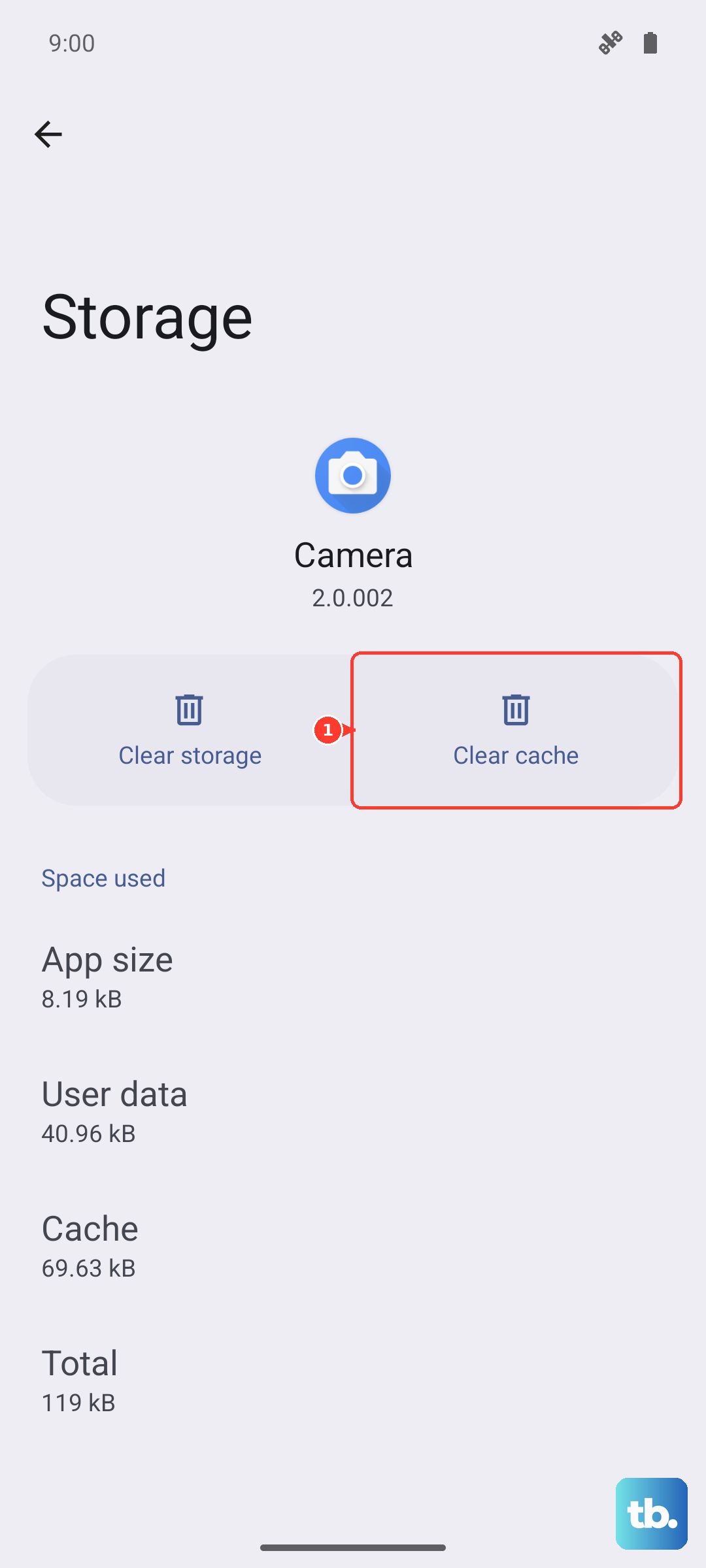
For a quick overall clean, go back to Settings > Battery and device care. Tap "Optimize now" to let the phone clear temporary junk files. For a specific app, go to Settings > Apps, select the app, then tap "Storage" and choose "Clear cache".
Update Your Software and Apps
Running outdated software is a common cause of lag. Updates often include performance improvements and bug fixes. First, check for a system update by going to Settings > Software update > Download and install.
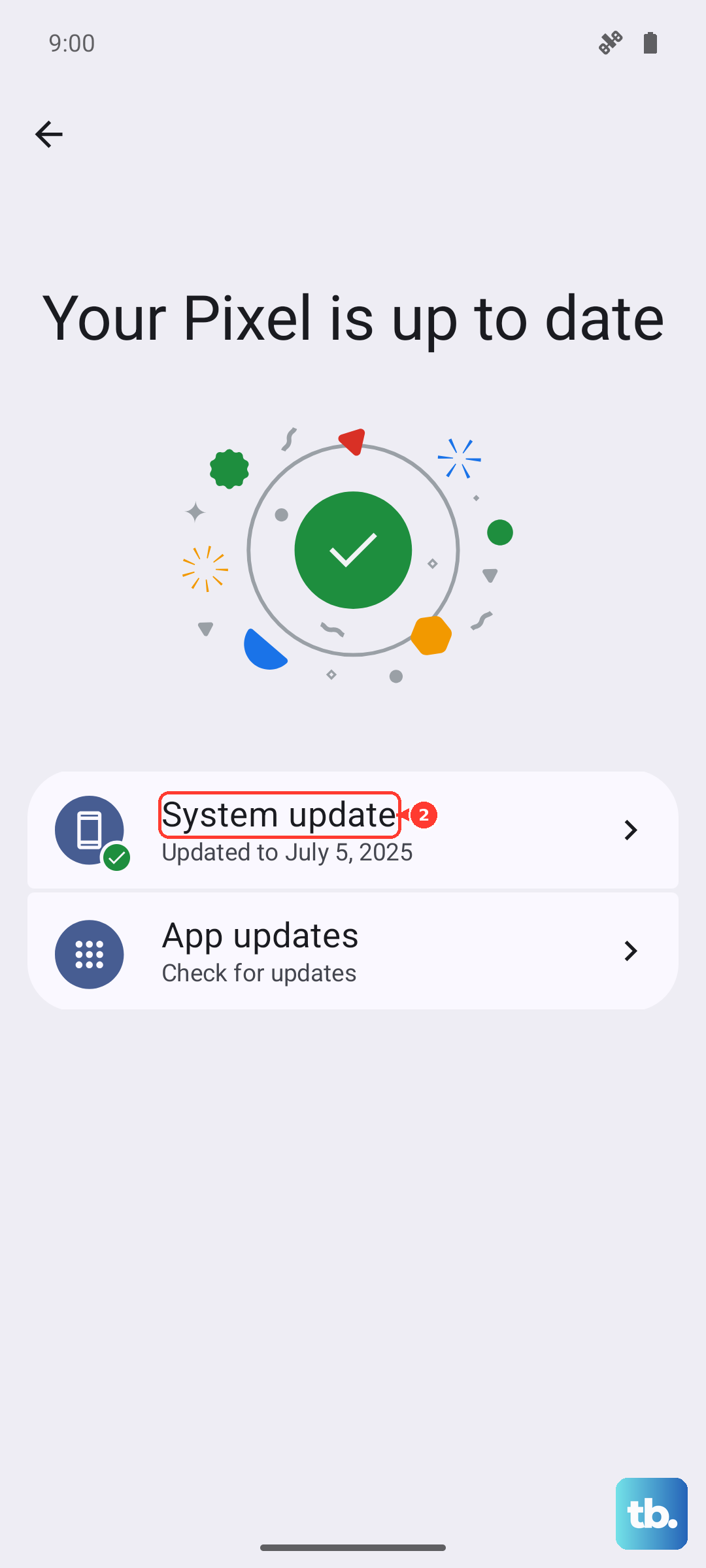
Next, update your apps. Open the Galaxy Store and tap the menu icon (three lines), then tap "Updates". Also open the Google Play Store, tap your profile picture, and go to "Manage apps & device" to see available updates there.
Manage Background App Activity
Some apps are set to refresh content in the background constantly, which uses resources. You can put apps you don't need live updates from to sleep. Go to Settings > Battery and device care > Battery > Background usage limits.
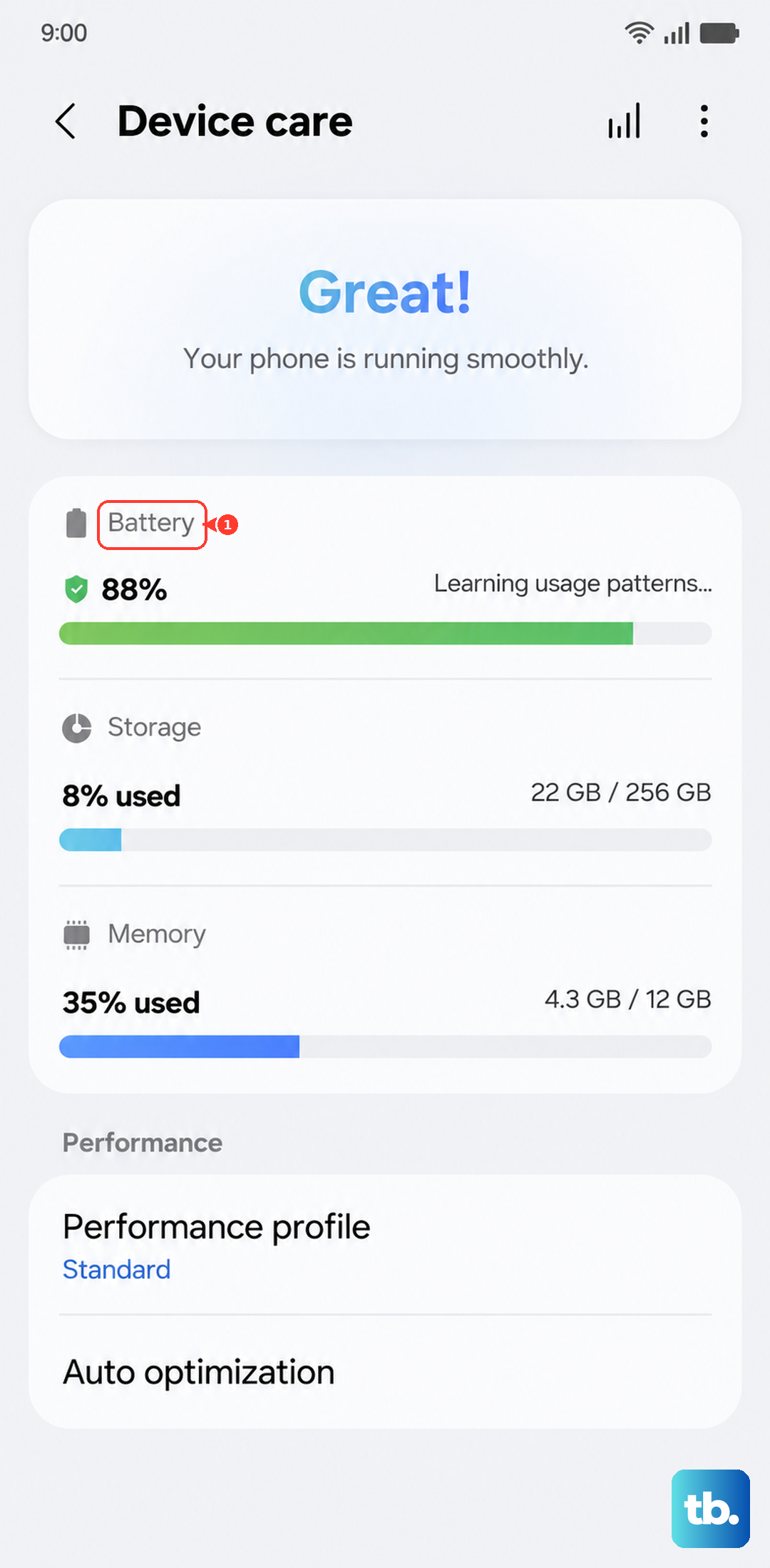
Here, you can enable "Put unused apps to sleep" automatically. You can also add specific power-hungry apps to the "Deep sleeping apps" or "Sleeping apps" lists to prevent them from running in the background at all.
Reduce Animations and Visual Effects
The smooth animations in One UI look great, but they require processing power. Turning them down can make your A55 feel snappier. You'll need to enable Developer Options first.
Go to Settings > About phone > Software information. Tap "Build number" seven times quickly until you see a message saying "Developer mode has been enabled".
Now, go back to Settings and you'll find "Developer options" near the bottom. Scroll down to the "Drawing" section. Look for "Window animation scale", "Transition animation scale", and "Animator duration scale". Change each of these from "1x" to "0.5x" or even "Animation off".
Use Light Performance Mode
Your Galaxy A55 has a built-in setting that prioritizes speed over some visual flair. Go to Settings > Battery and device care > Battery > More battery settings.
Tap on "Performance profile" and select "Light" mode. This will limit the CPU speed slightly and reduce background network usage to improve battery life and can result in a cooler, more consistent performance.
Check for Problematic Apps
A single misbehaving app can slow down your entire phone. If the lag started after installing a new app, that's a prime suspect. Try uninstalling recent apps one by one to see if performance improves.
You can also boot into Safe Mode to disable all third-party apps temporarily. Press and hold the power button until the power menu appears, then press and hold the "Power off" option on the screen. Tap "Safe mode" to reboot. If your phone is fast in Safe Mode, a downloaded app is the culprit.
Reset All Settings
If you've tried everything else and your A55 is still slow, this can help. It resets all your system settings (like Wi-Fi passwords, ringtones, and display settings) back to default without deleting your personal data, photos, or apps.
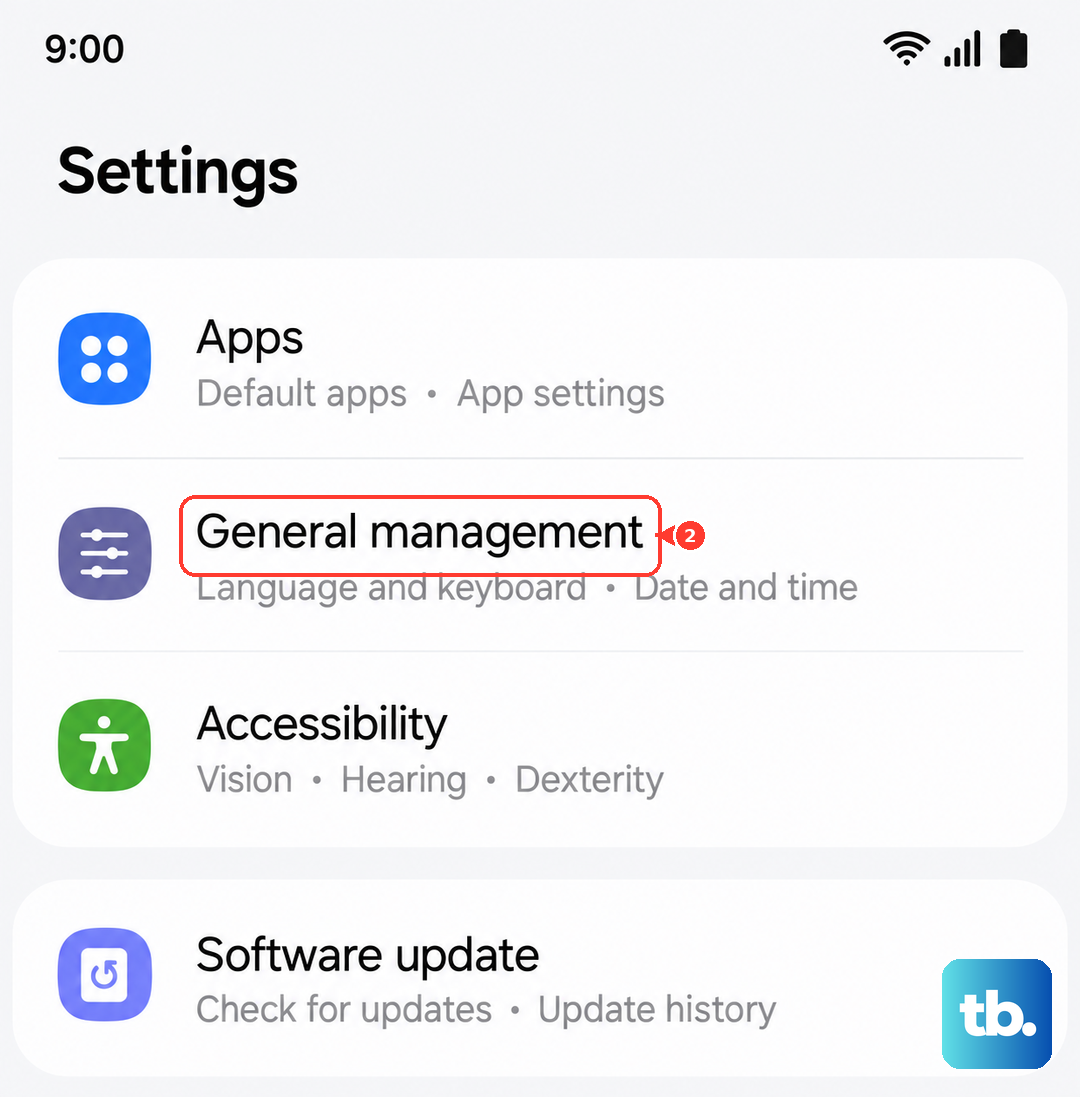
Go to Settings > General management > Reset > Reset all settings. Enter your PIN if prompted and confirm. You'll need to set up your preferences again, but it can clear out any conflicting settings causing issues.