You set your Galaxy A36 on a wireless charging pad, the screen stays dark, and nothing happens at all. Before you assume the phone is faulty, there is one important detail about this exact model that explains the behavior, plus a short list of wired-charging checks that resolve almost every real charging problem an A36 owner runs into.
The fixes below are ordered from the safest and quickest to the most involved, finishing with the official reset and the point at which it makes sense to contact Samsung. Work through them in order and stop as soon as your phone starts charging again.
Why Your Galaxy A36 Stays Dark on a Wireless Pad
The Samsung Galaxy A36 5G (model SM-A366) does not support wireless charging. Samsung's official product and spec pages, for both the US and UK, list a 5,000 mAh battery with 45W wired Super Fast Charging only, and they make no mention of Qi, Qi2, or MagSafe wireless charging, nor of reverse wireless charging (Wireless PowerShare).
That means if the phone does nothing when you rest it on a wireless pad, this is expected behavior and not a fault. There is no wireless charging hardware inside the A36 to activate, so no setting, accessory, or software change can enable it.
The fix is simply to charge with the USB-C cable instead, then use the wired troubleshooting steps below if it still will not charge.
Start With a Genuine Samsung Charger and Cable
Always charge the A36 with a genuine Samsung charger and the USB-C cable.
A wall adapter is generally more reliable than a computer or laptop USB port, so plug into the wall for a phone that seems stuck or barely charging.
Keep in mind that the 45W wall charger needed for Super Fast Charging is sold separately, so you may need to buy one if you do not already own a compatible Samsung adapter.
Low-quality or non-approved chargers and cables are a common cause of slow charging and intermittent disconnection, so swap in known-good Samsung accessories before going any further.
Check and Clean the USB-C Port, Cable, and Adapter
A loose or dirty connection is one of the most frequent reasons a phone refuses to charge. Inspect each part of the charging chain and confirm there is no physical or liquid damage before you blame the battery.
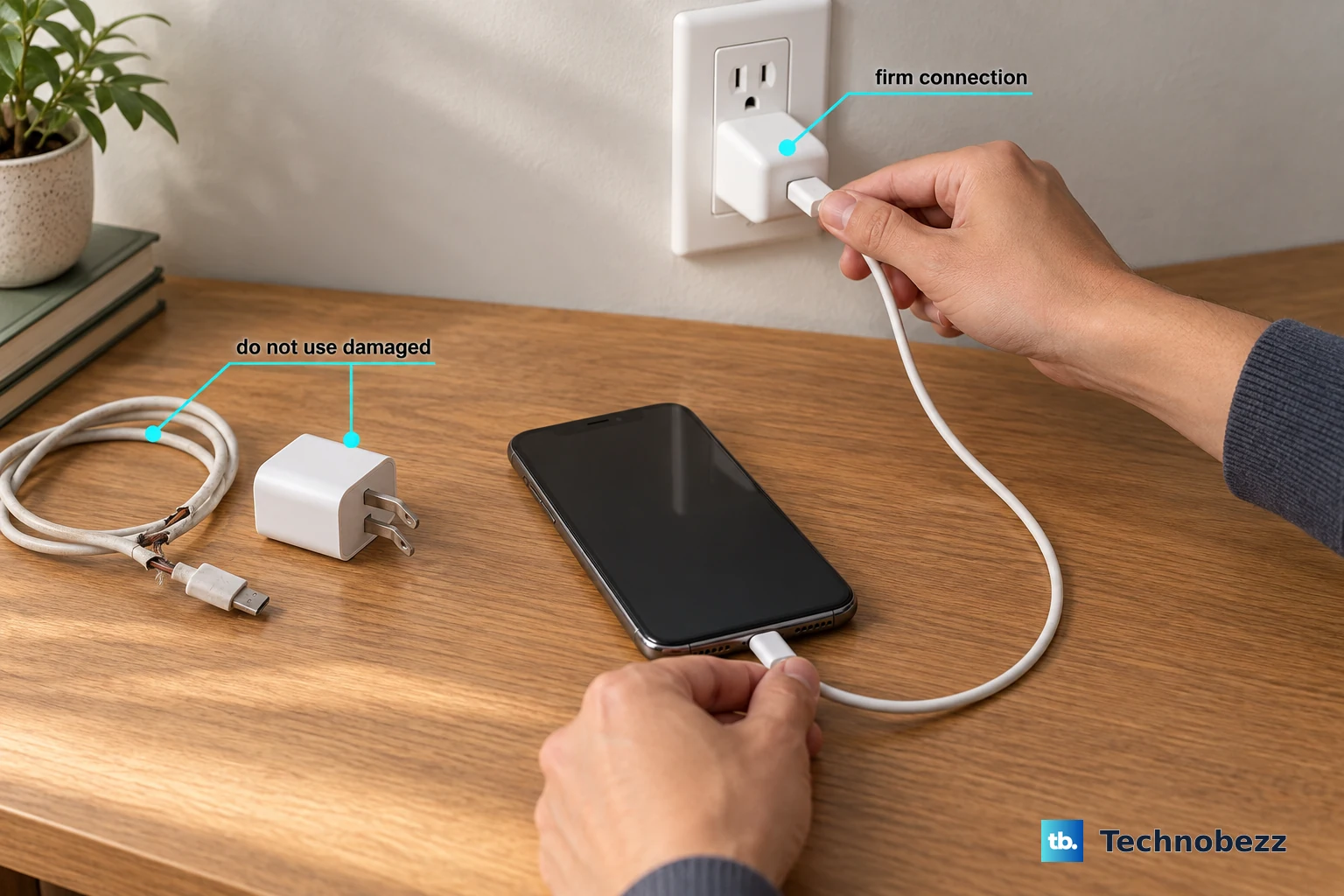
Check that the device, the charger, and the USB cable show no physical or liquid damage.
Next, plug in the cable and make sure it seats firmly in the port with little movement.
Then look inside the USB-C port for dust or debris, and inspect the port pins for corrosion or bending.
If a foreign object is in the USB port, use a soft brush to remove it and try charging again.
If a different known-good cable and adapter charge the phone normally, the original cable or charger was the problem.
Clear the Water-Drop Icon by Drying the Port
If a water-drop (moisture) icon appears and the phone will not charge, the moisture sensor has deliberately paused charging to protect the port. This is a safety feature, and even a small amount of moisture in the port can trigger it.
Unplug the charger right away.
After that, wipe the area with a dry cloth, or gently shake the phone with the port facing down to release moisture.
Let the phone air-dry in a well-ventilated area.
Reconnect the charger only once the port is completely dry, then restart the phone.
Do not force a cable into a wet port, as that can damage the pins and prolong the problem.
Keep the Phone at Room Temperature While It Charges
Temperature has a direct effect on charging. If the device or its surroundings are too hot or too cold, Samsung's built-in safeguards reduce or pause charging to protect the battery.
Charge at room temperature for fast, stable charging.
Move the phone out of direct sunlight, off a hot surface, or out of a cold environment, remove any thick case that traps heat, and give it a few minutes to return to a normal temperature before trying again.
Force Restart to Clear a Charging Glitch
A temporary software glitch can stop the phone from recognizing a charger even when everything is physically fine. A force restart clears that state without deleting any of your data.
Press and hold the Volume down button and the Side button (or Power button) at the same time until the device turns off and turns back on, that is, until the Samsung logo appears.
Once it restarts, reconnect the charger and watch for the charging indicator.
If your A36 seems completely dead and will not power on, leave it connected to the charger for a while first.
Then disconnect the charger and hold the Power button for 15-20 seconds to confirm whether it took a charge.
Install the Latest Software Update
Software updates frequently include fixes for charging-related bugs, so an out-of-date A36 may be the reason charging is unreliable. The phone ships with One UI 7 and can be upgraded to later versions, so check for an update.
Open the Settings icon.
Tap Software update (or System updates).
Tap Download and install (or Check for software updates).
Follow the prompts to install, and optionally turn on Auto download over Wi-Fi for future updates.
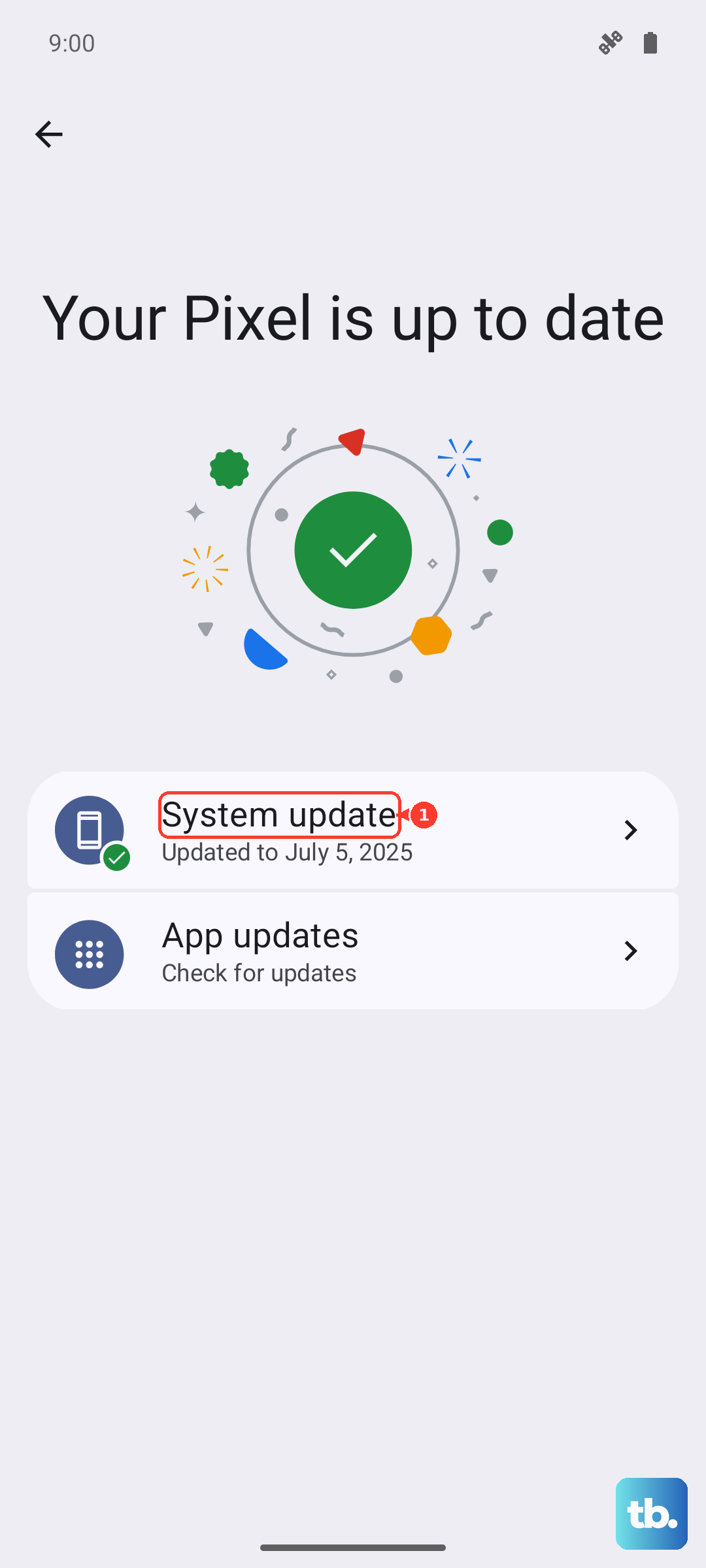
If the phone cannot stay powered on long enough to download an update, connect it to a Windows PC or Mac and use Samsung Smart Switch, which can detect and install firmware when the on-device update fails.
Run the Battery and Charging Test in Samsung Members
Samsung Members is Samsung's official support and diagnostics app for Galaxy phones, and it includes a built-in battery and charging test along with other hardware checks. Running it tells you whether the trouble is the battery, the cable, or the port before you book any service.
Open the Samsung Members app.
Tap Get help.
Under Diagnostics, tap View tests.
Select Battery (or choose Test all to run every check).
The battery test reports on the health of the battery and how it is charging, which is useful evidence to have on hand if you do end up contacting Samsung.
Back Up, Then Factory Reset as a Last Software Step
If charging problems continue after updating and testing, a factory reset can clear deeper software issues. This erases the phone, so treat it as a last software resort and back up first.
Samsung's official warning is blunt. It reads, "Please save any information you need prior to the factory reset because your personal information may not be recovered," and "Before you perform a factory reset, be sure to back up your personal data, so you don't lose it all."
Once your backup is complete, follow this path.
- 1.Open Settings.
- 2.Tap General management.
- 3.Tap Reset.
- 4.Tap Factory data reset.
- 5.Tap Reset, then tap Delete all.
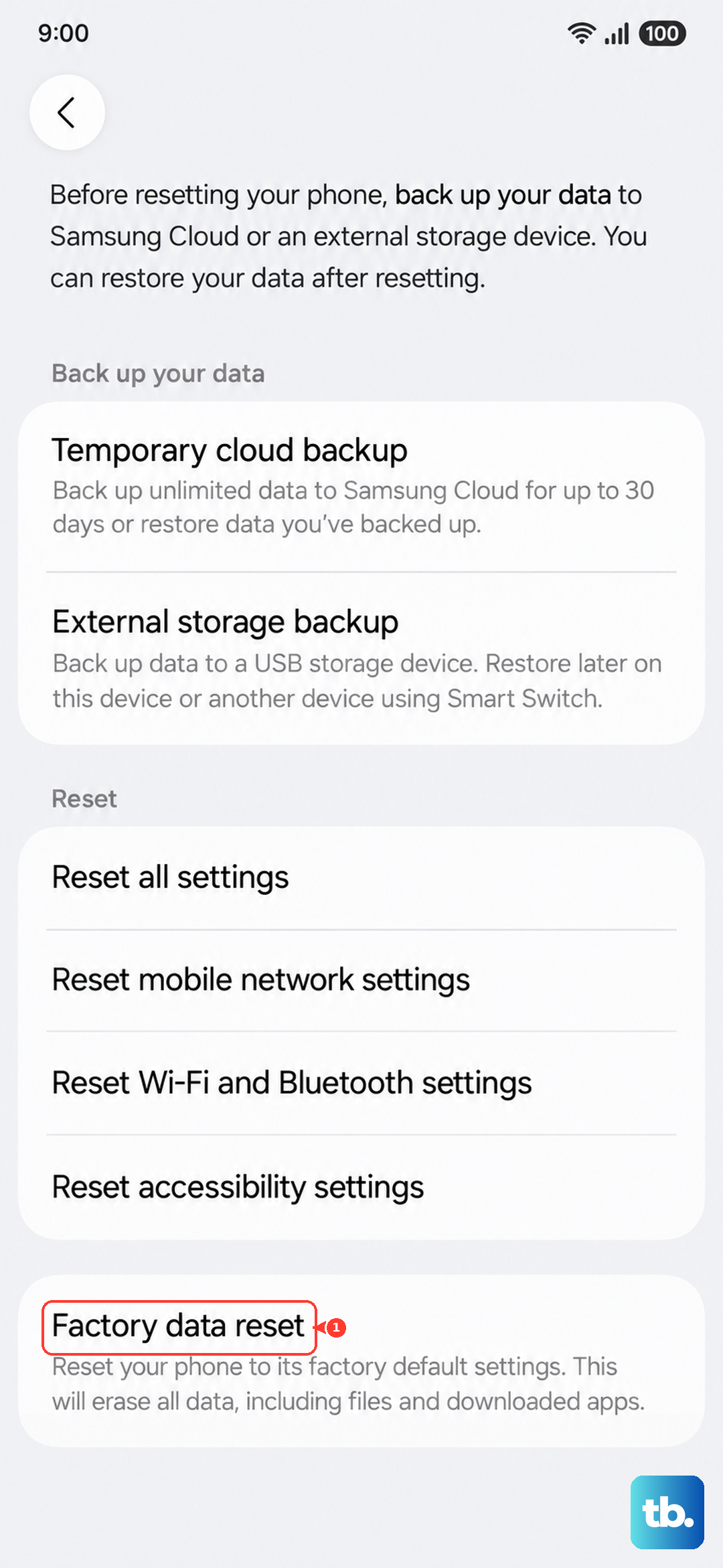
After the reset finishes, set the phone up and test charging again before restoring all of your apps and data.
When to Contact Samsung or Book a Repair
If the A36 still will not charge after working through every step above, the cause is likely hardware, such as the charging port, the battery, or the board, rather than software. At that point, further at-home troubleshooting is unlikely to help.
Visit a Samsung service center or schedule a repair online, and bring along what you have learned, including the result of the Samsung Members battery test and the fact that you have already updated and, if you chose to, reset the phone.
That detail helps the technician get straight to the hardware diagnosis.
Frequently Asked Questions
Does the Samsung Galaxy A36 5G support wireless charging?
No. Samsung's official spec pages for the Galaxy A36 5G (model SM-A366) list a 5,000 mAh battery with 45W wired Super Fast Charging only, with no Qi, Qi2, or MagSafe wireless charging and no reverse wireless charging (Wireless PowerShare). If the phone does nothing on a wireless pad, that is expected, so charge it with the USB-C cable instead.
Why does my Galaxy A36 show a water-drop icon and stop charging?
That icon means the moisture sensor has detected moisture in the USB-C port and paused charging to protect it. Unplug the charger, wipe it dry or gently shake the phone with the port facing down, let it air-dry, and reconnect only once the port is completely dry. Even a small amount of moisture in the port can trigger it.
Does the Galaxy A36 come with a charger in the box?
The 45W wall charger needed for Super Fast Charging is sold separately, according to Samsung's spec disclaimer. You will want a genuine Samsung charger and USB-C cable for the fastest, most stable charging, and a wall adapter is more reliable than a computer's USB port.
Will a factory reset fix my charging problem?
It can, if the cause is a deeper software issue that updating and restarting did not clear. Because a factory reset erases the phone, back up your personal data first, since Samsung warns your personal information may not be recovered. The path is Settings > General management > Reset > Factory data reset > Reset > Delete all.
How can I tell if the problem is the battery or the cable?
Run the built-in test in the Samsung Members app. Open Samsung Members, tap Get help, then under Diagnostics tap View tests and select Battery (or Test all). It checks the health of the battery and how it is charging, which helps confirm whether the issue is the battery, cable, or port before you book service.











