You press the Side key on your Samsung Galaxy A36 5G, the Samsung logo lights up, and then nothing happens. The animation either loops, stalls, or sits there until the screen dims, and the phone never reaches your home screen. A logo freeze like this on the A36 is almost always a software hiccup, a power problem, or a single misbehaving app, and the good news is that most cases clear up with steps you can do yourself before any data is at risk. Work through the fixes below in order, because they run from the safest (no data loss) to the official last-resort options, and stop as soon as your phone boots normally.
Why your A36 stalls at the Samsung logo
When a phone hangs on the boot logo, it usually means the system started loading but could not finish. On the Galaxy A36 5G the common culprits are a battery that is too low to complete a full boot, a temporary firmware glitch that a force restart can clear, a recently installed app that interferes with startup, or corrupted software that needs to be reinstalled. Physical or liquid damage can cause it too, which is why an early visual check is worthwhile.
One thing to keep in mind for this model: the A36 has a sealed, non-removable battery, so there is no "take the battery out" trick here. Everything below works with the buttons and ports you already have, plus a computer for the later steps.
Give the battery a 15-minute charge before anything else
A phone that hangs at the logo can simply be too low on power to finish booting. Samsung's guidance is to make sure your battery is charged to at least 5% before you try to start the phone again.
If the battery is completely drained, plug it in and charge it for a minimum of 15 minutes using an appropriate Samsung charger, then attempt to power on. Note that the A36's 45W wall charger is sold separately and is not in the box, so use a compatible Samsung charger and cable rather than an unknown third-party adapter.
Be patient at this stage. If the battery was fully empty, the charging indicator can take up to 10 minutes to appear, so a dark screen during that window does not mean the charger is faulty.
Force restart the Galaxy A36
A force restart cuts power to the system and reloads it, which clears the temporary glitch behind most logo freezes. It does not erase any of your data, so it is a safe first move once the phone has some charge.
Press and hold the Volume down and Side (Power) buttons simultaneously for approximately 10 seconds.
Keep holding both buttons until the Samsung logo appears and the phone restarts.
Release the buttons and let the phone finish booting on its own.
If a Maintenance Boot Mode menu appears after the force restart, do not panic. Use the Volume up or Volume down button to move the cursor, highlight Normal Boot, and then select it by pressing the Power button or Bixby button. The phone should then continue into a normal startup.
Check for damage and reseat the SIM
Before going deeper into software, rule out hardware. Inspect the device for physical damage such as cracks, and check the phone and the SIM tray area for any signs of liquid exposure. Eject the SIM tray, then verify the SIM card is seated properly and reinsert it.
Also remove any case that might press on the Volume or Side buttons or block the charging port, since a stuck button or a poor charging contact can mimic a boot problem. If you see clear signs of physical or liquid damage, skip ahead to the service step rather than risking further harm.
Boot into Safe mode to catch a misbehaving app
If your A36 occasionally gets past the logo before freezing again, a downloaded app may be the cause. Safe mode loads only the built-in software, so if the phone runs fine there, you know an installed app is to blame.
With the device fully powered off, turn it on.
When the Samsung logo appears, press and hold the Volume down button.
Keep holding until the phone finishes starting; "Safe mode" will display in the bottom-left corner of the screen.
If the phone is stable in Safe mode, uninstall recently installed apps one at a time, starting with anything you added just before the trouble began. Then restart the phone normally to exit Safe mode and confirm the freeze is gone.
Install a pending software update from Settings
If you can reach the home screen between hangs, even briefly, an available update can patch the boot problem. Connect to Wi-Fi first so the download is not interrupted.
Open Settings.
Tap Software update (the label may read System updates on some models or carriers).
Tap Download and install, then follow the on-screen instructions.
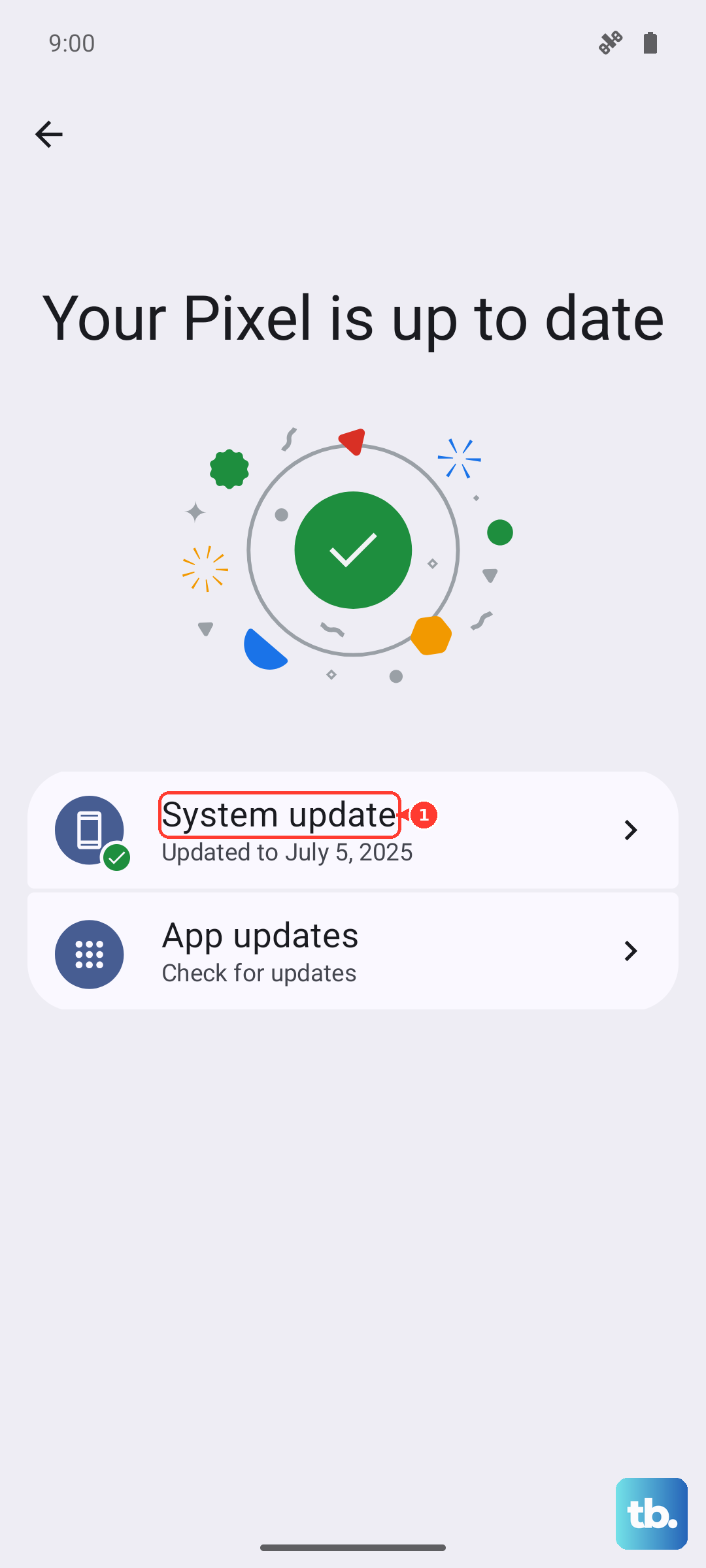
Let the update run to completion. Do not disconnect the charging cable or use the phone while it installs, because interrupting an update partway through can make matters worse.
Repair the software with Smart Switch on a computer
When the phone will not reach the home screen at all, you can update or reinstall its software from a computer using Samsung Smart Switch, the official desktop tool for Windows and Mac.
Download and open Smart Switch on a Windows PC or Mac.
Connect the Galaxy A36 to the computer with a USB cable.
Select Update if one is available, then follow the prompts without disconnecting.
This reinstalls the current software without any manual recovery-menu key combinations. Leave the cable connected and let the process finish on its own.
Factory reset as a last resort
If the phone still will not boot, a reset is the final do-it-yourself option. This erases everything, so before you start, heed Samsung's warning: please save any information you need prior to the factory reset because your personal information may not be recovered. Anything you have not backed up will be gone.
If you can reach Settings between hangs, use the built-in path.
- 1.Open Settings.
- 2.Go to General management.
- 3.Tap Reset.
- 4.Tap Factory data reset.
- 5.Tap Reset, then tap Delete all.
If you cannot reach Settings at all, run the reset from Smart Switch on your computer instead. With the phone connected, choose MORE, then Emergency Software Recovery and Initialization. This reinstalls the firmware and resets the phone to factory default, which also deletes all user data; your content can only be restored afterward from a backup you made earlier.
Book a repair with Samsung
If your Galaxy A36 is still stuck on the logo after the steps above, the device needs service. Visit a Samsung walk-in service center or schedule a repair online, which you can do through the Samsung Members app.
Lead with any clue you gathered earlier. If you spotted cracks, signs of liquid exposure, or any other sign of physical or liquid damage, tell the technician, because that points to a hardware fault that no software step can resolve.
Frequently Asked Questions
Does force restarting the Galaxy A36 delete my data?
No. Holding Volume down and the Side (Power) button for about 10 seconds only cuts power and reloads the system. It does not erase your apps, photos, or settings, which is why it is one of the first things to try.
Why is there no charging light when I plug in my A36?
If the battery was completely drained, the charging indicator can take up to 10 minutes to appear. Leave the phone connected to an appropriate Samsung charger and wait before assuming the cable or adapter is at fault.
Did my Galaxy A36 come with a charger?
No. The A36's 45W wall charger is sold separately and is not included in the box, so use a compatible Samsung charger and cable for the charge-and-retry step.
Can I fix a phone stuck on the logo without losing data?
Often, yes. Charging, a force restart, checking the SIM and for damage, Safe mode, and updating through Settings or Smart Switch all preserve your data. Only the factory reset and the Smart Switch emergency recovery erase the device, which is why they come last.
What is Maintenance Boot Mode and what should I do if it appears?
It is a menu that can show up after a force restart. Use Volume up or Volume down to move the cursor, highlight Normal Boot, and select it with the Power button or Bixby button to continue into a normal startup.