Your Galaxy A36 5G is supposed to show a smooth, bright picture on its 6.7-inch Super AMOLED screen, so when that 120 Hz panel starts flickering, strobing, or dimming on its own, it is impossible to ignore. The good news is that most flickering on this phone is a software or settings issue rather than a broken display, and Samsung has a clear order of things to try. Work through the steps below from the top, since the first ones are the safest and most likely to fix it without touching your data.
Before adjusting cables and settings, run a quick online monitor test in your browser. Its fullscreen patterns make problems like flicker, banding, and uniformity issues much easier to spot and describe.
One quick note before you start. The Galaxy A36 runs One UI on Android, not iOS, so there are no iPhone-style display toggles to hunt for here. The settings that actually matter on this phone live under Display and a handful of other menus, and that is exactly where Samsung's official guidance points.
Start With Samsung's Recommended Display Tweaks
Samsung lists display adjustments as the very first thing to try when a Galaxy screen flickers, and they cost you nothing. Open Settings > Display and make a few changes one at a time so you can see which one helps.
- 1.Turn off Dark mode or Night mode.
- 2.Turn off Adaptive brightness, then manually raise the brightness slider.
- 3.Set Motion smoothness to Standard. If the flicker only shows up while the phone is charging, try Adaptive instead.
- 4.Try a different Screen resolution to see if the flicker changes.
These four changes target the most common software causes of on-screen flicker, especially the way the panel ramps brightness and refresh rate up and down. If one of them calms the screen, you can stop here.
Give the A36 a Clean Restart
A simple restart clears the temporary software glitches that often cause a screen to flicker or stutter. Press and hold the Power (Side) button until the Power menu appears, then tap Restart twice.
Let the phone come fully back to the home screen and use it for a minute before deciding whether the flicker is gone. If a background process was misbehaving, this is frequently all it takes.
Force a Restart When the Screen Is Frozen
If the display is flickering so badly that it is frozen or unresponsive and the menu will not appear, you can force the phone off. Press and hold the Volume down button and the Side (Power) button at the same time until the device turns off and turns back on.
Samsung's guidance is to hold the two buttons for more than 7 seconds, and you will feel the phone vibrate when it restarts. This acts like pulling the battery and does not erase any of your data, so it is safe to use whenever the screen locks up.
Clear Out Storage and Memory
A phone that is low on free storage or has too much running in memory can show performance-related display glitches, including flicker. Samsung's built-in tool handles this in one tap.
Go to Settings > Device care and tap Optimize now. This cleans up storage and memory and closes background tasks that may be straining the system. It is quick, reversible, and a good habit to repeat now and then.
Bring Your Software and Apps Up to Date
Outdated or partially installed software is a common flicker cause, and Samsung pushes display fixes through updates. Because the A36 launched on One UI 7 and is covered for up to six generations of OS upgrades and six years of security updates, keeping it current really matters.
Swipe down from the top right and tap the Settings icon, then tap Software update (it may read System updates on some models). Tap Download and install, Check for system updates, or Check for software updates depending on your carrier, and follow the prompts to install anything available.
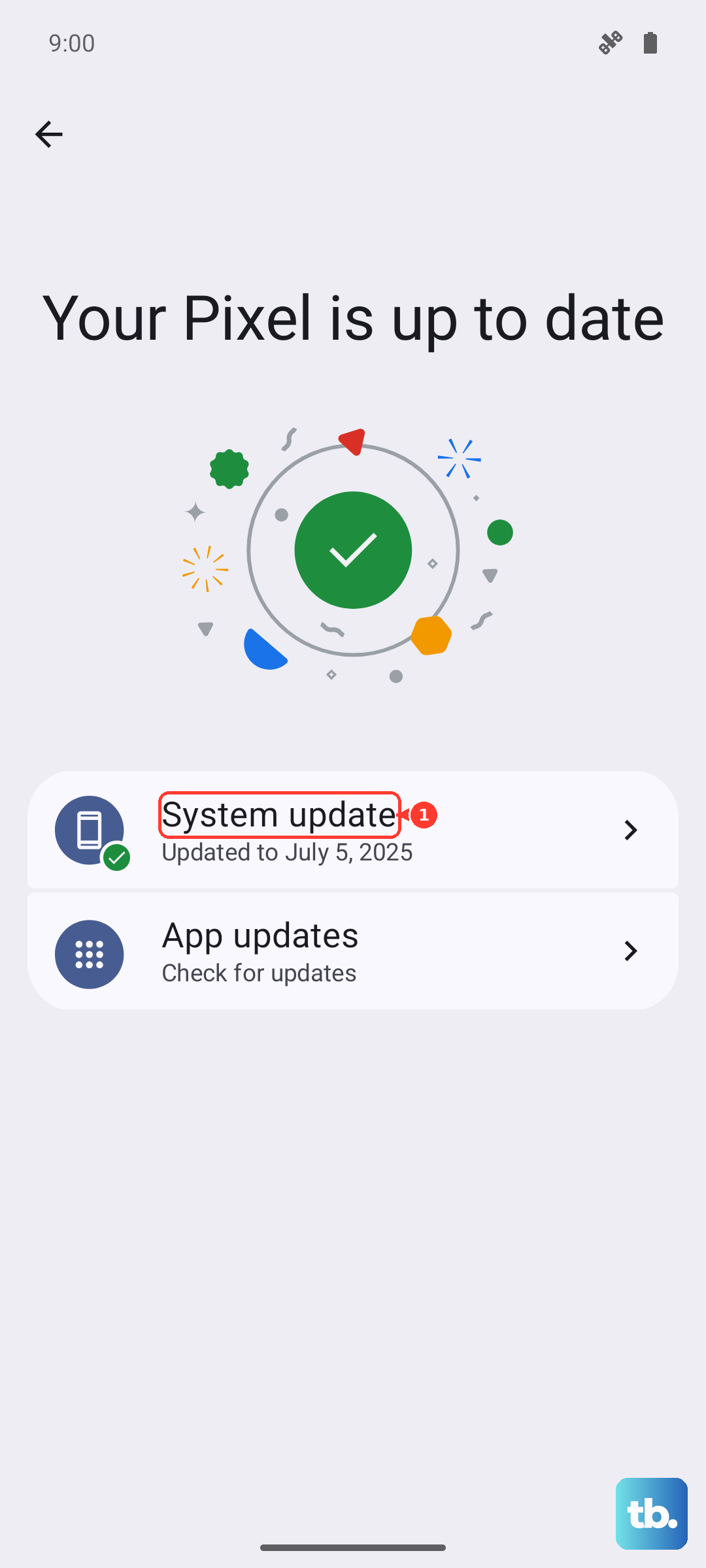
Do not forget your apps, since a buggy app can flicker its own screens. Open the Galaxy Store and the Play Store and update everything that is pending. If you prefer to update the phone's firmware from a computer, Samsung's optional Smart Switch software for Windows or Mac can do that too.
Use Safe Mode to Catch a Rogue App
If only certain screens flicker, a downloaded app may be the culprit. Safe mode loads the phone with no third-party apps running, so it is the cleanest way to test that theory.
- 1.Power the phone off completely.
- 2.Turn it back on, and when the Samsung logo appears, press and hold the Volume down button.
- 3.Keep holding until Safe mode appears in the bottom-left corner of the screen.
Use the phone for a while in this state. If the flickering stops in Safe mode, a downloaded app is causing it, so restart to exit Safe mode and then uninstall recently added or updated apps one at a time until the flicker is gone. To leave Safe mode, you can simply restart the phone, or swipe down and tap the "Safe mode is on" notification and then tap Turn off.
Rule Out Indoor Lighting Before You Worry
Sometimes the flicker you see is not the phone at all. Samsung notes that indoor LED or fluorescent lighting can create a flickering black line or strobing pattern when you record video, because that lighting pulses faster than the eye can see and clashes with the camera. It tends to show up in Video mode with Super Steady on, or with a fast shutter speed in Pro Video mode.
To check, record the same scene in a brighter room. You can also open Pro Video mode, tap the shutter speed control, and set it to 1/125 before recording. If the flicker disappears in better light or at that shutter speed, it was the room lighting rather than your panel, which means the display itself is healthy.
Reset to Factory Settings as a Last Software Step
If nothing above helps and you suspect a deeper software problem, a factory data reset wipes the phone back to its original state. This is the final software fix to try before assuming a hardware fault.
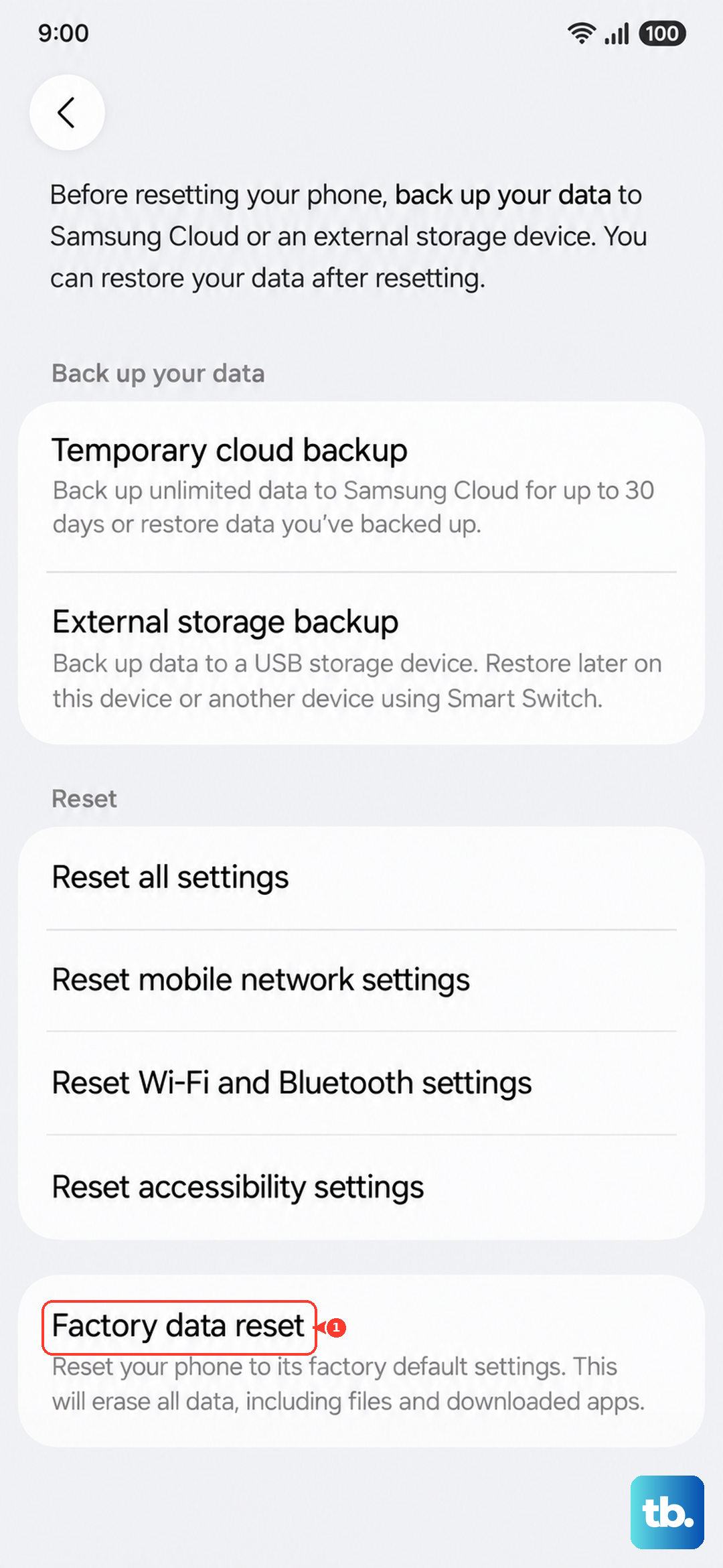
Important: a factory reset erases everything on the phone. In Samsung's words, "Please save any information you need prior to the factory reset because your personal data may not be recovered," so back up your photos, messages, and accounts first.
When you are ready, go to Settings > General management > Reset > Factory data reset > Reset > Delete all, and enter your lock screen PIN or Samsung account credentials if prompted. Set the phone up again and check whether the flicker returns before reinstalling all of your apps.
When It Is Time to Call Samsung
If the screen keeps flickering after every step above, or if you can see cracks or other physical damage, the problem is most likely hardware. A flickering panel that survives a factory reset is past the point of DIY fixes.
At that stage, contact Samsung Support to book a repair or visit a Samsung service center. Have your model number ready (the US version is SM-A366U, sold as SM-A366ULGAXAA, and the global version is SM-A366B) so the technician can look up the right parts.
Frequently Asked Questions
Will any of these fixes erase my data?
Only the factory data reset erases your data, and Samsung warns that personal data may not be recovered, so back up first. The display tweaks, normal restart, force restart, storage optimization, updates, and Safe mode all leave your files intact.
Why does my Galaxy A36 only flicker while it is charging?
If the flicker shows up mainly while charging, go to Settings > Display and set Motion smoothness to Adaptive instead of Standard, which is Samsung's specific suggestion for that situation.
How long do I hold the buttons to force restart a frozen A36?
Press and hold the Volume down button and the Side (Power) button together until the phone turns off and back on. Samsung's guidance is to hold them for more than 7 seconds, and you will feel the phone vibrate when it restarts.
How do I know if the flicker is the lights and not the phone?
It usually shows up only when you record video indoors, where LED or fluorescent lighting can clash with the camera. Record the same scene in a brighter room, or open Pro Video mode and set the shutter speed to 1/125. If the strobing goes away, it was the lighting and your display is fine.
My screen still flickers after a factory reset. What now?
A flicker that survives a factory reset, or any visible crack or damage, points to a hardware problem. Contact Samsung Support or visit a Samsung service center to have the display checked.