You swipe down from the top of your Galaxy A36, tap the Flashlight icon, and the rear light stays stubbornly dark; or it flickers on for a second and quits, or it glows so faintly that it is useless in a dark room. The good news is that a dead torch on this phone is usually a software hiccup or a simple conflict with the camera, not a broken part. Because the A36 launched on Android 15 with One UI 7 and is built for six years of updates, your unit may be on One UI 7 or a newer One UI 8 build, but the flashlight controls below are the same Galaxy paths either way.
Work through these fixes in order. They start with the quickest, safest checks and only end with a backup-and-reset or a trip to Samsung if the light truly will not respond.
Why the A36 Torch and Camera Fight Over One Light
On the Galaxy A36 5G, the flashlight is not a separate bulb. Samsung's official guidance states plainly that "the flashlight feature uses the phone's camera LED," so the torch you trigger from Quick settings is the very same rear LED the camera fires as a flash. The phone's spec sheet confirms the triple rear camera (50.0 MP plus 8.0 MP plus 5.0 MP) with "Flash: Yes," which is the hardware the torch borrows.
That single shared LED explains two of the most common failures. The flashlight cannot turn on while the Camera app, or another app, is using the flash, and the phone deliberately throttles the LED when it overheats. Keep that in mind as you go through the steps, because several fixes are really about clearing the way for that one light.
Start With the Quick Settings Toggle and Brightness Slider
Before assuming anything is broken, make sure you are toggling the light the right way and that its brightness is not turned all the way down. The Flashlight button can be moved or hidden when the Quick settings layout is customized, so it may not be where you expect.
Open the Quick settings panel by swiping down from the top right of the screen.
Tap the Flashlight icon to turn the light on or off. You may need to swipe across the panel to find the icon, since the button order can be customized.
If the light appears on but very dim, tap and hold the Flashlight icon.
Turn on the flashlight by tapping the switch, then drag the slider up to raise the brightness level. The slider stays grayed out until the flashlight is on.
Raising that slider rules out the simplest cause of all, a torch that was working the whole time but set too low to notice.
Free Up the LED From the Camera and Flash-Hungry Apps
Since the flashlight and the camera flash are the same single LED, the torch will refuse to light while the Camera app is open or while another app is holding the flash. That includes obvious culprits like the Camera itself, plus video recorders, document or QR scanners, and some social and streaming apps that grab the camera.
Fully close the Camera app and any other app that might be using the camera or flash, then return to Quick settings and tap the Flashlight icon again. If the torch springs to life once those apps are shut, a flash conflict was the problem all along.
Restart the A36, or Force It if the Screen Is Frozen
A quick restart clears the temporary glitches that can leave the LED stuck in a busy state. For a normal restart, press and hold the Volume down button and the Side button at the same time, then select Restart and tap Restart again. You can also use the Power icon in the Quick settings panel.
If the screen is frozen or unresponsive, do a force restart instead. Press and hold the Volume down button and the Side button (or Power button) simultaneously until the device turns off and turns back on; the screen goes black, then the Samsung logo appears. A forced restart does not erase your data, so it is safe to use whenever the phone is locked up.
Give an Overheating Phone Time to Cool
When the A36 runs too hot, it protects itself by limiting features, and the shared flash LED is one of the first things it shuts down. You may see a "Device cooling down" popup, and the camera can close with the message "Exit Camera. Battery temperature too high," which also kills the torch.
If that is happening, stop using the phone, remove any case or cover, unplug it from the charger, and close running apps. The A36 returns to normal and the flashlight works again automatically once it has cooled, so this fix is mostly a matter of patience.
Return the Camera App to Its Default Settings
Because the camera owns the LED, a bad camera setting or a glitch in that app can lock the flash even when the rest of the phone is fine. Resetting the Camera app to its defaults clears those settings without touching the rest of your data.
Open the Camera app.
Tap Settings.
Tap Reset settings, then tap Reset. The Camera app will be reset to its defaults.
While you are in there, check Settings > About Camera for any available Camera app update, then test the flashlight again.
Test the Light in Safe Mode to Catch a Rogue App
If a third-party app you downloaded is hijacking the camera or interfering with the flash, Safe mode will reveal it. Safe mode loads only the phone's original software, so anything you installed yourself is temporarily switched off.
Power the phone off, then turn it back on.
When the Samsung logo appears, press and hold the Volume down button until "Safe mode" displays in the bottom-left corner.
Try the flashlight from Quick settings while in Safe mode.
If the torch works in Safe mode but not normally, a downloaded app is the cause; uninstall recently added apps one at a time until the light behaves. Restart the phone to leave Safe mode when you are done testing.
Install the Latest One UI Software Update
Software bugs that break the flashlight are often patched in later One UI and Android releases, and with six years of updates promised, the A36 gets them regularly. Installing the newest build can resolve the issue without any further troubleshooting.
Go to Settings.
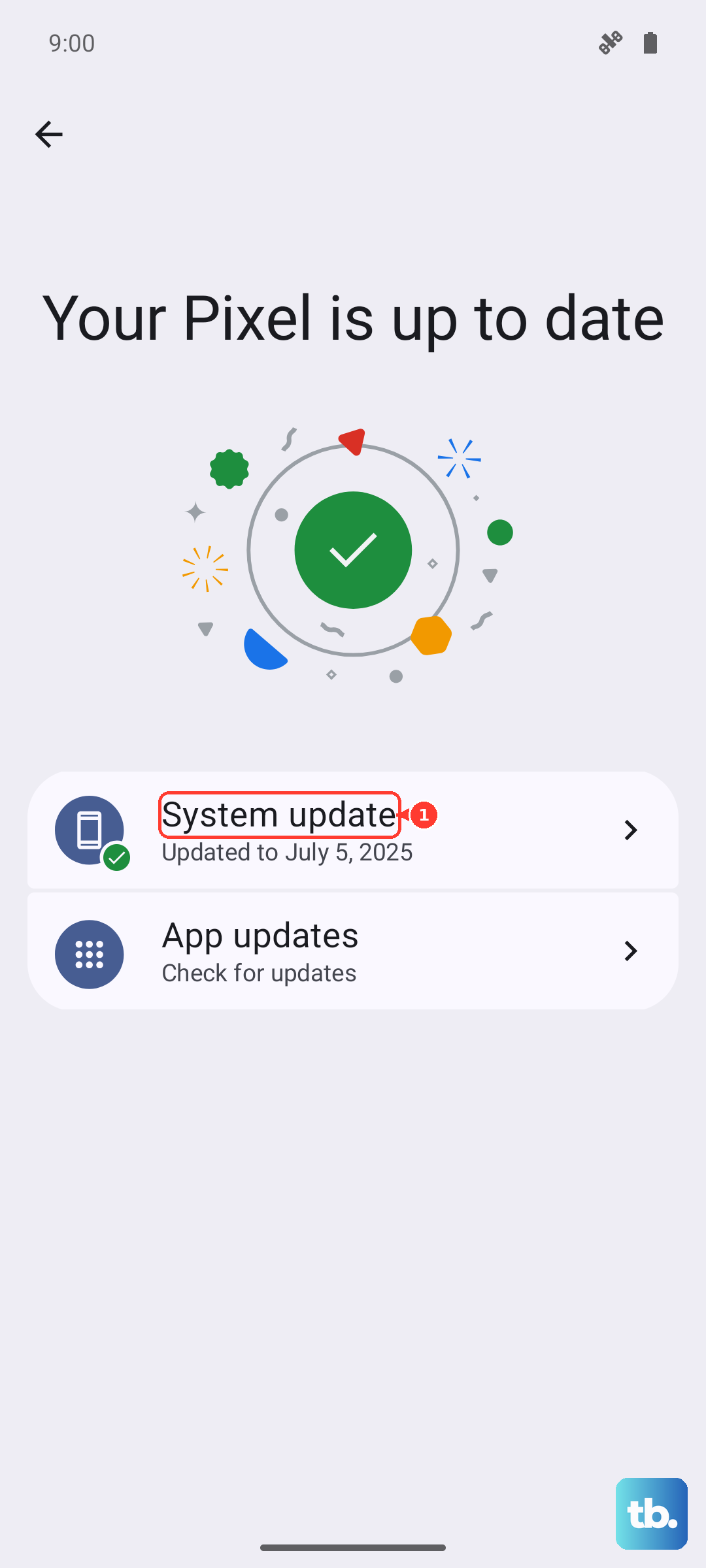
Tap Software update (it may be labeled "System updates" on some models).
Tap Download and install (or "Check for software updates").
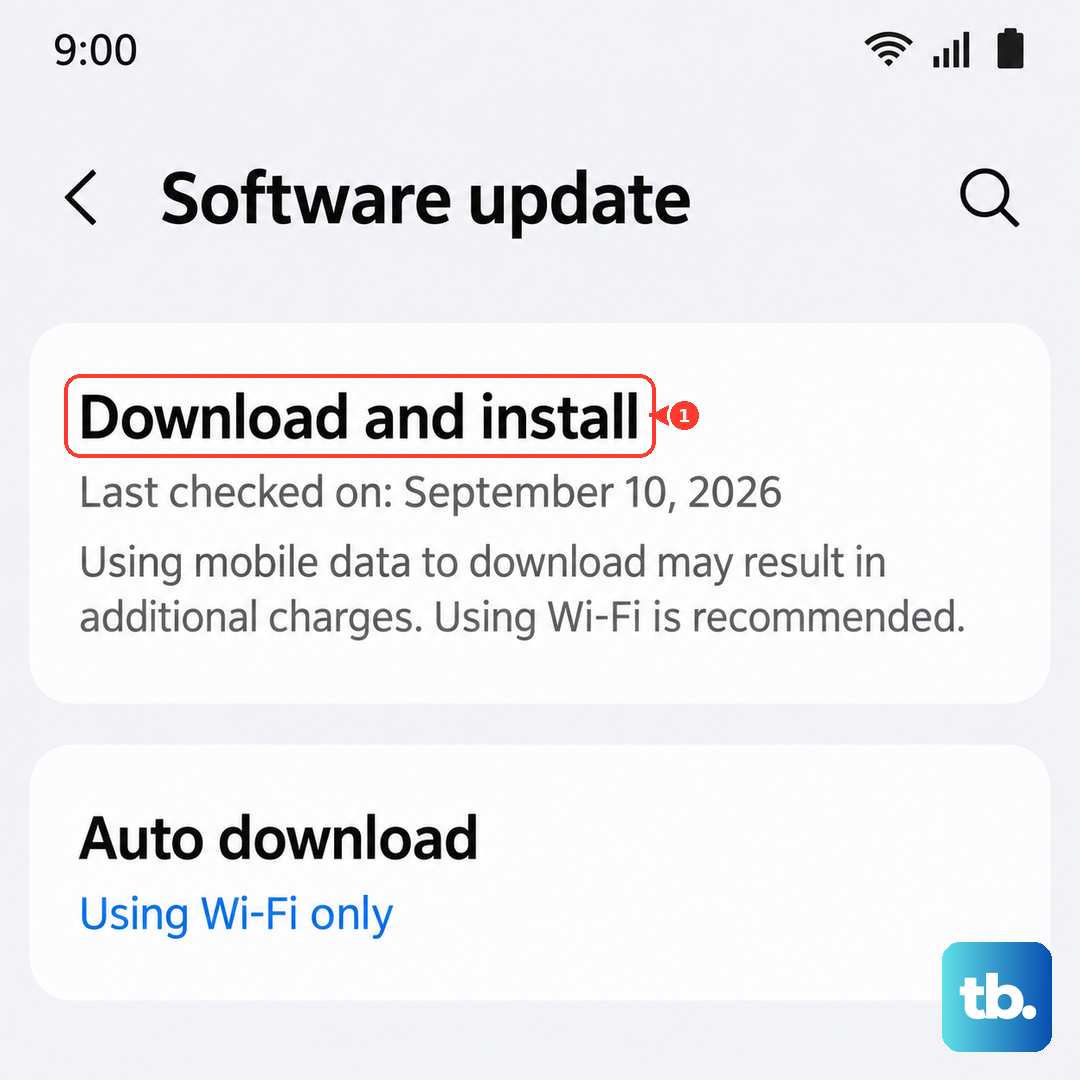
Tap Install now to apply any available update.
Run Samsung's Built-In Flashlight Diagnostic
If you still cannot tell whether the problem is software or a failing LED, let Samsung's own tool decide. The free Samsung Members app includes a hardware diagnostics suite that tests the flashlight directly.
Install or open the Samsung Members app.
Tap Support.
Tap View tests under Diagnostics, then run the flashlight test (or choose Test all).
The diagnostic asks you to turn on the flashlight and marks a failed component in red with an x. A clean pass points to software; a failed test glowing red suggests a possible hardware fault. Running it requires a verified Samsung account.
Back Up, Factory Reset, and Reach Out to Samsung
A factory reset is the last software step, and it erases everything on the phone, so back up anything you want to keep first. Samsung warns: "Please save any information you need prior to the factory reset because your personal information may not be recovered."
Once your data is safely backed up, reset the phone.
- 1.Go to Settings.
- 2.Tap General management.
- 3.Tap Reset.
- 4.Tap Factory data reset.
- 5.Tap Reset, then tap Delete all.
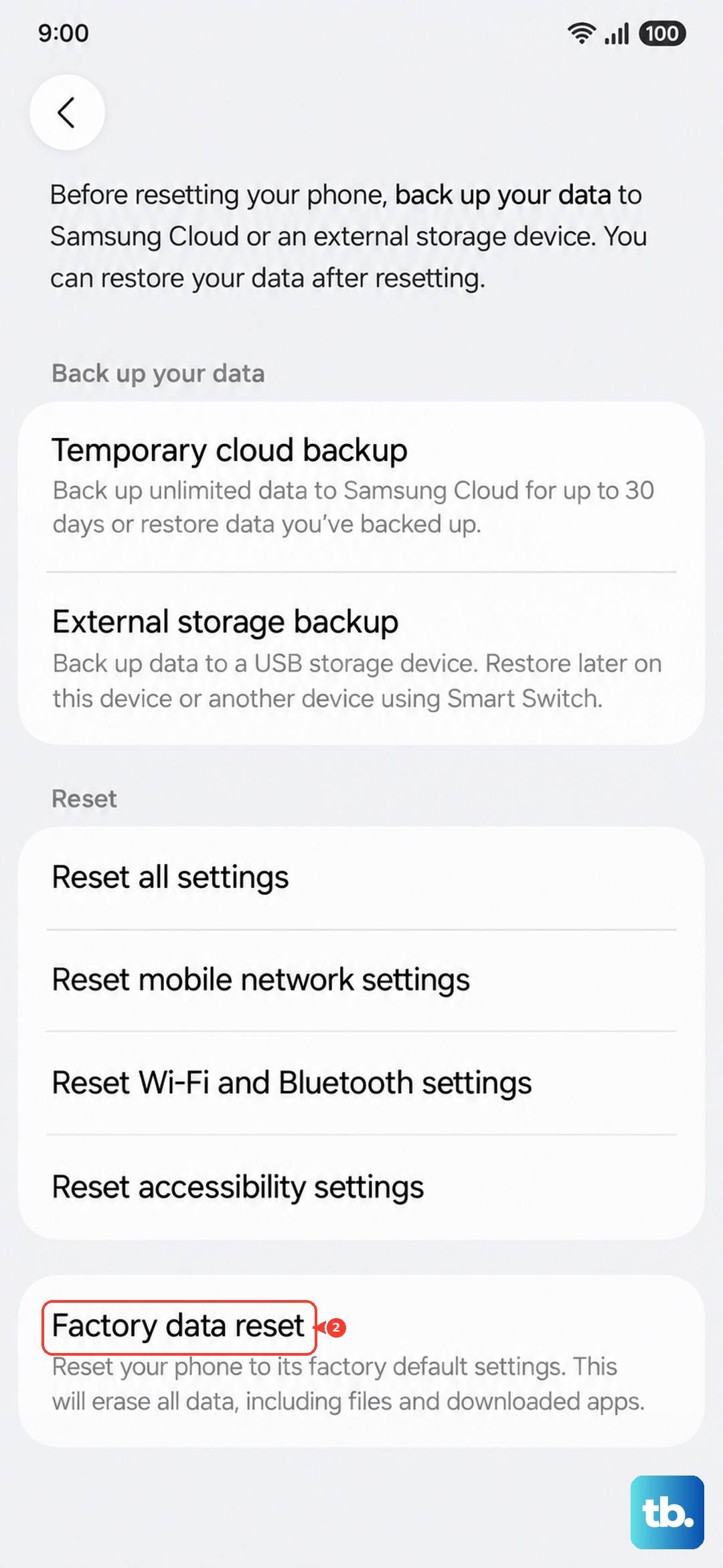
Test the flashlight on the freshly reset phone. If it still fails after a full reset, the flash LED is most likely a genuine hardware fault. At that point, contact Samsung Support or an authorized service center for repair rather than continuing to troubleshoot.
Frequently Asked Questions
Why won't my Galaxy A36 flashlight turn on while I'm using the camera?
The flashlight and the camera flash are the same single rear LED, so the torch cannot turn on while the Camera app or another app is using the flash. Fully close the Camera and any scanner, video, or social app holding the flash, then tap the Flashlight icon again.
The flashlight icon is missing from my Quick settings panel. Where is it?
The button order in Quick settings can be customized, so the Flashlight icon may have been moved or hidden. Swipe down from the top right to open the full panel and swipe across it to find the icon; it can be repositioned back to the front when you edit the panel layout.
Does a force restart erase my data?
No. Pressing and holding the Volume down button and the Side button (or Power button) until the device turns off and back on is a force restart, and it does not erase your data. It simply clears temporary glitches when the screen is frozen or unresponsive.
My flashlight is dim instead of off. How do I make it brighter?
Tap and hold the Flashlight icon in Quick settings, turn the flashlight on by tapping the switch, then drag the slider up to raise the brightness level. The slider stays grayed out until the flashlight is actually on.
How can I tell if it's a software bug or a broken LED?
Run the diagnostic in the Samsung Members app, tap Support, then View tests under Diagnostics, and run the flashlight test or Test all. The tool asks you to turn on the flashlight and marks a failed component in red with an x, which indicates a possible hardware fault rather than a software issue.