
A black screen on your Samsung Galaxy A36 is a stressful sight, but it's often a temporary glitch rather than a permanent failure. The phone could be frozen, the battery could be completely drained, or a recent software update might be causing trouble. Let's get your display working again.
Force Restart Your Galaxy A36
This is almost always the first step you should take. Press and hold the Volume Down button and the Power button simultaneously for about 10 seconds. Keep holding them even if the screen stays dark. You should feel the phone vibrate and see the Samsung logo appear as it reboots. This process works even if the touchscreen is completely frozen.
Charge Your Phone Properly
A totally empty battery will show nothing on the screen. Plug your A36 into a charger using a good USB-C cable. Since the phone doesn't come with a charger in the box, make sure you're using a capable one. For the fastest charge, use a USB-PD compatible charger that supports up to 45W. Leave it plugged in for at least 30 minutes before trying to turn it on again. If you see no charging indicator after that time, try a different cable and wall adapter.
Check the Screen and Physical Buttons
Take a close look at the display under a bright light. Look for any cracks, deep scratches, or unusual dark spots. The Gorilla Glass Victus+ on this model can be more prone to scratches than expected, but a deep crack can affect the display. If the phone vibrates for notifications or you can hear it ring, the device is on but the screen hardware might be damaged. Also, press the power button a few times to make sure it isn't stuck.
Adjust Brightness in a Dark Room
It's possible the screen brightness was accidentally turned all the way down. Take the phone into a completely dark room, like a closet or bathroom with the lights off, and look very closely at the screen. You might be able to see very dim images. If so, you can try using Google Assistant by saying "Hey Google, turn up the brightness," or blindly swipe down twice from the top of the screen to pull down the quick settings panel and drag your finger up.
Boot into Safe Mode
If a recently downloaded app is causing a system crash, booting into Safe Mode can help. First, force restart the phone as described earlier. As soon as you see the Samsung logo appear, release the buttons and immediately press and hold the Volume Down button. Keep holding it until the animation finishes and you see "Safe Mode" in the bottom corner. If the screen works in Safe Mode, you know a third-party app is the culprit. You can then uninstall apps you recently added.
Check for Software Updates
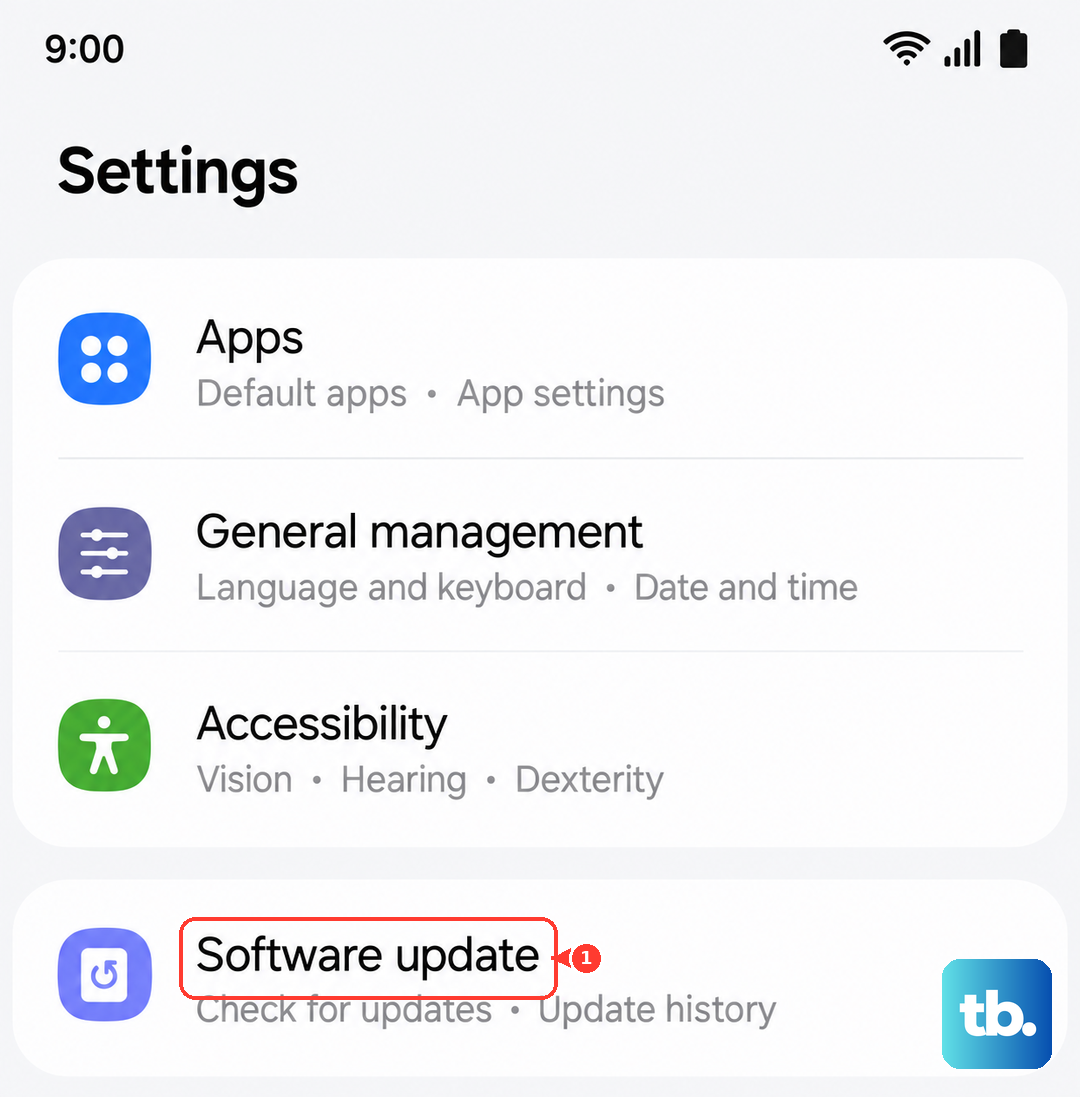
If you can get the screen to work temporarily, immediately check for an update. The initial release of One UI 7 for the A36 had some bugs that could cause instability. Go to Settings > Software update > Download and install. Installing the latest patch can resolve many software-related black screen issues. I'd make this a priority if your phone just updated recently.
Perform a Factory Reset (Last Resort)
Warning: This will erase all data on your phone. Only do this if you have a recent backup. If the screen is still black, you can try a factory reset using the hardware buttons. Turn the phone off completely. Then, press and hold the Volume Up button and the Power button together. When the Samsung logo appears, release only the Power button but keep holding Volume Up to enter the recovery menu. Use the volume buttons to navigate to Wipe data/factory reset and select it with the power button.
Consider Moisture or Physical Damage
If your phone was exposed to high humidity or liquid, it could cause issues. The fingerprint sensor on the A36 is known to be slower in humid conditions, and moisture can affect internal connectors. Power the phone off and leave it in a dry, warm place for a full day. Avoid using a hair dryer, as excessive heat can damage components. If the screen was physically impacted or shows clear signs of damage, the repair will require replacing the display assembly.