
Your Galaxy Tab A9+ builds up temporary files and cached data as you use it. When you start seeing the "storage space running out" warning or apps begin to stutter, clearing this cache is a quick way to free up gigabytes without deleting your personal stuff. I'd start here before you consider uninstalling apps you actually use.
Use Device Care for a Quick Cleanup
Open your Settings and tap on Battery and device care. From there, tap Storage and then hit the blue Clean now button. This tool scans your tablet and automatically clears cached data from all your apps at once, which is the fastest method.
It also shows you a breakdown of what's using space. Tapping on Apps lets you see which ones are the biggest offenders, so you can manage them individually if you need to.
Clear Cache for Specific Apps
If one app, like YouTube or Chrome, is acting particularly slow or bloated, you can target it. Go to Settings > Apps, then select the app from the list. Tap on Storage and you'll see two options: Clear data and Clear cache.
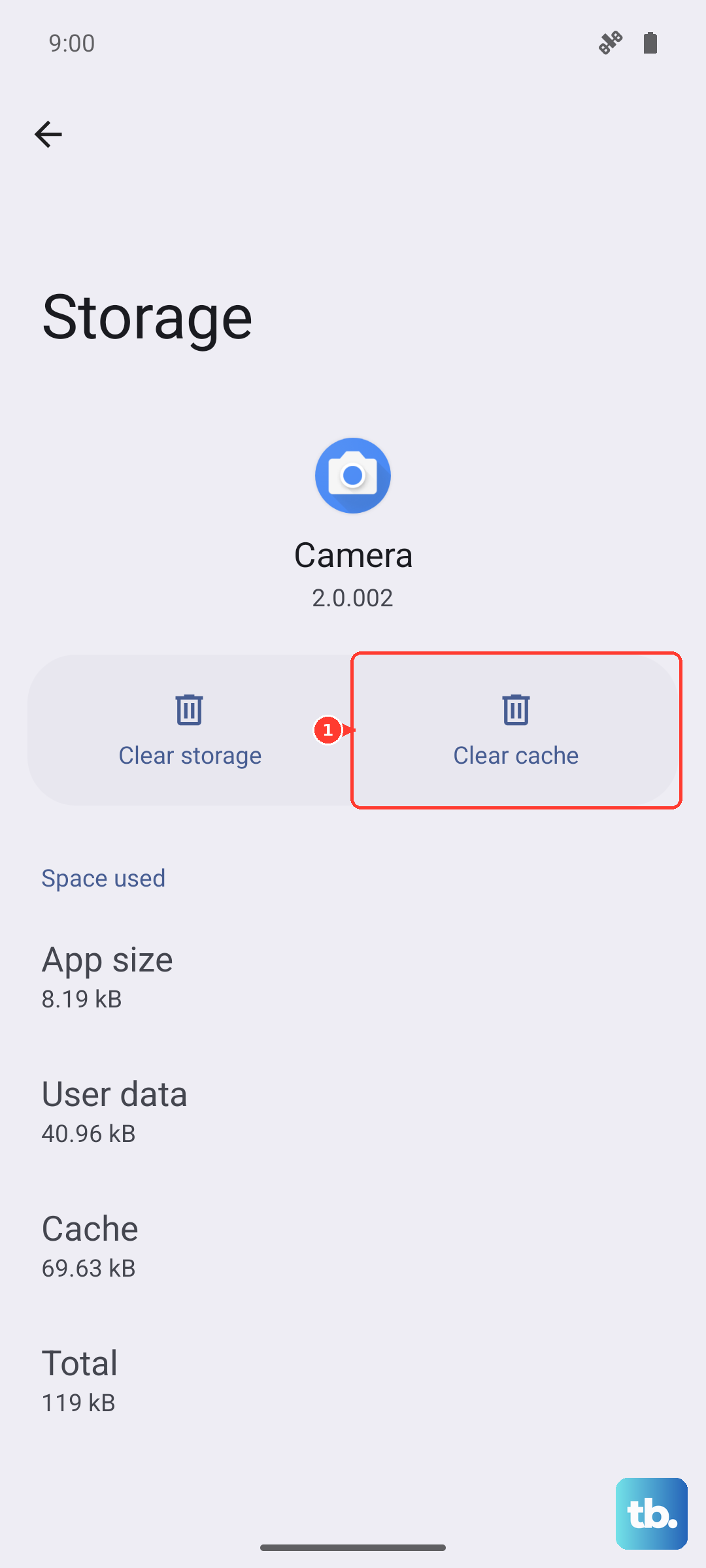
Always choose Clear cache first. This deletes temporary files without wiping your login information or saved progress inside the app. For social media and streaming apps, this can recover a surprising amount of space.
Clear Your Browser Cache
If you use Samsung Internet, open the app and tap the menu (three horizontal lines). Go to Settings > Personal browsing data > Delete browsing data. Make sure Cached images and files is checked, then tap Delete data.
For Google Chrome users, tap the three dots in the top right, go to Settings > Privacy and security > Clear browsing data. Select Cached images and files and choose your time range to clear.
Manage Your Messages and Downloads
The Samsung Messages app can store a lot of media. Open the app, tap the three dots for the menu, and go to Settings > More settings > Delete old messages. You can set it to auto-delete messages older than a certain time.
Also, check your My Files app and look in the Downloads folder. It's easy for PDFs, images, and installation files to pile up in there without you noticing.
Wipe the System Cache Partition
This clears cached data used by the Android system itself, which can help if your tablet is laggy or glitchy after an update. First, turn off your Galaxy Tab A9+ completely.
Press and hold the Volume Up and Power buttons together. When you see the Samsung logo, release both buttons. You'll boot into a blue recovery menu. Use the Volume Down button to highlight Wipe cache partition, then press the Power button to select it. Confirm, then select Reboot system now.
Optimize Background App Usage
Since the Snapdragon 695 chip can struggle if too much is running, managing background apps helps performance and storage. Go to Settings > Apps and select an app. Tap Battery and then Background usage limits.
You can set apps you don't need constant updates from to Restricted. This prevents them from running in the background and creating cache when you're not using them.
Enable Automatic Cleanup in Device Care
To make this easier, you can set your tablet to handle some cleanup automatically. Go back to Settings > Battery and device care > Storage. Tap the three-dot menu in the top right and select Advanced.
Here, you can turn on options like Auto delete for duplicate files or screenshots. Making a habit of tapping Optimize now on the main Device Care screen once a week will keep things running smoothly.
Restart Your Tablet Regularly
A simple restart clears out the device's active memory (RAM) and some temporary system caches. Just press and hold the Power button, then tap Restart. Doing this every few days is a good practice, especially if you use your tablet heavily for reading or streaming.