Slow mobile data or sluggish WiFi can kill the mood when you're trying to stream a video or load a page on your Samsung Galaxy A26 5G. The phone's hardware supports fast 5G connections, but sometimes settings or small glitches get in the way. Here's how to fix it.
Clear Browser Cache and Data
Your browser stores temporary files to speed things up, but those files can get bloated or corrupted over time. Clearing them often restores normal loading speeds.
Open the Samsung Browser app and tap the three-dot menu, then go to Settings > Personal browsing data > Delete browsing data. In Chrome, tap the three-dot menu and tap Clear browsing data. Select "Cached images and files" first, then tap Delete data or Clear data. Select "Cookies and site data" only if you also want to clear cookies.
Turn on Switch to Mobile Data
Your Galaxy A26 5G has an Intelligent Wi-Fi option called Switch to mobile data. When it is on, the phone can move to mobile data whenever the Wi-Fi connection is unstable, then switch back when Wi-Fi is strong.
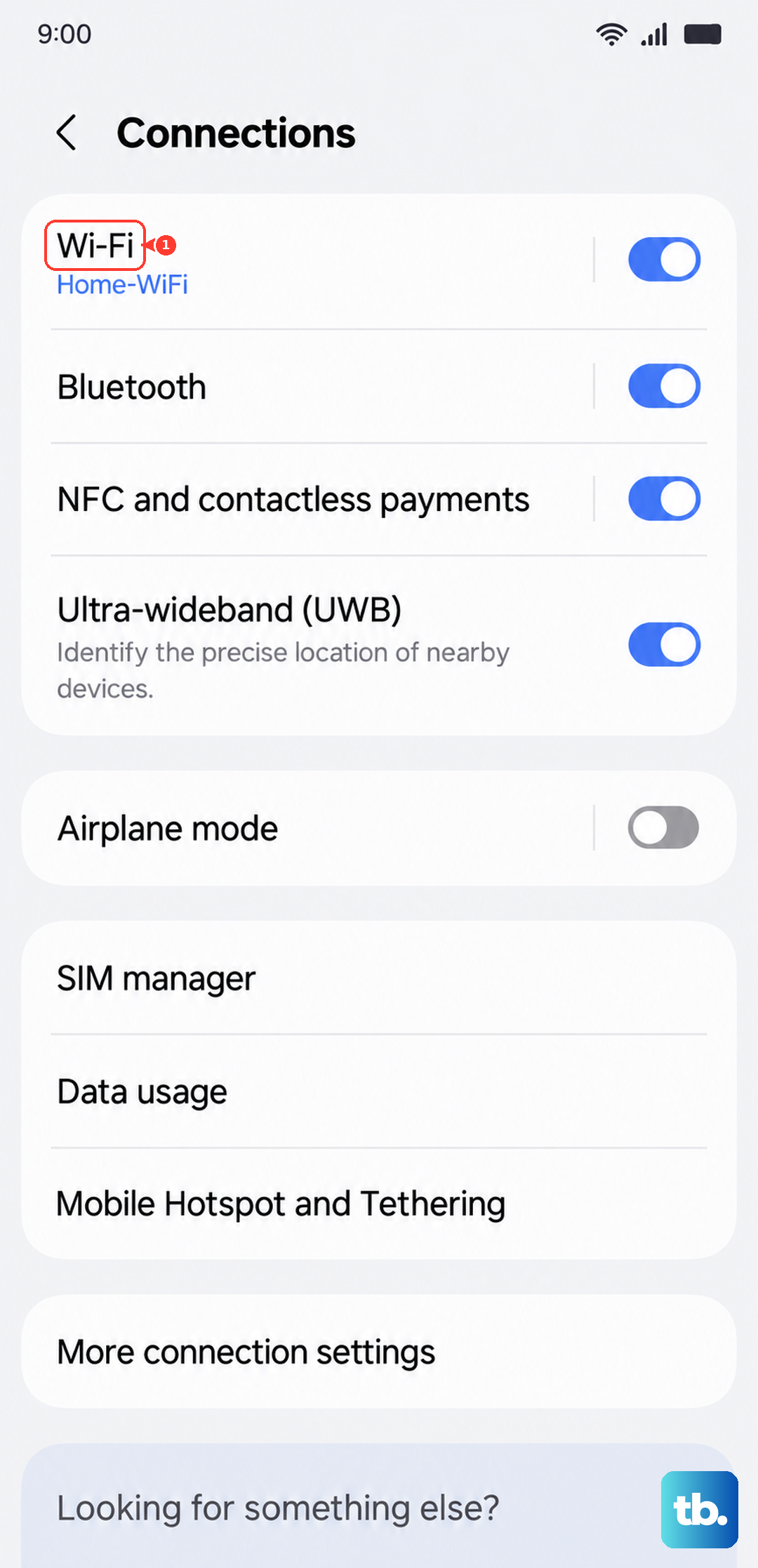
Go to Settings > Connections > Wi-Fi, tap the three-dot menu, and select Intelligent Wi-Fi. Toggle "Switch to mobile data" on. A SIM or eSIM with active service is required, and the option may vary by model or carrier.
Enable Data Saver
Data Saver stops apps from using data in the background without your permission. That means more bandwidth for the stuff you're actually doing right now.
Open Settings > Connections > Data Usage and tap Data Saver. Flip the toggle on. You'll see a list of apps that are allowed to use background data even when Data Saver is active, you can tweak that list if needed. For most people, just turning it on makes a noticeable difference.
Restart or Force Restart the Phone
A simple restart clears out temporary glitches that can slow down your network stack. You'd be surprised how often this fixes things.
If the screen is responsive, press and hold the Side button and Volume Down button at the same time, then tap Restart and confirm. If the phone feels stuck or the screen is frozen, keep holding the same buttons until the phone restarts.
Clear the Cache for the App That Feels Slow
If only one app is slow on Wi-Fi or mobile data, clear that app's cache instead of clearing random system services.
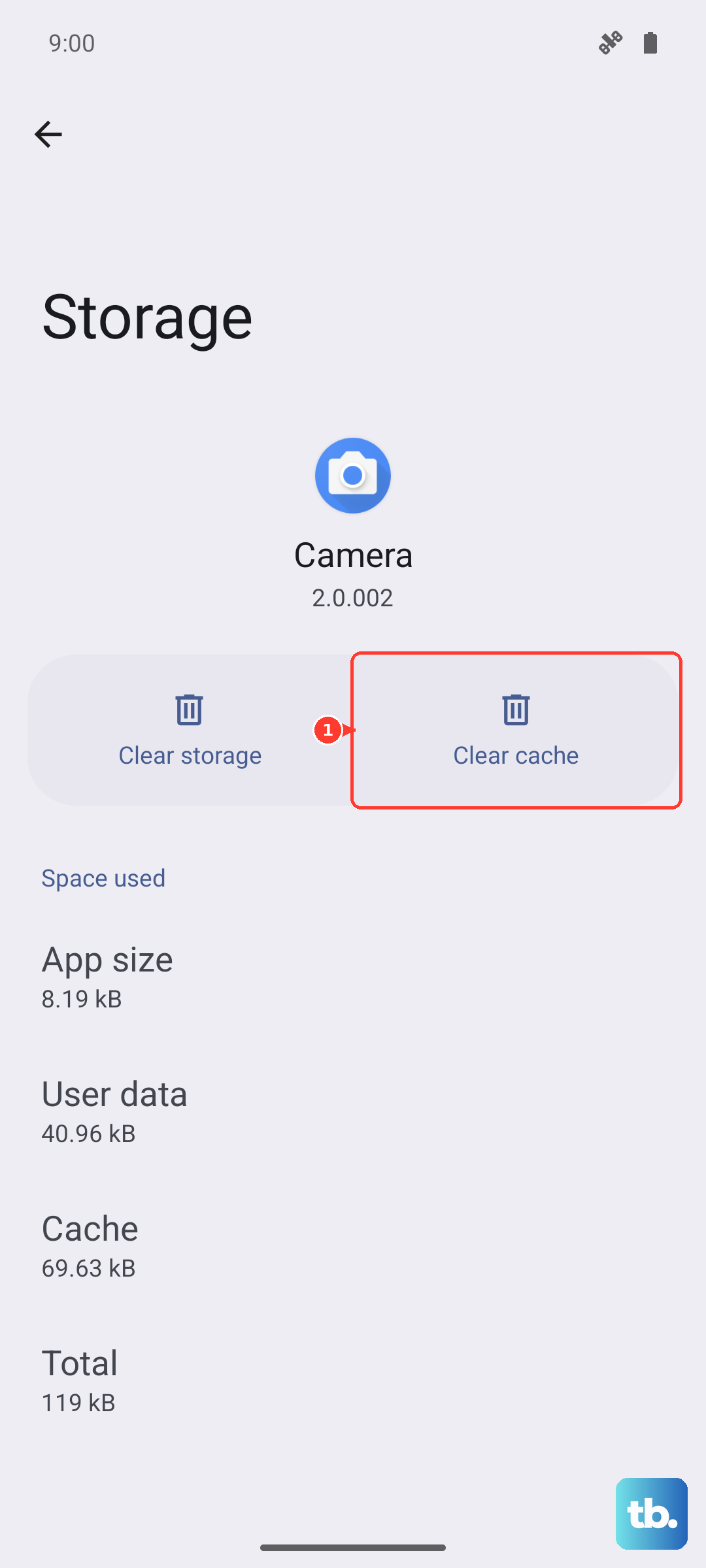
Go to Settings > Apps, select or search for the app that is loading slowly, then tap Storage > Clear cache. Avoid Clear data unless you are ready to reset that app's saved settings and sign-in state.
Check Date and Time Settings
Your phone uses the correct date and time to authenticate with network towers and secure websites. If those are off, internet connections can stall.
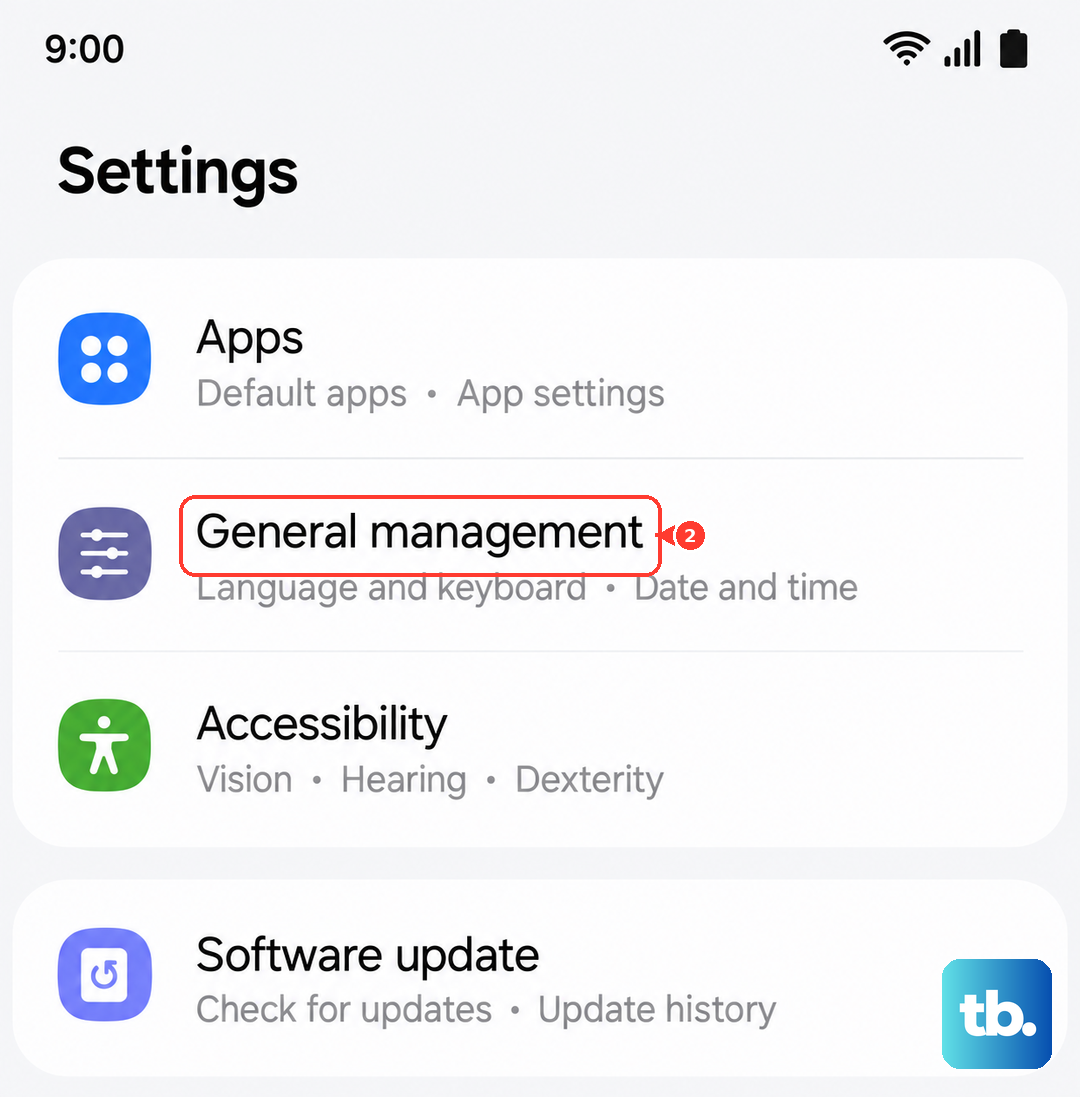
Open Settings > General Management > Date and Time and make sure "Automatic date and time" is turned on. Also check "Automatic time zone." Once enabled, toggle Airplane Mode on and off to refresh the connection.
Disable Any VPN or Ad Blocker
VPNs encrypt your traffic, which can slow things down, especially free ones with limited bandwidth. Ad blockers that route through a local VPN can also interfere.
Go to Settings > Connections > More connection settings > VPN. If you see any active VPN, tap it and disconnect or remove it. Also check for third-party apps like AdGuard that might be using a VPN profile. Turn them off temporarily to see if speed improves.
Reset Network Settings (Last Resort)
If none of the above helps, reset only the connection type that is actually failing. Reset mobile network settings removes saved APN settings you created, while Reset Wi-Fi and Bluetooth settings removes saved Wi-Fi and Bluetooth connections and passwords.
Open Settings > General management > Reset. For slow mobile data, tap Reset mobile network settings, then Reset settings and Reset. For Wi-Fi problems, tap Reset Wi-Fi and Bluetooth settings, then Reset settings. Afterward, reconnect to Wi-Fi, re-pair Bluetooth devices if needed, or re-enter any custom carrier APN settings.
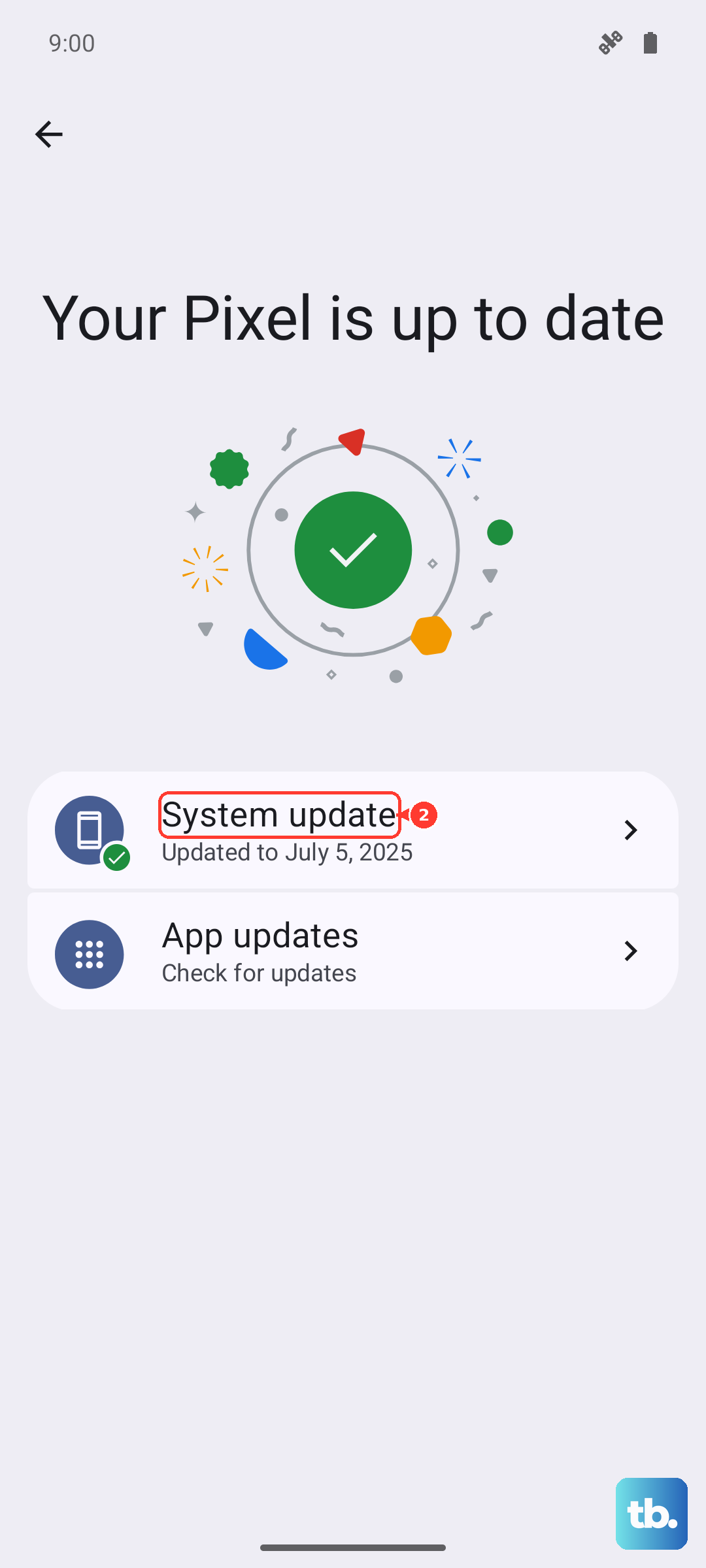
One last thing: make sure your phone is running the latest software update. Open Settings > Software update, then tap Download and install. On some carrier models, this may appear as System updates, Check for system updates, or Check for new updates.