MMS messages are essential for sharing photos, videos, and other media. When they refuse to download on your Samsung Galaxy A26 5G, it’s usually a network setting issue, a temporary glitch, or a misconfigured app. Here’s how to get them working again, starting with the quickest fixes.
Force Restart Your A26 5G
Before diving into settings, give your phone a hard reset. Press and hold the Volume Down and Power buttons together for about 10 15 seconds until the device restarts. This clears temporary system bugs that might be blocking MMS downloads, and it won’t touch your personal data.
Check Mobile Data and Signal
MMS requires an active mobile data connection. Wi‑Fi alone won’t cut it. Swipe down to open the quick settings panel and make sure mobile data is turned on. Also check the signal strength if you’re below two bars, move to a spot with better coverage and try again.
Relaunch the Messaging App
Sometimes the app just needs a fresh start. Close it completely and reopen it. If you’re using Samsung Messages or Google Messages (both work fine on the A26), this can shake loose a stuck download.
Turn On Auto‑Retrieve for MMS
Your phone might not be set to download MMS automatically. Open the Messages app, tap the three‑dot menu, then go to Settings > Multimedia Messages. Toggle on Auto retrieve and, if you travel or roam, also turn on Roaming auto retrieve. This ensures messages download as soon as they arrive.
Enable Advanced Messaging (RCS)
Advanced Messaging, also called Chat features, uses your data connection to send larger files and works alongside traditional MMS. In the Messages app, go to Settings and tap Chat features. Make sure Enable chat features is turned on. Note that RCS only works when both sender and receiver have it enabled, but having it on can improve overall multimedia delivery.
Clear the Messages App Cache
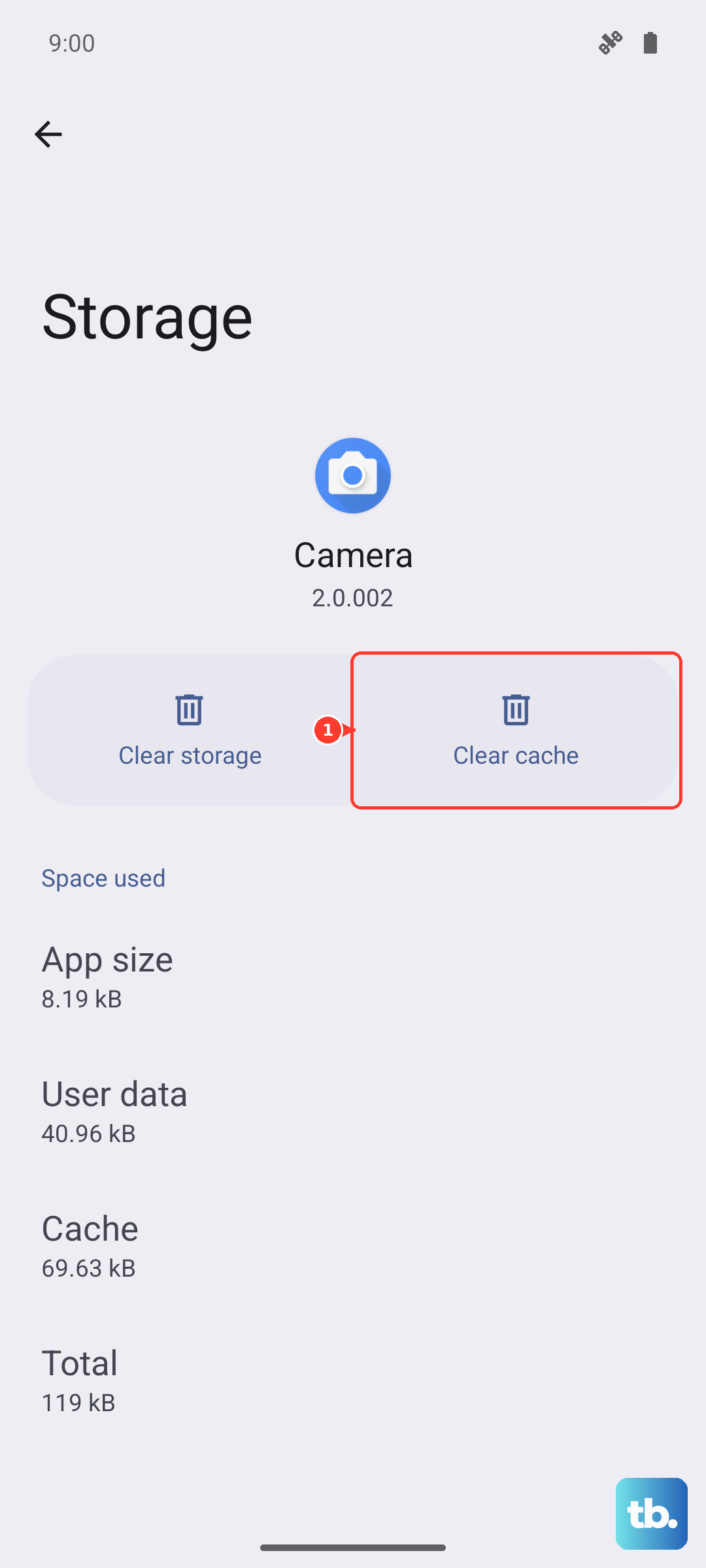
Over time, cached data can interfere with downloads. Go to Settings > Apps > Messages > Storage. Tap Clear cache (not “Clear data” that would delete your conversation history). If you still see the same problem, you can also clear the cache for “MMS Service” if it appears in your app list.
Wipe the System Cache Partition
If app‑level fixes don’t work, a system‑wide cache clear can help. Turn off your Galaxy A26 5G. Then press and hold the Volume Up and Power buttons together until the Samsung logo appears, then release the buttons. You’ll enter recovery mode. Use the volume keys to highlight Wipe cache partition and press the Power button to confirm. This won’t delete any personal files it just clears temporary system files.
Reset Network Settings
This resets all Wi‑Fi, Bluetooth, and mobile data settings without touching your apps or accounts. Go to Settings > General Management > Reset > Reset network settings. Enter your PIN if asked, then tap Reset. After it finishes, you’ll need to reconnect to Wi‑Fi networks and re‑pair Bluetooth devices, but your MMS settings will revert to default often fixing the download issue.
Verify Your APN Settings
Incorrect Access Point Name (APN) settings are a common cause of MMS failures. Go to Settings > Connections > Mobile networks > Access Point Names. Check that the fields for MMSC, MMS proxy, and MMS port match what your carrier provides. You can find the correct APN on your carrier’s support site or by contacting them. If you’re unsure, reset APN to default by tapping the three‑dot menu and choosing Reset to default.
Update the Phone’s Software
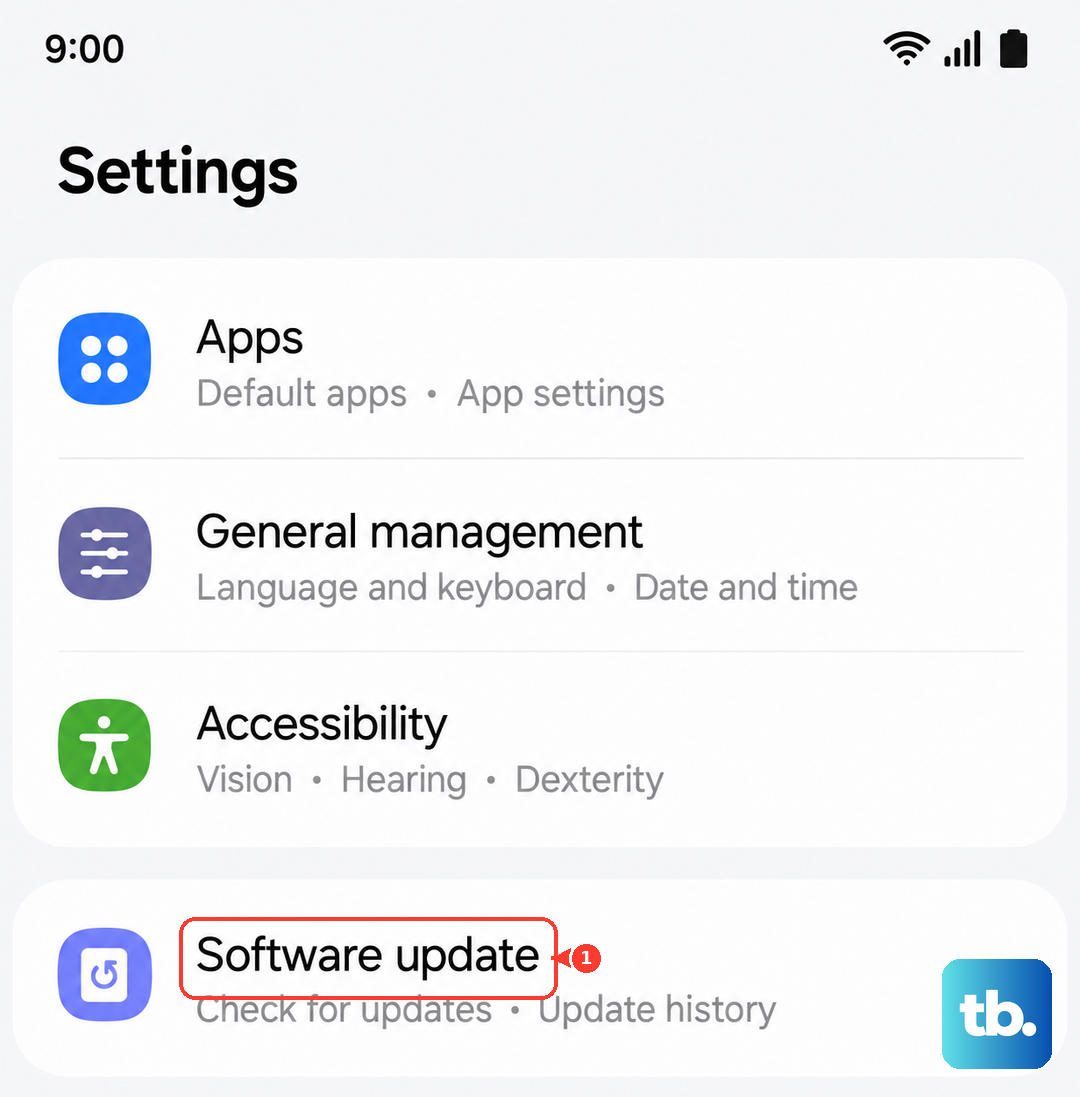
One UI 7 and Android 15 receive regular updates that can fix MMS‑related bugs. Go to Settings > Software update (or About phone > Software update) and tap Download and install. If an update is available, install it and then check whether MMS downloads work.
Factory Reset as a Last Resort
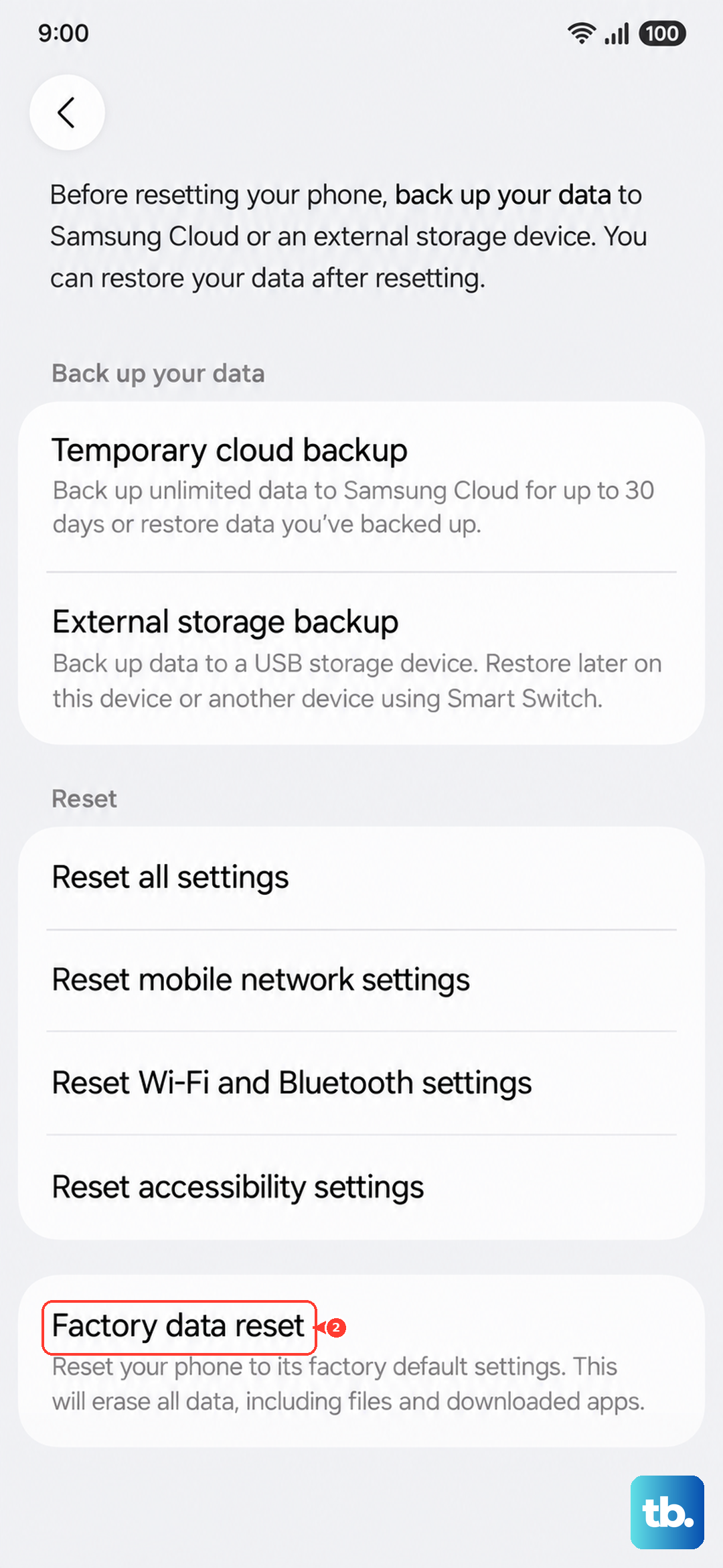
If none of the above works, a factory reset returns your A26 5G to its out‑of‑box state. This erases all data apps, photos, messages so back up anything important first. Go to Settings > General Management > Reset > Factory data reset. After the reset, set up the phone fresh and test MMS before restoring backups. Most MMS issues resolve with the earlier steps, but this gives you a clean slate if something deeper is wrong.