
MMS not going through on your Samsung Galaxy A26 5G usually comes down to a network settings hiccup or an app configuration problem. You hit send on a photo, it hangs on "Sending," and eventually fails. Let's walk through the fixes that specifically apply to the Galaxy A26 5G on One UI 7.
Check Your Mobile Data First
MMS needs an active mobile data connection to work. It doesn't use Wi-Fi, even if you're connected to a network.
Open Settings > Connections and make sure Mobile data is turned on. If your signal is weak, try moving to a different spot or toggling Airplane Mode on and off to force the phone to reconnect to the tower.
Try a Force Restart (Volume Down + Power)
Before you dive into menus, a simple restart can clear up the temporary glitch that's blocking MMS. On the Galaxy A26 5G, the standard restart sometimes isn't enough, so use the force restart method.
Press and hold the Volume Down and Power buttons together for about 10 to 15 seconds. The screen will go black and the Samsung logo will appear. Let go and let the phone boot up fully. I've seen this fix the issue more often than you'd think.
Review the MMS and RCS Settings
The Galaxy A26 5G uses Google Messages as its default texting app. Open the app, tap your profile picture or the three-dot menu, and go to Messages settings.
First, check Multimedia messages and make sure Auto retrieve is enabled. Next, tap RCS chats (Chat features). If RCS is stuck on "Connecting" or "Setting up," it can block MMS from falling back properly. Try toggling "Automatically resend messages as SMS/MMS" on, or turn RCS off completely and turn it back on after a minute.
Clear the Cache in Google Messages
A corrupted cache inside the Messages app can stop MMS from sending. This is a common issue on Samsung phones running One UI 7.
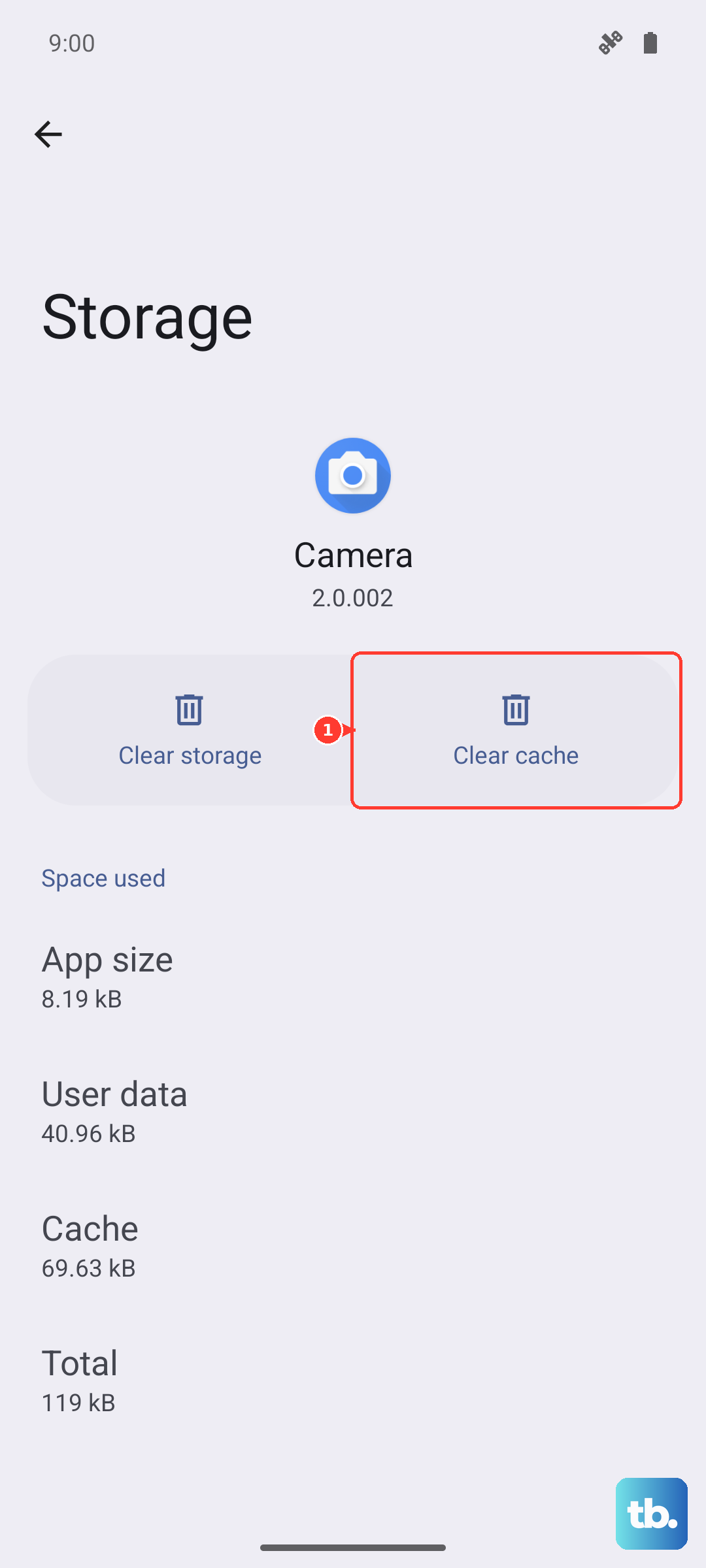
Go to Settings > Apps > Messages > Storage. Tap Clear cache. This won't delete any of your conversations. If that doesn't do the trick, you can tap Clear data, but just know that will wipe your message history and force you to set up the app again.
Look Over Your APN Settings
The Access Point Name (APN) is what tells your Galaxy A26 5G how to connect to your carrier's MMS servers. If it's wrong, MMS will fail silently.
Open Settings > Connections > Mobile networks > Access Point Names. Look for the fields labeled MMSC, MMS proxy, and MMS port. If they're blank or have weird characters, you need to enter the correct values from your carrier's support page. A single typo here can break MMS completely.
Reset the Network Settings
If you've recently switched carriers, traveled internationally, or just been messing around with network settings, a full reset can clear up conflicting configurations.
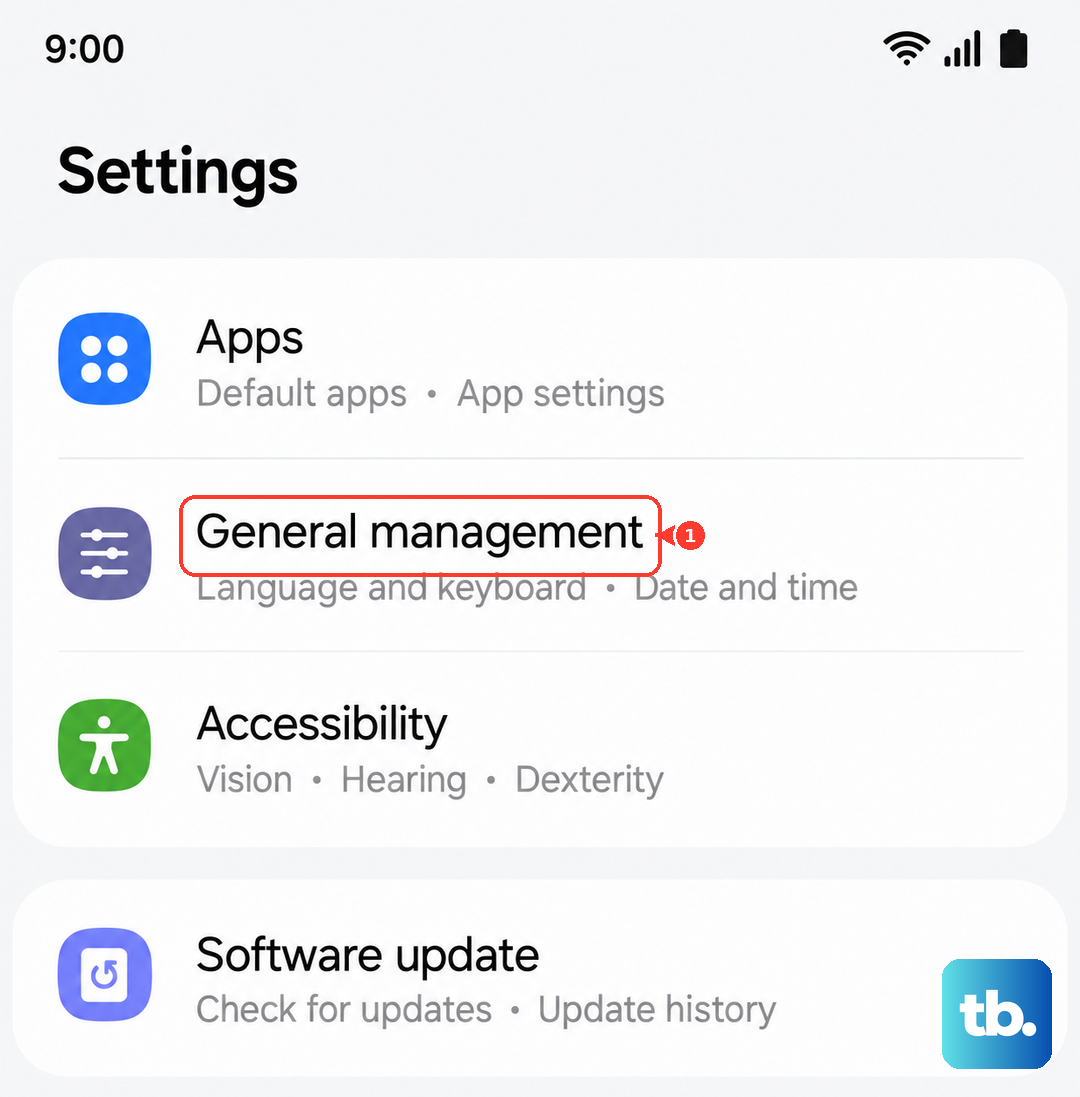
Go to Settings > General management > Reset > Reset network settings. Confirm the action. The phone will restart, and you'll need to reconnect to Wi-Fi and re-pair Bluetooth devices. It's a bit of a hassle, but it resolves a lot of persistent MMS problems.
Free Up Storage Space
Your Galaxy A26 5G needs some free space to download and process incoming MMS attachments. If your storage is nearly full, the system might refuse to handle the data.
Open Settings > Battery and device care > Storage. If you're down to your last few gigabytes, delete old downloads, clear out screenshots, and offload photos you've already backed up. I usually recommend keeping at least 500 MB free for smooth messaging.
Install the Latest Software Update
Samsung regularly pushes updates to the Galaxy A26 5G that fix bugs related to connectivity and the messaging app.
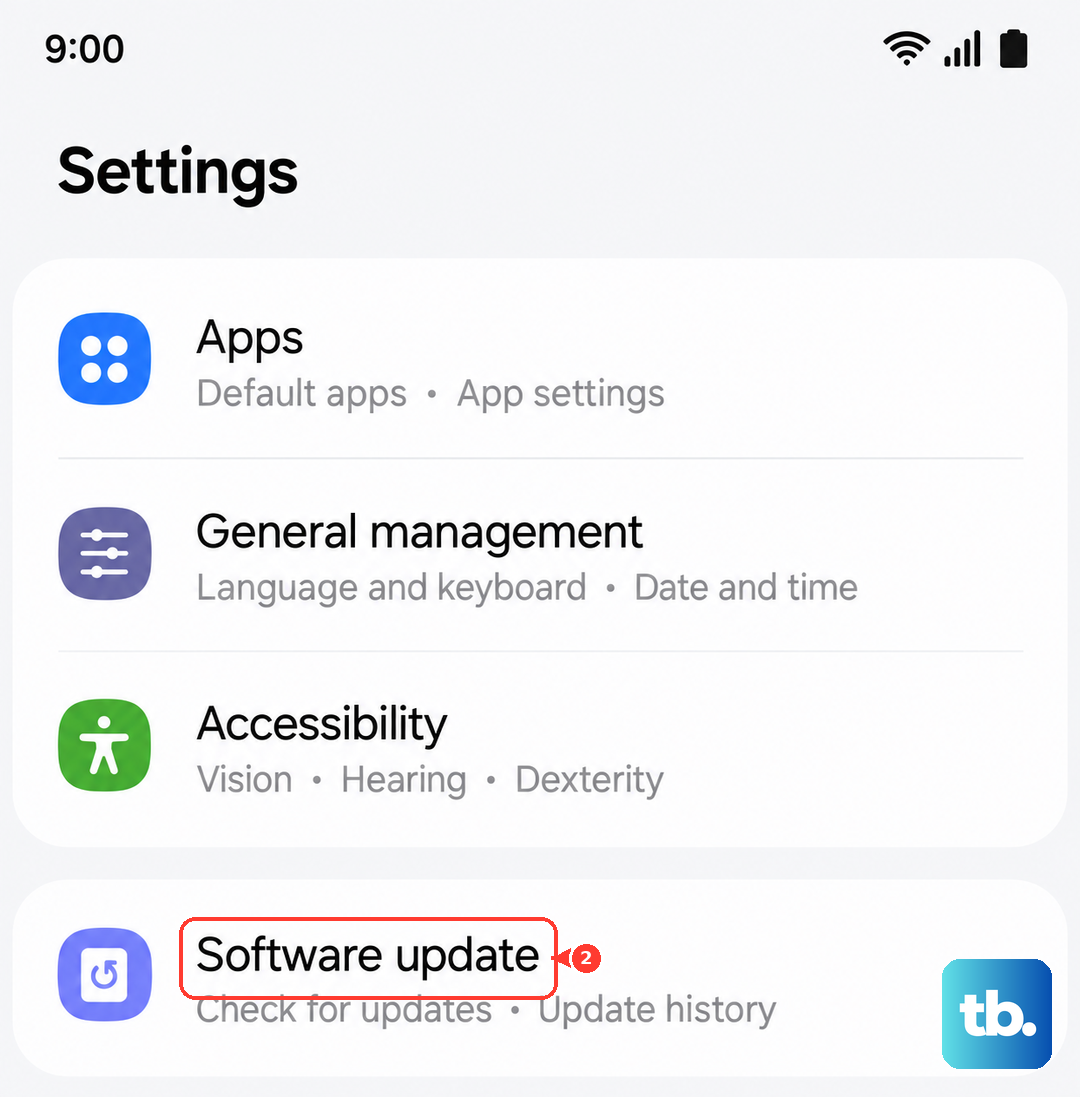
Go to Settings > Software update > Download and install. If there's a pending update, install it and restart the phone. One UI 7 has had a few minor patches that specifically addressed RCS and MMS stability.
Toggle Chat Features (RCS) Off and On
Sometimes the RCS profile gets stuck on the network side. Toggling it off and back on forces your phone to re-register with Google's servers.
In the Google Messages settings, tap RCS chats. Turn off Turn on RCS chats. Wait about 30 seconds, then turn it back on. You'll see "Setting up" for a minute or so. Once it connects, try sending an MMS again.
Force Stop the Default Messaging App
If you've tried everything else, force stopping the app can give it a completely fresh start without resetting all your data.
Go to Settings > Apps > Messages. Tap Force stop. Go back and open the app. If MMS is still hanging, show system apps in the Apps menu, look for IMS Service or MMS Service, and tap Clear cache for that too. It's an extra step, but it clears up the system-level messaging pipeline.