
When your Samsung Galaxy A26 5G microphone stops working, phone calls go silent, voice memos come out garbled, and your phone basically becomes a pocket computer that can't hear you. Before you panic, there are several things you can try that often fix it without a trip to the repair shop.
To separate a hardware fault from a settings problem, try a mic test in your browser. Record a few seconds and play it back, and you will know exactly what you are dealing with.
Start with a quick test. Open the Voice Recorder app and record a short message. Play it back. If your voice sounds muffled or absent, the issue is real. Try another test with a phone call to a friend, or record a video with the Camera app while speaking. That'll tell you if the problem affects all audio or just certain apps.
Restart the Phone First
A simple restart clears out temporary software hiccups that can mute the microphone. On the Samsung Galaxy A26 5G, press and hold the Volume Down and Power buttons simultaneously for about 10 15 seconds until the device restarts. That's the force restart method, and it's worth trying even if the phone seems responsive.
If the microphone starts working after that, you're good. If not, move on.
Check for Physical Blockages
The Galaxy A26 5G has a small microphone hole at the bottom near the USB-C port, and another one on the back near the camera array. Dust, pocket lint, or even a tiny piece of debris can block sound from reaching the mic. Shine a flashlight on both openings and inspect closely.
If you see anything, use a dry, soft-bristled toothbrush or a can of compressed air to gently clean the holes. Don't poke with a needle or paperclip, you can damage the internal membrane. A quick blow with your breath can also work if it's just surface dust.
Remove the Case and Screen Protector
Some third-party cases cover the bottom microphone opening or press against it, muffling audio. Pop the case off and test the microphone again. Same goes for screen protectors, if one extends over the top earpiece (which also houses a microphone), it could interfere.
Temporarily removing both accessories eliminates an easy-to-miss cause.
Disconnect Bluetooth Devices
If your Galaxy A26 5G is connected to Bluetooth headphones, a speaker, or a car kit, it might route calls and audio through that external mic instead of the built-in one. Swipe down from the top of the screen to open the quick settings panel and tap the Bluetooth icon to turn it off entirely. Then test the microphone.
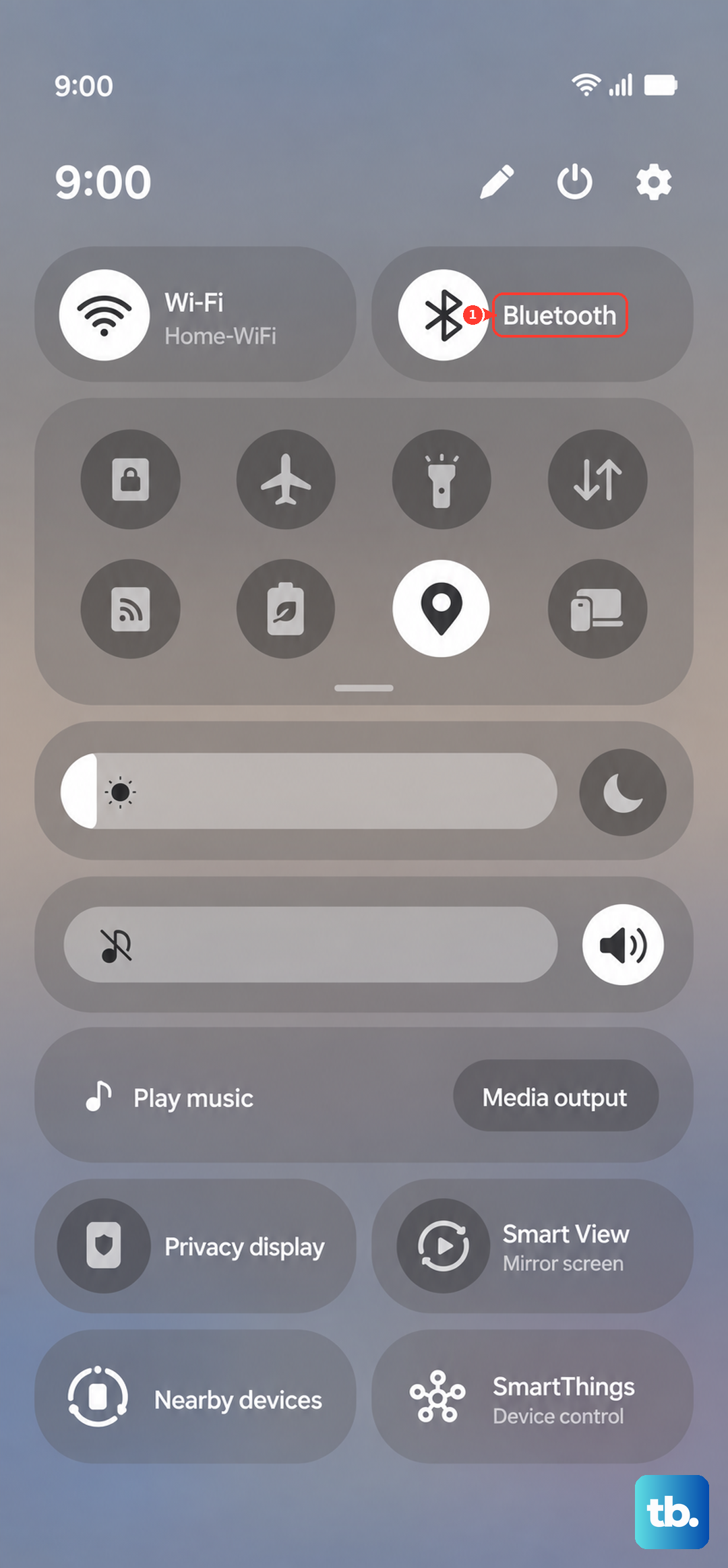
If audio comes back, you know the issue is audio routing, not the hardware.
Check Microphone Permissions for Apps
Android 15 with One UI 7 gives you granular control over which apps can use the microphone. Open Settings > Privacy > Permission manager > Microphone. You'll see a list of apps that have requested mic access.
For any app that's not working (like Phone, Voice Recorder, or WhatsApp), make sure the toggle is set to "Allow only while using the app" or "Ask every time." If it's set to "Deny," the app can't hear you.
Clear the Cache Partition
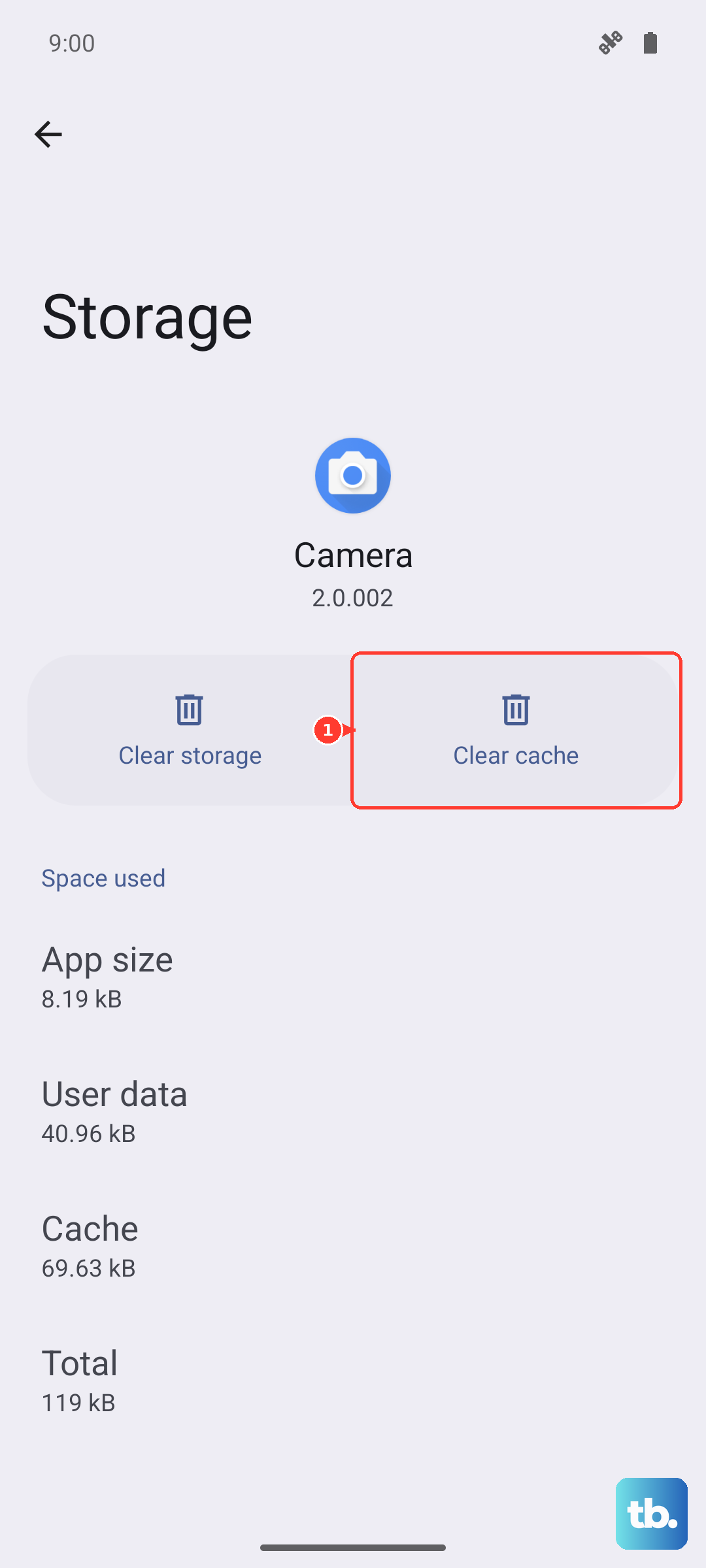
A corrupted system cache can cause glitches in audio processing. This is a device-specific fix that often helps with Samsung phones. To clear the cache partition:
- 1.Turn off the phone completely.
- 2.Press and hold the Volume Up and Power buttons together until the Samsung logo appears, then release only the Power button.
- 3.Keep holding Volume Up until the Android Recovery menu shows up.
- 4.Use the volume buttons to navigate to "Wipe cache partition" and press the Power button to select it.
- 5.Confirm the action, then after it finishes, select "Reboot system now."
This won't delete your personal data or apps. It just flushes temporary system files that might be causing the microphone problem.
Force Close and Reopen Troubled Apps
If the microphone only fails in one app (say, WhatsApp or Google Meet), that app might have frozen or lost its audio channel. Open the recent apps overview by swiping up from the bottom and holding, then swipe the problematic app away to force close it. Relaunch it and test again.
For persistent app-specific issues, go to Settings > Apps, tap the app, then choose "Force stop." That's a bit more thorough than just swiping away from recent apps.
Update Software and Apps
Samsung regularly pushes updates through One UI that fix audio-related bugs. Go to Settings > Software update > Download and install. If an update is available, install it and reboot.
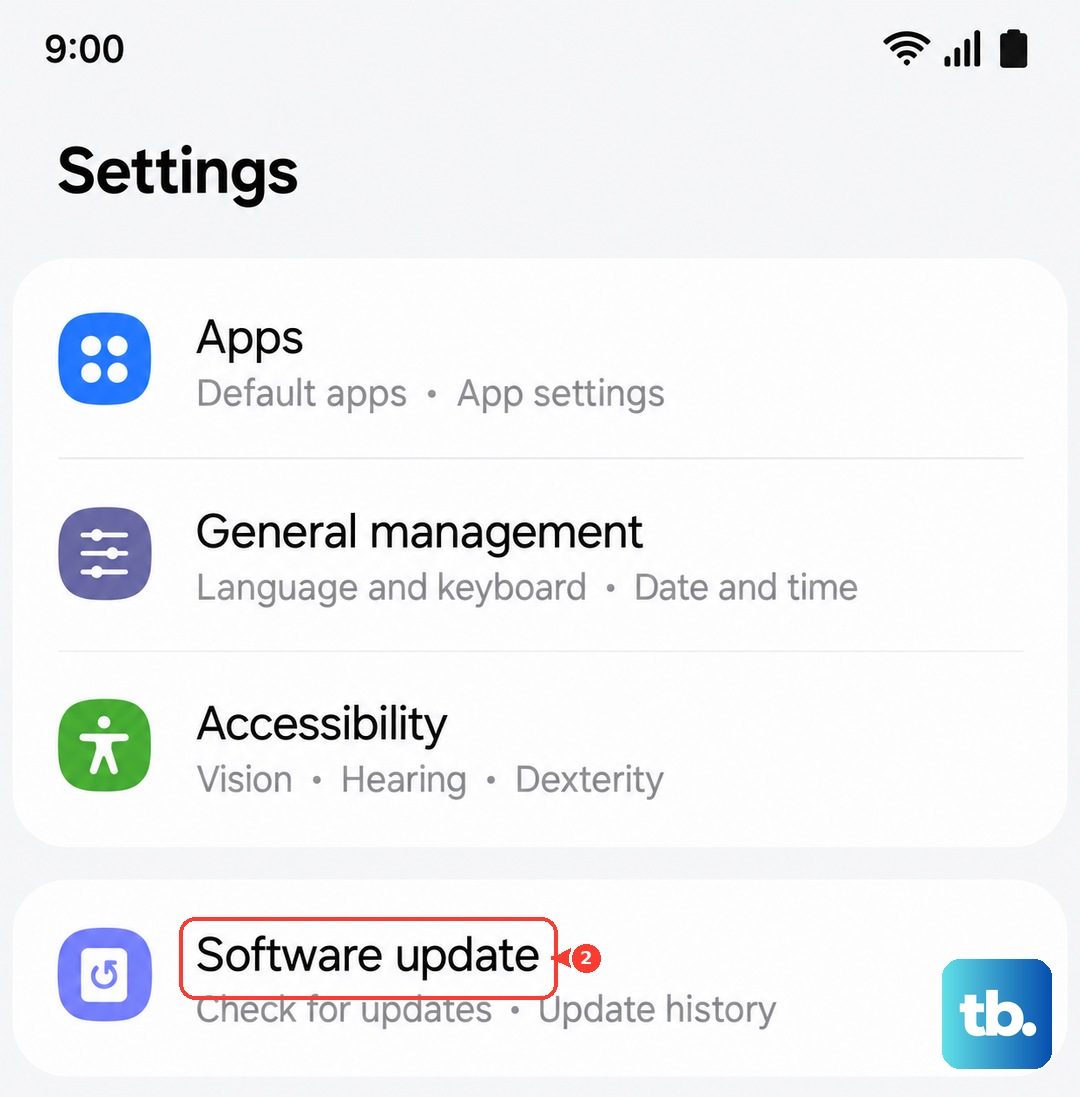
Also check the Galaxy Store and Google Play Store for app updates. An outdated version of the Phone app or Voice Recorder can cause microphone issues that a simple update resolves.
Reset App Preferences
Sometimes app settings get messed up, especially after an update. Resetting app preferences restores default permissions and default apps without deleting your data. Go to Settings > Apps, tap the three dots in the top right corner, and select "Reset app preferences." Confirm the action.
This won't remove any apps or accounts, but it will reset disabled apps, notification preferences, and default app choices. It's a low-risk fix that can clear up microphone conflicts.
Factory Reset (Last Resort)
If you've tried everything above and the microphone still doesn't work, a factory reset can rule out any deep software corruption. Back up your photos, contacts, and important files first, this erases everything on the phone. Go to Settings > General management > Reset > Factory data reset. Follow the on-screen prompts.
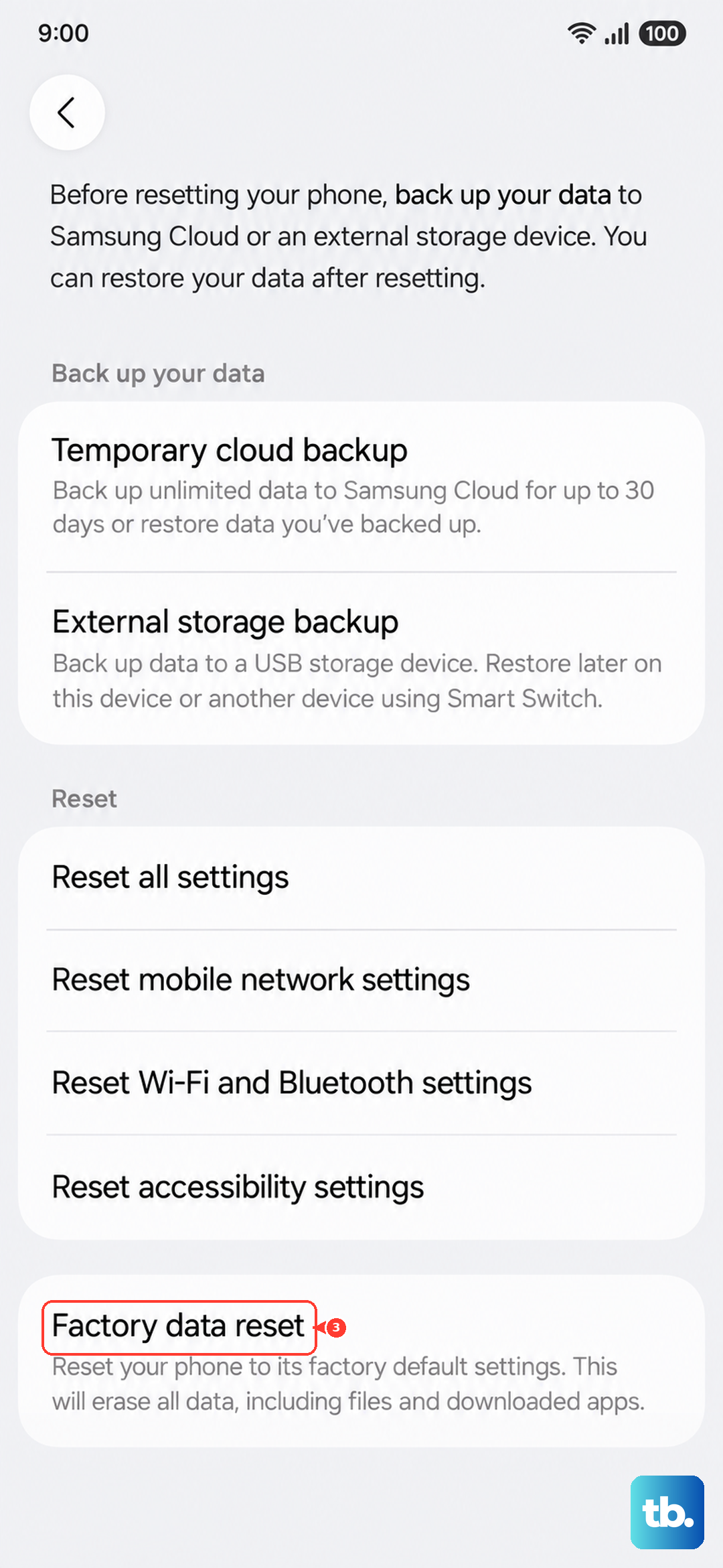
After the reset, set up your phone as new and test the microphone immediately. If it works before you restore any apps, you'll know a rogue app or setting was the culprit. If it still doesn't work, the issue is likely hardware-related, and you'll need to contact Samsung support or visit a repair center.