You found an app you want, tapped Install, and the Google Play Store on your Redmi Note 14 Pro just spins, stays stuck on Pending, or throws an error before anything lands on your phone. It is a frustrating spot to be in, because the store looks fine until the moment you actually try to download something. The good news is that this is almost always a software hiccup rather than a hardware fault, and the global Redmi Note 14 Pro ships with Google Mobile Services and the Play Store built in, so app downloads are fully supported on your model.
The fixes below are ordered from the quickest and safest to the most involved, so work through them in sequence and test a download after each one. Most owners get back to installing apps well before reaching the final steps. Everything here applies to the global Redmi Note 14 Pro running Xiaomi HyperOS based on Android 14.
Rule out a shaky connection and a stuck store first
A weak or dropping signal is one of the most common reasons a Play Store download stalls or sits on Pending, so start there. Make sure your Redmi Note 14 Pro has a strong internet connection: connect to a reliable Wi-Fi network if one is available, or confirm you have a strong mobile data signal, then retry the download. If you are on the edge of Wi-Fi range, moving closer to the router can be enough on its own.
If the connection is solid but the store still will not budge, the Play Store app itself may be in a bad state. Closing it fully and reopening it clears that without affecting anything you have already installed.
Swipe up from the bottom of the screen, hold, then release to view recent apps.
Next, swipe up on Google Play Store to close it.
After that, tap the Play Store icon to reopen it, then try the download again.
Give the whole phone a clean restart
If relaunching the store did not help, a full restart clears the temporary glitches that often block downloads across the system. It takes under a minute and never touches your data, which makes it one of the safest things to try.
Press and hold the Power button until the power-off menu appears.
Then swipe up to power off.
When the phone is off, press the Power button again to turn the phone back on, then retry the download.
Clear the two roadblocks downloads hit most
When a phone is low on storage, app downloads and installations can stop entirely. Open Settings > Storage and confirm the device has free space; the official Google Play guidance is to keep at least 1 GB free, or apps may stop downloading. If you are running low, delete unused apps, old photos, or large files, then try the download once more.
An incorrect clock is a quieter but surprisingly frequent cause, because a wrong date or time breaks the secure connection your phone needs to reach Google's servers. Go to Settings > System > Date & time and turn on "Set time automatically" (and automatic time zone). With the clock syncing correctly, a previously stuck download will often go through.
Reset the Play Store without losing your apps
If the store is still misbehaving, clearing its cache and data resets it to a clean state without removing the apps you already have installed. It can reset some Play Store settings, such as parental controls, so you may need to set those again afterward.
Find and hold the Play Store app.
From there, tap App info.
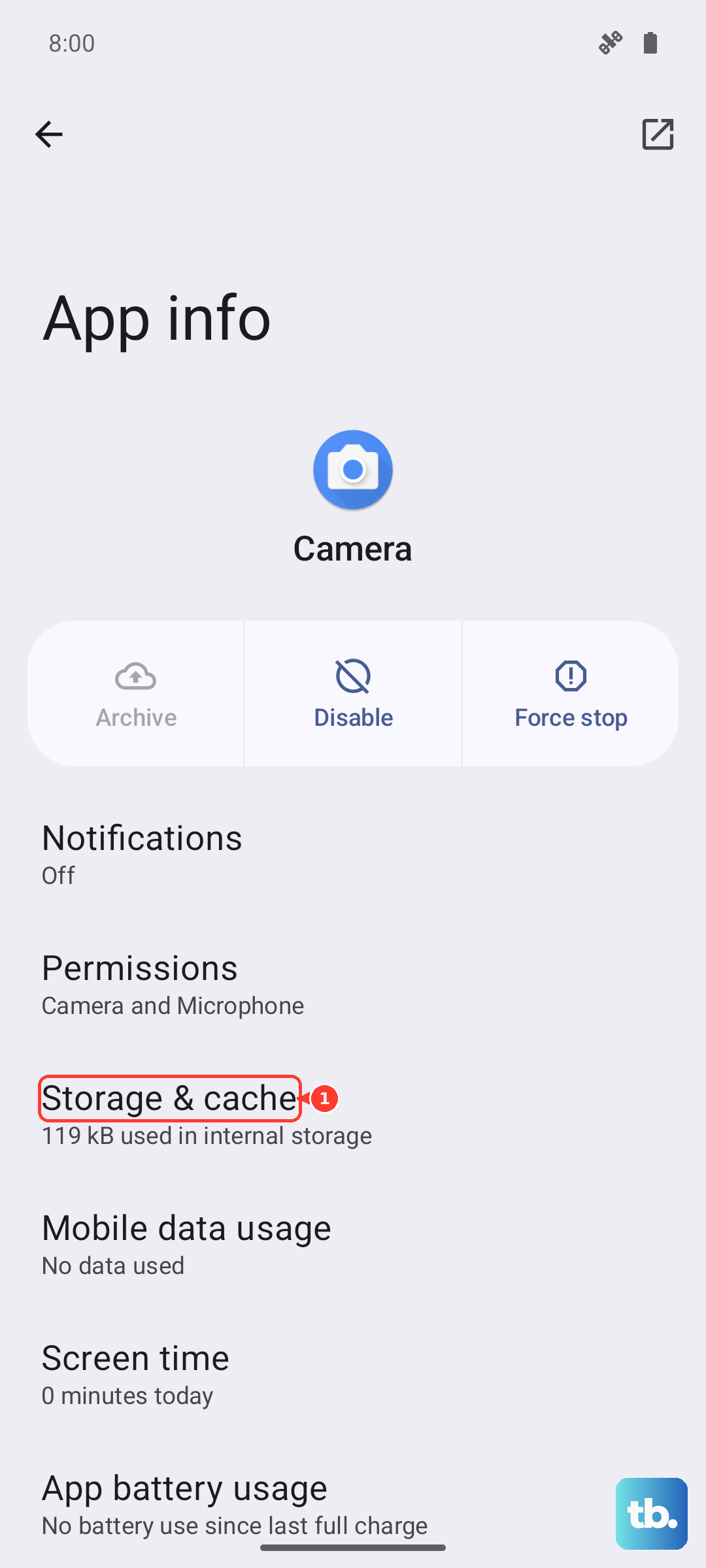
Tap Storage & cache.
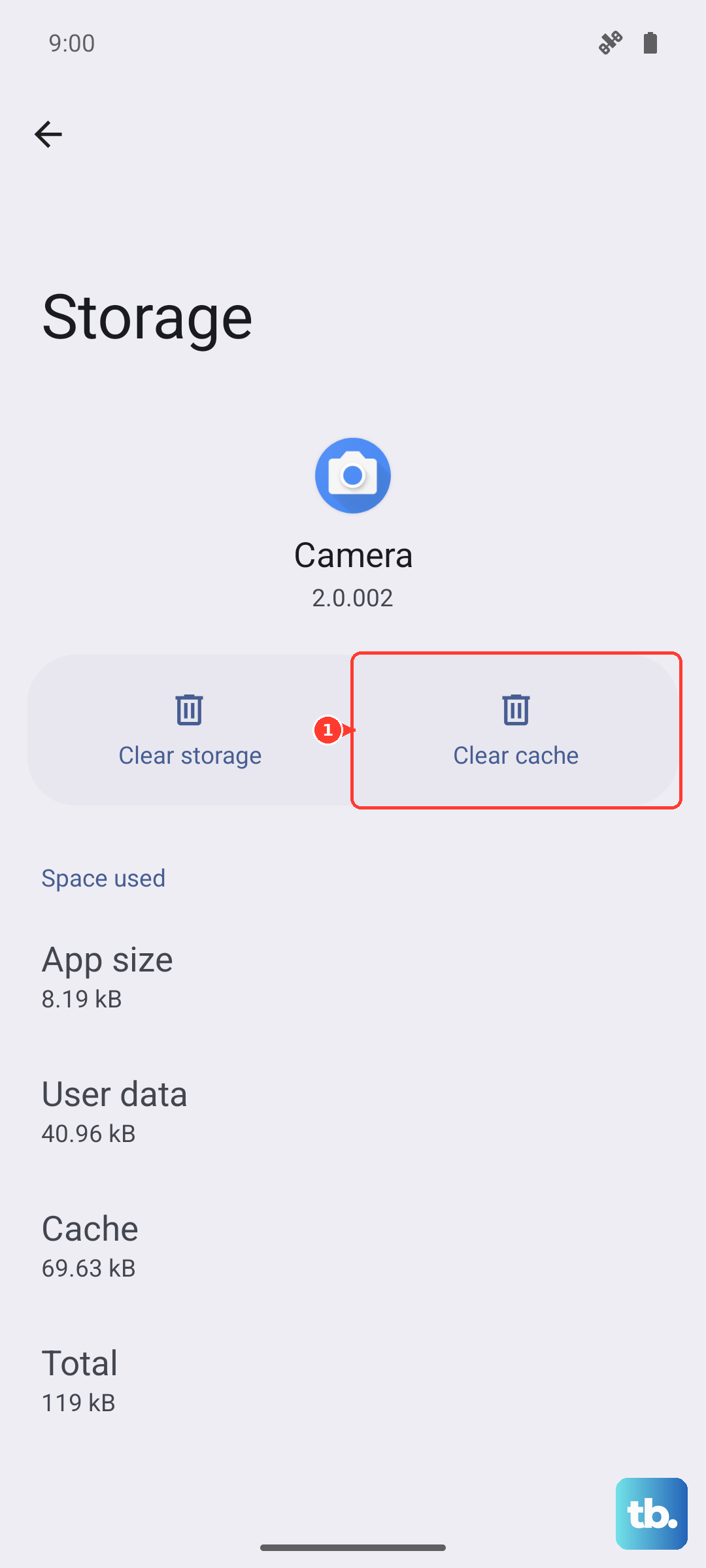
Now tap Clear cache, then tap Clear storage.
Reopen the Play Store and try the download again.
Bring HyperOS and the store up to date
Outdated software on either side can break app installs, so it is worth confirming both the system and the store are current. Keep the phone on Wi-Fi with enough battery before you start a system update.
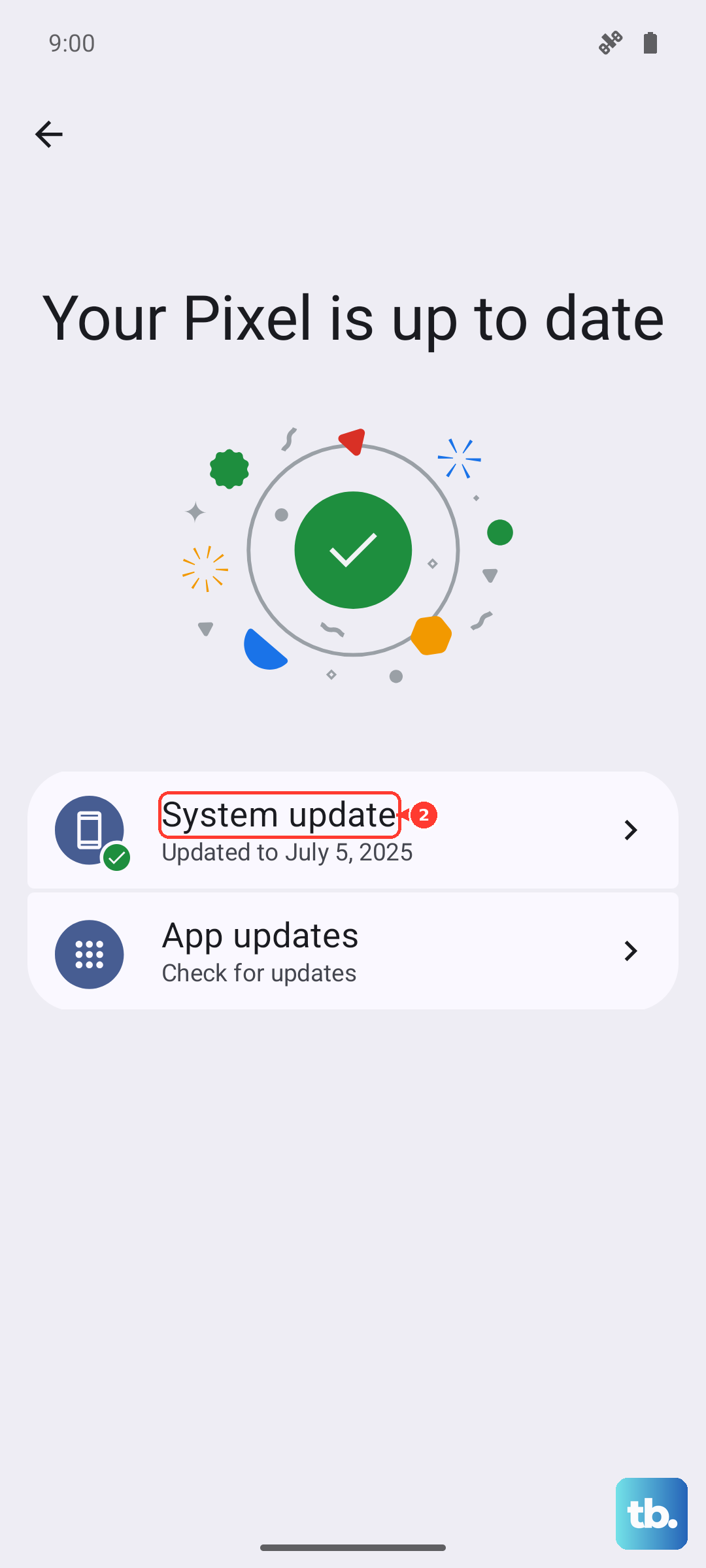
For the system update, go to Settings > About phone > Xiaomi HyperOS > Check for updates and install anything that is available. To update the store itself, open Play Store > profile picture > Settings > About > Update Play Store. Once both are up to date, try installing your app again.
Dig into Google Play services when downloads still stall
This is an advanced step, so only use it after the steps above have failed. Google Play services sits underneath the store and handles much of the install process, and clearing its cache and data can resolve stubborn download problems. Be aware that the official guidance does not recommend this unless other troubleshooting has not worked, because it may reset some settings.
Go to Settings > Apps > See all apps.
Then tap Google Play services.
Open Storage & cache.
Tap Clear cache, then tap Clear storage.
Return to the Play Store and retry the download.
Force a restart if the screen has frozen
Sometimes the store will not respond at all and the screen itself is frozen, which a normal restart cannot reach. In that case, a force restart is the way to recover. According to Xiaomi's official guidance, press and hold the Power button for more than 10 seconds until the phone restarts. Once it boots back up, open the Play Store and try your download again.
The last-resort reset and where to get help
If nothing above has worked, a factory reset is the final option, and it should genuinely be a last resort. This erases everything on the device, so back up your data first. You should also know that after the reset you must enter the password of the Xiaomi account that was previously bound to the phone, so make sure you have those credentials before you begin.
- 1.Back up your photos, files, and anything else you want to keep.
- 2.Go to Settings > About phone > Factory reset > Erase all data.
- 3.Confirm the reset and enter your previously bound Xiaomi account password when prompted.
If a different problem prevents the system from responding well enough to use the menu, the wipe can also be done from recovery. With the phone powered off, press and hold the Volume Up button and Power button to enter the Main Menu, then press Volume Down to select Wipe Data and press the Power button to confirm. This is data-erasing as well, so the same backup warning applies.
Should the trouble continue even after a reset, it is time to reach out for help. Contact Xiaomi support for device-level issues, or Google Play support if the problem appears tied to your store account rather than the phone itself.
Frequently Asked Questions
Why does my Redmi Note 14 Pro say downloads are Pending?
A Pending status is most often caused by a weak or dropping internet connection, so confirm you are on a strong Wi-Fi network or have a solid mobile data signal and retry. If the connection is fine, low storage or an incorrect clock can also hold downloads, so check Settings > Storage for at least 1 GB free and make sure "Set time automatically" is on under Settings > System > Date & time.
Does the global Redmi Note 14 Pro come with the Google Play Store?
Yes. Xiaomi's official support confirms the global Redmi Note 14 Pro comes with pre-installed Google services, which includes the Google Play Store, so the phone genuinely supports downloading apps out of the box.
Will clearing the Play Store cache delete my installed apps?
No. Clearing the Play Store cache and data resets the store without removing the apps you have already installed. It may reset some store settings such as parental controls, so you might need to set those again afterward.
How do I force restart the Redmi Note 14 Pro if it is frozen?
Press and hold the Power button for more than 10 seconds until the phone restarts. This is Xiaomi's official force-restart method for when the screen is frozen and a normal restart will not work.
Is clearing Google Play services data safe?
It is safe but should only be used after the other steps, because the official guidance does not recommend it unless other troubleshooting has failed and it may reset some settings. If you do try it, go to Settings > Apps > See all apps > Google Play services > Storage & cache, then tap Clear cache followed by Clear storage.