
That "No SIM card detected" message on your Redmi Note 13 Pro is a real roadblock. You can't make calls, send texts, or use mobile data. I've found this is usually a simple hardware or software hiccup you can sort out in a few minutes.
Let's jump straight into the most common fix that often gets things working again right away.
Restart Your Phone and Toggle Airplane Mode
First, give your phone a fresh start. Press and hold the power button, then tap "Restart" on the screen. If the phone is completely frozen, you'll need to force restart it by holding the power button for 15 seconds or more until it vibrates and reboots.
After it comes back on, swipe down from the top of the screen to open the Quick Settings panel. Tap the airplane icon to turn on Airplane Mode, wait about ten seconds, and then tap it again to turn it off. This forces the phone's modem to reconnect to the network from scratch.
Check the SIM Card and Tray Physically
If a quick restart didn't help, the next step is a physical check. Power the phone off completely first. Use the SIM ejector tool that came in the box to pop out the tray.
Take a close look at the SIM card's gold contacts. Look for any scratches, dirt, or a dull, corroded appearance. Gently wipe the contacts with a clean, dry microfiber cloth. Blow any dust out of the SIM tray slot on the phone itself.
When reinserting, make absolutely sure the SIM card is seated correctly in the tray. The cut corner should match the tray's shape. If you have another phone handy, test your SIM card in it. If it also fails, the SIM itself is likely the problem and you'll need a replacement from your carrier.
Verify SIM is Enabled in MIUI Settings
Sometimes in MIUI, a SIM can get accidentally disabled in the software. Open the Settings app and go to SIM cards & mobile networks.
Tap on the SIM slot number you're using. Make sure the switch at the top for that SIM card is toggled on. You can also check the Preferred network type here and set it to "5G/4G/3G/2G auto" for the broadest compatibility.
Update Your Phone's Software
Software bugs in Android 14 or MIUI 15 can sometimes cause the modem to glitch. It's worth checking for a system update that might contain a fix. Go to Settings > About phone > MIUI version.
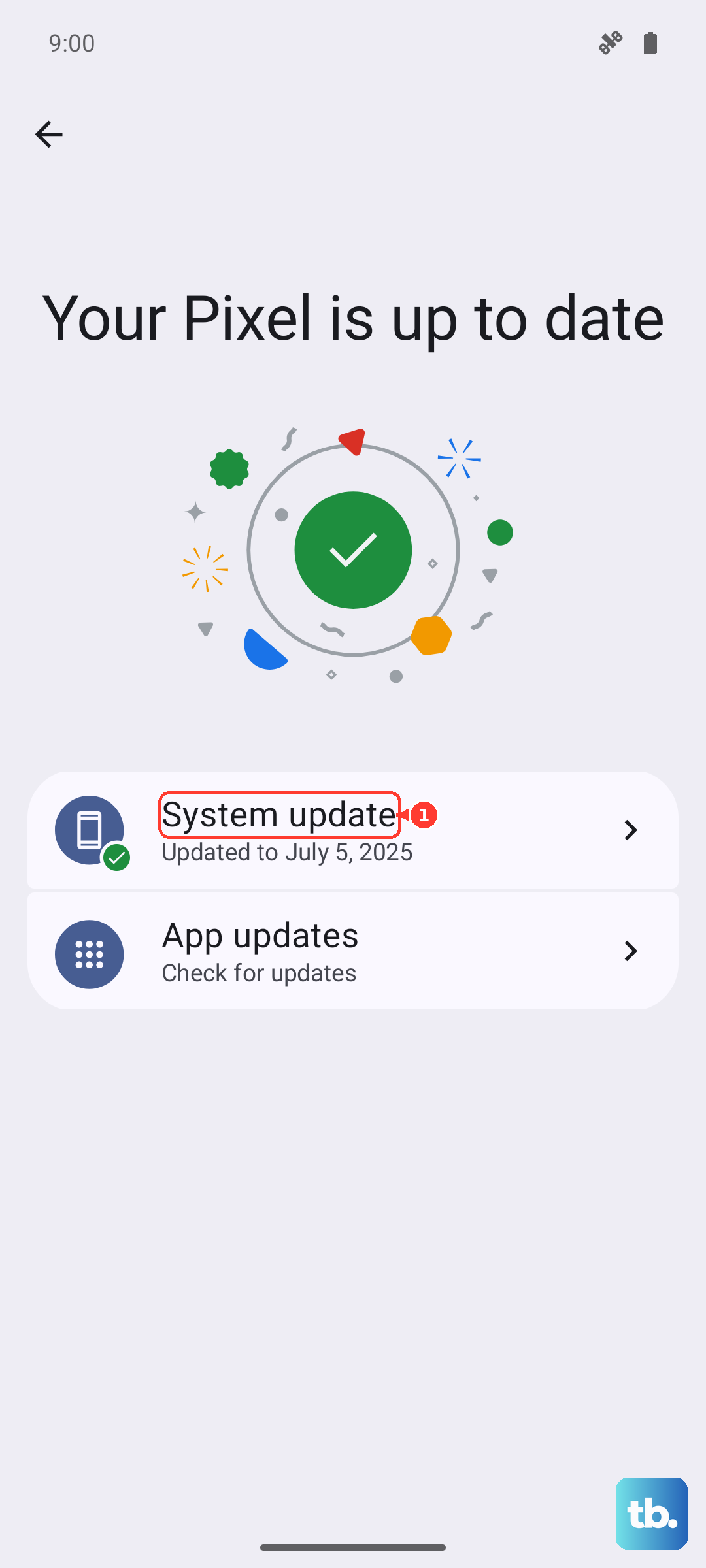
Tap "Check for updates" and install any that are available. After the update finishes, do a normal restart of your phone to let all the new software settle in properly.
Reset Your Network Settings
This is a very effective step for network-related issues. It clears out all your saved Wi-Fi passwords, Bluetooth pairings, and mobile network configurations without touching your personal photos, apps, or messages.
To do this, go to Settings > Additional settings > Backup & reset. Tap on Reset network settings. Confirm the reset and let the phone complete the process. You'll then need to reconnect to Wi-Fi and re-pair Bluetooth devices, but it often resolves stubborn SIM detection problems.
Clear Cache for SIM System Apps
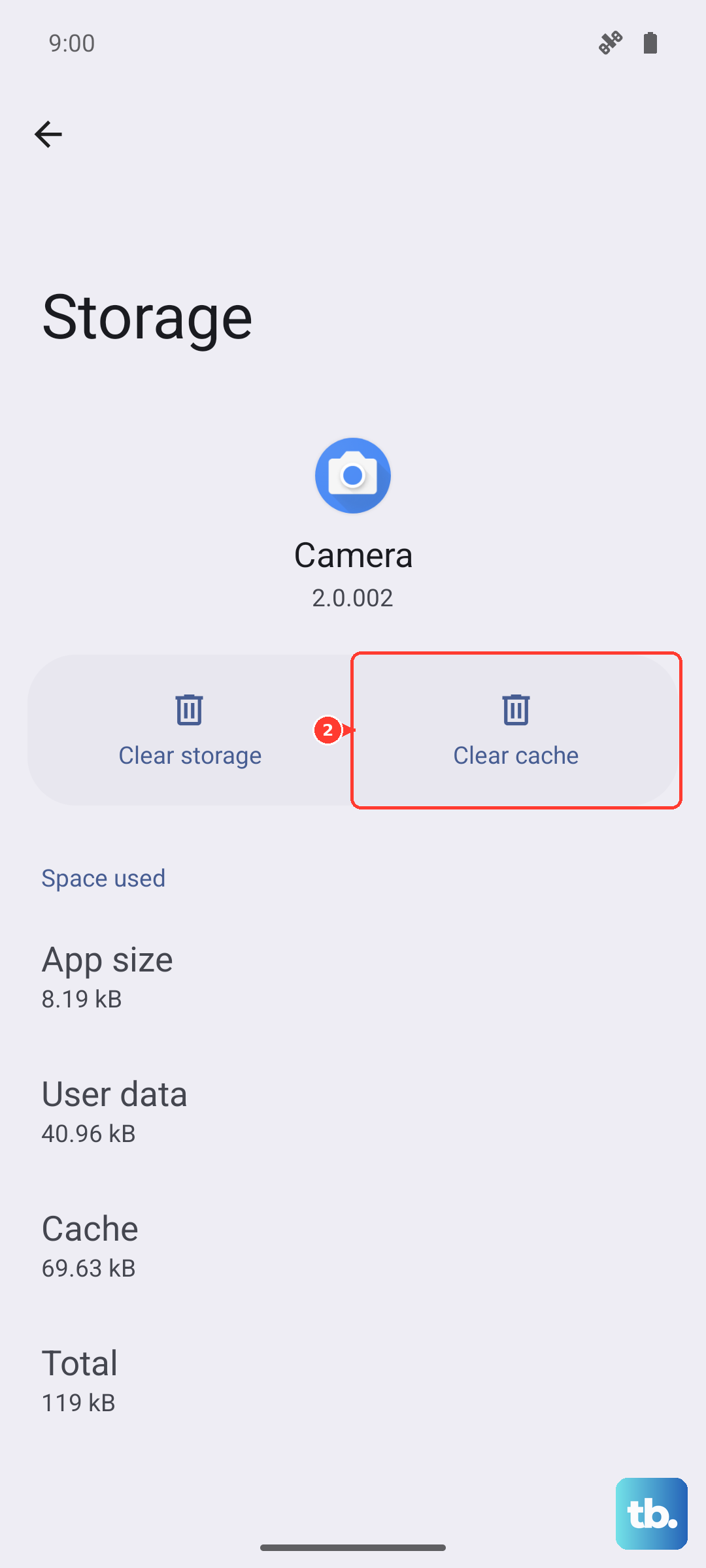
Cached data for the system services that manage the SIM can become corrupted. You can clear this cache easily. Go to Settings > Apps > Manage apps.
Tap the three-dot menu in the top right and select "Show all apps". In the search bar, type "SIM". Find apps like "SIM Toolkit" or "SIM App Manager". Tap on one, go to its Storage usage, and tap "Clear cache". Do this for any SIM-related system apps you find.
Manually Select Your Network Operator
If automatic network selection is failing, you can try choosing your carrier manually. Head back to Settings > SIM cards & mobile networks.
Tap on your SIM, then look for an option like "Network operators" or "Choose network". Tap "Search now" and wait for the list to populate. Select your specific carrier from the list (e.g., "T-Mobile" instead of just "T-Mobile 4G"). This can sometimes establish a more stable connection.
Reset Your APN Settings
Incorrect Access Point Name (APN) settings will stop mobile data from working and can sometimes confuse the SIM status. To reset them, go to Settings > SIM cards & mobile networks > tap your SIM > Access Point Names.
Tap the three dots in the corner and select "Reset to default". Your phone should automatically load the standard APN for your carrier. If you had to use custom APN settings before, you may need to re-enter them after this reset.
Check for eSIM Compatibility and Activation
The Redmi Note 13 Pro supports eSIM on some regional variants. If your physical SIM is problematic, switching to an eSIM could be a permanent solution. You'll need to contact your mobile carrier to see if they support eSIM activation for your account and phone model.
If they do, they can guide you through the digital activation process, which usually involves scanning a QR code provided by them in your phone's eSIM settings menu.
Consider a Factory Reset
If you've tried everything else and the SIM works in other phones, a deeper software issue might be the cause. A factory reset will wipe your phone back to its original state, so this is a last resort.
Make a complete backup of your data first. Then, go to Settings > Additional settings > Backup & reset > Erase all data (factory reset). Follow the prompts to reset the phone. After setup, test the SIM card before restoring your apps and data.