You tap a message field on your Redmi Note 13 Pro, the cursor blinks, and nothing slides up from the bottom of the screen. Or the keyboard appears, then freezes, lags, or closes the second you start typing. It is one of the more frustrating glitches to hit a phone, because without a working keyboard you cannot search, reply, or even type your way out of the problem.
The good news is that this is almost always a software hiccup, not a broken phone, and you can usually fix it yourself in a few minutes. The steps below are ordered from the quickest and safest to the most involved, so start at the top and stop as soon as your typing comes back.
What a non-responsive keyboard means on this touchscreen phone
The Redmi Note 13 Pro is a full touchscreen smartphone with no built-in physical keyboard, so "keyboard not working" refers to the on-screen software keyboard, also called the input method. On global Android and Xiaomi HyperOS units this is typically Gboard, the Google Keyboard, though you can confirm and switch the active keyboard in your settings.
That means the fixes target the keyboard app and your input settings rather than any hardware keys. They apply whether you have the 4G model with the MediaTek Helio G99 Ultra or the Redmi Note 13 Pro 5G with the Qualcomm Snapdragon 7s Gen 2, and whether your phone shipped on MIUI 14 (based on Android 13) or now runs Xiaomi HyperOS (Android 14).
Restart the phone before anything else
A simple restart clears the background processes that can freeze a keyboard, and the standard first move is to restart the device for a fresh start. Power the phone off and on normally first, then test a text field.
If the screen is frozen and completely unresponsive, do a forced restart by pressing and holding the Power button for more than 10 seconds until the phone restarts. If it still will not restart normally, press and hold the Volume up button and the Power button together for more than 10 seconds during startup to reach Recovery Mode.
Get the latest version of your keyboard
An outdated keyboard app can crash or stop responding, and a pending update often carries the exact bug fix you need. Open Google Play and update Gboard, or whichever keyboard you use, before you try any of the deeper steps.
This is the lowest-effort fix after a restart, so it is worth doing even if the keyboard only feels sluggish rather than fully dead.
Force stop and clear the keyboard cache
If the keyboard is hung rather than missing, killing its process and clearing its temporary files usually clears the jam. Force stopping the app loads a fresh instance, while clearing the cache removes corrupted files without disturbing your settings.
- 1.Open Settings > Apps > Gboard > "Force stop", then tap a text field to bring the keyboard back up.
- 2.If it still misbehaves, open Settings > Apps > Gboard > "Storage and cache" and tap "Clear cache".
- 3.If the keyboard still will not work, tap "Clear data" or "Clear storage".
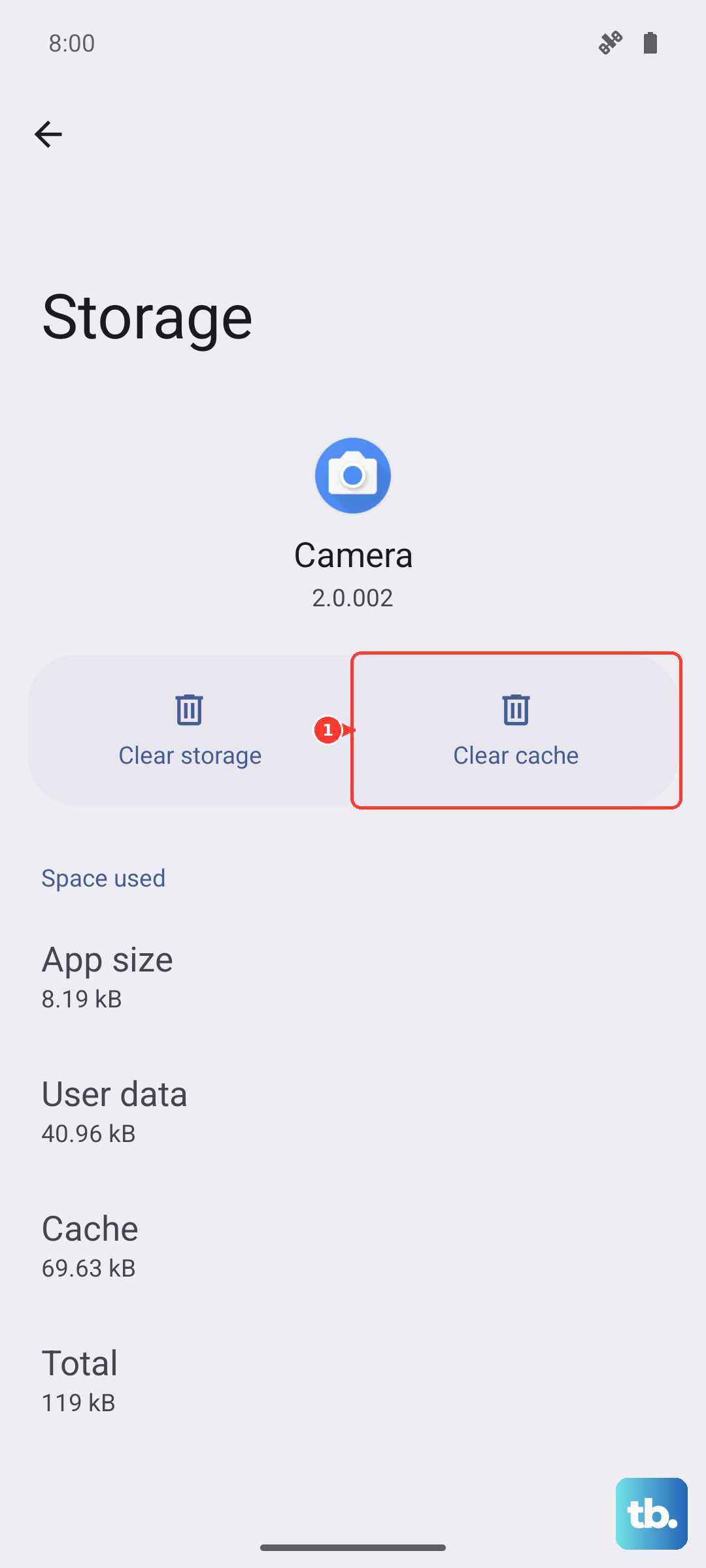
Clearing data resets the keyboard's settings and personal dictionary, but it does not delete your other phone data such as photos or messages.
Make sure the right keyboard is actually switched on
Sometimes the keyboard is fine but the wrong input method is selected, or the keyboard was disabled after an update. On HyperOS, open Settings > Additional settings > Languages & input > Current keyboard to confirm a working keyboard is active, and tap Manage keyboards to enable or disable keyboards.
If the keyboard vanished from the list entirely, re-enable it through Settings > System > Keyboard > "On-screen keyboard" and turn on Gboard. From inside a text field, you can also touch and hold the Globe icon and tap Gboard to switch back to it directly.
Roll back a bad keyboard update
If the trouble started right after a keyboard update, the update itself may be the culprit, and reverting to the version that came with the phone often restores normal typing. Go to Settings > Apps > Gboard > More (top right) > "Uninstall updates".
This drops the app back to its stable, pre-update build. You can let it update again later once a newer, fixed version is available.
Reinstall the keyboard from scratch
When clearing data and rolling back updates have not helped, a clean reinstall replaces any damaged app files. The important part is making sure you can still type during the process.
- 1.Install a second keyboard first so you have a way to enter text.
- 2.Set that second keyboard as your active input method.
- 3.Uninstall Gboard, then reinstall it from Google Play.
- 4.Restart the phone and switch back to Gboard.
Having a backup keyboard in place means you are never stuck without input while the main one is being reinstalled.
Test in Safe Mode to catch a misbehaving app
Safe Mode loads only the system apps, which lets you tell whether another installed app is the thing breaking your keyboard. To enter it, power off the phone, press and hold the power button until the startup logo appears and the phone vibrates, then release the power button and press and hold the volume down button.
Once you are in Safe Mode, try typing. If the keyboard works there, a third-party app is the cause, so restart normally and uninstall apps you added recently, starting with the most recent. If the keyboard still fails in Safe Mode, the problem is not a downloaded app, so move on.
Install the newest HyperOS update
A system-level bug can interfere with text input across the whole phone, and Xiaomi ships fixes through software updates. Connect to Wi-Fi, keep the battery charged, then go to Settings > About phone > Xiaomi HyperOS > Check for updates and install anything that is offered.
Updating the system can resolve input glitches that no amount of keyboard-app tinkering will fix, because the root cause sits below the app.
When only a factory reset or Xiaomi support is left
If you have worked through every step above and the keyboard still will not respond, a factory reset is the last on-device option. Back up your phone first, because this erases everything.
- 1.Go to Settings > About phone > Factory reset.
- 2.Tap Erase all data.
- 3.Choose whether to back up or not.
- 4.Confirm with Factory reset.
Xiaomi warns that with a factory reset, all data, settings, applications, and personal information stored on your phone will be erased, so treat it as a genuine last resort. If the keyboard still fails even after a reset, the issue may need a closer look, so contact Xiaomi official support or an authorized service center.
Frequently Asked Questions
Does the Redmi Note 13 Pro have a physical keyboard I need to repair?
No. It is a full touchscreen smartphone with no built-in physical keyboard, so any "keyboard not working" problem is about the on-screen software keyboard, also called the input method. The fixes target the keyboard app and your input settings, not hardware keys.
Will clearing the keyboard's data delete my photos or messages?
No. Clearing the keyboard's data through Settings > Apps > Gboard resets the keyboard's own settings and personal dictionary, but it does not delete your other phone data. A factory reset is the only step here that erases everything, and you should back up before doing it.
Which keyboard does the Redmi Note 13 Pro use?
On global Android and HyperOS units the keyboard is typically Gboard, the Google Keyboard. You can confirm which one is active, or switch it, through Settings > Additional settings > Languages & input > Current keyboard, and tap Manage keyboards to enable or disable a keyboard.
My phone is completely frozen and I cannot reach Settings. What now?
Force a restart by pressing and holding the Power button for more than 10 seconds until the phone restarts. If it will not restart normally, press and hold the Volume up button and the Power button together for more than 10 seconds during startup to reach Recovery Mode.
What if none of these steps bring the keyboard back?
After trying a factory reset (with a backup made first), contact Xiaomi official support or an authorized service center. Persistent input failure that survives a reset usually needs help beyond the on-device steps.