
When your Redmi Note 13 Pro gets stuck and won't download apps from the Play Store, it can bring your day to a halt. You might see the download progress bar freeze, get a generic error, or nothing happens at all. I've found that on MIUI, this is often a quick fix involving the Play Store's cache or your network settings.
Let's go through the most reliable ways to get your apps downloading again, starting with the simplest solutions you can try right now.
Check Your Internet Connection First
This sounds obvious, but it's the most common culprit. The Redmi Note 13 Pro needs a stable connection, whether on Wi-Fi or mobile data. Pull down the notification shade and make sure your Wi-Fi or 4G/5G icon is active and strong.
If you're on Wi-Fi, try switching to mobile data for a moment. Some public or restricted Wi-Fi networks block the ports the Play Store uses. Just toggle Wi-Fi off and mobile data on from the quick settings panel, then try the download again.
Restart Your Phone
A simple restart clears out temporary glitches in MIUI and the Play Store services. If downloads were working before and suddenly stopped, this often fixes it immediately.
Just press and hold the power button, then tap 'Restart'. If the phone is completely unresponsive, you can force a restart by holding the power button down for about 15 seconds until you feel it vibrate and reboot.
Clear the Google Play Store Cache and Data
Corrupted cache files in the Play Store app itself are a frequent cause of download hangs on Android. Clearing this is a safe first step that doesn't affect your installed apps or account.
Go to Settings > Apps > Manage apps. Find 'Google Play Store' in the list and tap on it. Tap on 'Storage usage' at the bottom, then hit 'Clear cache'. Try your download again.
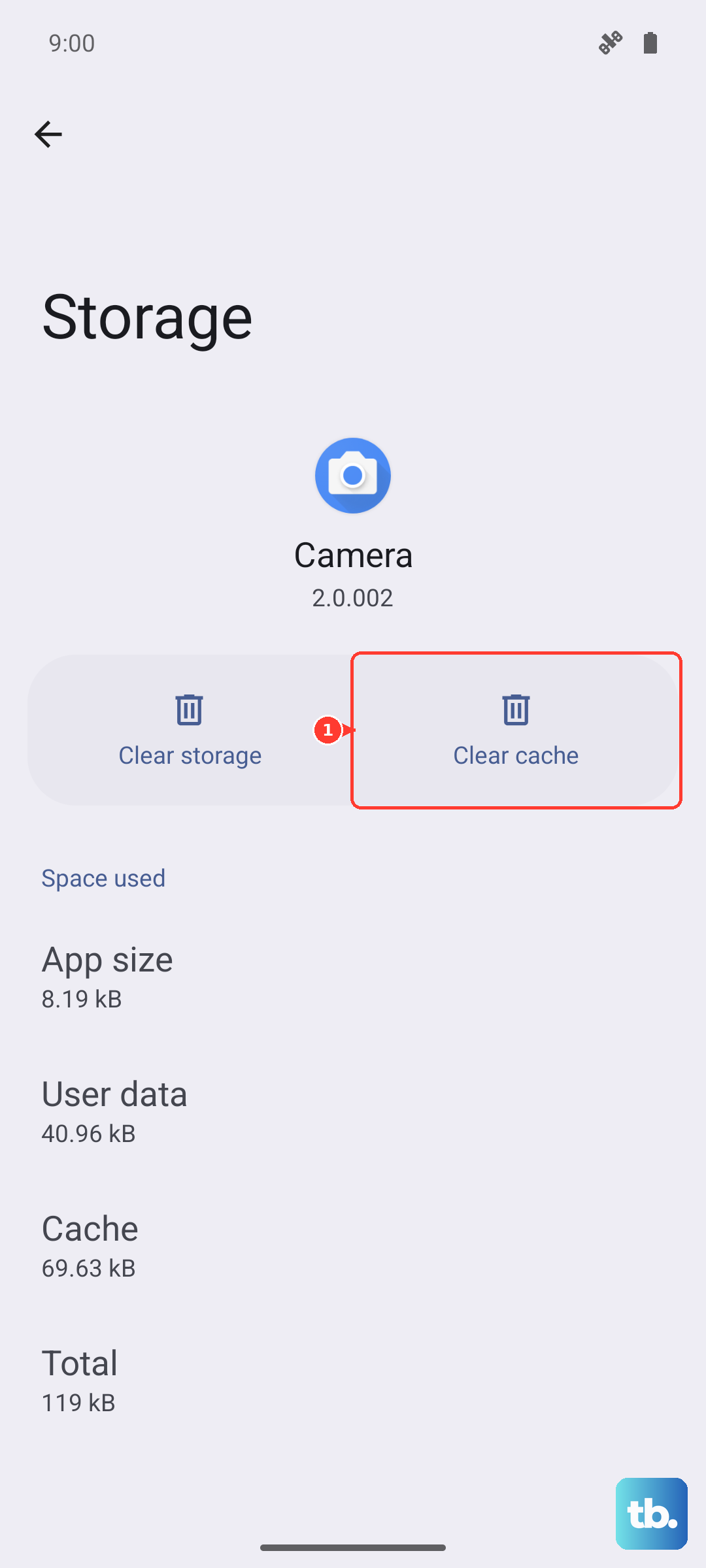
If the problem persists, go back to the same Storage menu and this time tap 'Clear data'. Confirm the action. This will reset the Play Store to its default state, so you might need to re-accept its terms, but your account and downloads remain intact.
Clear Google Play Services Data
Google Play Services works in the background to handle downloads and updates. If its data gets corrupted, it can block all app installations.
Head back to Settings > Apps > Manage apps. Tap the three-dot menu in the top right and select 'Show system apps'. Now find 'Google Play Services' in the much longer list.
Tap on it, go to 'Storage usage', and select 'Manage storage'. Here, tap 'Clear all data'. Confirm the warning. This doesn't delete any personal information, but it resets the service. Your phone will act normally again after a minute.
Check and Correct Date & Time Settings
Google's servers use your device's time to authenticate downloads. If your Redmi Note 13 Pro's clock is off by too much, the Play Store will refuse to connect properly.
Open Settings and go to Additional settings > Date & time. Make sure 'Use network-provided time' is switched on. If it's already on and you're still having issues, turn it off briefly and set the date and time manually, then turn the automatic setting back on.
Review Your Storage Space
The Redmi Note 13 Pro comes with ample storage, but if you've filled it up with photos from that 200MP camera or large games, you might hit the limit. The Play Store needs free space to download and unpack app files.
Go to Settings > About phone > Storage to see how much space you have left. If you're below 1GB free, you'll need to make room. Consider moving photos to Google Photos or deleting unused apps. MIUI also has a 'Cleaner' app that can help remove junk files.
Disable MIUI's Data Saver or Security Restrictions
MIUI includes features that can sometimes be overprotective and block downloads. First, check Data Saver. Go to Settings > SIM cards & mobile networks > Data usage > Data saver. Make sure it's turned off.
Also, check the Security app. Open the 'Security' app on your home screen, tap the settings gear icon, and look for 'Feature settings'. Ensure options related to scanning or blocking app installations aren't interfering with the Play Store.
Remove and Re-add Your Google Account
This refreshes the connection between your phone and Google's servers. Go to Settings > Accounts & sync > Google. Tap on your account email, then tap 'Remove account' at the bottom.
Confirm you want to remove it. Don't worry, this doesn't delete your Google account or data from the cloud. Once removed, go back to 'Accounts & sync', tap 'Add account', and sign back in with your Google details. This often clears up persistent sync and download errors.
Check for System Updates
An outdated version of MIUI on your Redmi Note 13 Pro can have bugs that affect core services like the Play Store. Xiaomi regularly releases updates that fix these kinds of issues.
Go to Settings > About phone > MIUI version. Tap 'Check for updates'. If an update is available, install it. It's a good idea to be plugged in with your 67W charger during this process, as it can take a few minutes and uses battery.
Reset All App Preferences (Non-Destructive)
This is a useful last step before considering a factory reset. It resets all your app permissions, default apps, and background restrictions back to factory defaults without deleting any of your personal data or apps.
Navigate to Settings > Apps > Manage apps. Tap the three-dot menu and select 'Reset app preferences'. Confirm the action. You'll then need to re-grant permissions to apps as you use them, but it can resolve conflicts that were stopping downloads.