
That Snapdragon 8 Elite chip in your Realme GT 7 Pro is a powerhouse, so it's frustrating when things start to stutter. A phone this fast shouldn't lag, but over time, a few common things can bog it down. The good news is you can almost always get that smooth performance back with a few simple tweaks.
I'd start with the most common culprit, which is usually just having too many apps running in the background. Realme UI is pretty good at memory management, but it can still get overwhelmed.
Force a Restart
Before you dive into settings, try the quickest fix. A force restart clears out the phone's temporary memory and stops any stuck processes. Just press and hold the power button for about 10 seconds until you feel it vibrate and the Realme logo appears on screen.
This is different from a normal restart and often fixes temporary glitches causing slowdowns. It's the first thing I try when my phone feels off.
Close Your Recent Apps
Swipe up from the bottom of the screen and hold to enter the recent apps view. You'll see all your open apps in a carousel. Swipe up on each app's preview to close it completely.
Don't worry about closing everything all the time, but if you're experiencing lag, clearing out a dozen apps can free up a significant amount of RAM for the task at hand.
Check for Software Updates
Realme frequently releases updates that include performance optimizations and bug fixes. Go to Settings > About device > tap on Realme UI version. If an update is available, download and install it.
Make sure you're connected to Wi-Fi and have at least a 50% charge, or better yet, plug in that 120W charger. These updates can be large and you don't want the phone to die mid-install.
Free Up Storage Space
When your internal storage gets too full, the phone has less room to operate efficiently, which can slow everything down. Head to Settings > Storage to see what's taking up space.
The "Clean storage" feature can help you quickly identify and delete large files, app caches, and duplicate downloads. Pay special attention to apps like Google Photos or social media apps, which can cache gigabytes of data over time.
Manage or Disable Bloatware
The Realme GT 7 Pro comes with some pre-installed apps you may not use. These can sometimes run background services. You can't uninstall all of them, but you can disable them.
Long-press on an app icon you don't want and tap App info. On the app info page, tap Disable. This stops the app from running or updating. Be careful not to disable critical system apps, but feel free to disable things like "Hot Apps" or "Hot Games" if they're present.
Limit Background Activity
Some apps are overly aggressive about running in the background. You can rein them in. Go to Settings > Battery > More battery settings.
Tap on Background power management. Here, you can see which apps are restricted. You can also manually manage apps by going to App management in settings, selecting an app, and choosing Battery to set it to "Optimize" or "Restrict."
Reduce Animations
The smooth animations in Realme UI look great, but they take processing power. Speeding them up or turning them off can make the phone feel snappier. You'll need to enable developer options first.
Go to Settings > About device and tap on "Version" 7 times until you see a message saying you're a developer. Go back to the main settings menu, find System settings > Developer options. Scroll down to "Drawing" and look for Window animation scale, Transition animation scale, and Animator duration scale.
Change each of these from 1x to .5x to speed them up, or off to disable them completely. The interface will feel much more immediate.
Clear App Caches Individually
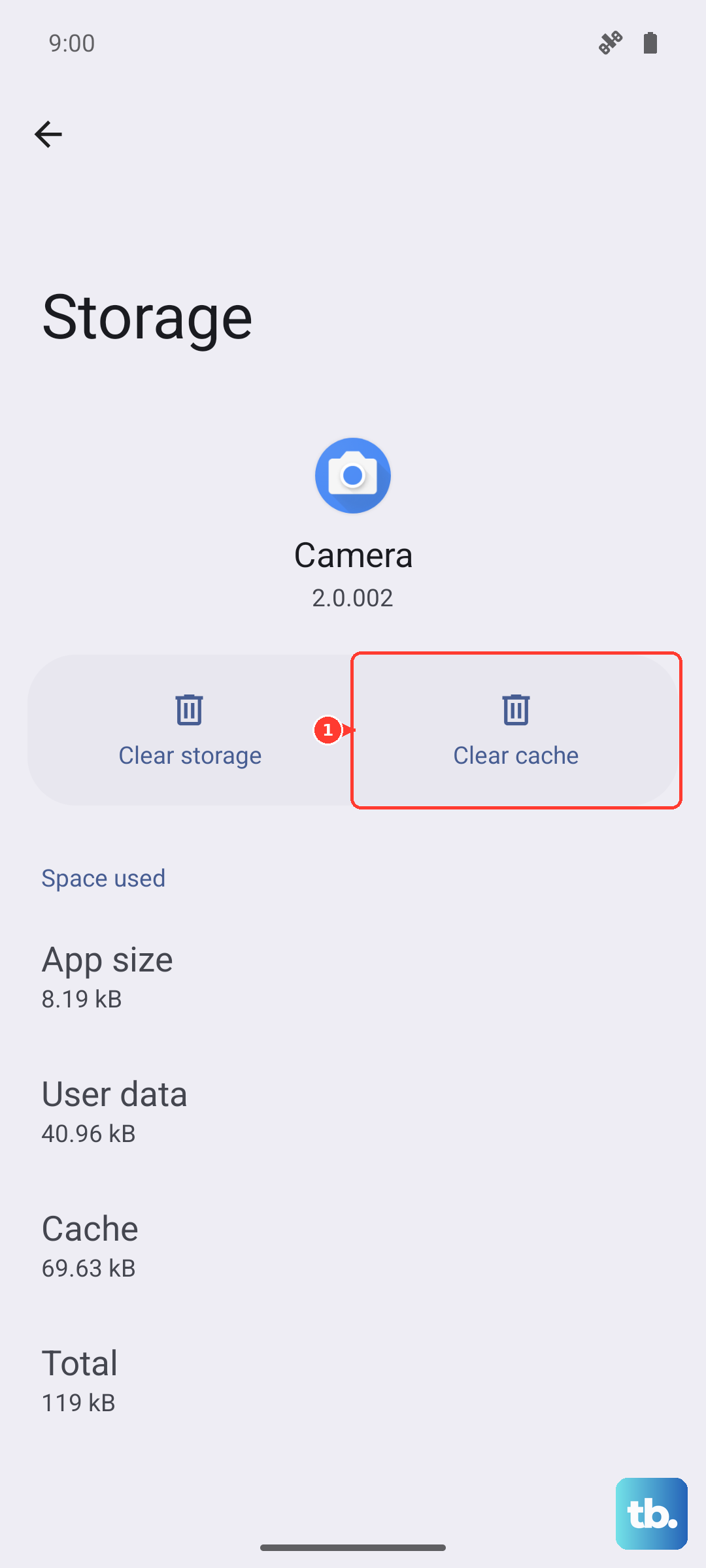
Over time, apps store temporary data that can become corrupted or just too large. Clearing an app's cache can fix performance issues with that specific app. Go to Settings > App management > App list.
Find the app that's lagging, tap on it, then tap Storage usage. You'll see an option to "Clear cache." This won't delete your login info or saved data, just the temporary files.
Monitor for Thermal Throttling
The Snapdragon 8 Elite is powerful but can get warm, especially during long gaming sessions or when using the 120W charger. When the phone gets too hot, it intentionally slows down the processor to cool off, a process called thermal throttling.
If you notice slowdowns specifically while gaming or right after a fast charge, let the phone cool down. Remove any case and avoid using it in direct sunlight. The phone will return to full speed once its temperature drops.
Perform a Network Settings Reset
If your slowdown seems tied to internet connectivity, Wi-Fi, or mobile data, a network reset can help. This clears all your saved networks, Bluetooth pairings, and other related settings.
Go to Settings > System settings > Reset phone. Tap on Reset Wi-Fi, mobile & Bluetooth. You'll need to re-enter Wi-Fi passwords and re-pair Bluetooth devices, but it can resolve network-related lag.
Consider a Factory Reset
If you've tried everything and the phone is still unacceptably slow, a factory reset is the nuclear option. This will erase everything and return the phone to its out-of-the-box state.
Before you do this, make absolutely sure all your important data is backed up. Go to Settings > System settings > Reset phone > Erase all data (factory reset). Follow the prompts. After the reset, set the phone up as new instead of from a backup to avoid potentially restoring the problem.