
When your Realme GT 7 Pro starts having apps crash or freeze, it can really interrupt your day. The Snapdragon 8 Elite chip and 16GB of RAM should handle anything, so when apps misbehave, it's usually a software hiccup. I'd start with a quick restart, as that clears out temporary glitches in seconds.
Just press and hold the power button for about ten seconds until you see the Realme logo appear. The phone will reboot, and that alone often gets things running smoothly again.
Update the App and Your System
Outdated software is a common culprit for crashes. Head to the Google Play Store, tap your profile icon, and go to Manage apps & devices. Check for any pending updates for the problematic app. Developers push fixes all the time.
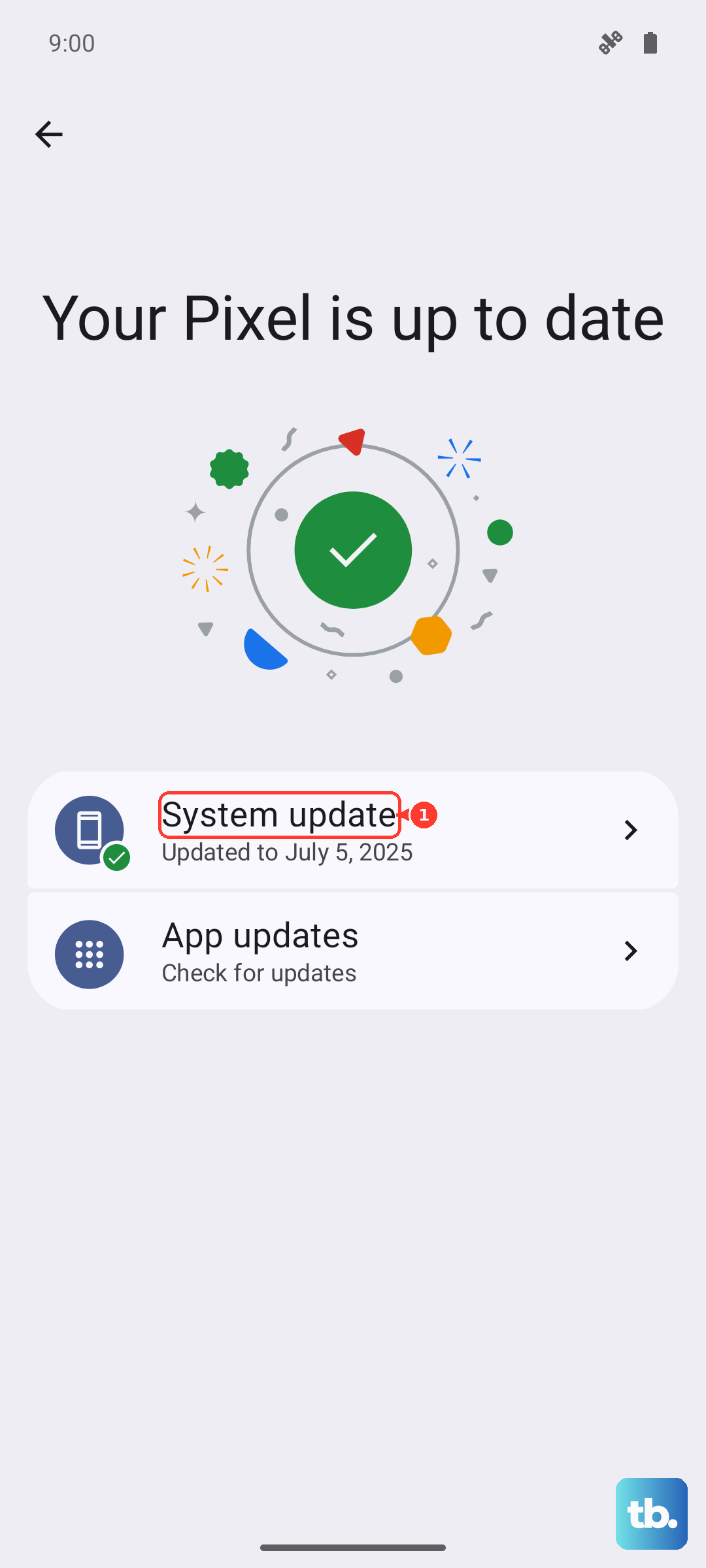
You should also make sure Realme UI 6.0 itself is up to date. Go to Settings > About device > Software update. Installing the latest system update can resolve conflicts that cause apps to fail, especially on a new phone like the 2024 GT 7 Pro.
Force Stop and Clear the App's Cache
If a specific app is acting up, force stopping it gives it a clean slate. Navigate to Settings > Apps > [App Name] and tap Force Stop. Then reopen it.
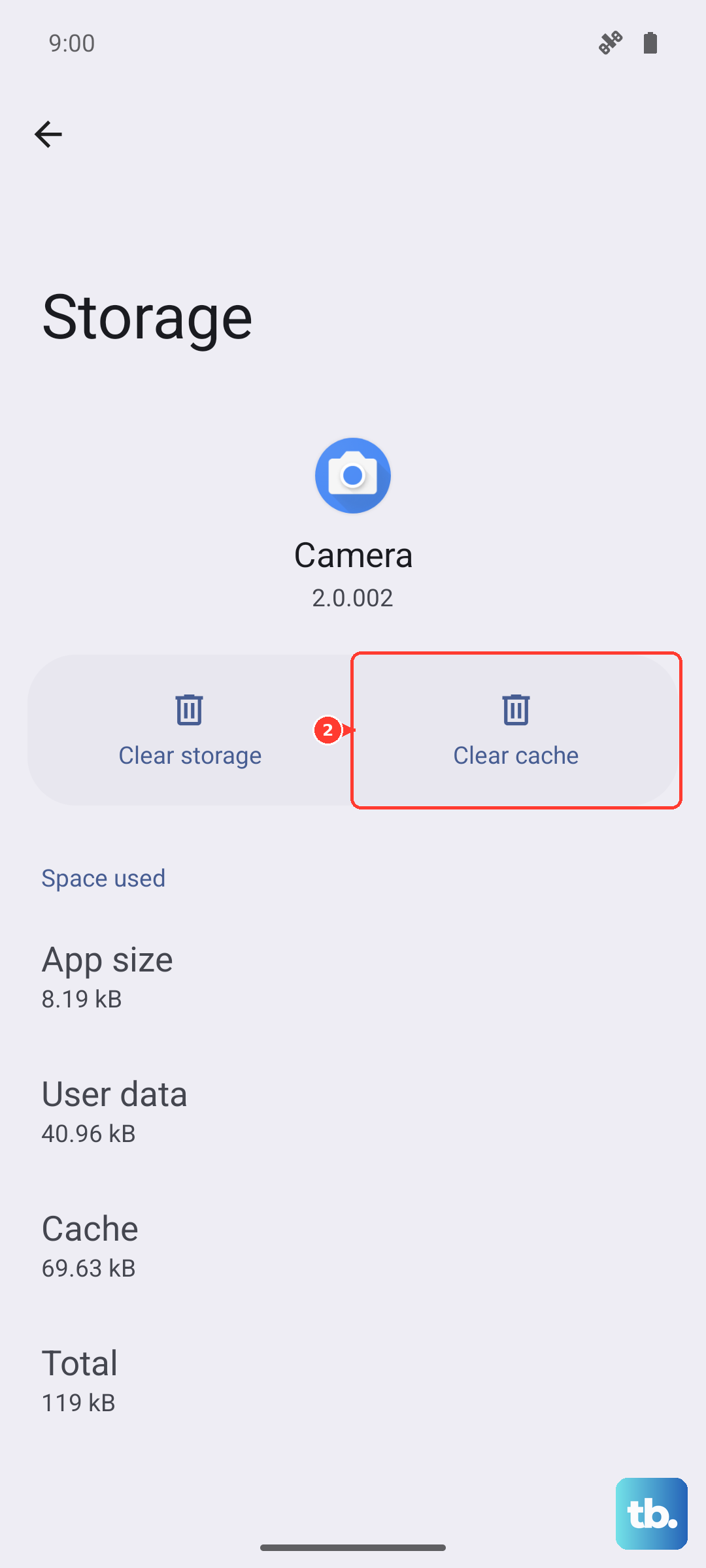
If the problem persists, the app's cached data might be corrupted. In the same app info screen, go to Storage usage and tap Clear cache. This deletes temporary files without touching your login info or saved data. It's a safe first step before clearing all data.
Check Your Phone's Storage and Memory
Even with ample storage, if it's nearly full, apps can struggle to operate. The GT 7 Pro has a massive 6500mAh battery but no wireless charging, so you're likely using that 120W plug a lot, which can generate heat. High temperatures can sometimes cause system instability.
Close any apps running in the background by using the recent apps overview and swiping them away. Also, consider moving photos or videos to cloud storage or a computer if your internal storage is getting low. Apps need free space to function properly.
Examine Your Internet Connection
Apps that rely on a live connection, like social media or banking apps, may crash if the network is unstable. Try toggling Airplane mode on and off from the quick settings panel to reset your mobile and Wi-Fi radios.
You can also try switching between Wi-Fi and your mobile data to see if the issue is network-specific. A weak or fluctuating signal can sometimes cause the app to close unexpectedly.
Reinstall the Problematic App
When an app is consistently crashing, a fresh install can work wonders. Uninstalling removes all of its data and files, so be sure you know your login details for that app first.
Long-press the app icon on your home screen and select Uninstall, or remove it through the Play Store. Then, just search for it again in the Play Store and reinstall it. This gives you a completely clean version of the app.
Boot Into Safe Mode
This is a great way to check if a third-party app you installed is causing the trouble. Safe mode temporarily disables all apps you downloaded. Press and hold the power button until the power off menu appears.
Then, long-press the "Power off" option on your screen. A prompt will ask if you want to reboot to Safe Mode. Tap it. If the crashes stop in Safe Mode, you know a downloaded app is the cause. You'll need to uninstall recent apps one by one to find the culprit.
Reset App Preferences
This resets all your app-related settings, like permissions, default apps, and background restrictions, back to their original state. It won't delete any of your personal app data. Go to Settings > Apps > Menu (three dots) > Reset app preferences.
You'll have to re-grant permissions when you use apps again, but it can fix strange conflicts, especially after a major OS update to Android 15.
Perform a Factory Reset
If you've tried everything and apps are still crashing, a factory reset is the final step. This will erase everything on your phone, so it's absolutely critical to back up your photos, contacts, and important files first. Use Google Drive or transfer files to a computer.
Once backed up, go to Settings > Additional settings > Backup and reset > Erase all data (factory reset). Follow the prompts. After the reset, set up your phone as new and test the problematic app before restoring a full backup, in case the backup contained corrupted data.